

Are you the author? Sign in to claim
A multi-agent chatroom for AutoGen agents
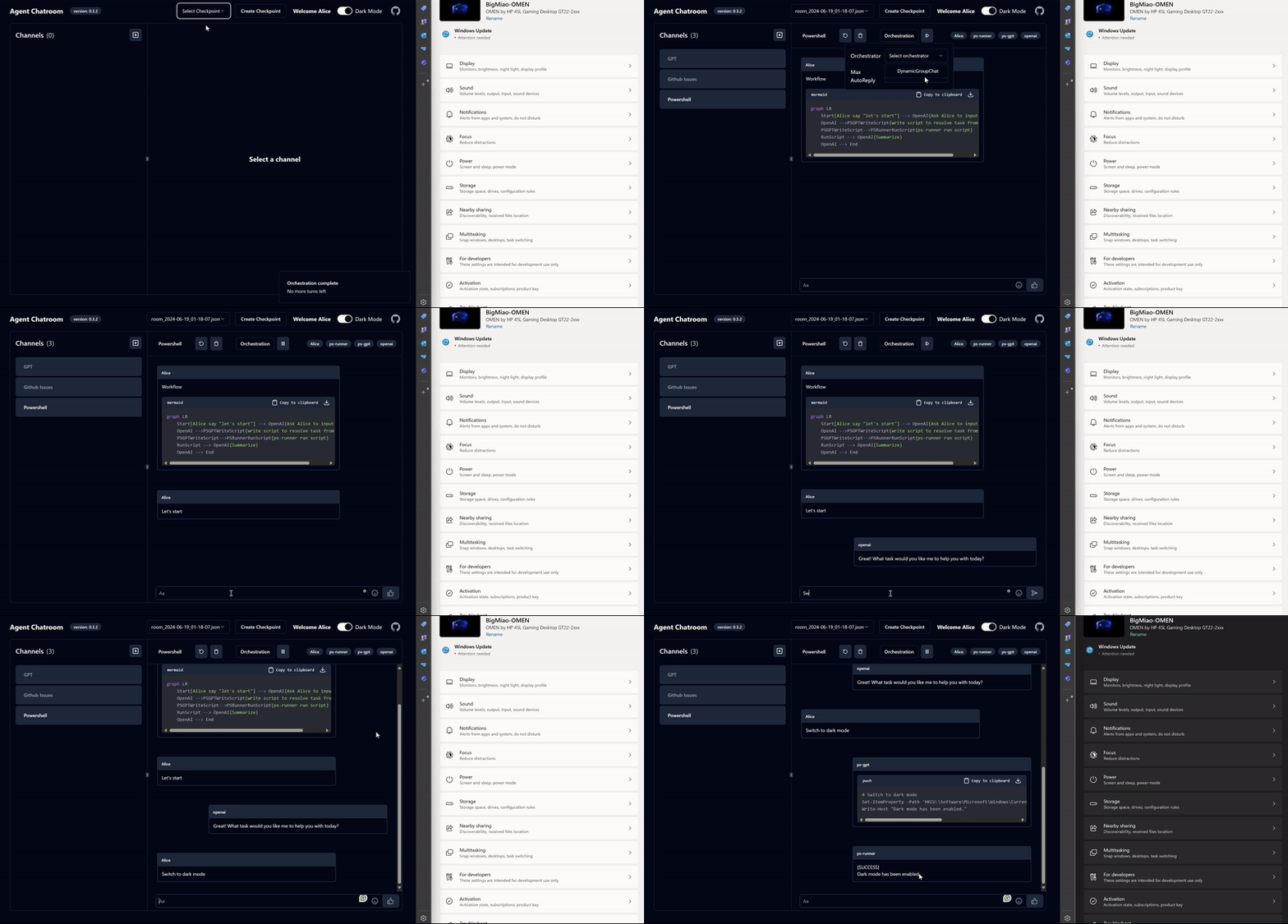
ChatRoom.Client as a restful server. For more information, see Server mode.You can create an agent by writing code and add it to chatroom. See code-first examples for how to do it.
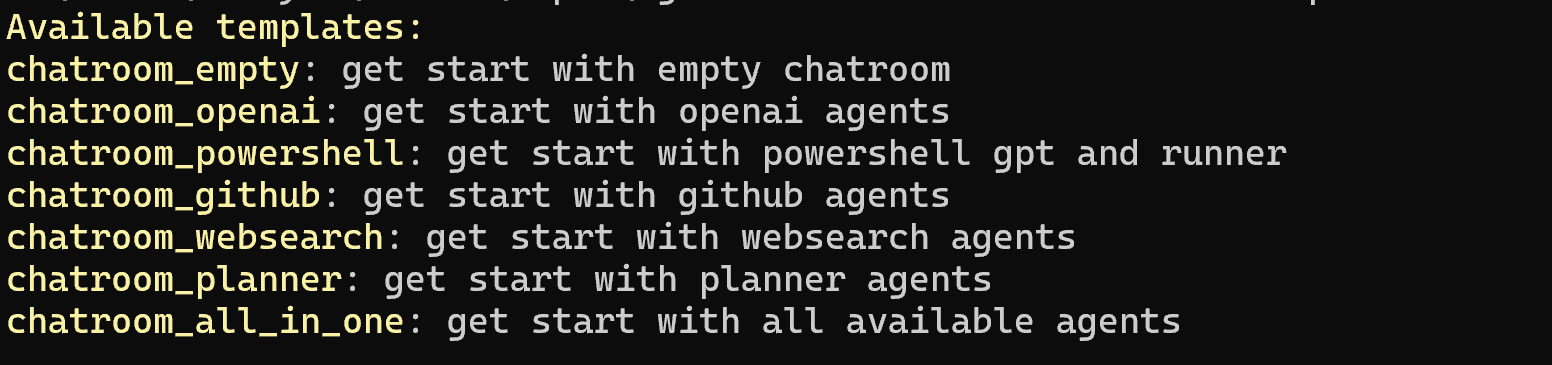
Other than the code-first approach, Agent Chatroom also provides a series of templates to help you get started quickly. Use the list-templates command to list all available templates and the create command to create a configuration from the selected template.
Agent Chatroom is published as a dotnet tool on nuget.org. You can install the latest Agent Chatroom client from nuget.org by running the following command, this will install the ChatRoom.Client globally:
dotnet tool install --global ChatRoom.Client
[!TIP]
createcommand also generates a json schema file for this configuration to provide intellisense in your editor. Use it wisely can greatly save your effort on writing configuration.
chatroom list-templates # list all available templates
The command will list all available templates.
# Create
chatroom create -t chatroom_openai -o chatroom_openai.json
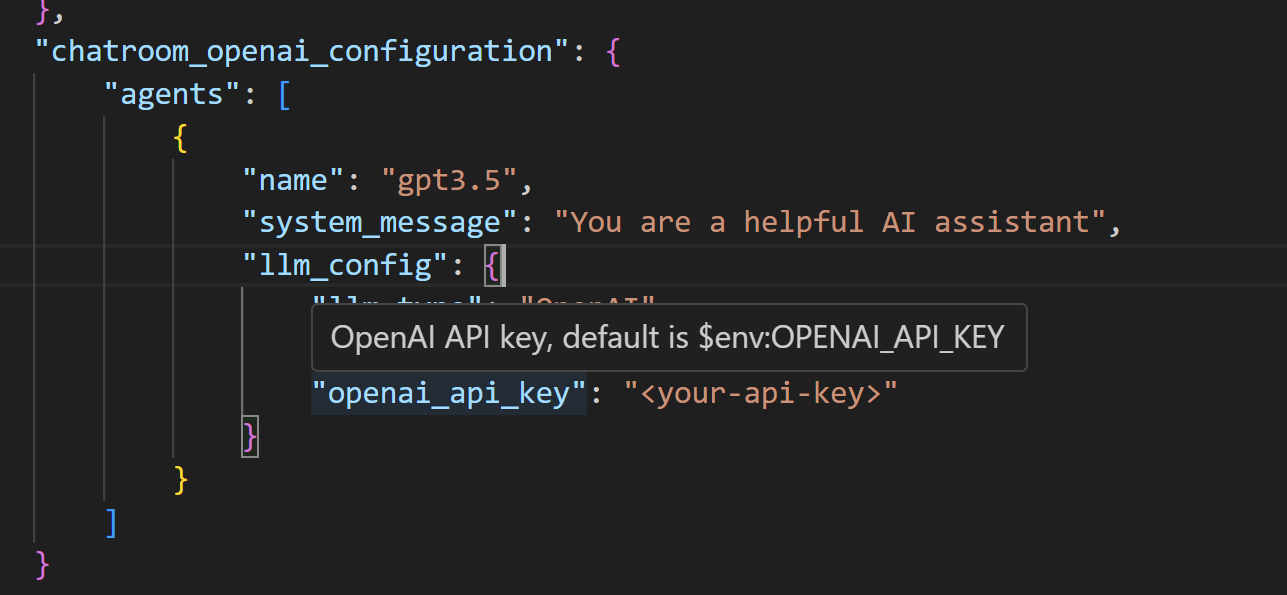
After filling in the OpenAI key in the configuration file, you can start the chatroom client with the following command.
# start chatroom server
chatroom run -c chatroom_openai.json
You will see the following output from chatroom client which indicates the web UI is available at http://localhost:51237 and https://localhost:51238. You can navigate to the web UI in your browser and start chatting with the agents.
web ui is available at: http://localhost:51237;https://localhost:51238
We provide the following configuration to help you get started quickly. More configurations will be added in the future.
ps-gpt and ps-runner to help you write and run PowerShell scripts.To start a restful backend from ChatRoom.Client, add a server_config section to the client configuration file.
// file: chatroom-client-server.json
"server_config": {
    "environment": "Development", // one of Development, Staging, Production.
    "urls": "http://localhost:51234;https://localhost:51235"
}
Then, run the following command to start the server. And the server will start on the http://localhost:51234 and https://localhost:51235.
chatroom -c chatroom-client-server.json
When the environment is set to Development, the server will automatically start the Swagger UI at /swagger and /swagger/index.html. You can also access the complete swagger schema at /swagger/v1/swagger.json, or visit swagger-schema.json in this repository.
⚠️ Experimentelle Skill-Sammlung für deutsches Recht (Arbeits-, Gesellschafts-, Insolvenz-, Datenschutz-, Prozessrecht u
Manage multiple Claude Code agents from TUI or Web with tmux and git worktrees
Project management using GitHub Issues + Git worktrees for parallel agent execution
Core skills library for Claude Code with 20+ battle-tested skills including TDD, debugging, and brainstorming
