

Are you the author? Sign in to claim
AudacityMCP connects any MCP-compatible AI assistant to [Audacity](https://www.audacityteam.org/), giving it full contro
AI-powered audio editing in Audacity through the Model Context Protocol




Quick Start • Why audacity-mcp-max? • Pipelines • Tool Reference • Troubleshooting
audacity-mcp-max connects any MCP-compatible AI assistant to Audacity, giving it full control over audio editing through 132 tools spanning effects, cleanup, mastering, transcription, and more. Talk to your AI assistant and it edits your audio in real-time.
No cloud. No API keys for audio processing. Everything runs locally through Audacity's named pipe interface.
Compatibility: audacity-mcp-max currently works with Audacity 3.x only. Audacity 4.x is not yet supported — we hope to add support in the future.
audacity-mcp-max works with any AI client that supports the Model Context Protocol:
Claude Code plugin (recommended - macOS and Linux only)
Windows: the plugin's launcher is a POSIX shell script and cannot start on Windows. Skip straight to Step 2 and use
install.bat.
/plugin marketplace add robworks-code/robworks-claude-code-plugins
/plugin install audacity@robworks-claude-code-plugins
Then run /audacity:setup. It checks the parts people get wrong - uv,
mod-script-pipe, whether Audacity needs to be closed before its config can be
changed - and finishes by verifying a real round trip. Needs
uv; no pip step and nothing to add to your MCP
client config. It replaces step 2 below - do not also run the installer, which
would install a second copy through pip. Once /audacity:setup finishes, go
straight to Start editing.
Without the plugin, get the source first:
Option A: Click the green Code button above → Download ZIP → extract to a folder
Option B: Clone with git:
git clone https://github.com/robworks-code/audacity-mcp-max.git
Open the folder and run:
install.batbash install.shThe installer does 3 things: installs
audacity-mcp-maxfrom GitHub, enables mod-script-pipe in Audacity, and configures Claude Desktop — no manual JSON editing needed.
If you're not using Claude Desktop, install manually with pip install git+https://github.com/robworks-code/audacity-mcp-max.git and add to your client's MCP config:
{
  "mcpServers": {
    "audacity": {
      "command": "audacity-mcp-max"
    }
  }
}
Check your client's MCP documentation for the config file location.
Open Audacity, load some audio, then talk to your AI:
"Clean up this podcast recording"
"Master this track for Spotify, it's EDM"
"Transcribe this and add labels at each sentence"
"Add reverb with a large room, then export as FLAC"
Audacity must be open first. audacity-mcp-max communicates through Audacity's named pipe — it can't launch Audacity for you.
See the full Installation Guide for detailed setup on all platforms and MCP clients.
Without audacity-mcp-max: You manually navigate menus, tweak effect parameters by ear, apply effects one at a time, look up ACX specs, and repeat until it sounds right.
With audacity-mcp-max: You describe what you want in plain English and the AI handles the rest — picking the right effects, setting industry-standard parameters, and chaining operations together.
| Manual Audacity | With audacity-mcp-max | |
|---|---|---|
| Podcast cleanup | 5+ steps across different menus, guessing compressor settings | "Clean up this podcast" — one sentence |
| Music mastering | Research genre-appropriate EQ/compression, apply each manually | "Master this for Spotify, it's hip-hop" — genre-tuned presets |
| Noise removal | Effect → Noise Reduction → Get Profile → select all → apply | "Remove the background noise" — automatic profiling |
| Batch operations | Repetitive menu navigation for each operation | Describe the full chain and watch it happen |
| Transcription | Export audio, use external tool, import results back | "Transcribe this and add labels" — stays in Audacity |
| Learning curve | Know which effects exist and what parameters to use | Just describe the result you want |
audacity-mcp-max is especially useful for:
You:  "Clean up this podcast recording"
AI:   Runs auto_cleanup_podcast → HPF 80Hz → noise reduction → compression → safe loudness check

You:  "Master this track for Spotify, it's EDM"
AI:   Runs auto_master_music style=edm → HPF 30Hz → click removal → compression 2.5:1 → bass +2dB → loudness check

You:  "This is a noisy live recording, fix it up"
AI:   Runs auto_cleanup_live → HPF 100Hz → click removal → noise reduction 18dB → compression 5:1

You:  "Transcribe this interview and add labels"
AI:   Runs transcribe_to_labels → faster-whisper transcription → Audacity labels at each timestamp

You:  "Add reverb to the vocals, then export as FLAC"
AI:   select region → reverb effect → export to FLAC
| Category | Tools | Highlights |
|---|---|---|
| Effects | 30 | Reverb, echo, pitch shift, tempo change, EQ, phaser, distortion, paulstretch, HPF/LPF, bass & treble, tremolo, wahwah |
| Cleanup & Mastering | 18 | Noise reduction, compressor, limiter, 9 one-click pipelines, analysis tool |
| Editing | 13 | Cut, copy, paste, split, join, trim, silence, duplicate, undo, redo |
| Project | 13 | New, open, save, import/export (WAV, MP3, FLAC, OGG, AIFF) |
| Track | 15 | Add mono/stereo, remove, set properties, mix & render, mute/solo, pan, volume |
| Selection | 12 | Select all/none/region/tracks, zero crossing, cursor positioning |
| Transport | 7 | Play, stop, pause, record, play region, get position |
| Analysis | 6 | Contrast, clipping detection, spectrum, beat finder, sound labeling |
| Generation | 5 | Tone, noise, chirp, DTMF, rhythm track |
| Transcription (Experimental) | 7 | Full/selection transcribe, to labels, to SRT/VTT/TXT, model preload |
| Labels | 6 | Add, add at time, get all, edit, import/export |
audacity-mcp-max includes 9 one-click pipelines for common audio tasks. Each pipeline is designed to be safe for badly recorded audio — it will never boost your audio dangerously. Pipelines clean up and improve your audio, then you can manually adjust loudness afterward if needed.
job_id backcheck_pipeline_status every 15-30 seconds to monitor progressSafety rule: Pipelines only reduce peaks if they're too hot. They never boost loudness. If you want to hit a specific LUFS target (e.g. -14 for Spotify), ask the AI to run
loudness_normalizeafter you've checked the results look good.
auto_analyze_audio — Analyze before processingMeasures your audio and recommends the best pipeline. Run this first if you're not sure what to do.
You: "Analyze this audio"
→ Returns: peak level, noise floor, clipping status, recommended pipeline
auto_cleanup_audio — Safe cleanup onlyCleans up noise and artifacts without changing loudness at all. Use when levels are already fine.
You: "Just clean up the noise, don't change the volume"
→ DC offset removal → HPF 80Hz → noise reduction → click removal (optional)
auto_cleanup_podcast — Podcast / voiceoverProfessional broadcast processing for spoken word.
You: "Clean up this podcast recording"
→ DC offset → HPF 80Hz → noise reduction 12dB → compression 3:1 → safe loudness check
auto_audiobook_mastering — Audiobook (ACX/Audible)Targets ACX requirements for audiobook distribution.
You: "Master this for ACX / Audible"
→ DC offset → HPF 80Hz → noise reduction 12dB → compression 2.5:1 → safe loudness check → peak cap -3dB
auto_cleanup_interview — Interview / dialogueLight touch for conversations — preserves natural dynamics.
You: "Clean up this interview recording"
→ DC offset → HPF 80Hz → noise reduction 8dB → compression 2.5:1 → safe loudness check
auto_cleanup_vocal — Singing / studio vocalTuned for vocal recordings with presence EQ for clarity.
You: "Process this vocal recording"
→ DC offset → HPF 100Hz → noise reduction 10dB → compression 3:1 → presence EQ (+3dB treble, -1dB bass) → safe loudness check
auto_cleanup_live — Live / field / noisy recordingAggressive cleanup for noisy environments. First 0.5s must be ambient noise for profiling.
You: "This is a noisy live recording, clean it up"
→ DC offset → HPF 100Hz → click removal → noise reduction 18dB → compression 5:1 → safe loudness check
auto_master_music — Music masteringGenre-tuned mastering with 6 presets: edm, hiphop, rock, pop, classical, acoustic.
You: "Master this hip-hop track"
→ HPF 30Hz → click removal → compression 2:1 → bass +3dB treble +1dB → safe loudness check

You: "Master this for a classical album"
→ HPF 30Hz → click removal → compression 1.3:1 (very gentle) → no EQ → safe loudness check
| Preset | HPF | Compression | Bass EQ | Treble EQ |
|---|---|---|---|---|
| EDM | 30 Hz | 2.5:1 / 80ms | +2 dB | +1 dB |
| Hip-Hop | 30 Hz | 2:1 / 100ms | +3 dB | +1 dB |
| Rock | 40 Hz | 2:1 / 100ms | 0 dB | +1 dB |
| Pop | 35 Hz | 2:1 / 80ms | +1 dB | +1.5 dB |
| Classical | 30 Hz | 1.3:1 / 200ms | 0 dB | 0 dB |
| Acoustic | 30 Hz | 1.5:1 / 150ms | 0 dB | 0 dB |
auto_lofi_effect — Creative lo-fi / vintageApply a warm, vintage lo-fi sound. Presets: light, medium, heavy.
You: "Give this a lo-fi vibe"
→ HPF → LPF (muffled highs) → bass/treble warmth → compression 2:1 → safe loudness check
Pipelines intentionally leave loudness alone (they only reduce if peaks are clipping). To hit a streaming target:
You: "Now normalize this to -14 LUFS for Spotify"
→ AI uses loudness_normalize tool with lufs_level=-14

You: "Normalize to -16 LUFS for podcast"
→ AI uses loudness_normalize tool with lufs_level=-16
Why not do this automatically? LUFS normalization can boost quiet/badly recorded audio by 10-20 dB, which blows it out. By separating cleanup from loudness, you get to check the results before the final loudness step.
This feature is experimental and requires separate setup. Everything else works without it.
Powered by faster-whisper — runs entirely offline, your audio never leaves your machine:
tiny, base, small, medium, large-v3Setup required before first use: See Transcription Setup for installation steps.
The server ships as a Claude Code plugin, alongside the existing pip/installer paths.
/plugin install audacity@robworks-claude-code-plugins, no pip step and nothing to add to your MCP client config - the launcher resolves uv itself and runs the server straight from the plugin's own checkout (macOS and Linux; Windows still uses install.bat)/audacity:setup walks through uv, mod-script-pipe, and a real round-trip check; /audacity:doctor diagnoses a failing connection across both the plugin side and the server sidefaster-whisper (and the ctranslate2/onnxruntime it pulls in) moved out of the base install into a transcription extra - pip install "audacity-mcp-max[transcription]", or /audacity:setup --transcription from the plugin. The 7 transcription tools still register either way; calling one without the extra installed raises a clean error naming the fixinstall.sh enabled mod-script-pipe without checking whether Audacity was running - Audacity rewrites its config on quit, so the change was silently reverted the next time the user closed the app, after the installer had already reported success. It now refuses to write while Audacity is running and says whyaudacity_health_checkAsk your assistant to run audacity_health_check before debugging anything else.
It reports whether each script pipe exists, how old the pipe files are (they
outlive Audacity, so their presence alone proves nothing), whether Audacity
actually answers a round trip, which copy of the client is installed, and the
default project sample rate — with the specific next step for whatever it finds.
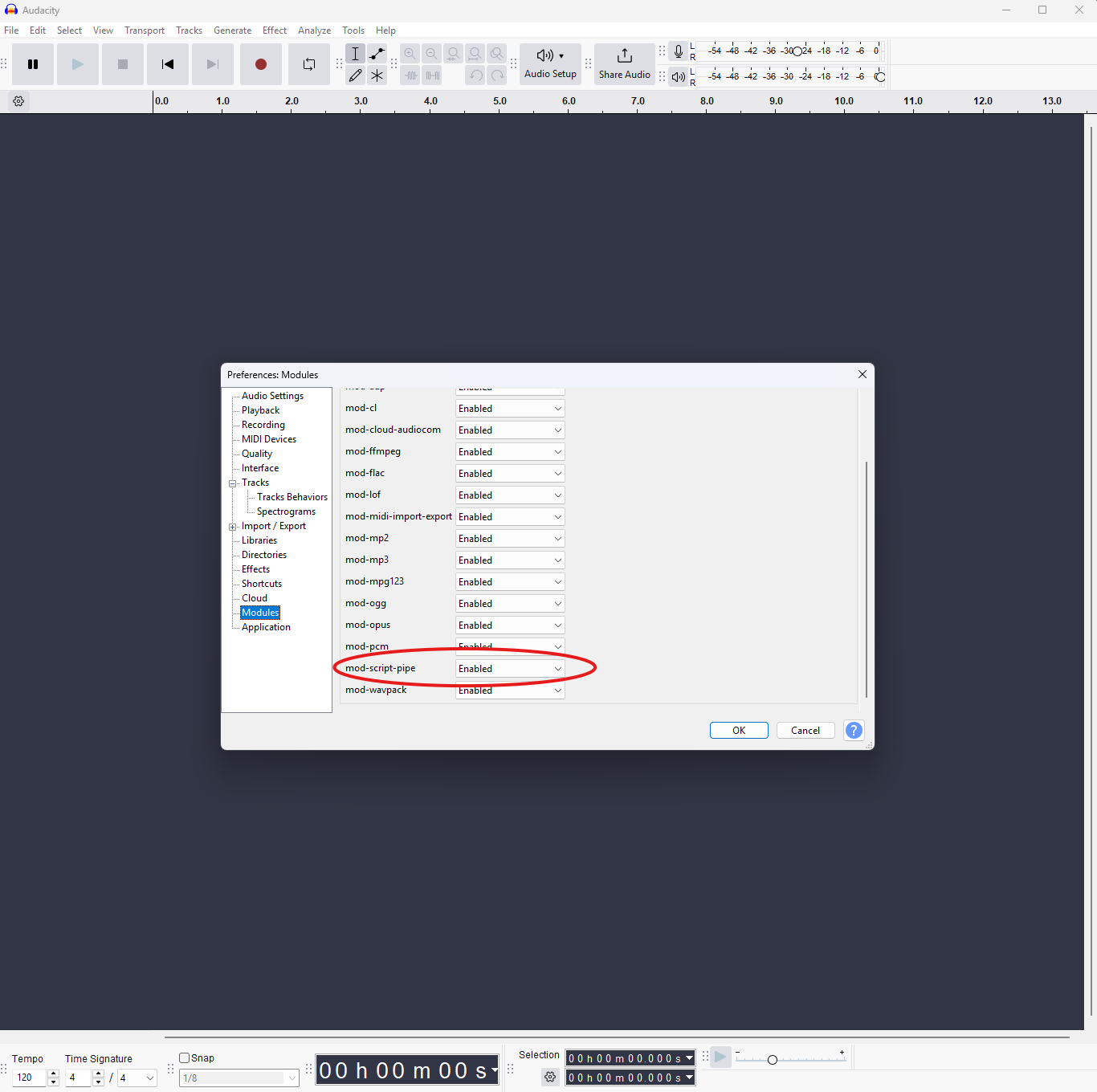
The installer enables this automatically, but if it didn't work (e.g. Audacity was never opened before), enable it manually:
mod-script-pipe to Enabled
| Problem | Fix |
|---|---|
| "Pipe not found" | Open Audacity first. Make sure mod-script-pipe is enabled (see above). Restart Audacity after enabling. |
| "Pipe timeout" | Audacity is busy. Wait for it to finish — some effects take minutes on long files. |
| Connection works once then fails | The pipe disconnected (Audacity crash or restart). Just try again — audacity-mcp-max auto-reconnects. |
| "Access denied" (Windows) | Audacity and your AI client must run as the same user. Don't mix admin and non-admin. |
| Problem | Fix |
|---|---|
| Pipeline blows out / clips the audio | This shouldn't happen anymore — pipelines only reduce peaks, never boost. If it does, undo (Ctrl+Z) and report the issue. |
| "A pipeline is already running" | Only one pipeline can run at a time. Use check_pipeline_status with your job_id to monitor the current one. |
| Pipeline finishes but audio is too quiet | That's by design — pipelines don't boost. Ask the AI: "Normalize to -14 LUFS" after checking results. |
| Noise reduction sounds metallic/warbled | The first 0.5 seconds of your track must be pure silence/room noise for profiling. If it's not, trim to add silence or use auto_cleanup_audio with remove_noise=False. |
| Pipeline step failed (in warnings) | Individual steps can fail without stopping the pipeline. Check the warnings field in check_pipeline_status for details. |
| Want | Do This |
|---|---|
| Remove background noise | Make sure the first 0.5s of your track is pure room tone (no speech/music). The pipeline uses this to build a noise profile. |
| Fix clipping | Run auto_analyze_audio first. If it detects clipping, use auto_cleanup_audio before other pipelines. |
| Hit -14 LUFS for Spotify | Run a cleanup pipeline first, check the results look good, then ask the AI to apply loudness_normalize at -14 LUFS. |
| Hit -16 LUFS for podcast | Same approach — cleanup first, LUFS second. |
| ACX audiobook compliance | Use auto_audiobook_mastering. It targets RMS -20 dB with a -3.5 dB peak cap (safety margin). |
| Quick cleanup without changing volume | Use auto_cleanup_audio — it only removes noise and artifacts, no loudness changes. |
| Problem | Fix |
|---|---|
| "No module named faster_whisper" | Run pip install faster-whisper. Transcription is optional — everything else works without it. |
| Model download fails | Check internet and retry. Models cache locally after first download. |
| Pipes missing in /tmp (macOS/Linux) | Check Audacity is running and mod-script-pipe is enabled. Check Audacity's console for errors. |
| Ubuntu: nothing responds even though Audacity is open | Snap Audacity keeps its pipes in a private /tmp. They are found automatically under /proc/<pid>/root/tmp; if that fails, set AUDACITY_PIPE_DIR to the directory holding them. See Snap Audacity on Ubuntu. |
┌──────────────┐     stdio      ┌──────────────┐   named pipe   ┌──────────────┐
│  MCP Client  │◄──────────────►│ audacity-mcp-max  │◄──────────────►│   Audacity   │
│(AI assistant)│    (JSON-RPC)  │   FastMCP    │  (commands)    │              │
└──────────────┘                └──────────────┘                └──────────────┘
                                       │
                                       ├── audacity_mcp/main.py          (entry point)
                                       ├── audacity_mcp/audacity_client.py (pipe I/O)
                                       ├── audacity_mcp/tool_registry.py  (auto-loader)
                                       └── audacity_mcp/tools/            (11 modules)
mod-script-pipe. No network exposure, no port conflicts.exec/eval — Every operation maps to a static handler with input validation. No arbitrary code execution.async. Blocking pipe I/O runs in an executor pool with configurable timeouts.audacity_mcp/tools/, export a register(mcp) function, and it's automatically discovered.audacity-mcp-max/
├── audacity_mcp/
│ ├── main.py # FastMCP server entry point
│ ├── audacity_client.py # Cross-platform named pipe client
│ ├── tool_registry.py # Auto-discovers and registers tool modules
│ └── tools/
│ ├── analysis_tools.py # Audio analysis (contrast, spectrum, beats)
│ ├── cleanup_tools.py # Noise reduction, mastering, 9 pipelines
│ ├── edit_tools.py # Cut, copy, paste, split, join, trim
│ ├── effects_tools.py # Reverb, echo, pitch, EQ, filters
│ ├── generate_tools.py # Tone, noise, chirp, DTMF generation
│ ├── label_tools.py # Label management
│ ├── project_tools.py # Project/file operations
│ ├── selection_tools.py # Selection and cursor control
│ ├── track_tools.py # Track management
│ ├── transcription_tools.py # Whisper-based transcription
│ └── transport_tools.py # Playback and recording control
├── audacity_mcp_shared/
│ ├── constants.py # Pipe paths, timeouts, allowed formats
│ ├── error_codes.py # Typed error codes (pipe/command/validation)
│ └── pipe_protocol.py # Command formatting and response parsing
├── tests/ # 60 tests
├── docs/
│ ├── INSTALLATION.md # Detailed setup guide
│ └── TOOLS.md # Complete tool reference
└── pyproject.toml
# Install dev dependencies
pip install -e ".[dev]"

# Run tests
pytest tests/ -x -q
audacity_mcp/tools/ (or add to an existing one)register(mcp: FastMCP) function@mcp.tool() decorators# audacity_mcp/tools/my_tools.py
from mcp.server.fastmcp import FastMCP
from audacity_mcp_shared.error_codes import AudacityMCPError, ErrorCode
def register(mcp: FastMCP):
from audacity_mcp.main import client
@mcp.tool()
async def my_custom_effect(intensity: float = 0.5) -> dict:
"""Apply my custom effect to the selected audio."""
if not 0 <= intensity <= 1:
raise AudacityMCPError(ErrorCode.VALUE_OUT_OF_RANGE, "intensity must be 0-1")
return await client.execute_long("MyEffect", Intensity=intensity)
See CONTRIBUTING.md for full guidelines.
If audacity-mcp-max has saved you time or helped with your audio projects, consider buying me a coffee:

Your support helps keep this project maintained and free for everyone.
Apache License 2.0 — see LICENSE for details.
Built by Daniel Hodgetts • 𝕏 @daehonz1
Run Claude Code as an MCP server so any agent can delegate coding tasks to it
 @microsoft✓ Official
Browser automation using accessibility snapshots instead of screenshots
 @googleapis✓ Official
Google's universal MCP server supporting PostgreSQL, MySQL, MongoDB, Redis, and 10+ databases
 @github✓ Official
Official GitHub integration for repos, issues, PRs, and CI/CD workflows