

Are you the author? Sign in to claim
MCP (Model Context Protocol) server for Chrome automation using Puppeteer. Persistent browser sessions, visual testing,
AI-powered Chrome automation through natural language. No more fighting with CSS selectors, XPath expressions, or brittle test scripts. Just tell your AI assistant what you want to do on a web page, and ChromeTools MCP makes it happen.
For AI Agents & Developers:
Perfect for:
Stop writing brittle automation scripts. Start describing what you want in plain English.
The easiest way to install for Claude Code users:
claude mcp add chrometools -- npx chrometools-mcp
This command will automatically configure the MCP server in your Claude Code settings.
Add to your Claude Desktop configuration file:
macOS/Linux: ~/Library/Application Support/Claude/claude_desktop_config.json
Windows: %APPDATA%\Claude\claude_desktop_config.json
{
  "mcpServers": {
    "chrometools": {
      "command": "npx",
      "args": ["chrometools-mcp"]
    }
  }
}
Step 1: Open MCP Settings in Cursor
Cmd + , / Ctrl + ,)Step 2: Edit MCP Configuration
chrometools to the mcpServers object:{
"mcpServers": {
"chrometools": {
"command": "npx",
"args": ["chrometools-mcp"]
}
}
}
If you already have other MCP servers configured, just add chrometools to the existing list:
{
"mcpServers": {
"existing-server": {
"command": "npx",
"args": ["some-other-mcp"]
},
"chrometools": {
"command": "npx",
"args": ["chrometools-mcp"]
}
}
}
Step 3: Save and Restart
Step 4: Test the Installation
Step 1: Open Agent session in Antigravity
Step 2: Click the "…" dropdown at the top of the editor's side panel
Step 3: Select "MCP Servers" to open the MCP Store
Step 4: Click "Manage MCP Servers" at the top of the MCP Store
Step 5: Click "View raw config" in the main tab
Step 6: Edit mcp_config.json (located in ~/.gemini/antigravity/ directory):
{
  "mcpServers": {
    "chrometools": {
      "command": "npx",
      "args": ["chrometools-mcp"]
    }
  }
}
Step 7: Save the file and restart Antigravity
Note: Antigravity has a limit of ~100 tools per session. If you have many MCP servers installed, consider reducing the number of active tools to ~25 for optimal performance.
For Cline, Continue, or other MCP-compatible clients, add to your MCP configuration:
{
  "mcpServers": {
    "chrometools": {
      "command": "npx",
      "args": ["chrometools-mcp"]
    }
  }
}
You can also run directly without configuration:
npx chrometools-mcp
The Chrome Extension is required for scenario recording and other advanced features. Follow these steps to install it:
Important: ChromeTools opens Chrome with a separate user profile, so you must install the extension after ChromeTools starts Chrome for the first time.
Step 1: Start ChromeTools MCP server first
npx chrometools-mcpStep 2: Enable Developer Mode in Chrome
chrome://extensions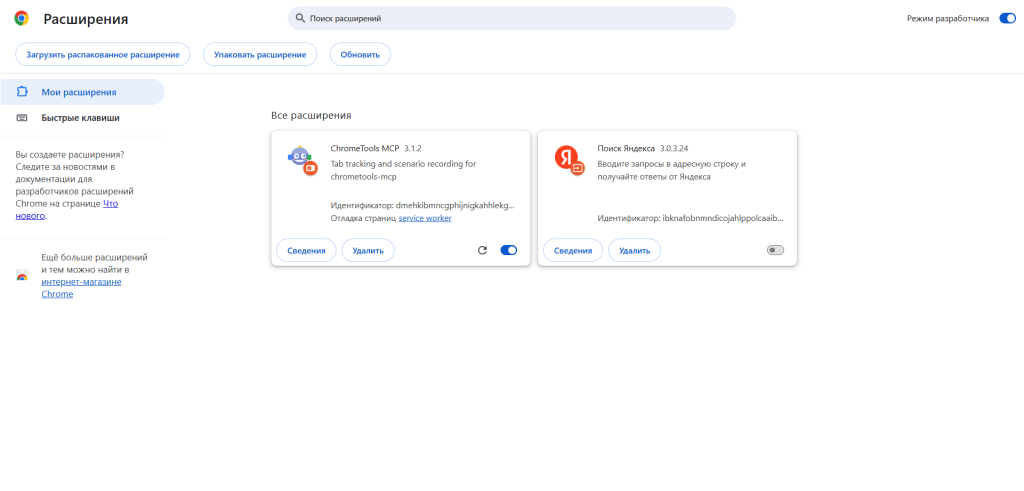
Step 3: Download and Extract the Extension
Option A - Download from GitHub (Recommended):
Option B - Use from node_modules (if you know the path):
~/.npm/_npx/.../node_modules/chrometools-mcp/extension<npm-global-path>/node_modules/chrometools-mcp/extension<repo-path>/extensionStep 4: Load the Extension
Step 5: Verify Installation
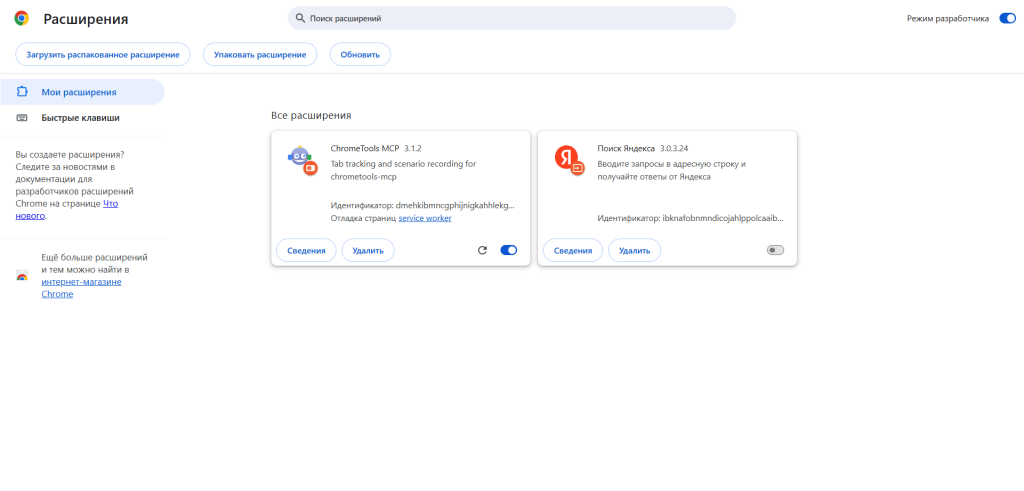
Note: After installation, the extension card will appear on the
chrome://extensionspage alongside other installed extensions. The extension should show as "Enabled" with a blue toggle switch.
Step 6: Pin the Extension (Optional but Recommended)
Troubleshooting:
npx install, run npm list -g chrometools-mcp to find the installation path: Dramatically reduce AI agent request cycles with intelligent element finding and page analysis.
Traditional browser automation with AI requires many trial-and-error cycles:
AI: "Find login button"
→ Try selector #1: Not found
→ Try selector #2: Not found
→ Try selector #3: Found! (3 requests, 15-30 seconds)
With AI optimization:
AI: smartFindElement("login button")
→ Returns ranked candidates with confidence scores (1 request, 2 seconds)
analyzePage - 🔥 USE FREQUENTLY - Get current page state after loads, clicks, submissions (cached, use refresh:true)smartFindElement - Natural language element search with multilingual supportfindElementsByText for finding elements by visible textPerformance: 3-5x faster, 5-10x fewer requests
Best Practice:
analyzePage() after page loads AND after interactions (clicks, submissions)analyzePage({ refresh: true }) after page changes to see current stateanalyzePage over screenshot for debugging form data: Visual UI-based recorder for creating reusable test scenarios with automatic secret detection.
// 1. Enable recorder UI
enableRecorder()
// 2. Click "Start" in widget, perform actions, click "Stop & Save"
// 3. Execute saved scenario
executeScenario({ name: "login_flow", parameters: { email: "user@test.com" } })
📚 Full Recorder Guide | Recorder Spec
CRITICAL: Always use specialized tools first. Never jump to executeScript as first choice.
click() - PRIMARY tool for all clicks
findElementsByText() + action - When selector is unknown, find by textexecuteScript() - LAST RESORT, only if above failedtype() - PRIMARY tool for all text input
executeScript() - LAST RESORT, only if above failedanalyzePage() - PRIMARY tool for reading page content
refresh: true after interactions to see updated statefindElementsByText() - Find specific elements by visible textgetElement() - Get HTML of specific elementexecuteScript() - LAST RESORT, only if above failedexecuteModelAction() - Universal tool for model-specific actions
executeModelAction({id: "input_34", action: "check"})executeModelAction({selector: ".datepicker", action: "SetDate", params: {date: "2024-03-15"}})models/ directory for available models and actionsrole="dialog", aria-modal="true", framework-specific CSS classestitle and actions (button labels) in metadatatype: "dialog" with model: "Modal", containing all interactive childrenWhy specialized tools matter:
executeScript bypasses framework events and may fail silentlydescription (required): Natural language (e.g., "login button", "email field")maxResults (optional): Max candidates to return (default: 5){
"description": "submit button",
"maxResults": 3
}
{
"candidates": [
{ "selector": "button.login-btn", "confidence": 0.95, "text": "Login", "reason": "type=submit, in form, matching keyword" },
{ "selector": "#submit", "confidence": 0.7, "text": "Send", "reason": "submit class" }
],
"hints": { "suggestion": "Use selector: button.login-btn" }
}
Interactivity Detection:
button, a, input, select, textarea)button, link, checkbox, etc.)onclick attributeonclick property (set via JavaScript)cursor: pointeraddEventListener('click')tabindex attribute (except -1)contenteditable="true"interactivityReason metadata showing detection method (e.g., cursor-pointer, event-listener)When to use:
includeAll: true to get ALL page elements with selectorsrefresh (optional): Force refresh cache to get CURRENT state after changes (default: false)includeAll (optional): Include ALL page elements, not just interactive ones (default: false). Useful for layout work - find any element, get its selector, then use getComputedCss or setStyles on it.useLegacyFormat (optional): Return legacy format instead of APOM (default: false - APOM is the default)registerElements (optional): Auto-register elements for ID-based usage (default: true) - groupBy (optional): 'type' or 'flat' - how to group elements (default: 'type')includePortals (optional): Include contents of React Portal containers — menus, tooltips, popovers rendered outside the main React root (default: true). Without this, items inside dropdown popups (e.g. action menus in MTS-like apps) are invisible to analyzePage.portalSelectors (optional): Array of CSS selectors for portal root containers. Default: ['#modal-root', '#menu-popup-root', '#tooltip-root', '#popover-root', '[data-portal]']. Override when the app uses different portal element ids.includePortals is enabled (default), analyzePage also detects "in-tree portal" patterns — popups rendered inside a 0-height inline wrapper and absolute-positioned out of it (Popper, Tippy, FloatingUI, custom contextMenu implementations). Without this, popup items live inside an offsetHeight: 0 wrapper that isVisible drops, making the whole popup subtree invisible to analyzePage. - Why better than screenshot:<select> and custom UI components- Returns:tree - Hierarchical tree of page elements (optimized: ~82% smaller than flat format)
{ tag, id?, type?, sel, ch?, bounds?, meta? }bounds and full metadatagroups - Radio/checkbox groups with options (name, value, label, checked state)meta - Page metadata (url, title, timestamp, element counts)click({ id: "..." }), type({ id: "..." }), etc.analyzePage() returns APOM, then use click({ id: "button_45" }) or type({ id: "input_20", text: "..." })getElementDetails({ id: "input_20" }) to get full details for any element, or with analyzeChildren: true to get children tree structureuseLegacyFormat: true): Classic format for backward compatibility
uiFramework info (name, version, component type) - Select elements include options array with value, text, index, selected, disabled, group - With includeAll: true: Also includes allElements array with ALL visible page elements (divs, spans, headings, etc.) - each with selector, tag, text, classes, idopenBrowser({ url: "..." })analyzePage() ← Initial analysis, returns elements with IDstype({ id: "input_20", text: "user@example.com" }) ← Use APOM IDclick({ id: "button_45" }) ← Use APOM IDanalyzePage({ refresh: true }) ← See what changed after click!analyzePage({ includeAll: true }) ← Get all elementsdiv.header)getComputedCss({ selector: "div.header" }) ← Get current stylessetStyles({ selector: "div.header", styles: [...] }) ← Apply new stylesanalyzePage output is simplified and you need complete element information or want to focus analysis on a specific section.id (required): APOM element ID (e.g., "input_20", "button_45")analyzeChildren (optional): Analyze children elements tree structure (default: false)includeAll (optional): When analyzing children, include all elements, not just interactive ones (default: false)refresh (optional): Force refresh of cached analysis (default: false)analyzeChildren: trueid: Element APOM IDselector: CSS selector for the elementtag: HTML tag nametype: Element type (input, button, link, etc.)text: Visible text contentbounds: Position and size { x, y, width, height, top, right, bottom, left }attributes: All HTML attributes (id, class, name, placeholder, href, etc.)computed: Key CSS properties (display, visibility, cursor, color, fontSize, etc.)metadata: Element metadata from APOM analysisvisible: Whether element is visiblechildrenTree (optional): APOM tree structure of children elements when analyzeChildren: true// Get complete details for specific input field
getElementDetails({ id: "input_20" })
// Returns:
{
"success": true,
"id": "input_20",
"selector": "input[name='email']",
"tag": "input",
"type": "email",
"text": "",
"bounds": { "x": 100, "y": 200, "width": 300, "height": 40, "top": 200, "right": 400, "bottom": 240, "left": 100 },
"attributes": { "name": "email", "placeholder": "Enter email", "type": "email" },
"computed": { "display": "block", "visibility": "visible", "cursor": "text" },
"visible": true
}
// Analyze modal contents after opening it
analyzePage() // Get initial page structure
click({ id: "button_45" }) // Open modal
getElementDetails({ id: "container_123", analyzeChildren: true, refresh: true }) // Analyze modal contents with children tree
Find elements by their visible text content.
text (required): Text to search forexact (optional): Exact match only (default: false)caseSensitive (optional): Case sensitive search (default: false)Test MCP connection with a simple ping-pong response.
message (optional){ "name": "ping", "arguments": { "message": "hello" } }pong: helloOpens browser and navigates to URL. Browser stays open for further interactions.
url (required)Click an element with optional result screenshot. PREFERRED: Use APOM ID from analyzePage for reliable targeting.
id (optional): APOM element ID from analyzePage (e.g., "button_45", "link_7"). Preferred over selector.selector (optional): CSS selector. Use when APOM ID is not available.id OR selector required (mutually exclusive)waitAfter (optional): Wait time in ms (default: 1500)screenshot (optional): Capture screenshot (default: false for performance) ⚡timeout (optional): Max operation time in ms (default: 30000)skipNetworkWait (optional): Skip waiting for network requests (default: false). Use for pages with continuous long-polling to get instant response.networkWaitTimeout (optional): Custom network wait timeout in ms (default: 10000). Only used if skipNetworkWait is false.waitForSelector (optional): CSS selector to wait for after the click — atomic click+wait. Use for dropdowns/popups that render into a React Portal and otherwise race with the next MCP call. Example: click({ id: 'button_47', waitForSelector: '#menu-popup-root > div' }).waitTimeoutMs (optional): Timeout for waitForSelector in ms (default: 2000). On timeout the click still succeeds but the result text reports ⚠️ WAIT_TIMEOUT.autoAnalyzeAfter (optional): After click, automatically diff APOM and append the delta to the result text (e.g. +3 appeared: button_42:"Статистика", button_43:"Настройки", link_44:"Удалить"). New element ids are pre-registered so the next click({ id })/type({ id }) call works without an extra analyzePage. Designed for the dropdown/menu pattern: one MCP call instead of three.element.click() (untrusted, last resort)// PREFERRED: Using APOM ID
click({ id: "button_45" })
// Alternative: Using CSS selector
click({ selector: "button[type='submit']" })
// Django forms with WebSockets (prevents timeout)
click({ selector: ".submit-row input[type='submit']", skipNetworkWait: true })
// Custom network timeout for slow APIs
click({ id: "save_btn", networkWaitTimeout: 10000 })
Type text into input fields with optional clearing and typing delay. PREFERRED: Use APOM ID from analyzePage for reliable targeting.
id (optional): APOM element ID from analyzePage (e.g., "input_20"). Preferred over selector.selector (optional): CSS selector. Use when APOM ID is not available.id OR selector required (mutually exclusive)text (required): Text to typedelay (optional): Delay between keystrokes in ms (default: 30)clearFirst (optional): Clear field first (default: true)timeout (optional): Max operation time in ms (default: 30000). Prevents infinite hangs on Django forms.// PREFERRED: Using APOM ID
type({ id: "input_20", text: "user@example.com" })
// Alternative: Using CSS selector
type({ selector: "input[name='email']", text: "user@example.com" })
Scroll page to bring element into view.
selector (required): CSS selectorbehavior (optional): "auto" or "smooth"Select option in dropdown (HTML select elements). PREFERRED: Use APOM ID from analyzePage for reliable targeting.
id (optional): APOM element ID from analyzePage (e.g., "select_5"). Preferred over selector.selector (optional): CSS selector. Use when APOM ID is not available.id OR selector required (mutually exclusive)value (optional): Option value attribute (priority 1)text (optional): Option text content (priority 2)index (optional): Option index, 0-based (priority 3)analyzePage to see all available options with their values, text, and indices// PREFERRED: Using APOM ID
selectOption({ id: "select_5", value: "US" })
// Alternative: Using CSS selector
selectOption({ selector: "select[name='country']", text: "United States" })
name (required): Name attribute of the radio/checkbox group (e.g., 'size', 'toppings')value (optional): Single value to select (for radio or single checkbox)values (optional): Array of values to select (for checkbox group)text (optional): Label text to match (alternative to value)texts (optional): Array of label texts to match (for checkbox group)by (optional): Match by 'value', 'text', or 'auto' (default: 'auto')mode (optional): For checkboxes - 'set' (replace all), 'add', 'remove', 'toggle' (default: 'set')analyzePage to see available groups in groups section with all options and labels// Radio group - select single option
selectFromGroup({ name: "size", value: "large" })
selectFromGroup({ name: "size", text: "Extra Large" })
// Checkbox group - set specific values (uncheck others)
selectFromGroup({ name: "toppings", values: ["cheese", "bacon"] })
// Checkbox group - add to existing selection
selectFromGroup({ name: "toppings", values: ["mushrooms"], mode: "add" })
// Checkbox group - remove specific values
selectFromGroup({ name: "toppings", values: ["onions"], mode: "remove" })
// Checkbox group - toggle values
selectFromGroup({ name: "toppings", texts: ["Extra Cheese"], mode: "toggle" })
Drag element by mouse (click-hold-move-release). Simulates real mouse drag, not scrollbar scrolling.
selector (required): CSS selector for element to dragdirection (required): 'up', 'down', 'left', 'right', 'up-left', 'up-right', 'down-left', 'down-right'distance (optional): Distance in pixels (default: 100)duration (optional): Drag duration in milliseconds (default: 500)mode (optional): 'native' (default) or 'synthetic'
scrollTo or scrollHorizontal instead)Scroll element horizontally (for tables, carousels, wide content).
selector (required): CSS selector for element to scrolldirection (required): 'left' or 'right'amount (required): Number of pixels to scroll, or 'full' to scroll to the endbehavior (optional): 'auto' or 'smooth' (default: 'auto')Get HTML markup of element (defaults to body if no selector).
selector (optional)Get computed CSS styles for an element with intelligent filtering to reduce token usage.
selector (optional): CSS selector (defaults to body)category (optional): Filter by category - 'layout', 'typography', 'colors', 'visual', or 'all' (default)properties (optional): Array of specific properties to return (e.g., ['color', 'font-size']) - overrides category filterincludeDefaults (optional): Include properties with default values (default: false){ selector: ".header", category: "layout" }{ selector: ".title", properties: ["color", "font-size", "font-weight"] }{ selector: "h1", category: "typography", includeDefaults: false }Get precise dimensions, positioning, margins, padding, and borders.
selector (required)Capture optimized screenshot of a specific element, or the full viewport when no id/selector is given. Smart compression with a 3 MB hard limit.
id (optional): APOM element ID from analyzePage. Mutually exclusive with selector.selector (optional): CSS selector. Mutually exclusive with id.id and selector to capture the full viewport (no element resolution needed).padding (optional): Padding in pixels (default: 0). Ignored for viewport screenshots.maxWidth (optional): Max width for auto-scaling (default: 1024, null for original size)maxHeight (optional): Max height for auto-scaling (default: 8000, null for original size)quality (optional): JPEG quality 1-100 (default: 40)format (optional): 'png', 'jpeg', or 'auto' (default: 'jpeg')quality and format parametersmaxWidth: null, maxHeight: null and format: 'png' (still enforces 3 MB limit)Save optimized screenshot to filesystem without returning in context, with automatic 3 MB limit.
selector (required)filePath (required): Absolute path to save filepadding (optional): Padding in pixels (default: 0)maxWidth (optional): Max width for auto-scaling (default: 1024, null for original)maxHeight (optional): Max height for auto-scaling (default: 8000, null for original)quality (optional): JPEG quality 1-100 (default: 80)format (optional): 'png', 'jpeg', or 'auto' (default: 'auto')screenshot tool)Execute arbitrary JavaScript in page context with optional screenshot.
script (required): JavaScript codewaitAfter (optional): Wait time in ms (default: 500)screenshot (optional): Capture screenshot (default: false for performance) ⚡timeout (optional): Max operation time in ms (default: 30000)return: snippets that start with return ... (e.g. return document.title) are auto-wrapped in an async IIFE — no need to manually wrap in (() => { ... })(). Scripts that declare a function are left unmodified so implicit-return patterns keep working.Retrieve browser console logs (log, warn, error, etc.).
types (optional): Array of log types to filterclear (optional): Clear logs after reading (default: false)Auto-captures across page navigations. All network requests are monitored automatically.
Get compact summary of network requests with pagination support - minimal token usage.
types (optional): Array of request types (default: ['Fetch', 'XHR'])status (optional): Filter by status (pending, completed, failed, all)limit (optional): Maximum number of requests to return (default: 50, max: 500)offset (optional): Number of requests to skip (default: 0)clear (optional): Clear requests after reading (default: false)totalCount, returnedCount, hasMore, offset, limit, and paginated requests arraylistNetworkRequests() → first 50 requestslistNetworkRequests({ limit: 20, offset: 20 }) → requests 21-40{ totalCount: 150, returnedCount: 50, hasMore: true, offset: 0, limit: 50, requests: [...] }Get full details of a single request by ID.
requestId (required): Request ID from listNetworkRequestsgetNetworkRequest({ requestId: "123" }) → full details with headers, body, timingFilter requests by URL pattern with full details.
urlPattern (required): URL pattern (regex or partial match)types (optional): Array of request types (default: ['Fetch', 'XHR'])clear (optional): Clear requests after reading (default: false)filterNetworkRequests({ urlPattern: "api/users" }) → all requests to /api/users with full detailsWorkflow:
listNetworkRequests() - see all requests (compact)getNetworkRequest({ requestId: "..." }) - inspect specific requestfilterNetworkRequests({ urlPattern: "api/..." }) - get all matching requests with detailsSimulate mouse hover over element. PREFERRED: Use APOM ID from analyzePage for reliable targeting.
id (optional): APOM element ID from analyzePage (e.g., "button_10"). Preferred over selector.selector (optional): CSS selector. Use when APOM ID is not available.id OR selector required (mutually exclusive)// PREFERRED: Using APOM ID
hover({ id: "button_10" })
// Alternative: Using CSS selector
hover({ selector: ".dropdown-trigger" })
Press keyboard key, optionally on a specific element. Uses Puppeteer's trusted keyboard events.
id (optional): APOM element ID to focus before pressingselector (optional): CSS selector to focus before pressingkey (required): Key to press — 'Enter', 'Escape', 'Tab', 'ArrowUp', 'ArrowDown', 'ArrowLeft', 'ArrowRight', 'Backspace', 'Delete', 'Home', 'End', 'PageUp', 'PageDown', 'Space'modifiers (optional): Array of modifier keys to hold — ['Control'], ['Shift'], ['Alt'], ['Meta']id nor selector is required — without them, presses on whatever is currently focused// Submit form by pressing Enter on input
pressKey({ id: "input_20", key: "Enter" })
// Close modal with Escape (no element needed)
pressKey({ key: "Escape" })
// Select all text with Ctrl+A
pressKey({ id: "input_5", key: "a", modifiers: ["Control"] })
// Navigate with Tab
pressKey({ key: "Tab" })
Apply inline CSS styles to element for live editing.
selector (required)styles (required): Array of {name, value} pairsChange viewport dimensions for responsive testing.
width (required): 320-4000pxheight (required): 200-3000pxdeviceScaleFactor (optional): 0.5-3 (default: 1)Get current viewport size and device pixel ratio.
Navigate to different URL while keeping browser instance.
url (required)waitUntil (optional): load event typeTools for managing multiple browser tabs. New tabs opened via window.open(), target="_blank", or user actions are automatically detected and tracked.
List all open browser tabs with their URLs, titles, and active status.
tabs: Array of { index, url, title, isActive }totalCount: Number of open tabsnewTabsDetected (optional): Array of tabs opened since last check// Example response
{
"tabs": [
{ "index": 0, "url": "https://example.com", "title": "Example", "isActive": false },
{ "index": 1, "url": "https://google.com", "title": "Google", "isActive": true }
],
"totalCount": 2,
"newTabsDetected": [
{ "timestamp": "2026-01-25T...", "url": "https://google.com", "openerUrl": "https://example.com" }
]
}
Switch to a different browser tab by index or URL pattern.
tab (required): Tab index (number, 0-based) or URL pattern (string, partial match){ success, switchedTo: { url, title } }// Switch by index
switchTab({ tab: 0 })
// Switch by URL pattern
switchTab({ tab: "google.com" })
Design-to-code validation, file browsing, design system extraction, and comparison tools with automatic 3 MB compression.
url (required): Full Figma URL or just fileKeyhttps://www.figma.com/file/ABC123/Title?node-id=1-2https://www.figma.com/design/ABC123/Title?node-id=1-2ABC123 (just fileKey){ fileKey, nodeId } objectfigmaToken (optional): Figma API tokenfileKey (required): Figma file key or full URL{
"fileName": "Design System",
"pagesCount": 3,
"pages": [
{
"name": "🎨 Components",
"framesCount": 25,
"frames": [
{ "id": "123:456", "name": "Button/Primary", "type": "FRAME" }
]
}
]
}
figmaToken (optional): Figma API tokenfileKey (required): Figma file key or full URLsearchQuery (required): Search text (case-insensitive)figmaToken (optional): Figma API tokenfileKey (required): Figma file key or full URLfigmaToken (optional): Figma API tokenfileKey (required): Figma file key or full URLfigmaToken (optional): Figma API tokenfileKey (required): Figma file key or full URLfigmaToken (optional): Figma API tokenfileKey (required): Figma file keynodeId (required): Frame/component ID (formats: '123:456' or '123-456')framework (optional): 'react', 'react-typescript', or 'html' (default: 'react')includeComments (optional): Include code comments (default: true)Export and download a Figma frame as PNG/JPG image with automatic compression.
figmaToken (optional): Figma API token (can use FIGMA_TOKEN env var)fileKey (required): Figma file key from URLnodeId (required): Figma frame/component IDscale (optional): Export scale 0.1-4 (default: 2)format (optional): 'png', 'jpg', 'svg' (default: 'png')The GOLD STANDARD for design-to-code validation. Compares Figma design pixel-perfect with browser implementation.
figmaToken (optional): Figma API token (can use FIGMA_TOKEN env var)fileKey (required): Figma file keynodeId (required): Figma frame IDselector (required): CSS selector for page element to comparefigmaScale (optional): Figma export scale (default: 2)threshold (optional): Difference threshold 0-1 (default: 0.05)Extract detailed design specifications from Figma including text content, colors, fonts, dimensions, and spacing.
figmaToken (optional): Figma API tokenfileKey (required): Figma file keynodeId (required): Figma frame/component IDURL-Based Storage: Scenarios are automatically organized by website domain in ~/.config/chrometools-mcp/projects/{domain}/scenarios/.
Automatic Domain Detection: Project ID is extracted from the URL where recording starts:
https://www.google.com → googlehttps://dev.example.com:8080 → example-8080http://localhost:3000 → localhost-3000file:///test.html → localDomain Organization Rules:
mail.google.com → googleexample.com:8080 → example-8080http and https both → same projectGlobal Scenario Access: All tools (listScenarios, searchScenarios) return scenarios from all projects. Agent can filter by:
projectId: Domain-based identifier (e.g., "google", "localhost-3000")entryUrl: URL where recording startedexitUrl: URL where recording endedExample:
// Record scenario on google.com
enableRecorder() // Saves to ~/.config/chrometools-mcp/projects/google/scenarios/
// List ALL scenarios from all websites
listScenarios()
// Returns: [
// { name: "search", projectId: "google", entryUrl: "https://google.com" },
// { name: "login", projectId: "localhost-3000", entryUrl: "http://localhost:3000" }
// ]
// Agent filters by projectId or URL
scenarios.filter(s => s.projectId === "google")
scenarios.filter(s => s.entryUrl.includes("localhost"))
// Execute scenario (searches all projects automatically)
executeScenario({ name: "login" }) // Finds scenario in any project
Inject visual recorder UI widget into the current page. Scenarios are automatically saved to ~/.config/chrometools-mcp/projects/{domain}/scenarios/ based on the website URL.
Execute a previously recorded scenario by name. Searches all projects automatically via global index.
Parameters:
name (required): Scenario nameprojectId (optional): Project ID (domain) to disambiguate when multiple scenarios have the same name. Examples: "google", "localhost-3000"parameters (optional): Runtime parameters (e.g., { email: "user@test.com" })executeDependencies (optional): Execute dependencies before running scenario (default: true)Use case: Run automated test scenarios across projects
Returns: Execution result with success/failure status
Features:
Example:
// Execute with dependencies (default)
executeScenario({ name: "create_post" })
// Execute without dependencies
executeScenario({ name: "create_post", executeDependencies: false })
// Disambiguate when multiple scenarios have same name
executeScenario({ name: "login", projectId: "google" })
executeScenario({ name: "login", projectId: "localhost-3000" })
Name Collision Handling: If multiple scenarios with the same name exist across different projects, you'll get an error:
{
"success": false,
"error": "Multiple scenarios named 'login' found. Please specify projectId.",
"availableProjectIds": ["google", "localhost-3000"],
"hint": "Use: executeScenario({ name: \"login\", projectId: \"one-of-the-above\" })"
}
Get all available scenarios with metadata from all websites. Agent can filter by projectId, entryUrl, or exitUrl.
projectId, entryUrl, exitUrl// List all scenarios from all websites
const scenarios = await listScenarios()
// Agent filters by projectId
const googleScenarios = scenarios.filter(s => s.projectId === "google")
// Agent filters by URL
const localhostScenarios = scenarios.filter(s => s.entryUrl.includes("localhost"))
Search scenarios by text or tags across all websites. Agent can further filter results by projectId or URLs.
text (optional): Search in name/descriptiontags (optional): Array of tags to filterprojectId, entryUrl, exitUrl metadata// Search across all websites
const results = await searchScenarios({ text: "login" })
// Search by tags
const authScenarios = await searchScenarios({ tags: ["auth"] })
// Agent filters results by domain
const googleLogins = results.filter(s => s.projectId === "google")
Get detailed information about a scenario. Searches all projects automatically.
name (required): Scenario nameincludeSecrets (optional): Include secret values (default: false)Delete a scenario and its associated secrets. Searches all projects to find the scenario.
name (required): Scenario nameappendScenarioToFile instead.Parameters:
scenarioName (required): Name of scenario to exportlanguage (required): Target framework - "playwright-typescript", "playwright-python", "selenium-python", "selenium-java"cleanSelectors (optional): Remove unstable CSS classes (default: true)includeComments (optional): Include descriptive comments (default: true)generatePageObject (optional): Also generate Page Object class for the page (default: false). Legacy - use pageObjectMode instead.pageObjectClassName (optional): Custom Page Object class name (auto-generated if not provided)pageObjectMode (optional): POM integration mode:
"none" (default) - no Page Object"generate" - generate separate POM file (same as generatePageObject: true)"generate-integrated" - generate POM + test that uses POM methods (imports, instantiates, calls POM methods)"use-existing" - generate test that uses an existing POM file (requires pageObjectFile)pageObjectFile (optional): Path to existing POM file (required for "use-existing" mode)Use case: Create new test files from recorded scenarios with optional Page Object integration
Returns: JSON with:
action: "create_new_file"suggestedFileName: Suggested test filenametestCode: Full test code with importsinstruction: Instructions for Claude CodepageObject (if POM generated): Page Object code and metadatapomIntegration (if POM integrated): { className, mode } infoExample 1 - Test only:
// Export scenario as new Playwright TypeScript file
exportScenarioAsCode({
scenarioName: "checkout_flow",
language: "playwright-typescript"
})
// Returns JSON:
{
"action": "create_new_file",
"suggestedFileName": "checkout_flow.spec.ts",
"testCode": "import { test, expect } from '@playwright/test';\n\ntest('checkout_flow', async ({ page }) => {\n await page.goto('https://example.com');\n await page.locator('button[data-testid=\"add-to-cart\"]').click();\n await expect(page).toHaveURL(/checkout/);\n});",
"instruction": "Create a new test file 'checkout_flow.spec.ts' with the testCode."
}
Example 2 - Test + separate Page Object (legacy):
exportScenarioAsCode({
scenarioName: "login_test",
language: "playwright-typescript",
generatePageObject: true,
pageObjectClassName: "LoginPage"
})
Example 3 - Test + integrated Page Object (recommended):
// Generate POM and test that USES POM methods (not raw selectors)
exportScenarioAsCode({
scenarioName: "login_test",
language: "playwright-typescript",
pageObjectMode: "generate-integrated",
pageObjectClassName: "LoginPage"
})
// Returns test code using POM:
// import { LoginPage } from './LoginPage';
// test('login_test', async ({ page }) => {
// const loginPage = new LoginPage(page);
// await loginPage.goto();
// await loginPage.fillUsername('admin');
// await loginPage.clickLoginBtn();
// });
Example 4 - Test using existing POM file:
// Use pre-existing Page Object file
exportScenarioAsCode({
scenarioName: "login_test",
language: "playwright-typescript",
pageObjectMode: "use-existing",
pageObjectFile: "./pages/LoginPage.ts"
})
// Test will import and use methods from the existing LoginPage
Selector Cleaning: Automatically removes unstable patterns:
Button_primary__2x3yZ → removedsc-AbCdEf-0 → removedcss-1a2b3c4d → removedcomponent_a1b2c3d → removeddata-testid, role, aria-label, semantic attributesAppend recorded scenario as test code to an EXISTING test file. Automatically cleans unstable selectors (CSS Modules, styled-components, Emotion). Optionally generates Page Object class. Returns JSON with test code (without imports) - Claude Code will read the file, append the test, and write back. To create NEW test files, use exportScenarioAsCode instead.
Parameters:
scenarioName (required): Name of scenario to exportlanguage (required): Target framework - "playwright-typescript", "playwright-python", "selenium-python", "selenium-java"targetFile (required): Path to existing test file to append totestName (optional): Override test name (default: from scenario name)insertPosition (optional): Where to insert: 'end' (default), 'before', 'after'referenceTestName (optional): Reference test name for 'before'/'after' insertioncleanSelectors (optional): Remove unstable CSS classes (default: true)includeComments (optional): Include descriptive comments (default: true)generatePageObject (optional): Also generate Page Object class for the page (default: false). Legacy - use pageObjectMode instead.pageObjectClassName (optional): Custom Page Object class name (auto-generated if not provided)pageObjectMode (optional): POM integration mode - "none", "generate", "generate-integrated", "use-existing" (see exportScenarioAsCode for details)pageObjectFile (optional): Path to existing POM file (required for "use-existing" mode)Use case: Add tests to existing test files without overwriting current tests
Architecture: MCP server generates only test code (without imports). Claude Code reads the target file, appends the test at the specified position, and writes the file back. This separation ensures MCP doesn't need file system access to test files.
Returns: JSON with:
action: "append_test"targetFile: Path to file to updatetestCode: Test code only (without imports/headers)testName: Name of test to appendinsertPosition: Where to insert testreferenceTestName: Reference test for 'before'/'after' positioninginstruction: Instructions for Claude Code to read/append/writepageObject (if generatePageObject=true): Page Object code and metadataExample 1 - Append to end:
// Append test to end of existing file
appendScenarioToFile({
scenarioName: "new_feature_test",
language: "playwright-typescript",
targetFile: "./tests/features.spec.ts"
})
// Returns JSON:
{
"action": "append_test",
"targetFile": "./tests/features.spec.ts",
"testCode": "test('new_feature_test', async ({ page }) => {\n // Test implementation\n await page.click('#submit');\n await expect(page.locator('.result')).toBeVisible();\n});",
"testName": "new_feature_test",
"insertPosition": "end",
"referenceTestName": null,
"instruction": "Read file './tests/features.spec.ts', append the testCode at position 'end', then write the file back."
}
Example 2 - Insert before specific test:
// Insert test before specific test
appendScenarioToFile({
scenarioName: "setup_test",
language: "selenium-python",
targetFile: "./tests/test_suite.py",
insertPosition: "before",
referenceTestName: "test_main",
testName: "test_setup_data"
})
Example 3 - Append with Page Object:
// Append test and generate Page Object
appendScenarioToFile({
scenarioName: "login_test",
language: "playwright-typescript",
targetFile: "./tests/auth.spec.ts",
generatePageObject: true,
pageObjectClassName: "LoginPage"
})
// Returns JSON with both test code and Page Object:
{
"action": "append_test",
"targetFile": "./tests/auth.spec.ts",
"testCode": "test('login_test', async ({ page }) => {\n await page.fill('#username', 'user');\n await page.fill('#password', 'pass');\n await page.click('button[type=\"submit\"]');\n});",
"testName": "login_test",
"insertPosition": "end",
"referenceTestName": null,
"pageObject": {
"code": "export class LoginPage { ... }",
"className": "LoginPage",
"suggestedFileName": "LoginPage.ts",
"elementCount": 8
},
"instruction": "Read file './tests/auth.spec.ts', append the testCode at position 'end', then write the file back. Also create a Page Object file 'LoginPage.ts' with the provided pageObject.code."
}
Parameters:
className (optional): Page Object class name (auto-generated from page title/URL if not provided)framework (optional): Target framework - "playwright-typescript" (default), "playwright-python", "selenium-python", "selenium-java"includeComments (optional): Include descriptive comments (default: true)groupElements (optional): Group elements by page sections (default: true)Features:
Use cases:
Returns: Page Object code with metadata (className, url, title, elementCount, framework)
Example:
// 1. Navigate to page
openBrowser({ url: "https://example.com/login" })
// 2. Generate Page Object
generatePageObject({
className: "LoginPage",
framework: "playwright-typescript",
includeComments: true,
groupElements: true
})
// Returns:
{
"success": true,
"className": "LoginPage",
"url": "https://example.com/login",
"title": "Login - Example Site",
"elementCount": 12,
"framework": "playwright-typescript",
"code": "import { Page, Locator } from '@playwright/test';\n\nexport class LoginPage {\n readonly page: Page;\n \n /** Email input field */\n readonly emailInput: Locator;\n /** Password input field */\n readonly passwordInput: Locator;\n /** Login button */\n readonly loginButton: Locator;\n \n constructor(page: Page) {\n this.page = page;\n this.emailInput = page.locator('#email');\n this.passwordInput = page.locator('#password');\n this.loginButton = page.locator('button[type=\"submit\"]');\n }\n \n async goto() {\n await this.page.goto('https://example.com/login');\n }\n \n async fillEmailInput(text: string) {\n await this.emailInput.fill(text);\n }\n \n async fillPasswordInput(text: string) {\n await this.passwordInput.fill(text);\n }\n \n async clickLoginButton() {\n await this.loginButton.click();\n }\n}"
}
Supported Frameworks:
playwright-typescript: Playwright with TypeScript (locators, async/await, Page Object pattern)playwright-python: Playwright with Python (sync API, snake_case naming)selenium-python: Selenium with Python (WebDriver, explicit waits, By locators)selenium-java: Selenium with Java (WebDriver, Page Factory compatible)Tools for loading OpenAPI/Swagger specs and generating typed API models.
loadSwaggerParse an OpenAPI 2.0 (Swagger) or 3.x spec and return a structured summary of endpoints, schemas, and auth.
| Parameter | Type | Required | Description |
|---|---|---|---|
source | string | Yes | URL (https://...) or local file path to swagger.json / openapi.yaml |
format | 'auto' | 'json' | 'yaml' | No | Parse format (default: auto — detects from content) |
Response includes:
// Load from URL
loadSwagger({ source: "https://petstore.swagger.io/v2/swagger.json" })
// Load from local file
loadSwagger({ source: "/path/to/openapi.yaml" })
generateApiModelsGenerate TypeScript interfaces or Python dataclasses/pydantic models from an OpenAPI spec.
| Parameter | Type | Required | Description |
|---|---|---|---|
source | string | Yes | URL or file path to spec |
language | 'typescript' | 'python' | Yes | Target language |
format | 'auto' | 'json' | 'yaml' | No | Parse format (default: auto) |
style | 'interface' | 'type' | No | TypeScript style (default: interface) |
pythonStyle | 'dataclass' | 'pydantic' | 'typeddict' | No | Python style (default: dataclass) |
includeEnums | boolean | No | Generate enum types (default: true) |
schemas | string[] | No | Filter to specific schema names |
Features:
allOf → extends/inheritance, oneOf/anyOf → union types// Generate TypeScript interfaces
generateApiModels({
source: "https://petstore.swagger.io/v2/swagger.json",
language: "typescript"
})
// Returns: { code: "export interface Pet { ... }", suggestedFileName: "pet-store-api.models.ts" }
// Generate Python pydantic models
generateApiModels({
source: "/path/to/openapi.yaml",
language: "python",
pythonStyle: "pydantic"
})
// Returns: { code: "class Pet(BaseModel): ...", suggestedFileName: "pet_store_api_models.py" }
// Generate only specific schemas
generateApiModels({
source: "https://api.example.com/openapi.json",
language: "typescript",
schemas: ["User", "Order"]
})
// 1. Open page
openBrowser({ url: "https://example.com/form" })
// 2. Analyze page to get element IDs
analyzePage()
// Returns: { tree: {...}, groups: {...}, meta: {...} }
// Elements: input_20 (email), input_21 (password), button_45 (submit)
// 3. Fill form using APOM IDs (preferred)
type({ id: "input_20", text: "user@example.com" })
type({ id: "input_21", text: "secret123" })
// 4. Submit using APOM ID
click({ id: "button_45" })
// 5. Verify
analyzePage({ refresh: true }) // See updated state
screenshot({ selector: ".dashboard", padding: 20 })
Alternative: Using CSS selectors (still supported)
type({ selector: "input[name='email']", text: "user@example.com" })
click({ selector: "button[type='submit']" })
Persistent Browser:
Best Practices:
openBrowser to establish contextscreenshot to verify visual resultsAdd the MCP server to your MCP client configuration file:
Claude Desktop (~/.claude/mcp_config.json or ~/AppData/Roaming/Claude/mcp_config.json on Windows):
{
  "mcpServers": {
    "chrometools": {
      "command": "npx",
      "args": ["chrometools-mcp"]
    }
  }
}
Claude Code (~/.claude.json):
{
  "mcpServers": {
    "chrometools": {
      "type": "stdio",
      "command": "npx",
      "args": ["chrometools-mcp"],
      "env": {}
    }
  }
}
The MCP server runs Chrome with headless: false by default, which means:
Requirements for GUI Mode:
Alternative: Headless Mode with Virtual Display (xvfb)
If you don't need to see the browser window, you can use xvfb (virtual X server):
{
  "mcpServers": {
    "chrometools": {
      "type": "stdio",
      "command": "xvfb-run",
      "args": ["-a", "npx", "-y", "chrometools-mcp"],
      "env": {}
    }
  }
}
This runs Chrome in GUI mode but on a virtual display (window is not visible).
By default, all tools are enabled. You can selectively enable only specific tool groups using the ENABLED_TOOLS environment variable.
Why filter tools?
Each tool definition is sent to the AI in every request, consuming context tokens. Filtering tools can reduce token usage, improve focus, and lower API costs:
Available Tool Groups:
| Group | Description | Tools (count) |
|---|---|---|
core | Basic tools | ping, openBrowser (2) |
interaction | User interaction | click, type, scrollTo, waitForElement, hover (5) |
inspection | Page inspection | getComputedCss, getBoxModel, screenshot, saveScreenshot (4) |
debug | Debugging & network | getConsoleLogs, listNetworkRequests, getNetworkRequest, filterNetworkRequests (4) |
advanced | Advanced automation & AI | executeScript, setStyles, setViewport, getViewport, navigateTo, smartFindElement, analyzePage, findElementsByText (8) |
recorder | Scenario recording | enableRecorder, executeScenario, listScenarios, searchScenarios, getScenarioInfo, deleteScenario, exportScenarioAsCode, appendScenarioToFile, generatePageObject (9) |
figma | Figma integration | getFigmaFrame, compareFigmaToElement, getFigmaSpecs, parseFigmaUrl, listFigmaPages, searchFigmaFrames, getFigmaComponents, getFigmaStyles, getFigmaColorPalette, convertFigmaToCode (10) |
Total: 42 tools across 7 groups
Configuration:
Claude Desktop (~/.claude/mcp_config.json):
{
  "mcpServers": {
    "chrometools": {
      "command": "npx",
      "args": ["chrometools-mcp"],
      "env": {
        "ENABLED_TOOLS": "core,interaction,inspection"
      }
    }
  }
}
Claude Code (~/.claude.json):
{
  "mcpServers": {
    "chrometools": {
      "type": "stdio",
      "command": "npx",
      "args": ["chrometools-mcp"],
      "env": {
        "ENABLED_TOOLS": "core,interaction,advanced"
      }
    }
  }
}
Format:
"core,interaction,advanced")Example configurations:
Basic automation only:
"ENABLED_TOOLS": "core,interaction,inspection"
Advanced automation with AI:
"ENABLED_TOOLS": "core,interaction,advanced"
With debugging tools:
"ENABLED_TOOLS": "core,interaction,inspection,debug"
Figma design validation:
"ENABLED_TOOLS": "core,figma"
Full automation with recording:
"ENABLED_TOOLS": "core,interaction,inspection,debug,advanced,recorder"
All tools (default):
"env": {}
or omit the env field entirely.
To use Figma tools, you need to configure your Figma Personal Access Token.
How to get your Figma token:
Add token to MCP configuration:
Claude Desktop (~/.claude/mcp_config.json or ~/AppData/Roaming/Claude/mcp_config.json on Windows):
{
  "mcpServers": {
    "chrometools": {
      "command": "npx",
      "args": ["chrometools-mcp"],
      "env": {
        "FIGMA_TOKEN": "your-figma-token-here"
      }
    }
  }
}
Claude Code (~/.claude.json):
{
  "mcpServers": {
    "chrometools": {
      "type": "stdio",
      "command": "npx",
      "args": ["chrometools-mcp"],
      "env": {
        "FIGMA_TOKEN": "your-figma-token-here"
      }
    }
  }
}
Note: Alternatively, you can pass the token directly in each Figma tool call using the figmaToken parameter, but using the environment variable is more convenient.
If you're using Windows Subsystem for Linux (WSL), special configuration is required to display Chrome GUI windows.
📖 See the complete WSL Setup Guide: WSL_SETUP.md
The guide includes:
Quick Summary for WSL Users:
DISPLAY=<your-windows-ip>:0 environment variableFor detailed instructions, see WSL_SETUP.md.
# Install dependencies
npm install

# Run locally
npm start

# Test with MCP inspector
npx @modelcontextprotocol/inspector node index.js
<select> and custom UI framework components- APOM (Agent Page Object Model): Automatic element ID assignment for reliable interaction - analyzePage() returns elements with unique IDs (e.g., input_20, button_45)
id parameter in click/type/hover/selectOption for stable targetinggetElementDetails() to get detailed element info: Run up to 8 MCP servers simultaneously, connecting/disconnecting at any time without coordination.
ChromeTools MCP uses a Bridge Architecture for reliable multi-instance support:
┌─────────────────┐  ┌─────────────────┐  ┌─────────────────┐
│ Claude Desktop  │  │ Telegram Bot    │  │ Custom Script   │
│   MCP Client    │  │   MCP Client    │  │   MCP Client    │
└────────┬────────┘  └────────┬────────┘  └────────┬────────┘
         │                    │                    │
         │    WebSocket       │    WebSocket       │    WebSocket
         │    (client)        │    (client)        │    (client)
         │                    │                    │
         └────────────────────┼────────────────────┘
                              │
                              ↓
              ┌───────────────────────────────┐
              │      Bridge Service (:9223)   │
              │   (Native Messaging Host)     │
              │                               │
              │  • Stores tabs state          │
              │  • Stores recordings          │
              │  • Broadcasts events          │
              │  • Accepts 0-8 clients        │
              └───────────────┬───────────────┘
                              │
                              │ Native Messaging (stdio)
                              │
              ┌───────────────┴───────────────┐
              │      Chrome Extension         │
              │   (Event Producer)            │
              │                               │
              │  • Tracks all tabs            │
              │  • Records user actions       │
              │  • Sends events to Bridge     │
              └───────────────┬───────────────┘
                              │
                              ↓
              ┌───────────────────────────────┐
              │        Chrome Browser         │
              └───────────────────────────────┘
One-time setup (installs Native Messaging Bridge):
npx chrometools-mcp --install-bridge
This:
~/.chrometools/Verify installation:
npx chrometools-mcp --check-bridge
1. Bridge Service (Persistent Intermediary)
2. Chrome Extension (Event Producer)
3. MCP Server (Event Consumer)
Ephemeral AI Sessions
# User sends message to Telegram bot
# → Claude Code starts, connects to Bridge
# → Gets current tabs state instantly
# → Performs automation
# → Claude Code exits, disconnects
# → Bridge keeps running, state preserved

# Next message: same flow, instant state access
Parallel Workflows
# Claude Desktop: form automation
# Telegram Bot: monitoring & debugging
# Custom script: data extraction

# All connected to same Bridge
# All see same browser state
# All can control Chrome
No configuration needed after installation. Just use:
npx chrometools-mcp
MCP automatically connects to Bridge on startup.
npx chrometools-mcp --install-bridge    # Install Native Messaging Bridge
npx chrometools-mcp --uninstall-bridge  # Uninstall Bridge
npx chrometools-mcp --check-bridge      # Check if Bridge is installed
npx chrometools-mcp --help              # Show help
| Component | Technology | Port |
|---|---|---|
| Bridge Service | Node.js + WebSocket Server | 9223 |
| Extension ↔ Bridge | Native Messaging (stdio) | — |
| MCP ↔ Bridge | WebSocket (client) | 9223 |
Max Clients: 8 simultaneous MCP connections
State on Connect: Full state (tabs, recordings, recorder state) sent immediately
Extension ID: dmehkibmncgphijnigkahhlekgajhpbl (stable, generated from key)
Bridge not connecting:
# Check if Bridge is installed
npx chrometools-mcp --check-bridge

# Reinstall if needed
npx chrometools-mcp --install-bridge

# Reload extension in chrome://extensions
Extension shows "Disconnected":
In Angular apps using Zone.js, any programmatic click (including CDP trusted events) can trigger change detection between event listener callbacks. If *ngFor iterates over a getter that returns a new array reference each time (e.g., [options]="getOptions()"), Angular destroys and recreates all child elements mid-dispatch, causing @HostListener('click') on the target element to never fire. Only real hardware mouse events (physical mouse) are immune — CDP events, despite being isTrusted: true, are not dispatched through the OS event queue.
ChromeTools automatically detects this: after each click, it checks if the target element was removed from DOM. If so, the ELEMENT DETACHED hint is shown with a workaround guide.
App fix (recommended): add trackBy to *ngFor, or cache the array reference instead of returning a new one each time.
Workaround when app fix is not possible — use executeScript to call the Angular component API directly:
// 1. Find the component instance
executeScript({ script: `
  const comp = ng.getComponent(document.querySelector('my-component'));
  // 2. Explore available events
  Object.keys(comp).filter(k => k.includes('Event'));
` })

// 3. Emit the event directly (bypasses DOM click entirely)
executeScript({ script: `
  const comp = ng.getComponent(document.querySelector('my-component'));
  comp.selectedOptionChangeEvent.emit(comp.options.find(o => o.name === 'Delete'));
` })
Run Claude Code as an MCP server so any agent can delegate coding tasks to it
 @microsoft✓ Official
Browser automation using accessibility snapshots instead of screenshots
 @googleapis✓ Official
Google's universal MCP server supporting PostgreSQL, MySQL, MongoDB, Redis, and 10+ databases
 @github✓ Official
Official GitHub integration for repos, issues, PRs, and CI/CD workflows