

Are you the author? Sign in to claim
Paste clipboard images into Claude Code on Windows - fixes the broken Ctrl+V image paste. Converts any screenshot or cli

Paste screenshots into Claude Code on Windows.
Copy an image anywhere → press Ctrl+V in Claude Code → it attaches.
A tiny, local PowerShell utility. No admin, no dependencies.



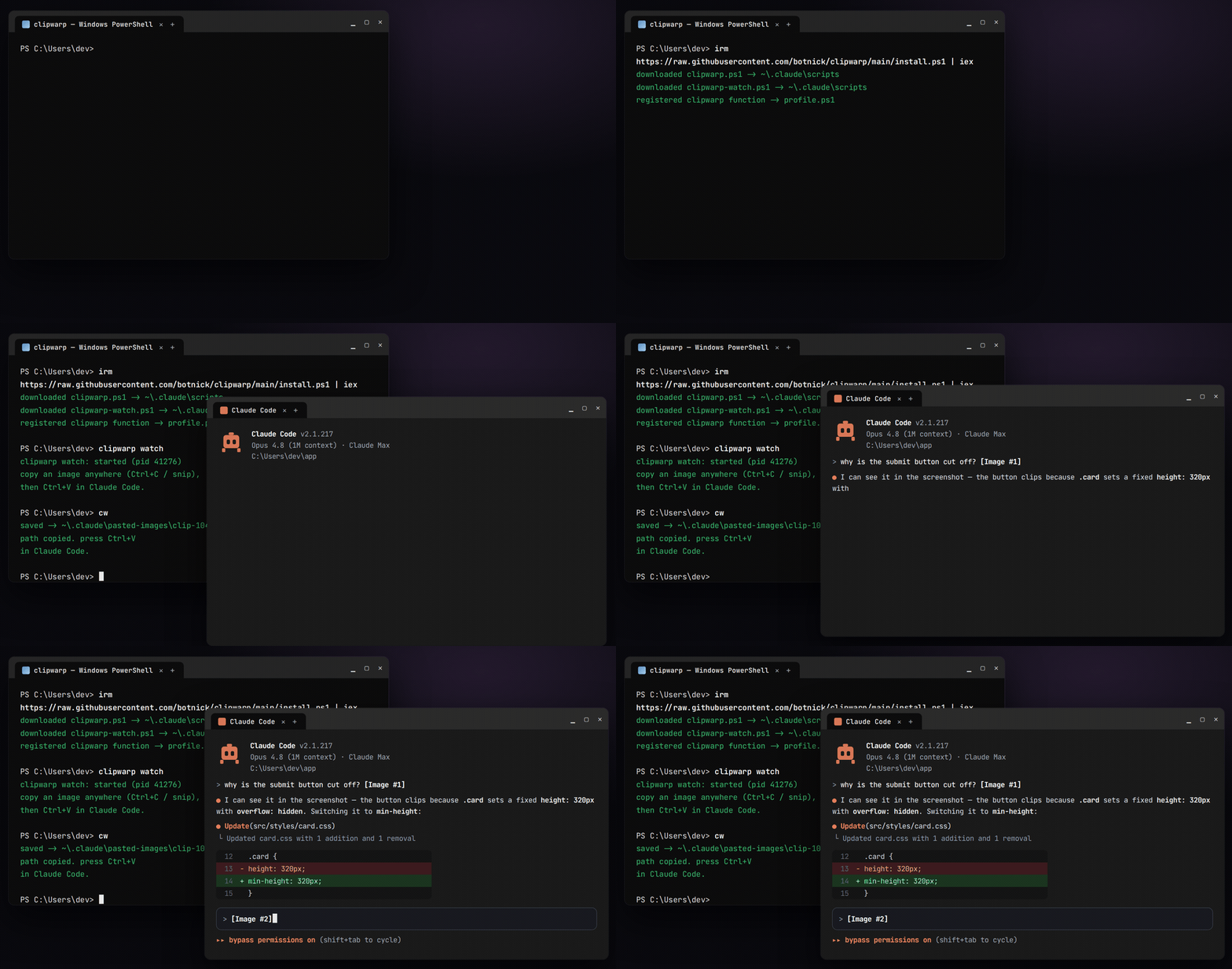
On native Windows, Claude Code can't read an image from the clipboard.
Ctrl+V and Alt+V silently do nothing after you snip with Snipping Tool
(Win+Shift+S), Lightshot, ShareX, or "Copy image" in a browser — a long-standing
issue reported across
anthropics/claude-code#22068,
#26679, and
#32791 (the latter two
still open; Alt+V only works under WSL).
What always works is a file path pasted as text — Claude Code auto-attaches
any .png / .jpg / .gif / .webp path it sees. clipwarp turns whatever
image is on your clipboard into exactly that, automatically:
┌─────────────┐     ┌──────────────────────────────┐     ┌────────────────────┐
│  Win+Shift+S │ ──▶ │  clipwarp: save clipboard    │ ──▶ │  Ctrl+V in Claude  │
│  / Ctrl+C    │     │  image → PNG, put its path   │     │  Code = image      │
│  anywhere    │     │  on the clipboard as text    │     │  attached ✓        │
└─────────────┘     └──────────────────────────────┘     └────────────────────┘
One command in PowerShell:
irm https://raw.githubusercontent.com/botnick/clipwarp/main/install.ps1 | iex
Or from a clone: git clone https://github.com/botnick/clipwarp; .\clipwarp\install.ps1
The installer copies the scripts to %USERPROFILE%\.claude\scripts and registers a
clipwarp command (plus a short cw alias) in the all-hosts profile of both
PowerShell editions — Windows PowerShell 5.1 and PowerShell 7 — so it works whichever
one you open. Idempotent; re-run any time to update. Open a new terminal
afterwards (or run . $PROFILE) so the command is found.
No admin rights, no services, no dependencies — plain PowerShell and .NET classes that ship with Windows. Everything runs locally; images never leave your machine.
Ctrl+C → Ctrl+Vclipwarp watch # start the background clipboard watcher, once
clipwarp autostart # optional: also start it at every login
While the watcher runs, every image that lands on the clipboard is converted
automatically — snip, Lightshot, browser "Copy image", Ctrl+C on an image file.
Just Ctrl+V in Claude Code and the image attaches.
The clipboard is rewritten as dual format, so nothing else breaks:
| Paste target | What pastes |
|---|---|
| Claude Code / any terminal | the saved image's path (auto-attaches) |
| Photoshop, Word, Discord, a browser… | the original image |
Copies that carry meaningful text alongside an image (e.g. a paragraph from Word) are left untouched — only pure image copies convert.
clipwarp status       # is the watcher running? is autostart on?
clipwarp stop         # stop it
clipwarp unautostart  # remove the login autostart
[!IMPORTANT] Turn the watcher off when you're not using Claude Code. While
clipwarp watchis running, every copied image also carries its file path as text. Apps that accept images still paste the image — but a plain text box will receive the path instead (e.g.C:\Users\you\.claude\pasted-images\clip-….png). When you're done, runclipwarp stop(andclipwarp unautostartso it doesn't launch at next login).
Win+Shift+S, Lightshot, ShareX, a browser…).cw (short for clipwarp).Ctrl+V. Done.| Command | What it does |
|---|---|
clipwarp watch | Start the background auto-converter. |
clipwarp autostart | Start the watcher automatically at every login. |
clipwarp status | Is the watcher running? Is autostart on? |
clipwarp stop | Stop the watcher. |
clipwarp unautostart | Remove the login autostart. |
cw | Short alias — convert the clipboard image once, then Ctrl+V. |
clipwarp reads the clipboard in whatever format the source app actually used — this
is what makes it work where a naive Get-Clipboard -Format Image fails:
| Clipboard format | Typical source |
|---|---|
CF_BITMAP / CF_DIB | Snipping Tool, Win+Shift+S, PrtScn |
PNG / image/png stream | Lightshot, Chrome, Firefox, Discord, ShareX |
CF_DIBV5 (alpha, BITFIELDS) | alpha-aware apps — decoded manually, since GDI+ can't parse BITMAPV5HEADER+BI_BITFIELDS |
CF_HDROP (file copy) | Ctrl+C on an image file in Explorer |
HTML with data: URI / file:/// src | browser "Copy image" fallback |
| Plain text that is already an image path | anything |
.bmp sources are transcoded to PNG (Claude Code doesn't attach .bmp). Clipboard
access is retried through transient locks; in watcher mode the write is guarded by
the clipboard sequence number, so a slow conversion never overwrites a newer copy.
%USERPROFILE%\.claude\pasted-images and
only its path is put on your clipboard. Nothing touches the network.clipwarp prints the saved path, so it composes:
$img = clipwarp -Quiet # -> C:\Users\you\.claude\pasted-images\clip-....png
| Flag | Meaning |
|---|---|
-OutDir <path> | Where to save PNGs (default %USERPROFILE%\.claude\pasted-images). |
-Quiet | Print only the path. |
-KeepImage | Dual-format write: path as text and the original image (what the watcher uses). |
Claude Code's terminal UI on native Windows can't read raw bitmaps from the Windows
clipboard, and Alt+V is WSL-only. Pasting a file path as text is the reliable
route — clipwarp automates it.
With the watcher running (clipwarp watch), take the screenshot (Win+Shift+S,
PrtScn, Lightshot…), then press Ctrl+V in Claude Code. Without the watcher, run
cw after the screenshot, then Ctrl+V.
Under WSL, Claude Code's own Alt+V usually works. clipwarp targets native Windows
(Windows Terminal, PowerShell, cmd, VS Code terminal), where nothing else does.
No — saved PNGs older than 7 days are cleaned up automatically (see Privacy & housekeeping).
# Works after any install (the installer copies the uninstaller here):
& "$HOME\.claude\scripts\uninstall.ps1"
& "$HOME\.claude\scripts\uninstall.ps1" -PurgeImages   # also delete saved images

# Or, from the git clone you installed from:
.\clipwarp\uninstall.ps1
The uninstaller stops the watcher, removes its login-autostart shortcut, deletes the
installed scripts, and strips the clipwarp function from both PowerShell editions.
Issues and PRs welcome — especially reports of clipboard formats from apps that still
fail (attach the output of clipwarp without -Quiet).
Manage multiple Claude Code instances in separate git worktrees simultaneously
⚠️ Experimentelle Skill-Sammlung für deutsches Recht (Arbeits-, Gesellschafts-, Insolvenz-, Datenschutz-, Prozessrecht u
Manage multiple Claude Code agents from TUI or Web with tmux and git worktrees
Project management using GitHub Issues + Git worktrees for parallel agent execution
