

Are you the author? Sign in to claim
Flattrade MCP is a lightweight local server that speaks MCP (Model Context Protocol) on one side and Flattrade's Pi Conn
Connect your AI assistant (Claude Desktop, or any other MCP-compatible client) to your Flattrade trading account. No coding or installation of developer tools required — just download a single binary file for your operating system.
Download the file that matches your computer from [DOWNLOAD_LINK]:
| Your OS | File Name |
|---|---|
| Windows (most PCs) | flattrade-mcp-windows-amd64.exe |
| Windows ARM (Surface Pro X etc.) | flattrade-mcp-windows-arm64.exe |
| macOS Apple Silicon (M1/M2/M3/M4) | flattrade-mcp-macos-m1 |
| macOS Intel (older Macs) | flattrade-mcp-macos-intel |
| Linux 64-bit | flattrade-mcp-linux-amd64 |
| Linux ARM | flattrade-mcp-linux-arm64 |
Not sure which Mac you have? Apple menu → About This Mac. "Apple M1/M2/M3/M4" → use the macOS Apple Silicon binary. "Intel" → use the macOS Intel binary.
Not sure which Windows you have? Almost certainly
flattrade-mcp-windows-amd64.exe.
FT028416)Skip this step if you already have an API Key and Secret.
Log in to Wall
Go to Pi (top menu) → click CREATE NEW API KEY

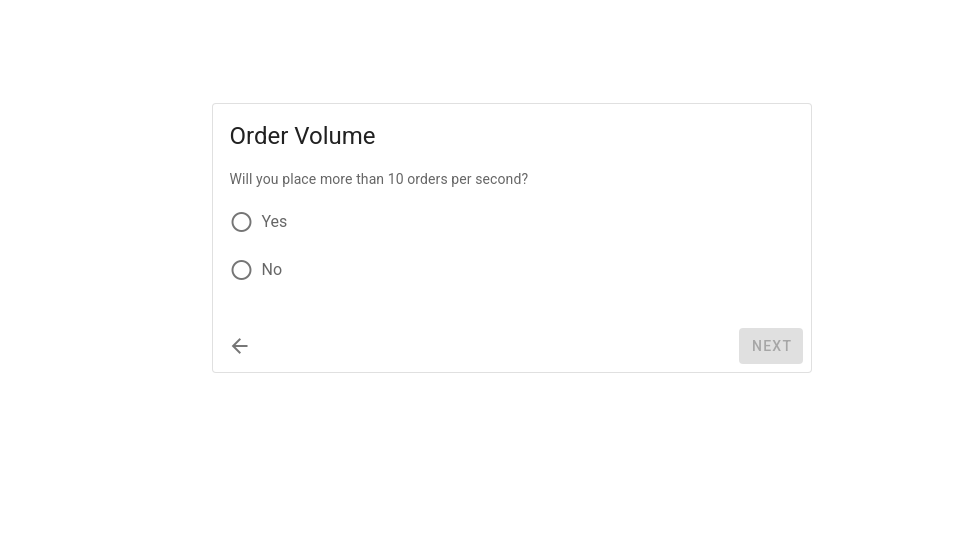
Choose your order volume:
| Will you place more than 10 orders per second? | Select |
|---|---|
| No (most users) | No |
| Yes (high-frequency / algo use) | Yes |
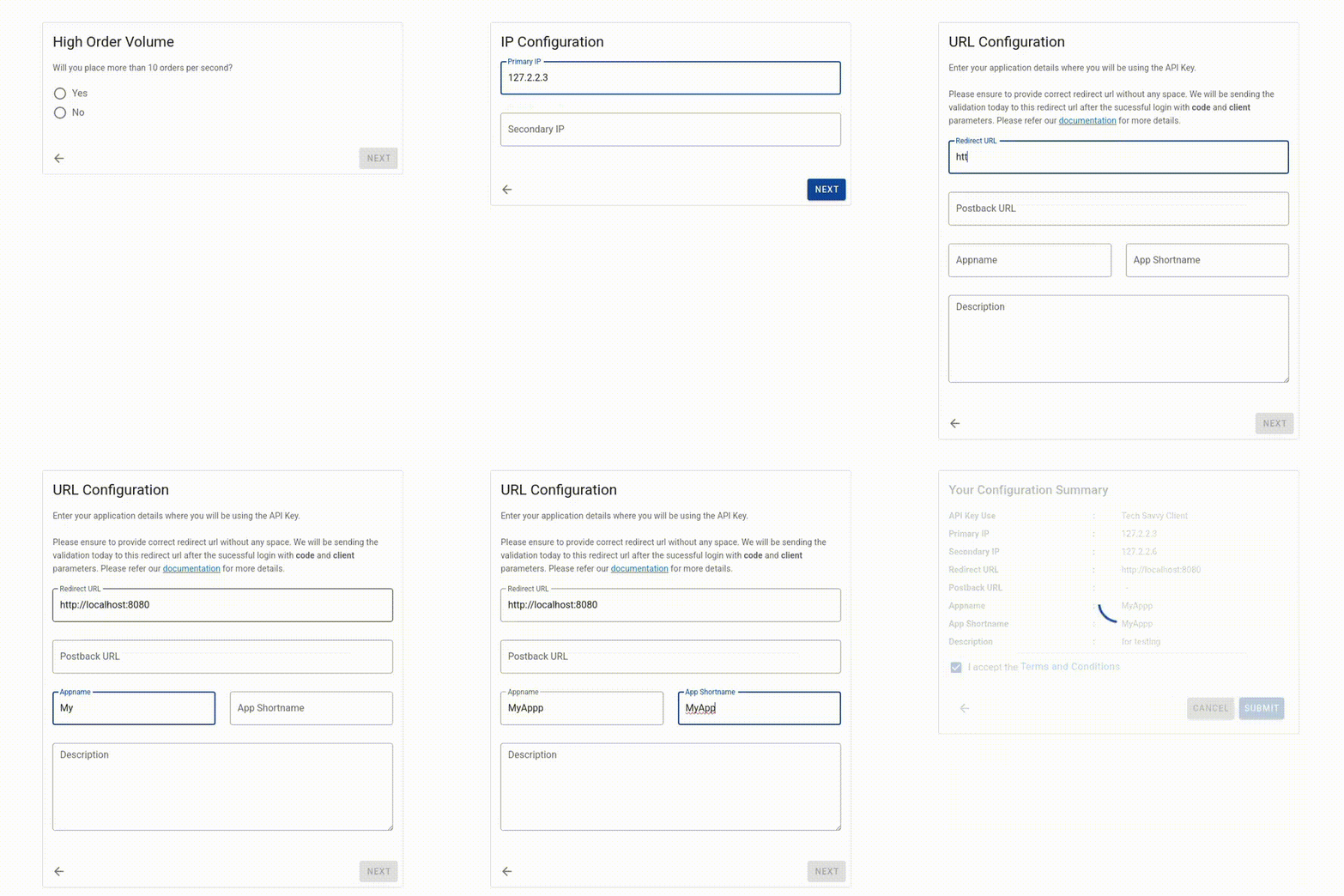
103.45.67.89). Secondary IP is optional.http://localhost:7080Same IP Configuration and App/URL Configuration as above
Additionally upload your strategy details:
| Field | Description |
|---|---|
| Strategy | Your strategy for this API key |
| Segment | The market segment for this API key |
| File | Supporting file for the selected segment |
Review the summary, accept the Terms & Conditions, and submit
Your request shows as Pending Approval:

Once approved, your API key is generated:

Click the eye icon to reveal your Secret Key:

Copy your API Key and API Secret — you'll need both in Step 5
Put the binary somewhere permanent on your computer.
Windows
C:\Tools\.exe into itC:\Tools\flattrade-mcp-windows-amd64.exemacOS
mkdir -p ~/flattrade
mv ~/Downloads/flattrade-mcp-macos-m1 ~/flattrade/flattrade-mcp
chmod +x ~/flattrade/flattrade-mcp
(Replace flattrade-mcp-macos-m1 with the file you downloaded)
Linux
mkdir -p ~/flattrade
mv ~/Downloads/flattrade-mcp-linux-amd64 ~/flattrade/flattrade-mcp
chmod +x ~/flattrade/flattrade-mcp
Pick whichever option matches how you use Claude.
Open the config file:
%APPDATA%\Claude\claude_desktop_config.json~/Library/Application Support/Claude/claude_desktop_config.json — quickly open it with:
open ~/Library/Application\ Support/Claude/claude_desktop_config.json
~/.config/Claude/claude_desktop_config.jsonAdd the block below, using the path where you placed the binary and your own credentials:
{
  "mcpServers": {
    "flattrade": {
      "command": "/path/to/flattrade-mcp",
      "env": {
        "FLATTRADE_USER_ID": "YOUR_CLIENT_ID",
        "FLATTRADE_API_KEY": "YOUR_API_KEY",
        "FLATTRADE_API_SECRET": "YOUR_API_SECRET"
      }
    }
  }
}
command: "C:\\Tools\\flattrade-mcp-windows-amd64.exe"command: "/Users/yourname/flattrade/flattrade-mcp"flattrade server is listedIf you use the Claude Code CLI instead of (or in addition to) Claude Desktop, you can add the server with a single command — no manual JSON editing needed.
Prerequisites
Claude Code requires Node.js.
node --version
macOS / Linux (bash/zsh)
claude mcp add flattrade \
  --scope user \
  --env FLATTRADE_USER_ID="YOUR_CLIENT_ID" \
  --env FLATTRADE_API_KEY="YOUR_API_KEY" \
  --env FLATTRADE_API_SECRET="YOUR_API_SECRET" \
  -- /path/to/flattrade-mcp
Windows — PowerShell
Use the backtick (`) for line continuation instead of \:
claude mcp add flattrade `
  --scope user `
  --env FLATTRADE_USER_ID="YOUR_CLIENT_ID" `
  --env FLATTRADE_API_KEY="YOUR_API_KEY" `
  --env FLATTRADE_API_SECRET="YOUR_API_SECRET" `
  -- "C:\Tools\flattrade-mcp-windows-amd64.exe"
Windows — Command Prompt (cmd.exe)
cmd.exe doesn't support line continuation the same way — put everything on one line:
claude mcp add flattrade --scope user --env FLATTRADE_USER_ID=YOUR_CLIENT_ID --env FLATTRADE_API_KEY=YOUR_API_KEY --env FLATTRADE_API_SECRET=YOUR_API_SECRET -- "C:\Tools\flattrade-mcp-windows-amd64.exe"
Use whichever version matches your terminal, and replace the binary path with the actual path where you placed it (Step 4), along with your own Client ID, API Key, and API Secret.
C:\Tools\flattrade-mcp-windows-amd64.exe/Users/yourname/flattrade/flattrade-mcp or /home/yourname/flattrade/flattrade-mcpVerify it was added:
claude mcp list
Note: Claude Code (terminal) and Claude Desktop use separate config files, so you can set up both at the same time without conflict.
Most MCP clients use the same mcpServers JSON structure shown above, in their own config file. Check your assistant's documentation for the exact config file location, then add the same flattrade block with your binary path and credentials.
In your AI assistant, type:
Login to Flattrade
Check if login is done
If it replies "Authenticated with Flattrade", you're ready to go.
Try a few things:
What is the current price of NIFTY?
Show me my positions
How much cash do I have available?
Buy 1 share of Infosys at market price
Show me the NIFTY option chain at 24000
Your session is saved for the day.
Login to Flattrade again and repeat the browser login.| Action | Just Say... |
|---|---|
| Check stock price | "What is the price of [STOCK]?" |
| View positions | "Show my positions" |
| View holdings | "Show my holdings" |
| Check funds | "How much margin do I have?" |
| Place buy order | "Buy [QTY] [STOCK] at [PRICE]" |
| Place sell order | "Sell [QTY] [STOCK] at [PRICE]" |
| Cancel order | "Cancel order [ORDER ID]" |
| View order book | "Show my orders" |
| Live prices | "Subscribe to live prices for NIFTY" |
| Set GTT order | "Set a GTT to buy [STOCK] if price drops to [PRICE]" |
| Option chain | "Show NIFTY option chain at [STRIKE]" |
| Historical data | "Show daily chart for INFY from 01-01-2026" |
| Logout | "Logout of Flattrade" |
"Not authenticated — call login first"
Your session expired. Type Login to Flattrade and complete the browser login again.
Browser shows "This site can't be reached" on localhost:7080 The MCP server isn't running. Close and reopen your AI assistant, then try logging in again.
"Port 7080 busy" Something else on your computer is using port 7080. Close the other application (or restart your computer) and try again.
The assistant doesn't recognize Flattrade commands The MCP server may not be connected. Restart the AI assistant and confirm your config file is saved correctly.
I entered the wrong API Key Edit the config file with the correct key and restart the AI assistant.
(macOS) "Apple could not verify 'flattrade-mcp' is free of malware..." macOS blocks the binary because it isn't signed/notarized by Apple — normal for developer tools distributed outside the App Store. Only proceed if you trust the source of the binary.
/path/to/flattrade-mcp/path/to/flattrade-mcpOnce allowed, Claude Desktop / Claude Code will be able to launch it normally.
~/.flattrade/session.json on your own machineEmail support@flattrade.in with:
Run Claude Code as an MCP server so any agent can delegate coding tasks to it
 @microsoft✓ Official
Browser automation using accessibility snapshots instead of screenshots
 @googleapis✓ Official
Google's universal MCP server supporting PostgreSQL, MySQL, MongoDB, Redis, and 10+ databases
 @github✓ Official
Official GitHub integration for repos, issues, PRs, and CI/CD workflows