

Are you the author? Sign in to claim
A powerful AI assistant integrated into KOReader.



Powerful, customizable AI assistant for KOReader.
New to KOAssistant? The Wiki has short getting-started guides. Help expand it.
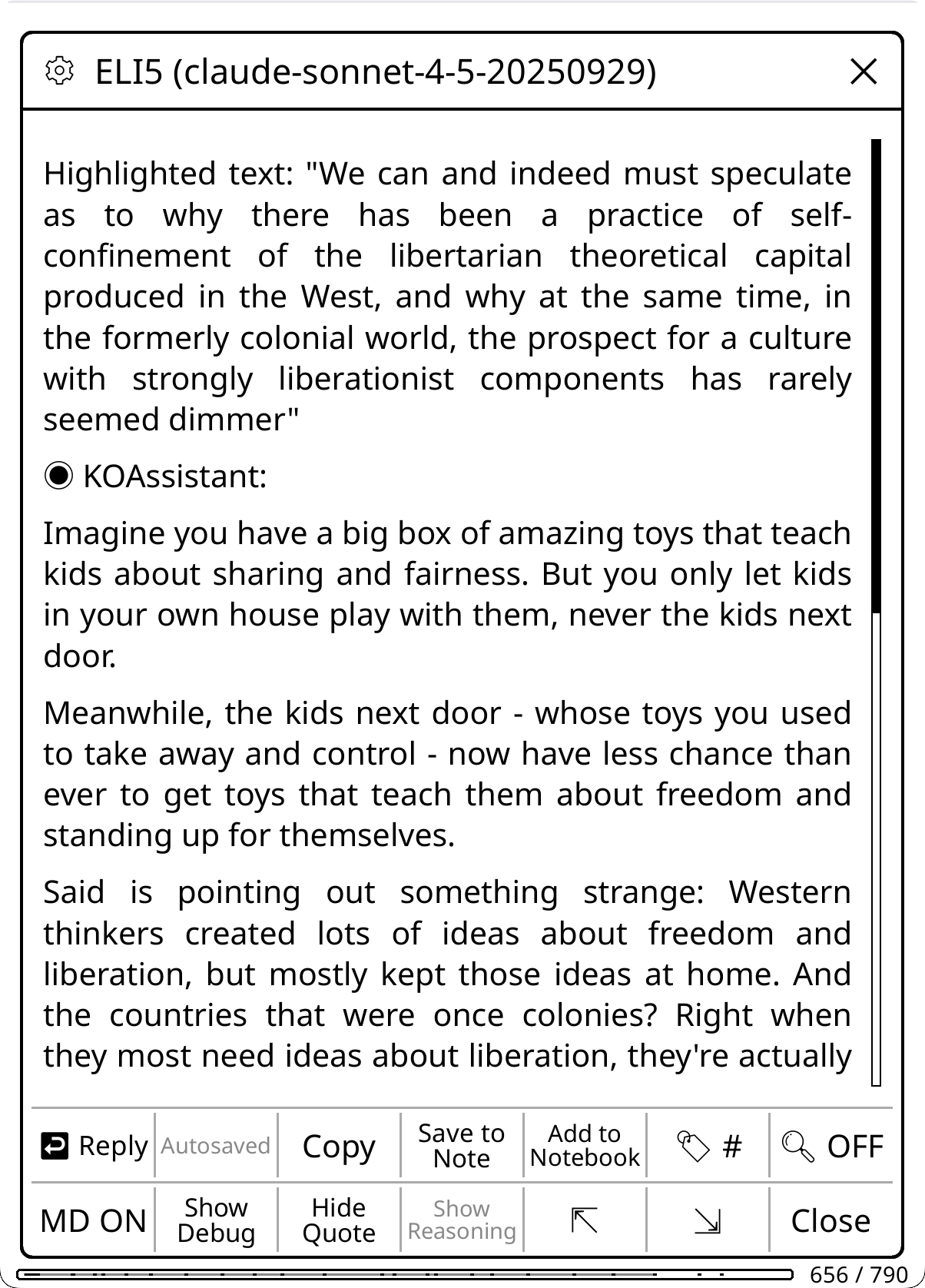
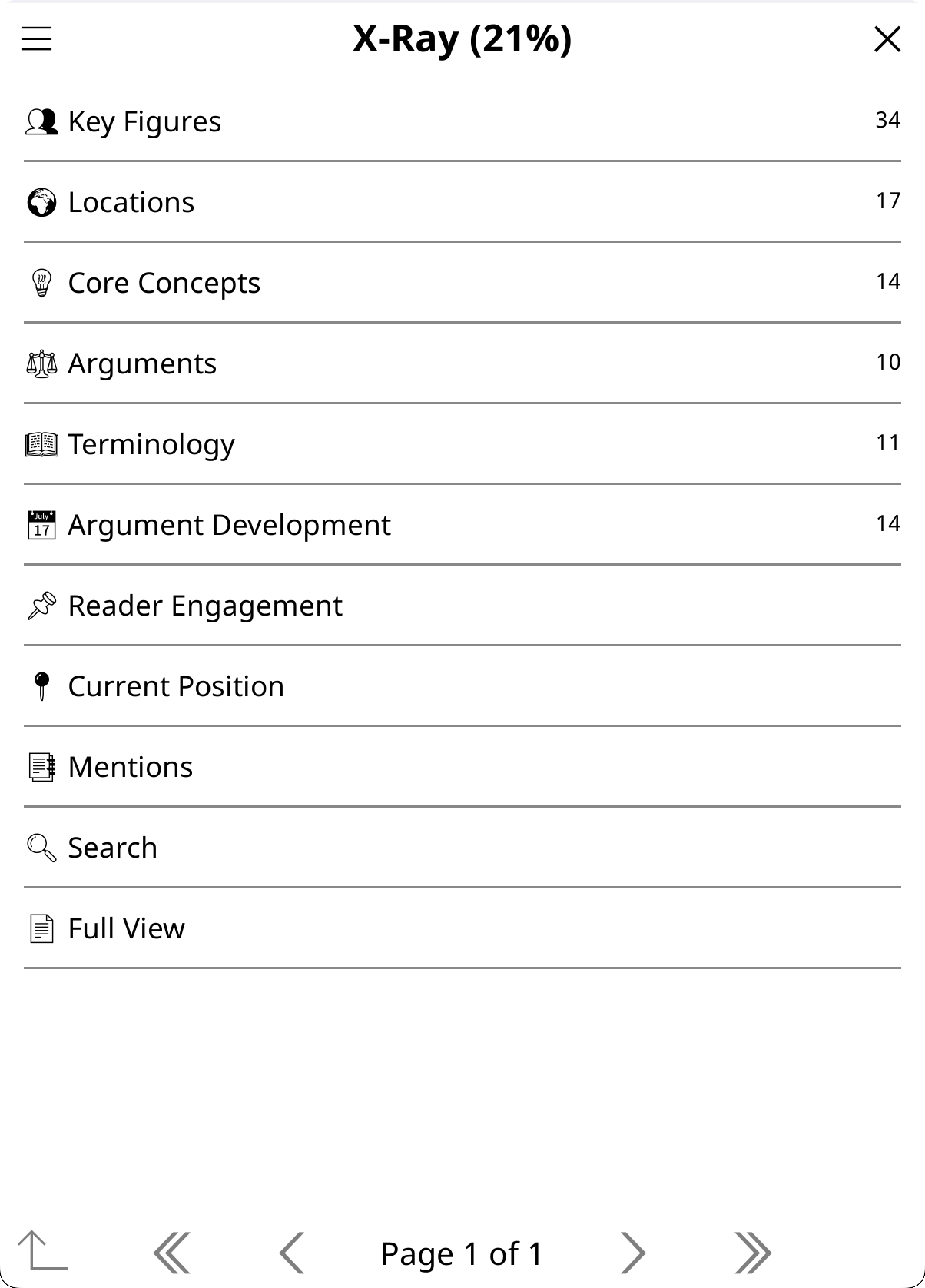
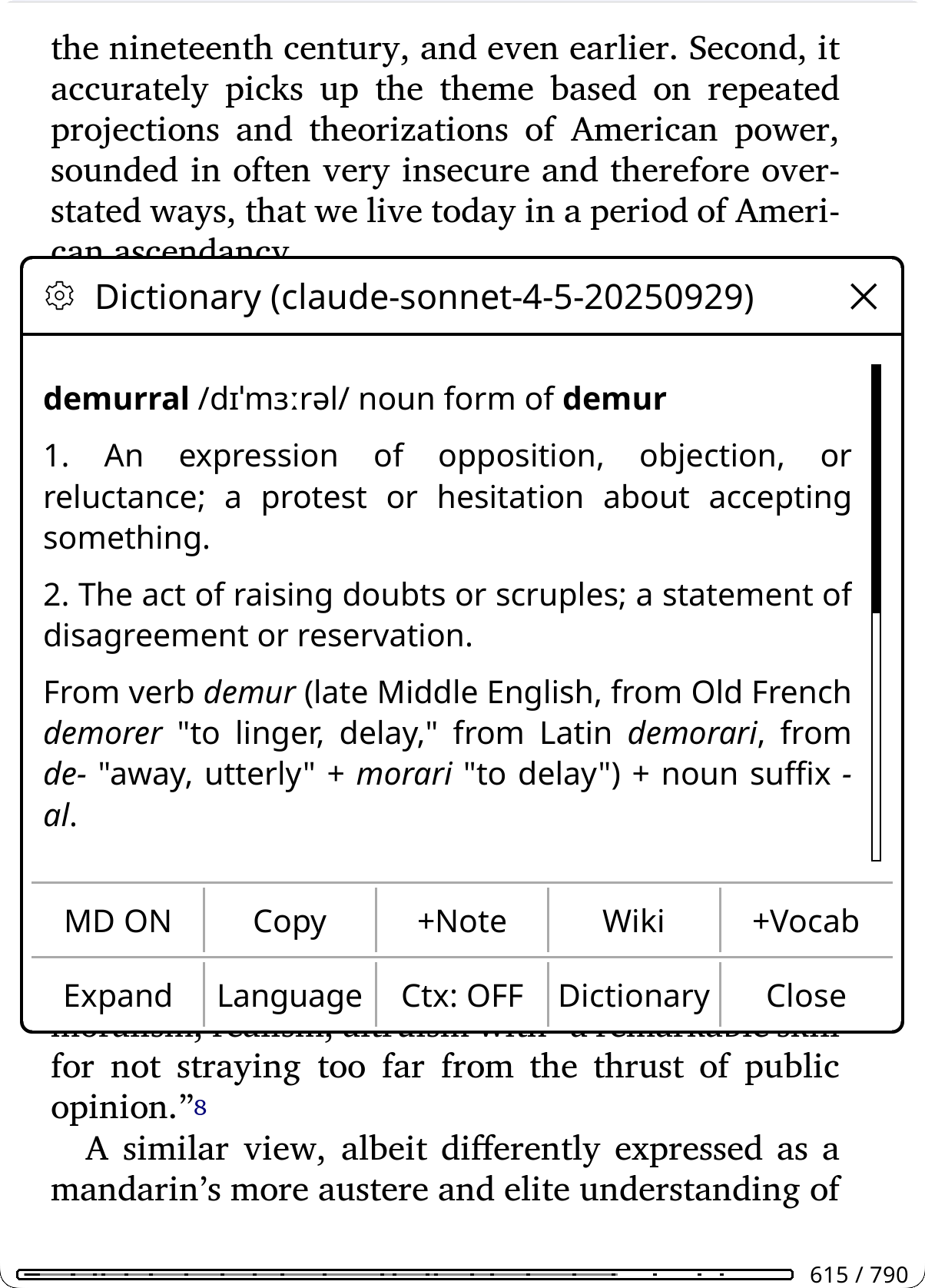
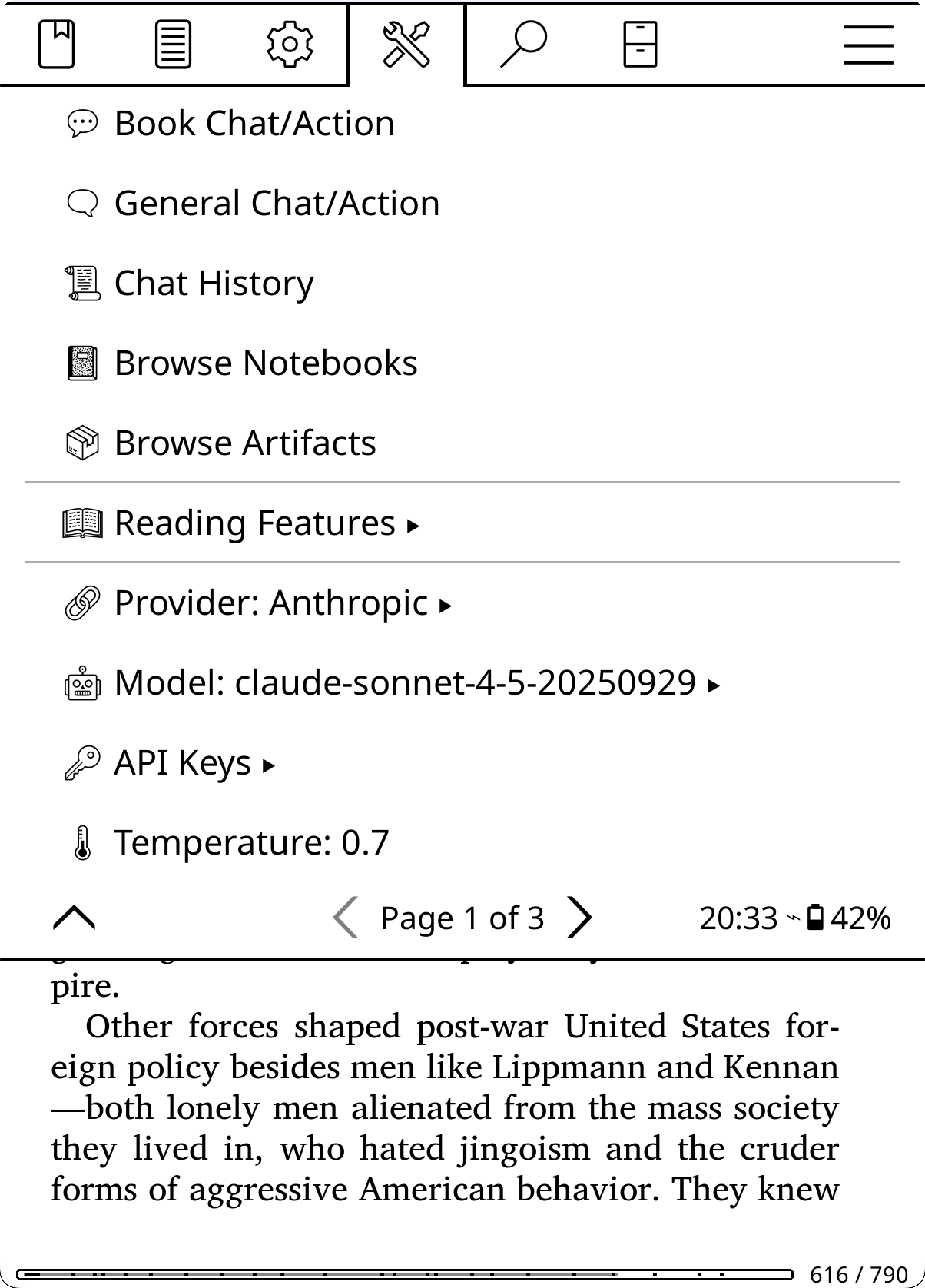
18 built-in providers (Anthropic, OpenAI, Gemini, Ollama, and more) plus custom OpenAI-compatible providers. Fully configurable: custom actions, behaviors, domains, per-action model overrides. One-tap auto-update keeps the plugin current. Personal reading data (highlights, annotations, notebooks) is opt-in, not sent to the AI unless you enable it.
Status: Active development. issues, discussions, and translations welcome. If you are somewhat technical and don't want to wait for tested releases, you can run off main branch to get the latest features. Breakage may happen. Also see Assistant Plugin; both can run side by side.
Note: This README is intentionally detailed to help users discover all features. Use the table of contents or search (Ctrl+F) to navigate.
New to KOAssistant? Start here for the fastest path to productivity:
You can also test your setup: Web inspector for experimenting
Want to go deeper? The rest of this README covers all features in detail.
Note: The README is intentionally verbose and somewhat repetitive to ensure you see all features and their nuances. Use the table of contents to jump to specific topics. A more concise structured documentation system is planned (contributions welcome).
Prefer a minimal footprint? KOAssistant is designed to stay out of your way. The main menu is tucked under Tools (page 2), and all default integrations (file browser buttons, highlight menu items, dictionary popup, gesture actions) can be disabled via Settings → KOReader Integration. Use only what you need.
Get started in 3 steps:
Download koassistant.koplugin.zip from the latest Release → Assets, or to run the latest from main branch: Code -> Download Zip, or clone the repo:
git clone https://github.com/zeeyado/koassistant.koplugin
Extract or copy the koassistant.koplugin folder to your KOReader plugins directory:
Kobo/Kindle:  /mnt/onboard/.adds/koreader/plugins/koassistant.koplugin/
Android:      /sdcard/koreader/plugins/koassistant.koplugin/
macOS:        ~/Library/Application Support/koreader/plugins/koassistant.koplugin/
Linux:        ~/.config/koreader/plugins/koassistant.koplugin/
For the plugin to be installed correctly, the file structure should look like this (no nested folder, and foldername must be koassistant.koplugin exactly; remove "-main" or similar if you downloaded the zip from head):
koreader
└── plugins
    └── koassistant.koplugin
        ├── _meta.lua
        ├── main.lua
        └── ...
This is the only time you need to install manually. After this, KOAssistant updates itself: when a new version is available, you'll see release notes with an "Update Now" button. One tap and it handles everything (download, install, preserve your settings). See Updating the Plugin for details.
Alternative: You can also install KOAssistant directly from within KOReader using the App Store plugin, which lets you browse, install, and update KOReader plugins without a computer. It can install from releases or from the latest main branch code.
Option A: Via Settings
Option B: Via Configuration File
Make a copy of apikeys.lua.sample and name it apikeys.lua
cp apikeys.lua.sample apikeys.lua
Edit apikeys.lua and add your API key(s):
return {
    anthropic = "your-key-here",  -- console.anthropic.com
    openai = "",                  -- platform.openai.com
    -- See apikeys.lua.sample for all 18 providers
}
Note: GUI-entered keys take priority over file-based keys. The API Keys menu shows
[set]for GUI keys and(file)for keys from apikeys.lua.
See Supported Providers for full list with links to get API keys.
Free Options Available: Don't want to pay? Groq, Gemini, and Ollama offer free tiers. See Free Tier Providers.
Find KOAssistant Settings in: Tools → Page 2 → KOAssistant and follow the Setup Wizard.
Some features require opt-in to work. Go to Settings → Privacy & Data to configure. See Privacy & Data for details.
Quick option: Use Preset: Full to enable all data sharing at once. Text extraction is enabled separately.
On first launch, KOAssistant walks you through a 5-step setup wizard:
The wizard runs once and won't appear again. If you re-run the wizard (by resetting the setup flag), it skips the language step if you've already configured a language. You can always change language, emoji, and gesture settings later in Settings.
After the setup wizard, complete these steps for the best experience:
Tip: Edit built-in actions to always use the provider/model of your choice (regardless of your main settings); e.g. Dictionary actions benefit from a lighter model for speed.
Automatic setup: The setup wizard offers to assign both panels to tap bottom-right corner: Quick Settings in the file browser and Quick Actions in the reader. Accept to set up both gestures automatically (requires KOReader restart). If the bottom-right corner is already assigned to another action, you'll get an informational tip instead.
Manual setup (same gesture, two contexts):
Now the same tap gives you Quick Settings in the file browser and Quick Actions while reading. Both panels include most functions you need, plus buttons to open Settings and other features. In reader mode, each panel has a button to switch to the other.
Recommended: Two Quick Access Panels
KOAssistant provides two distinct quick-access panels for different purposes:
1. Quick Settings (available everywhere)
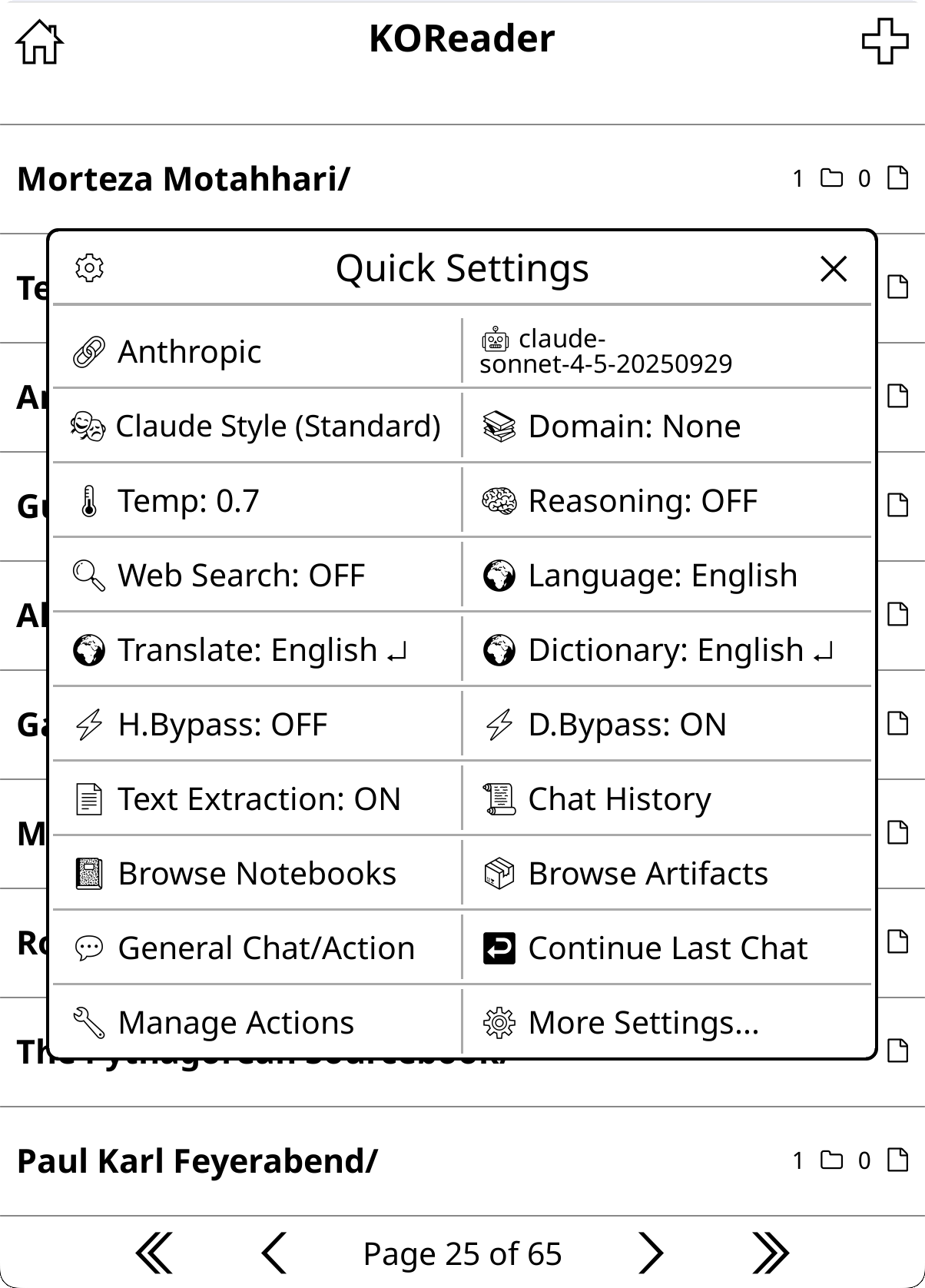
Assign "KOAssistant: Quick Settings" to a gesture for one-tap access to a two-column settings panel with commonly used options:
In reader mode, additional buttons appear (items naturally shift to accommodate):
The panel has a gear icon (top-left) that opens the QS Panel Utilities manager for reordering and toggling buttons. Also accessible via Settings → Quick Settings Settings → QS Panel Utilities.
2. Quick Actions (reader mode only)
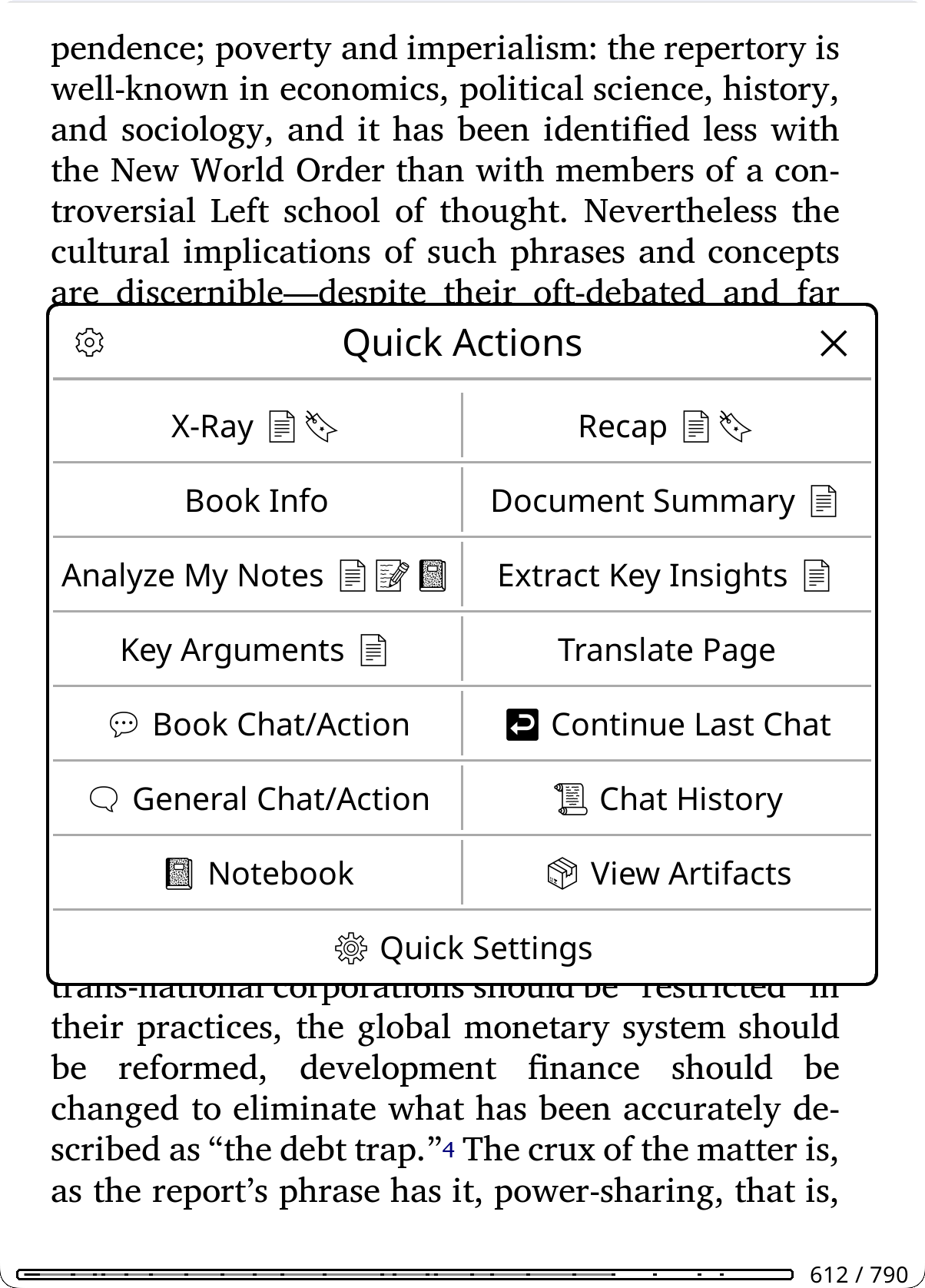
Assign "KOAssistant: Quick Actions" to a gesture for fast access to reading-related actions:
You can add any book action to Quick Actions via Action Manager → hold action → "Add to Quick Actions". The panel has a gear icon (top-left) that lets you choose between managing Panel Actions (reorder/remove actions) or Panel Utilities (show/hide/reorder utility buttons). Also accessible via the hamburger menu in Manage Actions. Defaults can also be removed.
Tip: For quick access, assign Quick Settings and Quick Actions to their own gestures (e.g. corner tap). This gives you one-tap access to these panels from anywhere. Alternatively, you can add them to a KOReader QuickMenu alongside other actions (see below).
Alternative: Build a KOReader QuickMenu For full customization, assign multiple KOAssistant actions to one gesture and enable "Show as QuickMenu" to get a selection menu with any actions you want, in any order, mixed with non-KOAssistant actions:
Unlike KOAssistant's built-in panels (Quick Settings, Quick Actions) which show two buttons per row, KOReader's QuickMenu shows one button per row but allows mixing KOAssistant actions with any other KOReader actions.
Direct gesture assignments You can also assign individual actions directly to their own gestures for instant one-tap access:
Add your own actions to gestures Any book or general action (built-in or custom) can be added to the gesture menu. See Custom Action Gestures for details.
Important: KOReader has two separate gesture configurations:
- File Browser gestures: Configure from the file browser (Settings → Gesture Manager)
- Reader gestures: Configure while a book or document is open (Settings → Gesture Manager)
You must set up gestures in both places if you want access from both contexts. Reader-only gestures (like Quick Actions, Translate Page, Book Chat/Action) will appear grayed out if you try to add them to File Browser gestures. This is expected. General gestures (like Quick Settings, Chat History) work in both contexts and can be added to either or both.
After basic setup, explore these features to get the most out of KOAssistant:
| Feature | What it does | Where to configure |
|---|---|---|
| Behaviors | Control response style (concise, detailed, custom) | Settings → Actions & Prompts → Manage Behaviors |
| Domains | Add project-like context to conversations | Settings → Actions & Prompts → Manage Domains |
| Actions | Create your own prompts and workflows | Settings → Actions & Prompts → Manage Actions |
| Quick Actions | Fast access to reading actions while in a book or document | Gesture → "KOAssistant: Quick Actions" |
| Research Mode | Automatic academic enhancements when DOI detected (academic X-Ray, web search, research prompts) | Automatic, no configuration needed |
| X-Ray Browser | Browsable reference guide with Section X-Rays, AI Wiki, chapter tracking | Quick Actions → X-Ray |
| Highlight Menu | Actions in highlight popup (8 defaults including Translate, ELI5, Explain) | Manage Actions → Add to Highlight Menu |
| Notebooks | Per-book markdown notes with Obsidian vault support | Settings → Notebook Settings |
| Dictionary Integration | AI-powered word lookups when selecting single words | Settings → Dictionary Settings |
| Bypass Modes | Instant AI actions without menus | Settings → Dictionary/Highlight Settings |
| Reasoning/Thinking | Enable deep analysis for complex questions | Settings → Advanced → Reasoning |
| Backup & Reset | Backup settings, restore, and reset options | Settings → Backup & Reset |
| Languages | Configure multilingual responses (native script pickers) | Settings → AI Language Settings |
See detailed sections below for each feature.
The test suite includes an interactive web inspector that lets you test and experiment with KOAssistant without launching KOReader:
What you can do:
domains/ folder)Requirements:
Quick Start:
cd /path/to/koassistant.koplugin
lua tests/inspect.lua --web
# Then open http://localhost:8080 in a browser
Pro tip: The web inspector reads from your actual KOAssistant settings (koassistant_settings.lua), so run KOReader on the same device/computer first to load your full configuration (languages, behavior, temperature, etc.).
Why use it:
⚠️ Some features are opt-in. To protect your privacy, personal reading data (highlights, annotations, notebook) is NOT sent to AI providers by default. You must enable sharing in Settings → Privacy & Data if you want features like Analyze Notes or Connect with Notes to work fully. See Privacy Controls below.
KOAssistant sends data to AI providers to generate responses. This section explains what's shared and how to control it. This is not meant as security or privacy theater or false reassurances of privacy, as the "threat model" here is simply users including sensitive data (Annotations, notes, content, etc.) by accident; you are already being permissive about privacy by using online AIs (especially for personal interest areas) in the first place, and this plugin by its nature does encourage the use of AI to analyze your reading material. The available placeholders/template variables are substantial in this regard (amount and sensitivity of data). Advanced Stats (opt-in, off by default) accesses KOReader's Statistics plugin locally to derive reading engagement groups; see Design Choices for what this means and why it's opt-in. Best practice is to pick providers thoughtfully, and the very best practice is to use local or self-hosted solutions, e.g. Ollama.
Always sent (cannot be disabled):
Sent by default: (for Actions using it)
Opt-in (disabled by default):
Settings → Privacy & Data provides three quick presets:
| Preset | What it does |
|---|---|
| Default | Basic stats (progress, chapter info) shared for context-aware features. Personal content (highlights, annotations, notebook) stays private. Advanced stats off. |
| Minimal | Maximum privacy. Only your question and book metadata are sent. All stats, library scanning, and personal content disabled. |
| Full | All data sharing enabled for full functionality, including advanced stats. Does not automatically enable text extraction (see below). |
Individual toggles (under Data Sharing Controls):
{highlights} placeholders. Does not include personal notes. Grayed out when annotations is enabled (annotations implies highlights).Library Settings (in Chat & Export Settings → Reading & Library):
use_library flag provides the second gateTrusted Providers: Mark providers you fully trust (e.g., local Ollama) to bypass all data sharing controls AND text extraction AND the library scanning toggle. When the active provider is trusted, all data types (highlights, annotations, notebook, reading progress, book text, and library catalog) are available without toggling individual settings. Trusted providers still require at least one folder (permanent or on-the-fly) for library scanning.
Graceful degradation: When you disable a data type, actions adapt automatically. Section placeholders like {highlights_section} simply disappear from prompts, so you don't need to modify your actions. For text extraction, most actions fall back to AI training knowledge; see Text Extraction and Double-gating for details.
Visibility tip: If your device supports emoji fonts, enable Emoji Data Access Indicators (Settings → Display Settings → Emoji) to see at a glance what data each action accesses: 📄 document text, 🔖 highlights, 📝 annotations, 📓 notebook, 🌐 web search, directly on action names throughout the UI.
⚠️ Text extraction is OFF by default. To use features like X-Ray, Recap, and context-aware highlight actions with actual book content (rather than AI's training knowledge), you must enable it in Settings → Privacy & Data → Text Extraction → Allow Text Extraction.
Text extraction sends actual book/document content to the AI, enabling features like X-Ray, Recap, Document Summary/Analysis, and highlight actions like "Explain in Context" to analyze what you've read. Without it enabled, most actions gracefully fall back to the AI's training knowledge: the AI is explicitly told no document text was provided and asked to use what it knows about the work (or say so honestly if it doesn't recognize it). This works reasonably for well-known titles but will be inaccurate for obscure works, and basically unusable for research papers and articles the AI hasn't seen. Exception: X-Ray requires text extraction and blocks generation without it; use X-Ray (Simple) for a prose overview from AI knowledge.
Why it's off by default:
Token costs and context window (primary reasons, and also why it is not automatically enabled by Privacy presets, even Full): Extracting book text uses significantly more context than you might expect. A full book can consume 60k+ tokens per request, which adds up quickly with paid APIs. Users should consciously opt into this cost. Large contexts also significantly degrade response quality, especially for follow up questions. That's why actions with source selection let you choose "Document summary" as an alternative: run your queries on a previously generated summary (~2-8K tokens) rather than the full document text.
Content awareness (See double-gating below): For most users reading mainstream books, the text itself isn't privacy-sensitive. However, if you're reading something non-standard, subversive, controversial, or otherwise sensitive, you should be aware that the actual content is being sent to cloud AI providers. This is a secondary consideration for most users but important for some.
How to enable:
Double-gating for custom actions: When you create a custom action from scratch, sensitive data requires both a global privacy setting AND a per-action permission flag. This prevents accidental data leakage if you use sensitive placeholders/template variables: enabling a global setting doesn't automatically expose that data in all your custom actions.
For built-in actions: You only need to enable the global setting. Built-in actions already have the appropriate per-action flags set. When you copy a built-in action, it inherits those flags.
The table below documents which flags are required for each data type (relevant when creating custom actions from scratch):
| Data Type | Global Setting | Per-Action Flag |
|---|---|---|
| Book text | Allow Text Extraction | "Allow text extraction" checked |
| X-Ray analysis cache | Allow Text Extraction if cache was built with text (+ Allow Highlights if cache was built with highlights) | "Allow text extraction" (if cache used text) and "Allow highlight use" (if cache used highlights) checked |
| Analyze/Summary caches | Allow Text Extraction if cache was built with text | "Allow text extraction" (if cache used text) checked |
| Highlights | Allow Highlights (or Allow Annotation Notes) | "Allow highlight use" checked |
| Annotations | Allow Annotation Notes (degrades to highlights when off but Allow Highlights is on) | "Allow annotation use (notes)" checked |
| Notebook | Allow Notebook | "Allow notebook use" checked |
| Library catalog | Enable Library Scanning + folders configured | "Allow library use" checked |
| Advanced stats | Allow Advanced Stats | "Allow advanced stats" checked |
| Surrounding context* | None (hard-capped 2000 chars) | Auto-inferred from placeholder |
* Surrounding context is a text selection type for highlight context (same as highlighting text), included here for clarity because it extracts more than you highlighted.
Tip: Enable Emoji Data Access Indicators to see which flags each action has directly on its name, no need to inspect action settings manually.
Privacy compromise for X-Ray: X-Ray, X-Ray (Simple), and Recap use highlights (not annotations). If you want them to see your highlighted passages but not personal notes, enable Allow Highlights only (leave Allow Annotation Notes off). If you prefer no personal data at all, leave both off: X-Ray and Recap analyze the book text alone, and X-Ray (Simple) uses AI knowledge alone.
Cache permission inheritance: When caches are built, they record what data was used. Actions that later reference cache placeholders inherit requirements based on what the cache actually contains:
The artifact viewer shows "Based on AI training data knowledge" or "Based on extracted document text" so you always know what a cache contains. If you change privacy settings after building a cache (e.g., disable text extraction), actions may render the cache placeholder empty. To fix: either re-enable the required permissions, or regenerate the cache with your current settings.
Two text extraction types (determined by placeholder in your action prompt):
{book_text_section}: Extracts from start to your current reading position (used by X-Ray, Recap){full_document_section}: Extracts the entire document regardless of position (used by most text extraction actions including Explain in Context, Analyze in Context, Summarize, Document Analysis, and more)See Troubleshooting → Text Extraction Not Working if you're having issues.
For maximum privacy, Ollama can run AI models entirely on your device(s):
ollama pull qwen2.5:0.5b → Select "Ollama" as provider in KOAssistant settingshttp://192.168.1.100:11434/api/chat)Other local options: LM Studio, llama.cpp, Jan, vLLM, KoboldCpp, and LocalAI all have one-tap presets: go to Settings → Provider → Quick setup: Local provider, pick your engine, and the name and URL are pre-filled. Just change localhost to your server's IP if it's on another machine. See Adding Custom Providers for details.
Anyone using local LLMs is encouraged to open Issues/Feature Requests/Discussions to help enhance support for local, privacy-focused usage.
Cloud providers have their own data handling practices. Check their policies on data retention and model training. Remember that API policies are often different from web interface ones.
Library scanning is opt-in. When enabled (Settings → Chat & Export Settings → Reading & Library), KOAssistant scans configured folders for book metadata (title, author, series, reading status, progress, last read date) to power library-aware features like "What to read next?" and reading pattern analysis. Only catalog metadata is sent, not book content, highlights, or annotations. Library scanning is triple-gated: (1) global enable_library_scanning toggle, (2) at least one folder configured, and (3) per-action use_library flag. Trusted providers bypass the global toggle but still require configured folders.
Reading engagement data (Advanced Stats): KOReader's Statistics plugin collects extensive local data (reading time, pages per session, reading speed, session history, daily patterns). With Allow Advanced Stats enabled (Settings → Privacy & Data, default: OFF), KOAssistant queries this database locally to compute engagement groups: curated categories like "books read extensively" (complete + significant reading time), "stalled reads" (started but inactive for weeks), "briefly started" (opened but barely read), and "recently finished". These groups are exposed as template variables ({deep_reads_section}, {stalled_section}, etc.) for library scan actions to compose.
What reaches the AI: Only human-readable book lists, e.g., "The Brothers Karamazov" by Fyodor Dostoevsky (47 hours). Raw statistics (exact timestamps, pages per session, reading speed, session logs) are used for local computation only and never leave the device. The AI sees categorized book lists, not behavioral data.
Why opt-in: Reading patterns over time create a surprisingly detailed personal profile. Even the curated groups reveal information about reading habits: which books were abandoned, which consumed obsessively, which ignored for months. This warrants conscious opt-in rather than a default-on toggle.
KOAssistant works in 4 contexts, each with its own set of built-in actions (11 library actions shown as 3 scan-based + 7 selection-based + 1 book-context action that uses library data):
| Context | Built-in Actions |
|---|---|
| Highlight | Explain, ELI5, Summarize, Elaborate, Connect, Connect (With Notes), Explain in Context, Analyze in Context, Thematic Connection, Fact Check*, Current Context*, Translate, AI Wiki, Grammar, Dictionary, Quick Define, Deep Analysis, Look up in X-Ray†† |
| Book | About, Find Similar, Suggest from Library†, About Author, Historical Context, Related Thinkers, Reviews*, X-Ray, X-Ray (Simple), Recap, Analyze Notes, Key Arguments, Discussion Questions, Quiz, Reading Guide, Document Analysis, Document Summary, Extract Key Insights |
| Library | Next Read‡, Discover New‡, Analyze Library‡, Compare§, Find Common Themes§, Analyze Collection§, Quick Summaries§, Reading Order§, Recommend§, Analyze Notes§ⁿ |
| General | News Update* |
*Requires web search (Anthropic, Gemini, OpenRouter). News Update is available in gesture menu by default but not in the general input dialog. See Web Search and General Chat for details.
†Book-context action that also appears in end-of-book suggestion popup. Requires library scanning.
‡Scan-based library action, requires library scanning enabled with folders configured. Available immediately in the library dialog without selecting books.
§Selection-based library action, requires 2+ books selected via presets or history browser.
ⁿRequires Allow Highlights or Allow Annotation Notes. Reads per-book sidecar data (highlights, annotations, notes) across selected books.
††Local action, searches cached X-Ray data instantly, no AI call or network required. Only appears when the book has an X-Ray cache.
You can customize these, create your own, or disable ones you don't use. See Actions for details.
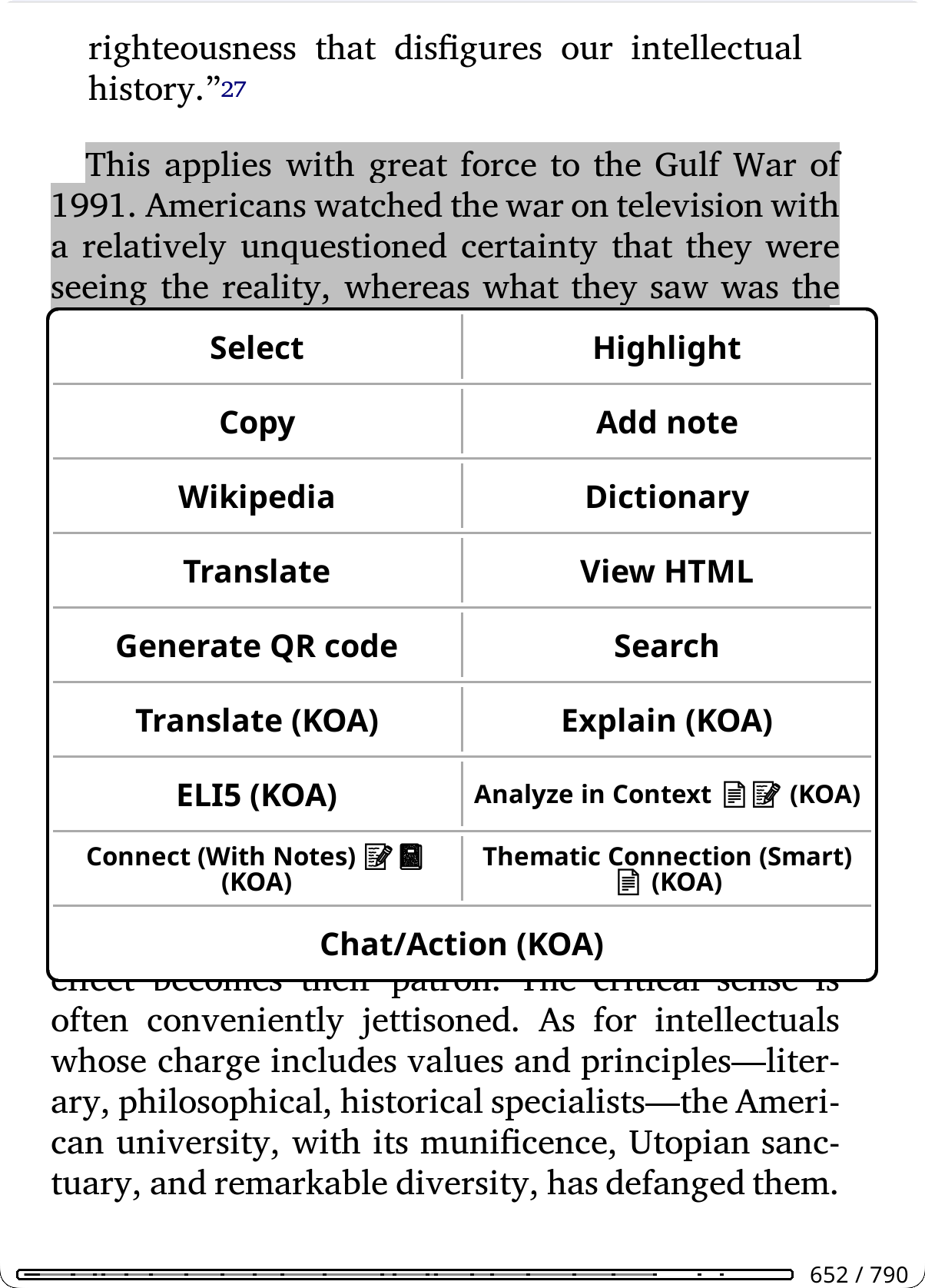
Access: Highlight text in a document → tap "KOAssistant"
Quick Actions: You can add frequently-used actions directly to KOReader's highlight popup menu for faster access. Instead of going through the KOAssistant dialog, actions like "KOA: Explain" or "KOA: Translate" appear as separate buttons. See Highlight Menu Actions below.
Bypass Mode: Skip the highlight menu entirely and trigger your chosen action immediately when selecting text. See Highlight Bypass below.
Built-in Actions:
| Action | Description |
|---|---|
| Explain | Detailed explanation of the passage |
| ELI5 | Explain Like I'm 5 - simplified explanation |
| Summarize | Concise summary of the text |
| Elaborate | Expand on concepts, provide additional context and details |
| Connect | Draw connections to other works, thinkers, and broader context |
| Connect (With Notes) | Connect passage to your personal reading journey ⚠️ Requires: Allow Annotation Notes, Allow Notebook |
| Explain in Context | Comprehension-focused: what the passage means, what leads up to it, and what it builds on. Source selection: full text, summary, or AI knowledge |
| Analyze in Context | Reader-focused: connects the passage to your highlights, annotations, and the threads you've been tracking. Source selection: full text, summary, or AI knowledge ⚠️ Requires: Allow Annotation Notes |
| Thematic Connection | Craft-focused: examines the author's technique (language, structure, imagery) and how the passage fits into the work's thematic architecture. Source selection: full text, summary, or AI knowledge |
| Fact Check | Verify claims using web search ⚠️ Requires: Web Search |
| Current Context | Get latest information about a topic using web search ⚠️ Requires: Web Search |
| Translate | Translate to your configured language |
| AI Wiki | Wikipedia-style encyclopedia entry about the selected text, using AI knowledge. Cached as an artifact (same as X-Ray browser wiki entries). Uses web search if enabled globally. Available in dictionary popup by default |
| Dictionary | Full dictionary entry: definition, etymology, synonyms, usage (also accessible via dictionary popup) |
| Quick Define | Minimal lookup: brief definition only, no etymology or synonyms |
| Grammar | Sentence-level grammatical breakdown: word-by-word analysis with part of speech, morphological features, and structural role. Optional constituency parse. Language-aware (e.g., Arabic gets i'rab annotations) |
| Deep Analysis | Linguistic deep-dive: morphology, word family, cognates, etymology path |
| Look up in X-Ray | [Local] Instant search of cached X-Ray data for selected text, no AI call, works offline. Searches by name and alias across all X-Rays (main + sections). Single match shows full detail; multiple matches across X-Rays show a grouped results view. Available in highlight menu and dictionary popup. Only appears when the book has an X-Ray cache. |
Source selection:
Several actions let you choose which document source the AI uses when you trigger them. A unified popup combines scope (full document or a specific section) and source (what data to send) in a single dialog:
Scope (shown when the book has a table of contents):
Source:
Actions with source selection: Explain in Context, Analyze in Context, Thematic Connection, Key Arguments, Discussion Questions, Quiz, Extract Key Insights, Document Summary, Document Analysis, Recap. For highlight-context actions (Explain in Context, Analyze in Context, Thematic Connection), the scope controls the text extraction range around the highlighted passage. Document Summary and Document Analysis require text extraction (other sources are grayed out). Recap doesn't support section scoping (scope row is grayed with an explanation).
When to use each source:
How sources affect AI behavior:
These aren't just quality tiers; they change how the AI thinks. When you provide actual text, the AI shifts from recall mode to analytical mode. Instead of (only) reconstructing a work from memory (filtered through whatever patterns, emphasis, and blind spots its training absorbed), it's doing direct analysis on the material in front of it, parsing structure, tracing arguments, finding patterns in what's actually written. Training-era biases and editorial slant matter less (but still matter) when the AI is working from your text rather than its pre-trained impressions of it.
With AI knowledge only, the AI is essentially giving you its "remembered take" on a work, shaped by which reviews, summaries, and discussions dominated its training data. For canonical works, this is often good enough. But for anything where framing matters (political texts, contested histories, philosophical arguments, novel research), the difference between "analyze this passage" and "tell me about this work" can be substantial.
In short: Text extraction gives the AI a job to do on specific material. AI knowledge asks it what it thinks it knows.
Accessing summaries:
Tip: For documents you'll query multiple times, generate the summary proactively via the Document Summary action. All artifact actions produce viewable reference guides that are also browsable via "View Artifacts". See Document Artifacts.
What the AI sees: Your highlighted text, plus document metadata (title, author). Actions like "Explain in Context" and "Analyze in Context" also use extracted document text to understand the surrounding content. Custom actions can access reading progress, chapter info, your highlights/annotations, notebook, and extracted book text, depending on action settings and privacy preferences. See Template Variables for details.
Save to Note: After getting an AI response, tap the Save to Note button to save it directly as a KOReader highlight note attached to your selected text. See Save to Note for details.
Tip: Add frequently-used actions to the highlight menu (Action Manager → hold action → "Add to Highlight Menu") for quick access. Other enabled highlight actions remain available from the main "KOAssistant" entry in the highlight popup. From that input window, you can also add extra instructions to any action (e.g., "esp. the economic implications" or "in simple terms").
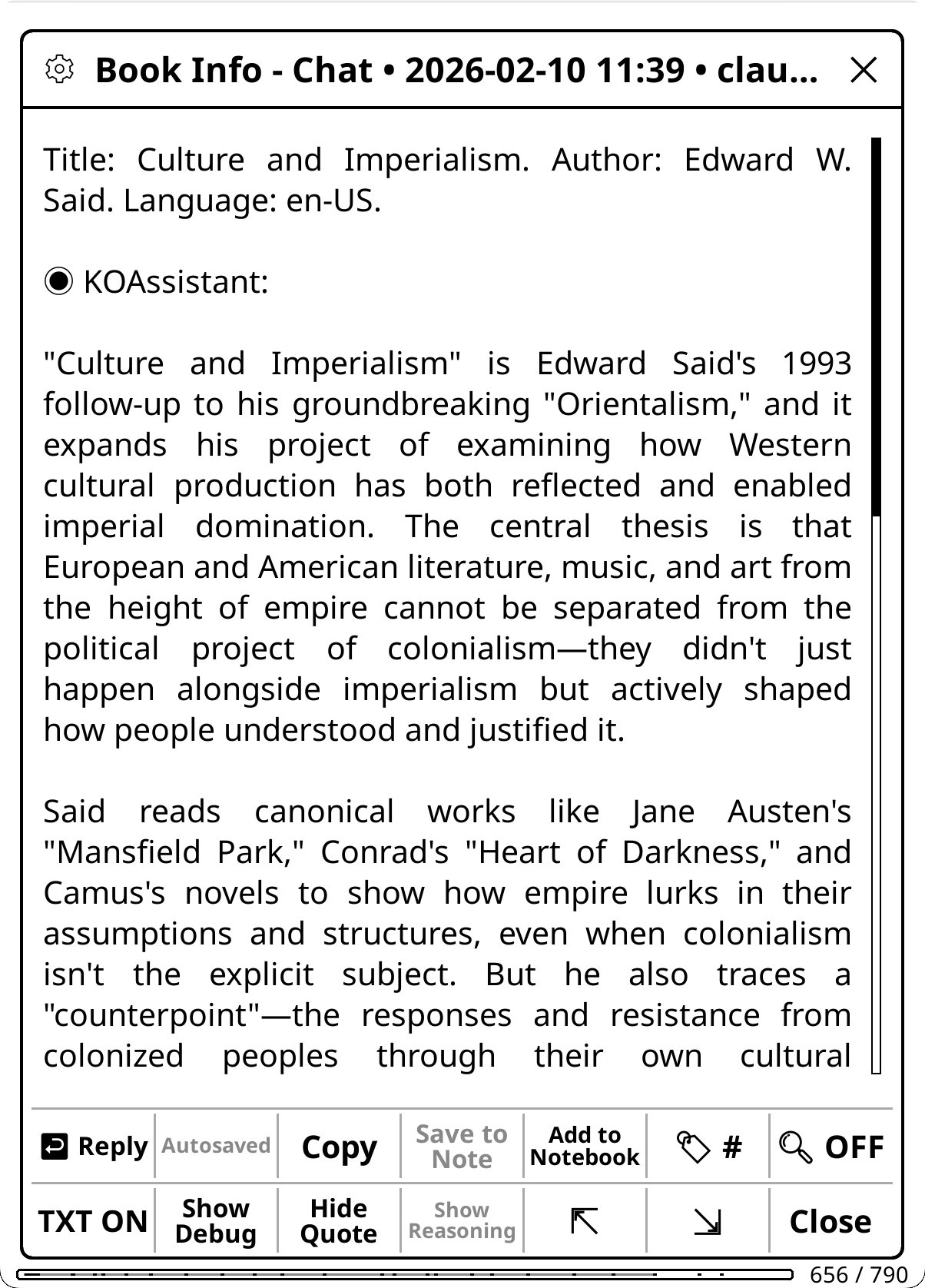
Access: Long-press a book in File Browser → "Chat/Action (KOA)" or while reading, use gesture or menu
Some actions work from the file browser (using only document metadata like title/author), while others require reading mode (using document state like progress, highlights, or extracted text). Reading-only actions are automatically hidden in file browser. You can pin frequently-used file browser actions directly to the long-press menu via Action Manager → hold action → "Add to File Browser", so they appear as one-tap buttons without opening the action selector. All file browser buttons (utilities + pinned actions + Chat/Action) are distributed across rows of up to 4 buttons each. Long-press any pinned action button to see its description.
Built-in Actions:
| Action | Description |
|---|---|
| About | Overview, significance, and why to read it |
| Find Similar | Recommendations for similar works. When library scanning is enabled, notes which you already own |
| About Author | Author biography and writing style |
| Historical Context | When written and historical significance. Adapts to work type (novel, manifesto, religious text, research paper) |
| Related Thinkers | Intellectual landscape: influences, contemporaries, and connected thinkers |
| Reviews | Find critical and reader reviews, awards, and reception ⚠️ Requires: Web Search |
| X-Ray | Browsable reference guide: characters (with aliases and connections), locations, themes, lexicon, timeline. Opens in a structured menu with search (including cross-section search across all X-Rays), chapter/book mention tracking, per-item chapter distribution, AI Wiki per-item encyclopedia, Section X-Rays for focused chapter/part analysis, linkable cross-references, local lookup, and highlight integration ⚠️ Requires: Allow Text Extraction |
| X-Ray (Simple) | Prose companion guide from AI knowledge: characters, themes, settings, key terms. No text extraction needed. Uses reading progress to avoid spoilers. |
| Recap | "Previously on..." style summary to help you resume reading. Source selection: extracted text (with incremental updates) or AI knowledge. Use Hidden Flows to limit scope ⚠️ Best with: Allow Text Extraction |
| Analyze Notes | Discover patterns and connections in your notes and highlights ⚠️ Requires: Allow Annotation Notes |
| Key Arguments | Thesis, evidence, assumptions, and counterarguments. Source selection: full text, summary, or AI knowledge. Supports section scope |
| Discussion Questions | Comprehension, analytical, and interpretive prompts. Source selection: full text, summary, or AI knowledge. Supports section scope |
| Quiz | Interactive comprehension quiz, one question at a time with answer selection, scoring, and review. Multiple choice (auto-graded), short answer and essay (self-graded). Triggered automatically at chapter ends (configurable) or manually from Quick Actions with scope picker. Question types, count, and difficulty configurable in Settings. Result saved as artifact. Source selection: full text, summary, or AI knowledge. Supports section scope |
| Reading Guide | Spoiler-free guide to what's ahead: threads in motion, patterns to notice, helpful background, how to approach the rest. Uses reading position to stay safe. Source selection: full text, summary, or AI knowledge. Supports section scope |
| Document Analysis | Deep analysis: thesis, structure, key insights, audience. Saved as an Analysis artifact. Supports section scope. ⚠️ Requires: Allow Text Extraction |
| Document Summary | Comprehensive summary. Saved as a Summary artifact, which other actions can use as their document source. Supports section scope. ⚠️ Requires: Allow Text Extraction |
| Extract Key Insights | Distills the most important takeaways: ideas worth remembering, novel perspectives, actionable conclusions. Source selection: full text, summary, or AI knowledge. Supports section scope |
| Suggest from Library | Suggests what to read next from your own library, based on the current book and your reading patterns. Also triggers in the end-of-book popup. ⚠️ Requires: Library scanning enabled |
What the AI sees: Document metadata (title, author, DOI when detected). For Analyze Notes: your annotations. For full document actions: entire document text. For Suggest from Library: your library catalog (title, author, series, status, progress, last read date). For library scan actions with Advanced Stats enabled: curated engagement groups (book lists categorized by reading patterns, see Privacy & Data).
Research Mode adapts KOAssistant's prompts, X-Ray schema, and web search behavior for academic and research texts. It can activate automatically via DOI detection or be turned on manually for any book.
Triggering Research Mode:
| Trigger | How it works |
|---|---|
| DOI auto-detection | When KOAssistant detects a DOI (Digital Object Identifier) in your document, Research Mode activates automatically |
| Per-book toggle | Set manually via the Domain & Research picker, persists in the book's sidecar |
| Global setting | Enable in Domain & Research picker (global target) or Settings, applies to all books without a per-book override |
| Per-action override | Actions can force Research Mode on or off regardless of other settings |
Resolution order: Action override > per-book setting > DOI auto-detection > global setting. Per-book "Off" explicitly suppresses Research Mode even if a DOI is detected.
What changes with Research Mode:
| Enhancement | What it does |
|---|---|
| Academic X-Ray | Replaces fiction/non-fiction categories with 7 research-appropriate categories: Key Concepts, Foundations (intellectual lineage, paradigms), Methodology, Findings, Referenced Works (with aliases and connections), Technical Terms, Figures & Data |
| Academic Prompt Tracks | About, Find Similar, and X-Ray (Simple) switch to research-oriented prompts (research context, methodology, cited works instead of characters/themes). Recap, Key Arguments, Discussion Questions, Quiz, Reading Guide, and Analyze Notes include expanded academic adaptation (methodology, evidence evaluation, field positioning) |
| Research Nudge | System prompt addition guiding the AI to ground analysis in the provided text, verify claims via web search, and contextualize within the paper's field |
| Web Search Override | Actions that normally have web search disabled (X-Ray, Summarize, etc.) follow your global web search setting instead: if web search is on globally, research texts get web-enriched analysis |
| DOI in Prompts | When a DOI is detected, every book-context prompt includes it, helping the AI identify the exact paper and its citation context |
How to enable Research Mode:
The toggle is inside the Domain & Research picker (the Domain button in the chat input dialog, or the Domain item in Quick Settings). Below the domain list, a "Research Mode" section appears:
This shares the same book/global target toggle as domain selection.
How DOI detection works:
DOI detection runs independently of the Research Mode toggle: the DOI is always available for {doi_clause} in prompts. The toggle only controls whether Research Mode behavior (nudge, prompt swaps, web override) activates.
The DOI is a public identifier (like a URL). Only the DOI string enters metadata: no document content leaves the device beyond what you've already opted into via privacy settings.
Academic X-Ray categories are discipline-agnostic: the prompt tells the AI to adapt categorization to the field (a physics paper has different natural categories than a sociology study or a philosophy paper). The browsable X-Ray browser works identically: category navigation, search, chapter appearances, AI Wiki, linkable cross-references, and all other features carry over. Academic X-Rays use the same two-track design (incremental vs complete) and support Section X-Rays.
Cache track consistency: When updating an existing artifact (e.g., "Update X-Ray to 50%"), the update respects the track the cache was originally built with: a non-fiction X-Ray stays non-fiction even if Research Mode is now on, and vice versa. "Redo" regenerates from scratch using the current Research Mode setting.
Tip: Good metadata matters. DOI detection works best when your documents have clean metadata. Use Calibre or your reference manager (Zotero, Mendeley) to ensure the DOI is in the document's identifier or description fields. For PDFs without metadata DOI, the first-page text scan catches most academic papers since publishers print the DOI on page 1. After the first action run, the detected DOI is cached: subsequent actions (including from the file browser) use the cached result instantly.
Tip: Research Mode without DOI. For academic books, textbooks, or research-adjacent texts that don't have a DOI, enable Research Mode manually via the Domain & Research picker. This gives you the academic X-Ray schema, research nudge, and web search override: everything except the DOI-specific prompt enrichment.
These actions analyze your actual reading content. They require specific privacy settings to be enabled:
| Action | What it analyzes | Privacy setting required |
|---|---|---|
| X-Ray | Book text + highlights up to current position | Allow Text Extraction (required), Allow Highlights (optional) |
| X-Ray (Simple) | AI training knowledge + reading progress + highlights | Allow Highlights (optional) |
| Recap | Book text or AI knowledge (user choice) + highlights up to current position | Allow Text Extraction (for extracted text), Allow Highlights |
| Analyze Notes | Your highlights and annotations | Allow Annotation Notes |
| Key Arguments | Full text, summary, or AI knowledge (user choice) | Allow Text Extraction (for full text/summary) |
| Discussion Questions | Full text, summary, or AI knowledge (user choice) | Allow Text Extraction (for full text/summary) |
| Quiz | Full text, summary, or AI knowledge (user choice) | Allow Text Extraction (for full text/summary) |
| Document Analysis | Entire document or section (user choice) | Allow Text Extraction |
| Document Summary | Entire document or section (user choice) | Allow Text Extraction |
| Extract Key Insights | Full text, summary, or AI knowledge (user choice) | Allow Text Extraction (for full text/summary) |
| Reading Guide | Full text, summary, or AI knowledge (user choice) + reading progress | Allow Text Extraction (for full text/summary) |
| About | AI training knowledge (+ optional web search) | None (web search optional) |
| Suggest from Library | Library catalog + current book + reading progress | Enable Library Scanning + folders configured |
| Next Read | Library catalog + engagement groups (stalled, briefly started) | Enable Library Scanning + folders configured; Allow Advanced Stats (optional, enhances with engagement data) |
| Discover New | Library catalog + engagement groups (deep reads, recently finished) | Enable Library Scanning + folders configured; Allow Advanced Stats (optional) |
| Analyze Library | Library catalog + all engagement groups | Enable Library Scanning + folders configured; Allow Advanced Stats (optional) |
⚠️ Privacy settings required: These actions won't have access to your reading data unless you enable the corresponding setting in Settings → Privacy & Data. Without text extraction enabled, actions with source selection show "AI knowledge only" as the available option. For other actions, the AI gracefully falls back to its training knowledge, with a "Response generated without: ..." notice in the chat. Exception: X-Ray requires text extraction and blocks generation without it: use X-Ray (Simple) for a prose overview from AI knowledge.
Tip: Highlight actions can also use text extraction. "Explain in Context" and "Analyze in Context" send the full document text (
{full_document_section}) to understand your highlighted passage within the complete work. See Highlight Mode for details.
X-Ray, Document Summary, and Document Analysis require text extraction enabled (Settings → Privacy & Data → Text Extraction). Without it, generation is blocked with a message directing you to enable text extraction (or use X-Ray (Simple) as an alternative for X-Ray). If you've already generated a cached result and later disable text extraction, you can still view it but cannot regenerate or redo it.
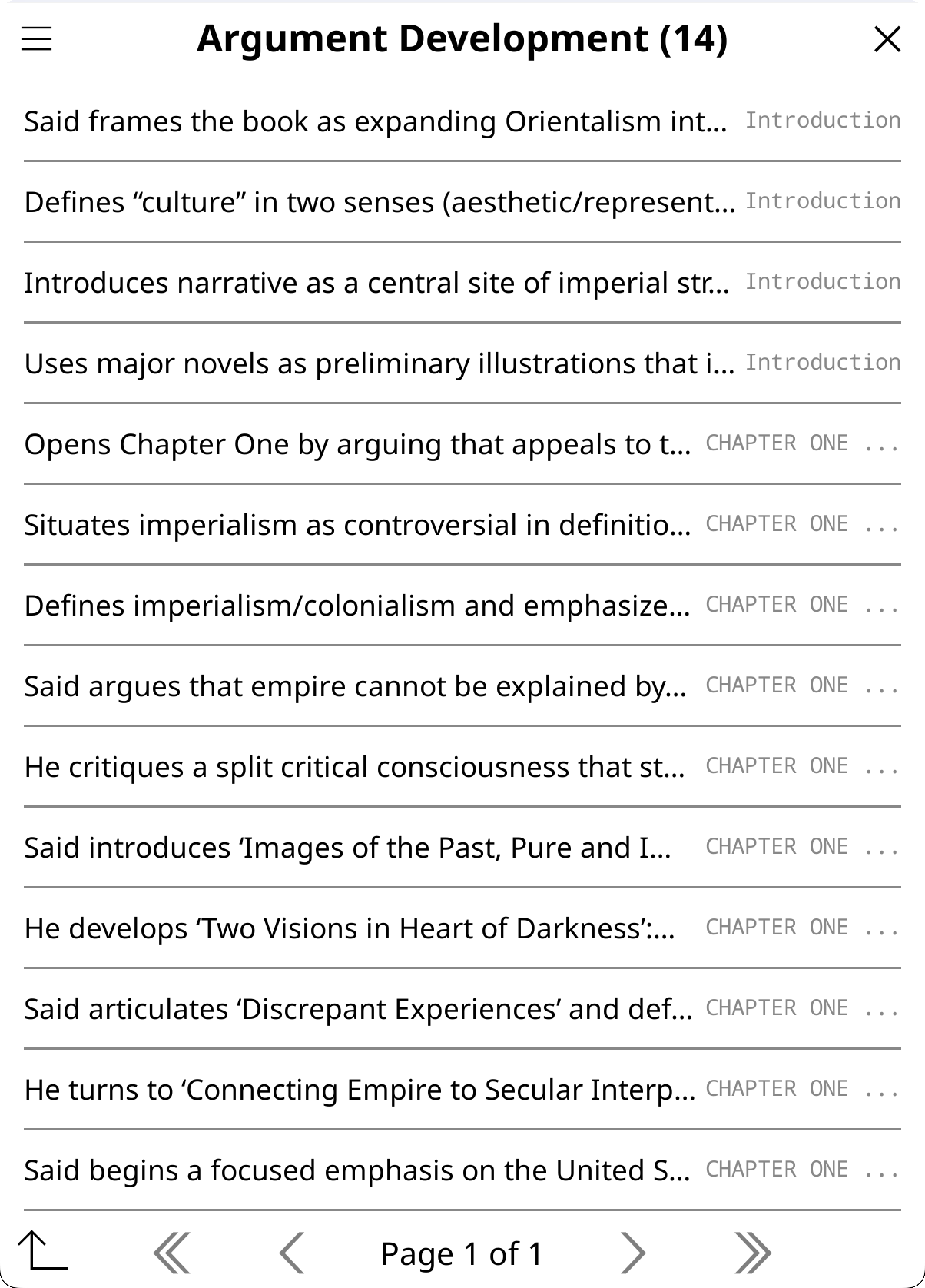
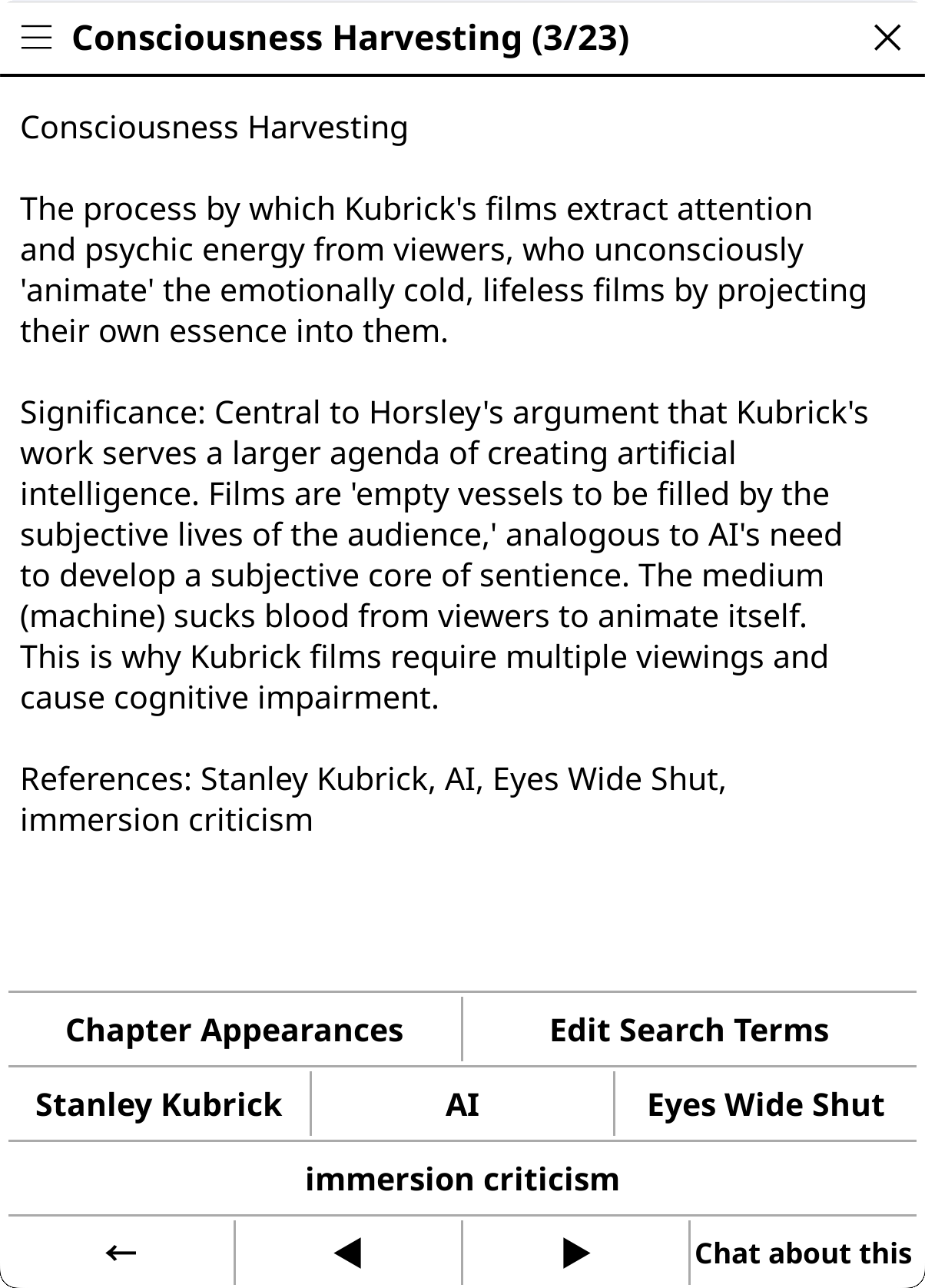
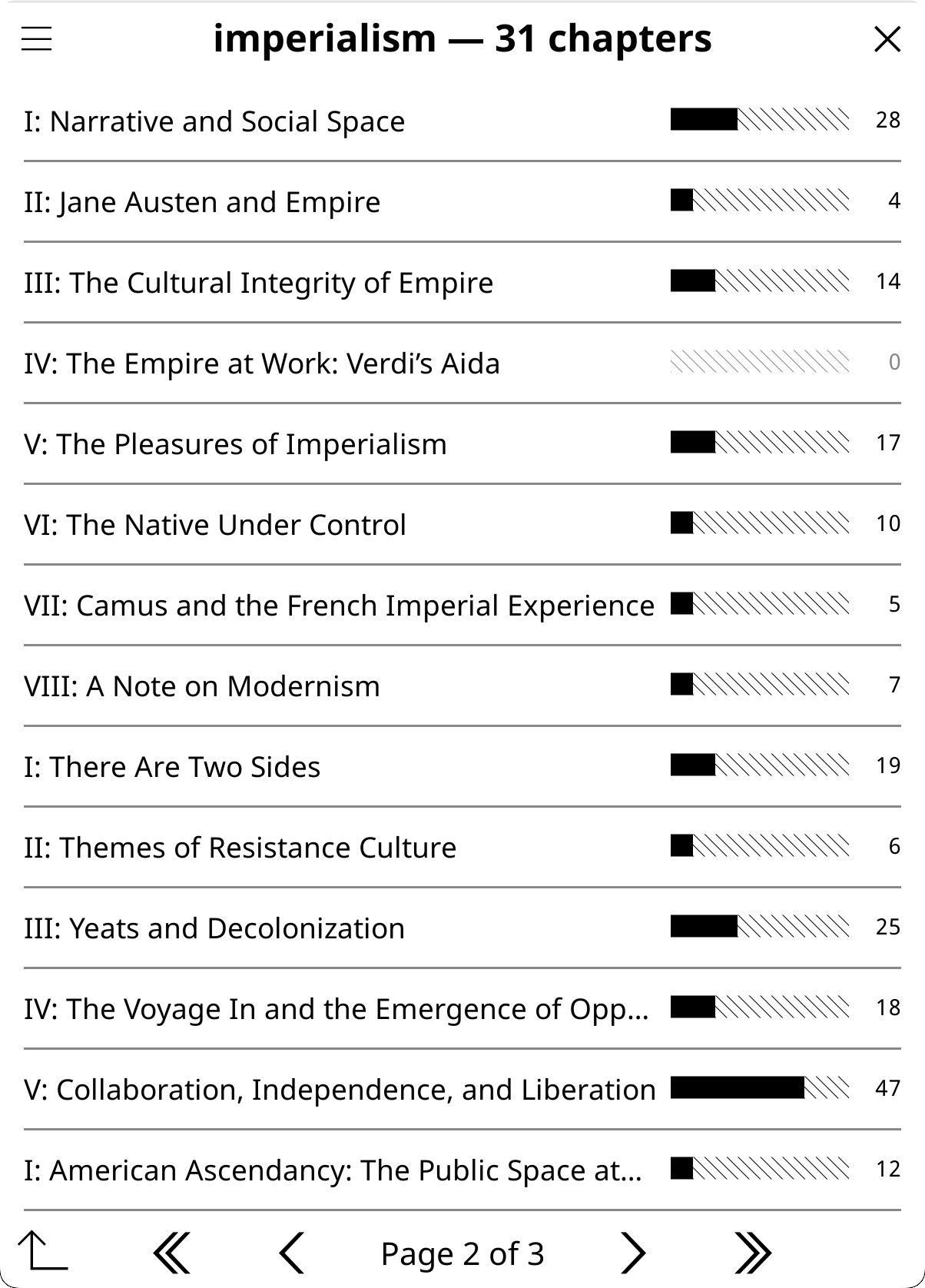
The X-Ray action produces a structured JSON analysis that opens in a browsable category menu rather than a plain text document. The initial browsable menu concept was inspired by X-Ray Plugin for KOReader by 0zd3m1r. Chapter distribution, linkable connections, and local lookup features were informed by Dynamic X-Ray by smartscripts-nl, a comprehensive manual X-Ray system with curated character databases, live page markers, and a custom histogram widget. Our approach differs: KOAssistant uses AI generation instead of manual curation, and menu-based navigation instead of custom widgets, but DX demonstrated the value of per-item chapter tracking and cross-reference linking. The browser provides:
Constantine|Mithrandir). A floating "← X-Ray" button appears during the search: tap it to return directly to the distribution view; hold to dismiss. Auto-dismisses when the search dialog is closed. Uses TOC-aware chapter boundaries with configurable depth and page-range fallback for books without TOC. Per-session caching avoids re-scanning.Model selection for X-Ray: X-Ray generates detailed structured JSON (for the X-Ray browser to work) that can be large (10K-30K+ tokens of output), and it is a complex task for the AI. The action requests up to 32K output tokens to avoid truncation. Weaker models can struggle to follow these instructions, and even if they manage it, will produce low quality content for the actual analysis, and models with low output caps (e.g., some Groq models at 8K, DeepSeek Chat at 8K) will produce shorter, potentially truncated results, so use larger models with higher output limits for best results. If you find a model that produces great X-Rays, you can lock it in for this action while keeping your global model for everything else, see the tip below.
Tip: Per-action model overrides. You don't have to use the same model for every action. If you discover that a particular model excels at X-Ray (or any other action), you can assign it permanently to just that action:
- Go to Settings → Actions → Manage Actions
- Long-press the action (e.g., X-Ray) → "Edit Settings"
- Scroll to Advanced → set Provider and Model
Your global model continues to be used for all other actions. This is useful for mixing cost and quality: for example, use a fast model (Gemini 2.5 Flash, Haiku, small Mistral models, etc.) as your global default for quick lookups and chat, while assigning a more capable model (Gemini 3.1 Pro, Sonnet, large Mistral models, etc.) specifically to X-Ray or Deep Analysis where quality matters most. See Tuning Built-in Actions for more examples. You can of course also momentarily change you global model to run an action and then change back if you don't want to tie an action to a model.
Tip: If your device supports emoji fonts, enable Emoji Menu Icons in Settings → Display Settings → Emoji for visual category icons in the X-Ray browser (e.g., characters, locations, themes). See Emoji Menu Icons.
Custom TOC support: Chapter-based features (Mentions, Chapter Appearances) automatically use KOReader's active TOC, including custom/handmade TOCs. If your book has no chapters or a single chapter, the fallback is page-range chunks (~20 pages each). For better results, create a custom TOC in KOReader (long-press the TOC icon → "Set custom TOC from pages") and the X-Ray browser will use it.
Hidden flows support: When KOReader's hidden flows feature is active (hiding endnotes, translator introductions, or separate books in collected works), KOAssistant automatically adapts:
- Text extraction skips hidden content: only visible pages are sent to the AI
- Reading progress reports your position within visible content only (e.g., page 42 of 70 visible pages = 60%, not 42%)
- TOC-based features (Mentions, Chapter Appearances) filter out chapters from hidden flows
- Cache staleness detects when your hidden flow configuration changes and notifies you
This works for both EPUB and PDF. Useful for collected works where you want to analyze just one book, or for editions with long endnotes/apparatus you want excluded from AI analysis. The hidden content is simply invisible to KOAssistant: extraction, progress tracking, and chapter features all operate on visible pages only.
Tip: Hidden Flows is one of the best ways to save tokens and improve AI results. By hiding front matter, introductions, appendices, bibliography, indices, references, and other non-narrative content, you send only the parts that matter: what remains becomes the "whole book" from KOAssistant's perspective. All actions (X-Ray, Summary, Analysis, etc.) operate on this trimmed scope. For collected works or anthologies, use Hidden Flows to isolate individual volumes: a "Complete X-Ray" treats the visible content as the entire document. Hidden Flows and Section X-Rays are complementary: use Hidden Flows to permanently trim away content you never want analyzed, then use Section X-Rays for focused analysis of specific chapters within the trimmed document. See KOReader's documentation for how to set up Hidden Flows.
Highlights in X-Ray: When Allow Highlights is enabled, X-Ray incorporates your highlighted passages into its analysis, adding a Reader Engagement category that tracks which themes and ideas you've engaged with, and weaving your highlights into character and location entries. This gives the X-Ray a personal dimension tied to your reading. To control this:
- Disable for all actions: Turn off "Allow Highlights" in Settings → Privacy & Data. No action will see your highlights.
- Disable for X-Ray only: Go to Settings → Actions → Manage Actions, long-press the X-Ray action → "Edit Settings", and untick "Allow highlight use". Other actions keep highlight access.
Without highlights, X-Ray still works fully: you just won't see the Reader Engagement category or highlight mentions in entries.
Tip: Reasoning for complex tasks. For short, dense works (research papers, academic chapters, technical documents under ~100 pages), more reasoning can significantly improve X-Ray quality and depth. The additional processing time is worthwhile when the text is concentrated: the AI produces more thorough entries and fewer omissions. Set the global reasoning stance to Maximum, or override your current model's reasoning to a high level (Settings → Advanced → Reasoning, or the Quick Settings Reasoning chip). This also applies to Document Analysis and other complex one-off tasks. See Reasoning/Thinking.
X-Ray requires text extraction to generate: it blocks with a message directing you to enable text extraction or use X-Ray (Simple) instead. If you've already cached an X-Ray and later disable text extraction, you can still view the cached result but cannot update or redo it.
X-Ray (Simple) is a separate action that produces a prose overview (Characters, Themes, Setting, Key Terms, Where Things Stand) from the AI's training knowledge, no text extraction needed. Uses your reading progress for spoiler gating and optionally includes your highlights. Available in the Quick Actions panel and as a separate artifact. Every generation is fresh (no incremental updates). Best for well-known books when you don't want to enable text extraction. For obscure works or research papers, results will be limited since the AI may not recognize the title.
Recap works with source selection: choose between extracted text (recommended, with incremental updates as you read) or AI knowledge only. Use KOReader's Hidden Flows to limit scope to specific chapters or parts of the book.
Tip: Enable Recap Reminder in Settings → KOReader Integration to get a prompt to run Recap when you open a book you haven't read in a while (off by default). See KOReader Integration.
Two-track X-Ray: When generating a new X-Ray, you choose between two tracks:
The track is chosen at initial generation and cannot be converted. To switch tracks, delete the cache and regenerate. Both tracks use the same browsable category menu, the same JSON structure for all shared categories (characters, locations, themes, etc.), and the same privacy gates. The only structural difference is the final status section (Current State/Current Position vs Conclusion).
When an X-Ray cache covers 100% (whether from a complete generation, an incremental "Update to 100%", or simply reading to the end and updating), tapping X-Ray goes directly to the browser viewer with no popup (Redo is available in the browser's options menu).
Spoiler safety: By default, X-Ray and Recap use the incremental track, which limits extraction to your current reading position (
{book_text_section}). Choosing "Generate Complete X-Ray" uses the complete track, which sends the full document ({full_document_section}). All other text extraction actions, including "Explain in Context" and "Analyze in Context", always send the full document. If you need a spoiler-free variant of any action, create a custom action using{book_text_section}instead of{full_document_section}.
Note: Marking a book as "finished" in KOReader does not affect text extraction. Incremental X-Ray and Recap still extract up to your actual page position, not 100%. This means you can navigate to a specific point in a finished book and get a spoiler-free analysis up to that point. For a full analysis of a finished book, use "Generate Complete X-Ray" to get the complete track with Conclusion.
⚠️ To enable text extraction: Go to Settings → Privacy & Data → Text Extraction → Allow Text Extraction. This is OFF by default to avoid unexpected token costs.
Section X-Rays: focused X-Rays for individual chapters, parts, or sections of a book. Unlike the main X-Ray (which covers the whole document), Section X-Rays analyze only a specific page range chosen from the book's table of contents. You can have multiple Section X-Rays per book alongside the main X-Ray, each is independent and stored separately.
How to create a Section X-Ray:
How to browse Section X-Rays:
Section X-Ray browsing differences:
Font-size independence: Section X-Rays store XPointers (stable document positions) alongside page numbers. When you change font size and reopen the book, page ranges in the section list and browser automatically update to reflect the new layout.
Tip: Section X-Rays are ideal when the full document is too large for a single detailed analysis, or when chapters cover disparate topics (as in many textbooks, academic works, or the Quran surah-by-surah). Rather than trimming the document globally with Hidden Flows, sections let you run deep analyses on specific parts while keeping the full document intact for other actions. Also useful for pivotal scenes in novels, individual essays in collections, or introductory sections you want to reference independently. For trimming away content you never want analyzed (bibliography, indices, notes, apparatus), use Hidden Flows instead: the two approaches are complementary. Section scoping is also available for other text-extraction actions, see Section support below.
Full Document Actions (Document Analysis, Document Summary, Extract Insights, Key Arguments, Discussion Questions, Quiz, Explain in Context, Analyze in Context, Thematic Connection): These actions use the entire document context. Document Analysis and Document Summary require text extraction: they block generation when it's disabled, like X-Ray. Actions with source selection (Key Arguments, Discussion Questions, Quiz, Extract Insights, Explain in Context, Analyze in Context, Thematic Connection) let you choose between full text, a cached summary, or AI knowledge only, see Source selection. They adapt to your content type and work especially well with Domains. For example, with a "Linguistics" domain active, analyzing a linguistics paper will naturally focus on relevant aspects.
Section support: Most text-extraction book actions can be focused on a specific chapter or part instead of the full document. Scope and source are combined in a single unified popup: tap "Pick section…" to choose via a hierarchical TOC picker. For X-Ray, the action's own popup offers section options (see Section X-Rays). Section artifacts are stored independently (e.g., "Section Summary: Chapter 5") and appear as groups in the Artifact Browser. When you're reading within a section's page range, a quick-access "View" button for that section appears directly in the action popup. Naming a section with the same page range as an existing one replaces the old entry. Supported actions: Document Summary, Document Analysis, Key Arguments, Discussion Questions, Quiz, Extract Key Insights (plus X-Ray via Section X-Rays above). Section scoping respects KOReader's custom/handmade TOC: create custom chapter boundaries to define your own scopes.
Tip: Create specialized versions for your workflow. Copy a built-in action, customize the prompt for your field (e.g., "Focus on methodology and statistical claims" for scientific papers), and pair it with a matching domain. Disable built-ins you don't use via Action Manager (tap to toggle). See Custom Actions for details.
Artifact Caching: All artifact actions cache results per book. For incremental X-Rays with a partial cache, a popup lets you View the cached result (with coverage and age), Update it to your current position, or Update to 100%. Complete X-Rays and incremental caches at 100% go directly to the browser viewer, Redo is available in the options menu. See Document Artifacts for details.
Reading Mode vs File Browser:
Book actions work in two contexts: reading mode (book is open) and file browser (long-press a book in your library).
Reading-only actions (hidden in file browser): X-Ray, Recap, Document Analysis, Document Summary, these require live document text extraction or source selection that isn't available until you open the book.
Sidecar-eligible actions (available in file browser): X-Ray (Simple), Analyze Notes, Connect with Notes, Suggest from Library, and other actions that only need highlights, annotations, notebook, or reading progress. These read data from the book's sidecar files on disk without requiring an open document.
Custom actions using placeholders like {book_text}, {full_document}, or {page_text} require reading mode. Placeholders like {reading_progress}, {highlights}, {annotations}, and {notebook} work in both contexts via sidecar fallback. The Action Manager shows a [reading] indicator for reading-only actions.
Access: Quick Settings → Library Chat/Action, or Settings menu → Library Chat/Action, or via gesture. Opens directly to an input dialog with all library actions available. File browser multi-select also works: select multiple documents → tap any → "Compare with KOAssistant".
The library dialog splits actions into two zones with their own management buttons:
Library Scan zone: scan-based actions with a Library Scan ▾ button for folder management (enable/disable permanent folders, add on-the-fly folders for this session). Always visible by default so users can discover scan actions, but actions are grayed out until library scanning is enabled with folders configured. Tapping the Library Scan ▾ button when scanning is not enabled shows a setup prompt. To hide this zone entirely, use the gear menu → Hide Library Scan Actions:
| Action | Description |
|---|---|
| Next Read | What to read next from your library, including books worth revisiting or picking back up. Based on reading patterns, what you've finished, and what's been sitting unread. With Advanced Stats enabled, includes engagement context (stalled reads, briefly started books) |
| Discover New | Suggests new books based on your library, identifies your taste and recommends works you don't have, including a few picks outside your comfort zone ("Expand your horizons"). With Advanced Stats enabled, includes deep reads and recently finished books for better taste inference |
| Analyze Library | Analyzes your library to identify genres and authors you gravitate toward, completion patterns, and gaps in your collection. With Advanced Stats enabled, includes full engagement data for richer pattern analysis |
Items zone: selection-based actions with an Items ▾ button for book management (presets, browse history, add folder, clear). Require 2+ books selected:
| Action | Description |
|---|---|
| Compare | What makes each work distinct: contrasts, not just similarities |
| Find Common Themes | Shared DNA: recurring themes, influences, connections |
| Analyze Collection | What this selection reveals about the reader's interests |
| Quick Summaries | Brief summary of each work |
| Reading Order | Suggest optimal order based on dependencies, difficulty, themes |
| Recommend | Suggests 5-8 new works based on patterns across your selected works. When library scanning is enabled, notes which recommendations you already own and prioritizes unread books |
| Analyze Notes | Analyzes highlights, annotations, and notes across selected books: patterns in what you mark, what you write, and how your thinking connects across works ⚠️ Requires: Allow Highlights or Allow Annotation Notes |
Selection-based action buttons are grayed out (disabled) until 2+ books are added. Long-press any grayed-out button to see what it does. Tap Items ▾ to select books via presets (Currently Reading, Recently Finished, On Hold, Last 5 from History), Browse History, or Browse Folder. The book picker supports source switching: once inside, use the hamburger menu to switch between history and folder sources without closing. Selections persist across source switches. The title bar shows the count of selected items.
Freeform chat also works: type a question and tap Send. When library scanning is enabled with folders configured, the library catalog is included as context. When items are selected, those are included too. The input hint rotates context-sensitive suggestions (e.g., "What should I read next?", "How do these books connect?", "A book I've been neglecting").
What the AI sees: For scan-based actions: library catalog metadata (title, author, series, status, progress, last read date). For selection-based actions: list of selected titles, authors, and identifiers. Actions with sidecar flags (e.g., Analyze Notes) also read per-book highlights, annotations, and notebook entries from sidecar files, with the same privacy double-gating as single-book actions, with annotation degradation. A warning appears when total sidecar data is large. See Privacy & Data for details on library scanning.
Access: Tools → KOAssistant → General Chat/Action, or via gesture (easier)
A free-form conversation without specific document context. If started while a book is open, that "launch context" is saved with the chat (so you know where you launched it from) but doesn't affect the conversation, i.e. the AI doesn't see that you launched it from a specific document, and the chat is saved in General chats
Built-in Actions:
| Action | Description |
|---|---|
| News Update | Get today's top news stories from Al Jazeera with links ⚠️ Requires: Web Search |
All input dialogs (highlight, book, library, general) show a configurable set of actions that you can customize per context. The top row has [Web ON/OFF] [Domain] [Send], followed by action buttons in rows of 2. The title bar has a close X on the right and a gear icon on the left. Long-press any action button to see its description.
Default actions per context:
| Context | Default Actions |
|---|---|
| Highlight | Translate, Explain, ELI5, Elaborate, Summarize, Connect, Fact Check, Explain in Context |
| Book | About, X-Ray (Simple), Find Similar, Key Arguments, Extract Key Insights, Discussion Questions, About Author, Reviews |
| Book (file browser) | About, X-Ray (Simple), Find Similar, Analyze Notes, Related Thinkers, About Author, Historical Context, Reviews, Suggest from Library |
| X-Ray Chat | Explain, Elaborate, ELI5, Fact Check, Connect |
| General | (none, use Send button for freeform chat) |
All defaults are customizable: add, remove, or reorder actions for each context independently. Remaining enabled actions are always accessible via "Show More Actions" in the grid or the gear icon → "More Actions".
Customizing which actions appear:
The general input dialog shows only actions you've explicitly added. By default, it starts empty (use the Send button for freeform chat). To add actions:
Actions like News Update that require web search are available in the gesture menu by default but not in the input dialog. This avoids showing web-dependent actions to users who haven't configured a web-search-capable provider. Add them to the input dialog (Manage Actions -> long press a general context action -> Add to General Input) if you use Anthropic, Gemini, or OpenRouter, the latter of which support web search for models from other providers that KOAssistant currently doesn't have dedicated web support for, e.g. OpenAI, XAI, Perplexity models.
Tip: News Update demonstrates per-action web search override (
enable_web_search = true). Even if web search is globally disabled, this action will use it. See Web Search for more on per-action overrides.
Prevents the AI from revealing events beyond your current reading position when chatting about books.
How it works: When enabled, a spoiler prevention instruction is injected into the system prompt for freeform chat (the Send button) in book and highlight contexts. The instruction tells the AI your exact reading progress (e.g., "The reader is currently at 42% of this book") and forbids discussing anything beyond that point. When reading progress is unavailable, a generic variant is used ("The reader has not finished this book").
Two independent settings (both off by default):
Settings → Chat & Export Settings): Global toggle: when on, all book/highlight freeform chats get spoiler awarenessSettings → Chat & Export Settings): Shows a session checkbox in the input dialog: lets you flip spoiler-free chat per-session without changing the global settingYou can enable either or both. The checkbox starts checked when the global toggle is on, but can be unchecked per-session.
Reading progress source:
What's covered:
What's intentionally excluded:
For custom actions: Use the {spoiler_free_nudge} placeholder in your action prompts to add spoiler awareness. The placeholder resolves to the spoiler instruction when active, or to nothing when inactive. See Utility Placeholders.
Save AI responses directly to your KOReader highlights.
When working with highlighted text, the Save to Note button lets you save the AI response as a native KOReader note attached to that highlight. This integrates AI explanations, translations, and analysis directly into your reading annotations.
How it works:
Key features:
Use cases:
Note: The Save to Note button only appears for highlight context chats (where you've selected text). It's not available for book, library, or general chat contexts.
When you trigger an action, KOAssistant builds a complete request from several components:
System message (sets AI context):
User message (your specific request):
There are two ways book metadata (title, author) can be included in a request:
[Context] section: Automatically added as a labeled section at the start of the user message. Controlled by include_book_context flag on actions.{title}, {author}, {author_clause} substituted directly into the prompt template.For highlight actions: Use include_book_context = true to add a [Context] section. The highlighted text is the main subject, so book info is supplementary context.
For book actions: Use {title} and {author_clause} directly in the prompt (e.g., "Tell me about {title}"). The book IS the subject, so it belongs in the prompt itself.
Some actions skip parts of the system message because they'd interfere:
Tip: When creating custom actions, experiment with domain on and off to see what produces better results for your use case. For precise linguistic tasks (translation, grammar checking), skipping domain usually helps. For analytical tasks (explaining concepts in a field), domain context improves results.
All three can contain instructions to the AI, and deciding what to put where can be confusing:
| Component | Scope | Best for |
|---|---|---|
| Behavior | Global (one selection for all chats) | Communication style, formatting rules, verbosity level |
| Domain | Sticky (global or per-book) | Subject expertise, terminology, analytical frameworks |
| Action prompt | Per-action (specific task) | Task-specific instructions, output format, what to analyze |
Tip: For most custom actions, using a standard behavior (like "Standard" or "Full") and putting detailed instructions in the action prompt works best. Reserve custom behaviors for broad style preferences you want across all interactions. Reserve domains for deep subject expertise you want across multiple actions.
Tip: There is natural overlap between behavior and domain: both are sent in the system message and both can influence the AI's approach. The key difference: behavior controls manner (how it speaks), domain controls substance (what it knows). A "scholarly" behavior makes the AI formal and rigorous; a "philosophy" domain makes it reference philosophers and logical frameworks.
Actions define what you're asking the AI to do. Each action has a prompt template, and can optionally override behavior, domain, language, temperature, reasoning, and provider/model settings. See How the AI Prompt Works for how actions fit into the full request.
When you select an action and start a chat, you can optionally add your own input (a question, additional context, or specific request) which gets combined with the action's prompt template.
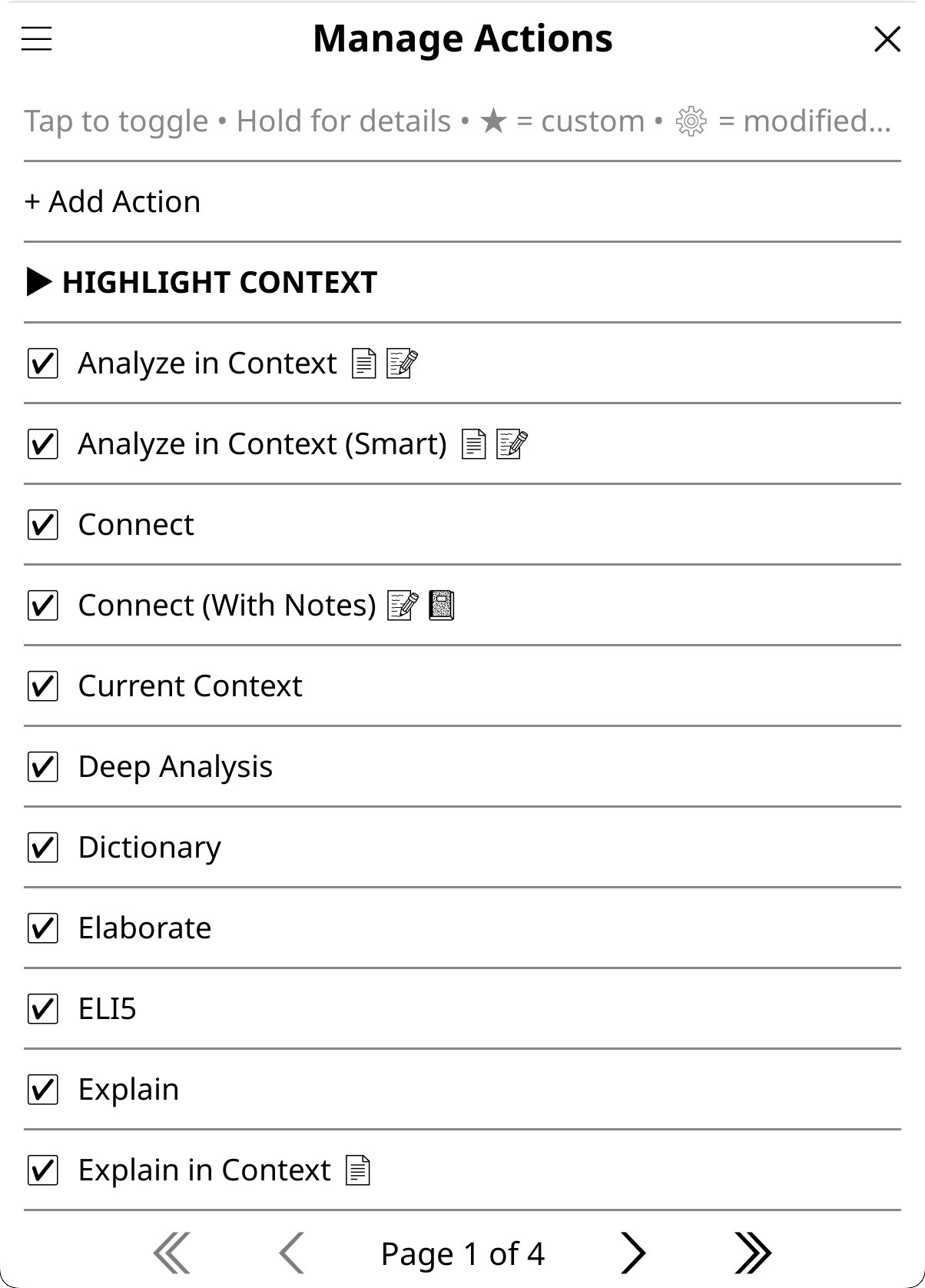
Settings → Actions & Prompts → Manage Actions
Action indicators:
Editing built-in actions: Long-press any built-in action → "Edit Settings" to customize its advanced settings without creating a new action. Use "Reset to Default" to restore original settings.
Don't like how a built-in action behaves? Clone and customize it:
Common tweaks:
Action too verbose?
Want different model for specific action?
Want action without domain/language?
Compare different approaches?
Quick workflow:
Tip: Disable built-in actions you don't use (tap to toggle) for cleaner action menus.
The action wizard walks through 3 steps:
Insert these in your action prompt to reference dynamic values:
| Variable | Context | Description | Privacy Setting |
|---|---|---|---|
{highlighted_text} | Highlight | The selected text | — |
{title} | Book, Highlight | Book title | — |
{author} | Book, Highlight | Book author | — |
{author_clause} | Book, Highlight | " by Author" or empty | — |
{count} | Library | Number of selected books | — |
{books_list} | Library | Formatted list of selected books (enriched with per-book highlights/annotations/notebook when action declares sidecar flags) | Allow Highlights/Annotation Notes/Notebook (when sidecar flags set) |
{library} | Library, Book | Library catalog content (raw, no label) | Enable Library Scanning + folders |
{library_section} | Library, Book | Library catalog with "My library:" label, or empty | Enable Library Scanning + folders |
{deep_reads} | Library | Books read extensively (complete + significant reading time) | Allow Advanced Stats |
{deep_reads_section} | Library | Same as above with "Books I read extensively:" label, or empty | Allow Advanced Stats |
{recently_finished} | Library | Books recently finished (complete in last 30 days) | Allow Advanced Stats |
{recently_finished_section} | Library | Same as above with "Books I recently finished:" label, or empty | Allow Advanced Stats |
{stalled} | Library | Stalled reads (started but inactive 30+ days) | Allow Advanced Stats |
{stalled_section} | Library | Same as above with "Books I started but haven't returned to:" label, or empty | Allow Advanced Stats |
{briefly_started} | Library | Briefly started books (opened but barely read) | Allow Advanced Stats |
{briefly_started_section} | Library | Same as above with "Books I opened briefly:" label, or empty | Allow Advanced Stats |
{translation_language} | Any | Target language from settings | — |
{dictionary_language} | Any | Dictionary response language from settings | — |
{context} | Highlight | Surrounding text context (sentence/paragraph/characters) | — |
{context_section} | Highlight | Context with "Word appears in this context:" label | — |
{reading_progress} | Book (reading) | Current reading position (e.g., "42%") | Allow Basic Stats |
{progress_decimal} | Book (reading) | Reading position as decimal (e.g., "0.42") | Allow Basic Stats |
{chapter_title} | Book (reading) | Current chapter name | Allow Basic Stats |
{chapters_read} | Book (reading) | Number of chapters read (e.g., "5 of 12") | Allow Basic Stats |
{page_number} | Book (reading) | EPUB reference page label, e.g. "37" (the print-edition page from the book's page map; empty when the EPUB has none) | Allow Basic Stats |
{time_since_last_read} | Book (reading) | Time since last reading session (e.g., "3 days ago") | Allow Basic Stats |
{highlights} | Book, Highlight (reading) | All highlights from the document | Allow Highlights (or Allow Annotation Notes) |
{annotations} | Book, Highlight (reading) | All highlights with user notes | Allow Annotation Notes |
{highlights_section} | Book, Highlight (reading) | Highlights with "My highlights so far:" label | Allow Highlights (or Allow Annotation Notes) |
{annotations_section} | Book, Highlight (reading) | Annotations with adaptive label: "My annotations:" when full data available, "My highlights so far:" when degraded to highlights-only | Allow Annotation Notes (degrades to Allow Highlights) |
{notebook} | Book, Highlight (reading) | Content from the book's KOAssistant notebook | Allow Notebook |
{notebook_section} | Book, Highlight (reading) | Notebook with "My notebook entries:" label | Allow Notebook |
{book_text} | Book, Highlight (reading) | Extracted book text from start to current position | Allow Text Extraction |
{book_text_section} | Book, Highlight (reading) | Same as above with "Book content so far:" label | Allow Text Extraction |
{full_document} | Book, Highlight (reading) | Entire document text (start to end, regardless of position) | Allow Text Extraction |
{full_document_section} | Book, Highlight (reading) | Same as above with "Full document:" label | Allow Text Extraction |
{surrounding_context} | Highlight (reading) | Text surrounding the highlighted passage | — |
{surrounding_context_section} | Highlight (reading) | Same as above with "Surrounding text:" label | — |
{page_text} | Book, Highlight (reading) | Text of the current visible page | — |
{page_text_section} | Book, Highlight (reading) | Same as above with "Current page text:" label | — |
{xray_cache} | Book (reading) | Cached X-Ray (if available) | Allow Text Extraction (+ Allow Highlights if cache used them) |
{xray_cache_section} | Book (reading) | Same as above with progress label | Allow Text Extraction (+ Allow Highlights if cache used them) |
{analyze_cache} | Book (reading) | Cached document analysis (if available) | Allow Text Extraction |
{analyze_cache_section} | Book (reading) | Same as above with label | Allow Text Extraction |
{summary_cache} | Book (reading) | Cached document summary (if available) | Allow Text Extraction |
{summary_cache_section} | Book (reading) | Same as above with label | Allow Text Extraction |
Context notes:
"Section" placeholders automatically include a label and gracefully disappear when empty:
{book_text_section} → "Book content so far:\n[content]" or "" if empty{full_document_section} → "Full document:\n[content]" or "" if empty{context_section} → "Word appears in this context: [text]" or "" if empty{highlights_section} → "My highlights so far:\n[content]" or "" if empty{annotations_section} → "My annotations:\n[content]" or "My highlights so far:\n[content]" if degraded (annotations off, highlights on), or "" if both off{notebook_section} → "My notebook entries:\n[content]" or "" if empty{surrounding_context_section} → "Surrounding text:\n[content]" or "" if empty{page_text_section} → "Current page text:\n[content]" or "" if empty{xray_cache_section} → "Previous X-Ray (as of X%):\n[content]" or "" if empty{analyze_cache_section} → "Document analysis:\n[content]" or "" if empty{summary_cache_section} → "Document summary:\n[content]" or "" if empty{library_section} → "My library:\n[content]" or "" if empty{deep_reads_section} → "Books I read extensively:\n[content]" or "" if empty{recently_finished_section} → "Books I recently finished:\n[content]" or "" if empty{stalled_section} → "Books I started but haven't returned to:\n[content]" or "" if empty{briefly_started_section} → "Books I opened briefly:\n[content]" or "" if empty"Raw" placeholders ({book_text}, {full_document}, {highlights}, {annotations}, {notebook}, {surrounding_context}, {page_text}, {xray_cache}, {analyze_cache}, {summary_cache}, {library}, {deep_reads}, {recently_finished}, {stalled}, {briefly_started}) give you just the content with no label, useful when you want custom labeling in your prompt.
Tip: Use section placeholders in most cases. They prevent dangling references. If you write "Look at my highlights: {highlights}" in your prompt but highlights is empty, the AI sees confusing instructions about nonexistent content. Section placeholders include the label only when content exists.
Privacy note: Section placeholders adapt to privacy settings. If a data type is disabled (or not yet enabled), the corresponding placeholder returns empty and section variants disappear gracefully. For example,
{highlights_section}is empty unless you enable Allow Highlights (or Allow Annotation Notes, which implies highlights). You don't need to modify actions to match your privacy preferences; they adapt automatically.
Double-gating (for custom actions): When creating custom actions from scratch, sensitive data requires BOTH a global privacy setting AND a per-action permission flag. This prevents accidental data leakage: if you enable "Allow Text Extraction" globally, your new custom actions still need "Allow text extraction" checked to actually use it. Built-in actions already have appropriate flags set, and copied actions inherit them. Document cache placeholders require the same permissions as their source:
{xray_cache}needs text extraction, plus highlights only if the cache was built with highlights included;{analyze_cache}and{summary_cache}only need text extraction. See Text Extraction and Double-gating for the full reference table.
Utility placeholders provide reusable prompt fragments that can be inserted into any action. Currently available:
| Placeholder | Expands To | Behavior |
|---|---|---|
{conciseness_nudge} | "Be direct and concise. Don't restate or over-elaborate." | Always present |
{hallucination_nudge} | "If you don't recognize this or the content seems unclear, say so rather than guessing." (web-aware variant adds "search the web to verify" when web search is active) | Always present |
{text_fallback_nudge} | "Note: No document text was provided. Use your knowledge of "{title}" to provide the best response you can. If you don't recognize this work, say so honestly rather than fabricating details." | Conditional: only appears when document text is empty; invisible when text is present |
{spoiler_free_nudge} | "The reader is currently at {reading_progress} of this book. IMPORTANT: Do not reveal..." (with progress) or "The reader has not finished this book. Do not reveal plot twists, endings..." (without progress) | Conditional: only appears when spoiler-free mode is active; invisible otherwise |
Why use these?
{conciseness_nudge}: Some AI models (notably Claude Sonnet 4.6) tend to produce verbose responses. This provides a standard instruction to reduce verbosity without sacrificing quality. Used in 17 built-in actions including Explain, Summarize, ELI5, and the context-aware analysis actions.{hallucination_nudge}: Prevents AI from fabricating information when it doesn't recognize a book or author. When web search is active, the nudge encourages the AI to search the web to verify before falling back. Used in many built-in actions including About, Find Similar, Connect, Historical Context, and all library actions (Next Read, Discover New, Analyze Library, Suggest from Library, Recommend).{text_fallback_nudge}: Enables graceful degradation for actions that use document text extraction. When text extraction is disabled or yields no content, this nudge appears to guide the AI to use its training knowledge, and to say so honestly if it doesn't recognize the work. When document text IS present, the placeholder expands to nothing (zero overhead). Used in 7 built-in actions: Explain in Context, Analyze in Context, Recap, Key Arguments, Discussion Questions, Quiz, Extract Insights. X-Ray, Document Analysis, and Document Summary block generation without text extraction rather than degrading gracefully. For actions with source selection, the fallback nudge activates when "AI knowledge only" is chosen.{spoiler_free_nudge}: Adds a spoiler prevention instruction when spoiler-free mode is active (see Spoiler-Free Mode). When reading progress is available, the nudge tells the AI the reader's exact position and forbids revealing anything beyond it. When progress is unavailable (e.g., file browser with no saved progress), a generic "has not finished" variant is used. When spoiler-free mode is inactive, the placeholder expands to nothing. Not used by any built-in actions (freeform chat injects this via the system prompt instead), but available for custom actions that want spoiler awareness.For custom actions: Add these placeholders at the end of your prompts where appropriate. The placeholders are replaced with the actual text at runtime, so you can also use the raw text directly if you prefer. {text_fallback_nudge} is especially useful in custom actions that use {full_document_section} or {book_text_section}. It ensures your action produces useful results even when text extraction is disabled.
Skip domain for linguistic tasks: Translation, grammar checking, dictionary lookups work better without domain context influencing the output. Enable "Skip domain" in the action wizard for these, unless you are translating something that would benefit from the context added by a domain.
Skip language instruction when the prompt already specifies a target language (using {translation_language} or {dictionary_language} placeholders), to avoid conflicting instructions.
Put task-specific instructions in the action prompt, not in behavior. Behavior applies globally; action prompts are specific. Use a standard behavior and detailed action prompts for most custom actions.
Temperature matters: Lower (0.3-0.5) for deterministic tasks (translation, definitions). Higher (0.7-0.9) for creative tasks (elaboration, recommendations).
Experiment with domains: Try running the same action with and without a domain to see what works for your use case. Some actions benefit from domain context (analysis, explanation), others don't (translation, grammar).
Test before deploying: Use the web inspector to test your custom actions before using them on your e-reader. You can try different settings combinations and see exactly what's sent to the AI.
Reading-mode placeholders: Book actions using {reading_progress}, {book_text}, {full_document}, {highlights}, {annotations}, {notebook}, or {chapter_title} are automatically hidden in File Browser mode because these require an open book. This filtering is automatic: if your custom book action uses these placeholders, it will only appear when reading. Highlight actions are always reading-mode (you can't highlight without an open book). The action wizard shows a [reading] indicator for such actions.
Document caches: Three cache types are available as placeholders: {summary_cache_section}, {xray_cache_section}, and {analyze_cache_section}. All require use_book_text = true since the cached content derives from book text. The summary cache is the primary one for custom actions: it's a neutral, comprehensive representation of the document designed to be reused. The X-Ray cache can also be useful as supplementary context (structured character/concept reference). The analyze cache is more specialized: it's an opinionated analysis, so avoid using it as input for another analysis (you'd be analyzing an analysis, a decaying game of telephone where each layer loses nuance). Cache placeholders disappear when empty, so including them is always safe. Two usage patterns:
{summary_cache_section} INSTEAD of raw book text for token savings on long books. Add source_selection = true and use_summary_cache = true to let users choose between full text, summary, or AI knowledge at runtime. Or use {document_context_section} as a unified placeholder that resolves based on the user's source choice.{xray_cache_section} to a custom action so the AI has the character/concept reference available if it exists. The placeholder vanishes if no cache exists, so there's no downside.Planned feature: the ability to append files, caches, and other resources to chats and actions, including referencing one book's cache in an action on another book (e.g., comparing an X-Ray across volumes in a series).
Surrounding context: Use {surrounding_context_section} in highlight actions to include text around the highlighted passage. This is live extraction (not cached), hard-capped at 2000 characters. Particularly useful for custom dictionary-like actions that need sentence context for single-word lookups; look at the built-in quick_define, dictionary, and deep actions for inspiration. Uses your Dictionary Settings for context mode (sentence, paragraph, or character count).
For more control, create custom_actions.lua:
return {
    {
        text = "Grammar Check",
        context = "highlight",
        behavior_override = "You are a grammar expert. Be precise and analytical.",
        prompt = "Check grammar: {highlighted_text}"
    },
    {
        text = "Discussion Questions",
        context = "book",
        prompt = "Generate 5 discussion questions for '{title}'{author_clause}."
    },
    {
        text = "Series Order",
        context = "library",
        prompt = "What's the reading order for these books?\n\n{books_list}"
    },
}
Optional fields:
behavior_variant: Use a preset behavior by ID (e.g., "standard", "mini", "full", "gpt_style_standard", "perplexity_style_full", "reader_assistant", "none")behavior_override: Custom behavior text (overrides variant)provider: Force specific provider ("anthropic", "openai", etc.)model: Force specific model for the providertemperature: Override global temperature (0.0-2.0)reasoning_config: Per-provider reasoning settings (see below)extended_thinking: Legacy: "off" to disable, "on" to enable (Anthropic only)thinking_budget: Legacy: Token budget when extended_thinking="on" (1024-32000)enabled: Set to false to hiderequires: Array of requirement types that block execution if unmet: {"book_text"}, {"highlights"}, {"library"}. Shows user-facing error identifying which gate (per-action or global) is the problem, with optional blocked_hint suggestion.blocked_hint: Suggestion text shown when action is blocked (e.g., _("Or use X-Ray (Simple) for an overview based on AI knowledge."))use_book_text: Allow text extraction for this action (acts as permission gate; also requires global "Allow Text Extraction" setting enabled). The actual extraction is triggered by placeholders in the prompt: {book_text_section} extracts to current position, {full_document_section} extracts entire document. Also gates access to analysis cache placeholders.use_highlights: Include document highlights (text only, no notes). Requires Allow Highlights or Allow Annotation Notes.use_annotations: Include document annotations (highlights with user notes). Requires Allow Annotation Notes.use_reading_progress: Include reading position and chapter info (requires Allow Basic Stats)use_reading_stats: Include chapter info placeholders ({chapter_title}, {chapters_read}). Requires Allow Basic Stats. Auto-inferred from placeholders.use_advanced_stats: Include reading engagement groups ({deep_reads}, {stalled}, {recently_finished}, {briefly_started} and their section variants) and per-book engagement labels in library output. Double-gated: requires both Allow Advanced Stats (global) and this per-action flag. Used by library scan actions (Next Read, Discover New, Analyze Library).use_notebook: Include content from the book's KOAssistant notebookuse_surrounding_context: Include surrounding text for highlight actions (auto-inferred from {surrounding_context} placeholder)include_book_context: Add book info to highlight actionscache_as_xray: Save this action's result to the X-Ray cache (for other actions to reference)cache_as_analyze: Save this action's result to the document analysis cachecache_as_summary: Save this action's result to the document summary cacheskip_language_instruction: Don't include language instruction in system message (default: off; Translate/Dictionary use true since target language is in the prompt)skip_domain: Don't include domain context in system message (default: off; Translate/Dictionary use true)domain: Force a specific domain by ID (overrides per-book and global domain selection; file-only, no UI for this yet)enable_web_search: Override global web search setting (true=force on, false=force off, nil=follow global)Per-provider reasoning config. This is the top reasoning layer — it wins over your global stance and any per-model override (see Reasoning/Thinking).
reasoning_config = {
    anthropic = { effort = "high" },    -- low/medium/high (+ xhigh/max on Opus)
    openai = { effort = "medium" },     -- low/medium/high/xhigh
    gemini = { level = "high" },        -- minimal/low/medium/high (Gemini 3)
    deepseek = "off",                   -- binary providers: "on" / "off"
}
-- reasoning_config = "off"                -- force off for all providers
-- reasoning_config = { default = "off" }  -- default for providers not listed above
Built-in actions like Translate, Quick Define, Dictionary, and Summarize use reasoning_config = "off".
See custom_actions.lua.sample for more examples.
Add frequently-used highlight actions directly to KOReader's highlight popup for faster access.
Default actions (included automatically):
Other built-in actions you can add: Connect (With Notes), Explain in Context, Analyze in Context, Thematic Connection, Current Context, AI Wiki, Grammar, Dictionary, Quick Define, Deep Analysis
Adding more actions:
Actions appear as "KOA: Explain", "KOA: Translate", etc. in the highlight popup. Long-press any action to see its description.
Managing actions:
Note: Changes require an app restart since the highlight menu is built at startup.
Prefer a cleaner menu? You can disable KOAssistant's highlight menu integration entirely via Settings → KOReader Integration. "Show in Highlight Menu" (the main button) and "Show Highlight Quick Actions" (shortcuts like Translate, Explain) have separate toggles.
With help from contributions to assistant.koplugin by plateaukao and others
KOAssistant integrates with KOReader's dictionary system, providing AI-powered word lookups when you select words in a document.
Tip: For best results, duplicate a built-in dictionary action and customize it for your language pair. Set a light model (e.g. Haiku) for speed, and make it your bypass action for one-tap lookups.
Don't need dictionary integration? Disable it entirely via Settings → KOReader Integration → Show in Dictionary Popup.
Want Translate and Copy for text in dictionary results? Enable Settings → KOReader Integration → Enhance Text Selection to add action popups (Copy, Dictionary, Translate) when selecting multiple words or long-pressing a single word in KOReader's dictionary, Wikipedia, and other viewers. See Extend to KOReader Viewers.
When you select a word in a document, KOReader normally shows its dictionary popup. With KOAssistant's dictionary integration, you can:
Default dictionary popup actions (4 included):
You can add or substitute other highlight actions to this menu via Manage Actions → hold action → "Add to Dictionary Popup" or manage the actions centrally from Dictionary Settings.
Settings → Dictionary Settings
| Setting | Description | Default |
|---|---|---|
| AI Buttons in Dictionary Popup | Show selected Action buttons in KOReader's dictionary popup | On |
| Response Language | Language for definitions. Can follow Translation Language (↵T) or be set independently | ↵T |
| Context Mode | Surrounding text sent with lookup: None, Sentence, Paragraph, or Characters | None (Context is available on the demand in the popup) |
| Context Characters | Character count when using "Characters" mode | 100 |
| Disable Auto-save | Don't auto-save dictionary lookups to chat history | On |
| Enable Streaming | Stream responses in real-time (shows text as it generates) | On |
| Dictionary Popup Actions | Configure which actions appear in the AI menu (reorder, add custom) | 4 built-in |
| Bypass KOReader Dictionary | Skip native dictionary, go directly to your selected bypass Action | Off |
| Bypass Action | Which action triggers on bypass (try Quick Define for speed) | Dictionary |
| Bypass: Follow Vocab Builder | Respect KOReader's Vocabulary Builder auto-add setting during bypass | On |
Tip: Test different dictionary actions and context modes in the web inspector to find what works best for your reading. Consider creating custom dictionary actions for your specific language pair.
When "AI Buttons in Dictionary Popup" is enabled, KOAssistant Dictionary Actions are added to KOReader's dictionary popup. Four built-in actions are included by default:
| Action | Purpose | Includes |
|---|---|---|
| Dictionary | Standard dictionary entry | Definition, pronunciation, etymology, synonyms, usage examples |
| Quick Define | Fast, minimal lookup | Brief definition only, no etymology, no synonyms |
| Deep Analysis | Linguistic deep-dive | Morphology (roots, affixes), word family, etymology path, cognates |
| AI Wiki | Encyclopedia entry | Wikipedia-style overview: definition, history, key facts, significance |
Dictionary (KOA) is the default if you turn on Bypass mode. You can set any action as the Bypass Action for instant one-tap lookups.
Configure this menu:
Context mode sends surrounding text (sentence/paragraph/characters) with your lookup. The compact view has a Ctx button to toggle context on-demand (it re-runs the request with/without the surrounding sentence as context).
Context OFF (default)
Context ON
Best practice: Use context OFF for general lookups; turn context ON (via Ctx button) when you need disambiguation.
The dictionary language setting shows return symbols when following other settings:
↵ = Following Primary Language↵T = Following Translation LanguageSee How Language Settings Work Together for details.
Dictionary, translate, general chat, and artifact viewers have special handling for right-to-left (RTL) languages:
Note: For best RTL rendering, Plain Text mode is recommended. The automatic RTL settings handle this for dictionary, translate, general chat, and artifact viewers, while preserving your global Markdown/Plain Text preference when content is not predominantly RTL.
The built-in dictionary actions use unified prompts that work across many scenarios:
For the best results, create custom dictionary actions tailored to your specific use case:
Examples:
Tips:
When bypass is enabled, selecting a word skips KOReader's dictionary popup entirely and immediately triggers your chosen AI action.
To enable:
Recommended setup: Set "Quick Define" or a custom lightweight action as your bypass action for faster responses. Use the full "Dictionary" action when you need etymology and synonyms.
Toggle via gesture: Assign "KOAssistant: Toggle Dictionary Bypass" to a gesture for quick on/off switching. These settings are also available in the recommended Quick Settings panel.
Note: Dictionary bypass (and the dictionary popup AI button) uses compact view by default for quick, focused responses. Deep Analysis uses the full-size dictionary view.
Dictionary actions support three view modes, configurable per-action via Action Manager:
Dictionary Compact (default for Dictionary, Quick Define): Small 60% height popup optimized for quick lookups. Tap Expand to open in the full-size Dictionary view.
Dictionary (default for Deep Analysis): Full-size window with the same dictionary-specific buttons. Provides more room for detailed content like morphology and etymology. Has a → Chat button to expand to the standard chat viewer.
Standard: Full chat viewer with all buttons (reply, save, tag, pin, export, etc.). No dictionary-specific buttons.
The expansion chain: Compact → Expand → Dictionary → → Chat → Standard
Both dictionary view modes share the same button layout:
MD ON / TXT ON: Toggle between Markdown and Plain Text view modes. Shows "MD ON" when Markdown is active, "TXT ON" when Plain Text is active. For RTL languages, this may default to TXT ON automatically based on your settings.
Copy: Copies the AI response only (plain text). Unlike the full chat view, dictionary views always copy just the response without metadata or asking for format.
+Note: Save the AI response as a note attached to your highlighted word in KOReader's annotation system. The button is greyed out if word position data isn't available (e.g., when launched from certain contexts).
Wiki: Look up the word in Wikipedia using KOReader's built-in Wikipedia integration.
+Vocab: Add the looked-up word to KOReader's Vocabulary Builder. After adding, the button changes to "Added" (greyed out). See Vocabulary Builder Integration.
Expand (compact only): Open the response in the full-size dictionary view with the same buttons but more room.
→ Chat (dictionary view only): Open in the full standard chat viewer with all options (continue conversation, save, export, etc.).
Language: Re-run the lookup in a different language (picks from your configured languages). Closes the current view and opens a new one with the updated result.
Ctx: ON/OFF: Toggle surrounding text context. If your lookup was done without context (mode set to "None"), you can turn it on to get a context-aware definition (Sentence by default). If context was included, you can turn it off for a plain definition. Re-runs the lookup with the toggled setting. This setting is not sticky, so context will revert to your main setting on closing the window.
[Action]: Shows the name of the current dictionary action. Tap to switch to a different dictionary popup action. If only one other action is available, switches directly; otherwise shows a picker with all available dictionary actions.
Close: Close the view.
RTL-aware rendering: When viewing dictionary results for RTL languages, both dictionary view modes automatically use Plain Text mode (if enabled in settings) and apply correct bidirectional text alignment for proper display of RTL content.
When using dictionary lookups in compact view, KOAssistant integrates with KOReader's Vocabulary Builder:
The vocab button appears in compact/minimal buttons view (dictionary bypass and popup actions).
Bypass: Follow Vocab Builder Auto-add (Settings → Dictionary Settings): Controls whether dictionary bypass respects KOReader's Vocabulary Builder auto-add setting. Disable this if you use bypass for analyzing words you already know and don't want them added to the vocabulary builder.
Dictionary lookups are not auto-saved by default (Disable Auto-save is on). This prevents cluttering your chat history with individual word lookups.
Bypass modes let you skip menus and immediately trigger AI actions.
Skip KOReader's dictionary popup when selecting words. Useful for language learners who want instant AI definitions.
How it works:
Configure: Settings → Dictionary Settings → Bypass KOReader Dictionary
Skip the highlight menu when selecting text. Useful when you always want the same action (e.g., translate).
How it works:
Configure: Settings → Highlight Settings → Enable Highlight Bypass
Both bypass modes let you choose which action triggers:
| Bypass Mode | Default Action | Where to Configure |
|---|---|---|
| Dictionary | Dictionary | Settings → Dictionary Settings → Bypass Action |
| Highlight | Translate | Settings → Highlight Settings → Bypass Action |
You can select any highlight-context action (built-in or custom) as your bypass action. Recommended: Set dictionary bypass to "Quick Define" or a custom lightweight action for faster responses.
Quick toggle bypass modes without entering settings:
Toggling shows a brief notification confirming the new state.
You can add any book or general action to KOReader's gesture menu:
Actions with gestures show a [gesture] indicator in the Action Manager list.
Where gestures appear:
Why only book and general? Highlight actions require selected text and cannot be triggered via gestures.
Note: Changes require restart because KOReader's gesture system loads available actions at startup. To disable all custom action gestures at once, use Settings → KOReader Integration → Show in Gesture Menu. Built-in utility gestures (Quick Settings, Chat History, etc.) are not affected by this toggle.
Reader Only (require open book; grayed out in File Browser gesture settings):
General (available in both File Browser and Reader gesture settings):
Custom Actions:
A special gesture action to translate all visible text on the current page:
Gesture: KOAssistant: Translate Page
This extracts all text from the visible page/screen and sends it to the Translate action. Uses Translate View (see below) for a focused translation experience.
Works with: PDF, EPUB, DjVu, and other supported document formats.
All translation actions (Highlight Bypass with Translate, Translate Page, highlight menu Translate) use a specialized Translate View, a minimal UI focused on translations.
Button layout:
Key features:
Configure: Settings → Translate Settings
📖 Quick Reference: Bypass Mode Use Cases
- Dictionary Bypass → Language learners wanting instant definitions
- Highlight Bypass → Quick translations or instant explanations
- Translate Page → Academic reading, foreign language texts
All bypass modes can be toggled via gestures for quick on/off switching.
Behavior defines the AI's personality, communication style, and response guidelines. It is sent first in the system message, before domain context and language instruction. See How the AI Prompt Works for the full picture.
23 built-in behaviors are available, organized by provider style. Each style comes in three sizes (Mini ~160-220 tokens, Standard ~400-500 tokens, Full ~1150-1325 tokens):
Provider-inspired styles (all provider-agnostic, use any style with any provider):
Reading-focused:
General utility:
Specialized (used by specific actions, hidden from quick pickers):
Changing the default: Settings → Actions & Prompts → Manage Behaviors, tap to select. Or use Quick Settings (gear icon or gesture) → Behavior.
The behaviors.sample/ folder contains additional behaviors beyond the built-ins:
To use: copy desired files from behaviors.sample/ to behaviors/ folder. They'll appear in the behavior selector under "FROM BEHAVIORS/ FOLDER".
Create your own behaviors via:
.md or .txt files to behaviors/ folderFile format (same as domains):
concise.md → ID concise# Heading becomes the display nameSee behaviors.sample/README.md for full documentation.
Individual actions can override the global behavior:
Remember: Behavior = HOW the AI speaks | Domain = WHAT it knows
Combine them strategically: Perplexity Style + research domain = source-focused academic analysis. Test combinations in the web inspector.
Domains provide project-like context for AI conversations. When selected, the domain context is sent after behavior in the system message. See How the AI Prompt Works for the full picture.
The domain text is included in the system message after behavior and before language instruction. The AI uses it as background knowledge for the conversation. You can have very small, focused domains, or large, detailed, interdisciplinary ones. Both behavior and domain benefit from prompt caching (50-90% cost reduction on repeated queries, depending on provider).
One domain is built-in: Synthesis
This serves as an example of what domains can do. For more options/inspiration, see domains.sample/ which includes specialized sample domains.
Create domains via:
.md or .txt files to domains/ folderFile format:
Example: Truncated part of domains/synthesis.md (from domains.sample/)
# Synthesis
<!--
Tokens: ~450
Notes: Interdisciplinary reading across mystical, philosophical, psychological traditions
-->

This conversation engages ideas across traditions—mystical, philosophical,
psychological, scientific—seeking resonances without forcing false equivalences.

...

## Orientation
Approach texts and questions through multiple lenses simultaneously:
- Depth Psychology: Jungian concepts as maps of inner territory
- Contemplative Traditions: Sufism, Taoism, Buddhism, Christian mysticism
- Philosophy: Western and non-Western traditions
- Scientific Cosmology: Modern physics, complexity theory, emergence

...
my_domain.md → ID my_domain# Heading becomes the display name (or derived from filename)<!-- --> comments is optional (for tracking token costs).md and .txt filesSee domains.sample/ for examples including classical language support and interpretive frameworks.
Select a domain via the Domain & Research button in the chat input dialog, or through Quick Settings. Once selected, the domain stays active for all subsequent chats until you change it or select "None". The same picker also contains the Research Mode toggle (see below the domain list).
When a book is open (or targeted via file browser/artifacts), the Domain & Research picker shows a target toggle: [For this book | Global]. This lets you set a domain (and Research Mode) that sticks to a specific book:
Resolution order: Action-level domain override > per-book domain > global domain.
The Domain button shows a (book) suffix when a per-book domain is active. General and library contexts use the global domain only.
The target toggle (For this book / Global) is shared between domain selection and Research Mode; both use the same target for the current session.
Note: Keep the sticky behavior in mind. If you set a global domain for one task, it will apply to all following actions (including quick actions that don't open the input dialog, unless they have been set to Skip Domain) until you clear it. Per-book domains take priority over global when reading that book. You can change the domain through the input dialog, Quick Settings, or gesture actions.
Chat History → hamburger menu → View by Domain
Note: Domains are for context, not storage. Chats still save to their book or "General AI Chats", but you can filter by domain in Chat History.
By default, all chats are automatically saved. You can disable this in Settings → Chat & Export Settings.
Access: Tools → KOAssistant → Chat History
Hamburger menu (tap ☰ icon):
Chat organization: In the document view, chats are sorted as:
With Emoji Menu Icons enabled, each entry gets a type prefix: 💬 general, 📚 library, 📖 book chats. Starred chats show a ★ prefix.
Document list actions:
Select any chat to see the options popup:
With Emoji Menu Icons enabled, individual chats get a 💬 prefix. Tag browser entries get a 🏷️ prefix.
When you tap Export on a chat, you can choose:
Content options (Settings → Chat & Export Settings → Content Format → Chat History Export):
Directory options for Save to File (Settings → Chat & Export Settings → Save Location):
koassistant_exports/ in KOReader data directorySubfolder organization: Files are automatically sorted into subfolders:
book_chats/: Chats from book contextgeneral_chats/: Standalone AI chatslibrary_chats/: Chats comparing multiple booksSave book chats alongside books (checkbox, default OFF):
When enabled, book chats go to [book_folder]/chats/ instead of the central folder. General and library chats always use the central location.
Filename format: [book_title]_[chat_title]_[YYYYMMDD_HHMMSS].md
The export uses your global Export Style setting (Markdown or Plain Text).
Notebooks are persistent markdown files for curating AI insights, personal notes, and reading observations, one per book. Unlike chat history which stores full conversations, notebooks let you build a long-term reference alongside your reading.
You can include notebook content in your custom actions using the {notebook} placeholder (see Template Variables). This lets actions reference your accumulated notes and insights.
Notebooks can be stored in three locations (Settings → Notebook Settings → Save Location):
| Location | Description | Filename |
|---|---|---|
| Alongside book (default) | In the book's sidecar folder (.sdr/) | koassistant_notebook.md |
| KOAssistant notebooks folder | Central koassistant_notebooks/ folder | Author — Title.md |
| Custom folder | Any directory (e.g., Obsidian vault) | Author — Title.md |
Changing the save location offers to migrate all existing notebooks to the new location.
Book deletion: When stored alongside the book (default), notebooks are deleted with the book, following KOReader's standard behavior for sidecar data. Central and custom folder notebooks survive book deletion, making these modes a good choice if you delete books after reading but want to keep your notes.
Point the custom folder to your Obsidian vault (or any synced folder) and notebooks become regular vault files:
Author — Title.md (e.g., Dostoevsky — Crime and Punishment.md)—) separator vs obsidian-koreader-highlights's hyphen, so different files hold different contentThe em dash naming avoids conflicts with the popular obsidian-koreader-highlights plugin, which exports KOReader highlights to Author - Title.md (hyphen). KOAssistant notebooks and KOReader highlights target different content, so separate files are appropriate.
From chat viewer: Tap the Notebook button in the toolbar. A popup offers:
If no notebook exists yet, only "Add Chat to Notebook" is shown (creates the notebook automatically).
From text selection: Select 2+ words in any KOAssistant viewer → tap Add to Notebook in the popup. Appends the selected text with a timestamp header. Works across chat viewer, X-Ray browser, and all view modes.
What gets saved (Settings → Notebook Settings → Content Format):
Each entry includes timestamp, page number, progress percentage, and chapter title.
.md file directly in any markdown editor or ObsidianThe notebook browser has a hamburger menu (☰) for navigating to Chat History or Browse Artifacts.
The default viewer can be changed in Settings → Notebook Settings → Viewer Mode (Chat Viewer or KOReader).
.md files editable with any text editorNotebook vs Chat History:
| Feature | Notebooks | Chat History |
|---|---|---|
| Purpose | Curated insights | Full conversation logs |
| Storage | One .md file per book | Multiple chats per book |
| Content | Selected responses and notes | Complete back-and-forth |
| Editing | Manual editing allowed | Immutable after save |
| Format | Markdown (Obsidian-compatible) | Structured Lua data |
Storage System (v2): Chats are organized into three storage locations:
.sdr/metadata.lua (per-book via DocSettings)koassistant_general_chats.lua (global file)koassistant_library_chats.lua (global file)This means:
koassistant_pinned.lua) and automatically move with the book. General and library pinned artifacts are stored globally.Book deletion: When you delete a book via KOReader's file manager, all per-book KOAssistant data is deleted with it: chat history, cached artifacts, pinned artifacts, X-Ray aliases, and sidecar notebooks. This follows KOReader's standard behavior where book settings, highlights, and notes are deleted alongside the book. General and library chats/pinned artifacts are unaffected. Notebooks stored in a central or custom folder survive deletion (see Save Locations).
Storage Modes: KOAssistant supports all three of KOReader's metadata storage modes:
.sdr folders alongside book filesAll per-book data (chats, cache, notebook, pinned artifacts, X-Ray aliases) works across all three modes. If you switch storage modes, sidecar files are automatically migrated to the new location on first access.
Migration: If you're upgrading from an older version, your existing chats will be automatically migrated to the new storage system on first launch. The old chat files are backed up to koassistant_chats.backup/.
Tags are simple labels for organizing chats. Unlike domains:
Adding Tags:
Browsing by Tag: Chat History → hamburger menu → View by Tag
Two complementary features for making important content easily available:
Star Conversation - Mark a chat as starred for quick access. Starred chats appear with a ★ prefix and are collected in a virtual "Starred" folder at the top of the Chat History browser. Starring is about the conversation: use it when the whole chat is worth revisiting. It stays a regular conversation that you can continue any time. Starring only makes it easily findable and more visible.
Pin to Artifacts - Snapshot a chat's last AI response as a named read-only pseudo-artifact. When you pin, a naming dialog appears with a pre-filled name (the action name, or first ~50 characters of your prompt). Pinned artifacts appear in the Artifact Browser (marked with "(Pinned)") alongside the main artifacts, using your chosen name as the primary label. Pinning is about a specific response: use it for non-Artifact actions whose output is still worth keeping as a reference, like if you get a very good response in a chat. Only the most recent response from the AI is included in the artifact. The chat it came from stays as is, and can be continued, starred, deleted, etc., without affecting the artifact. Deleting a pinned artifact has no effect on the chat it came from.
How to star/pin:
Pin behavior:
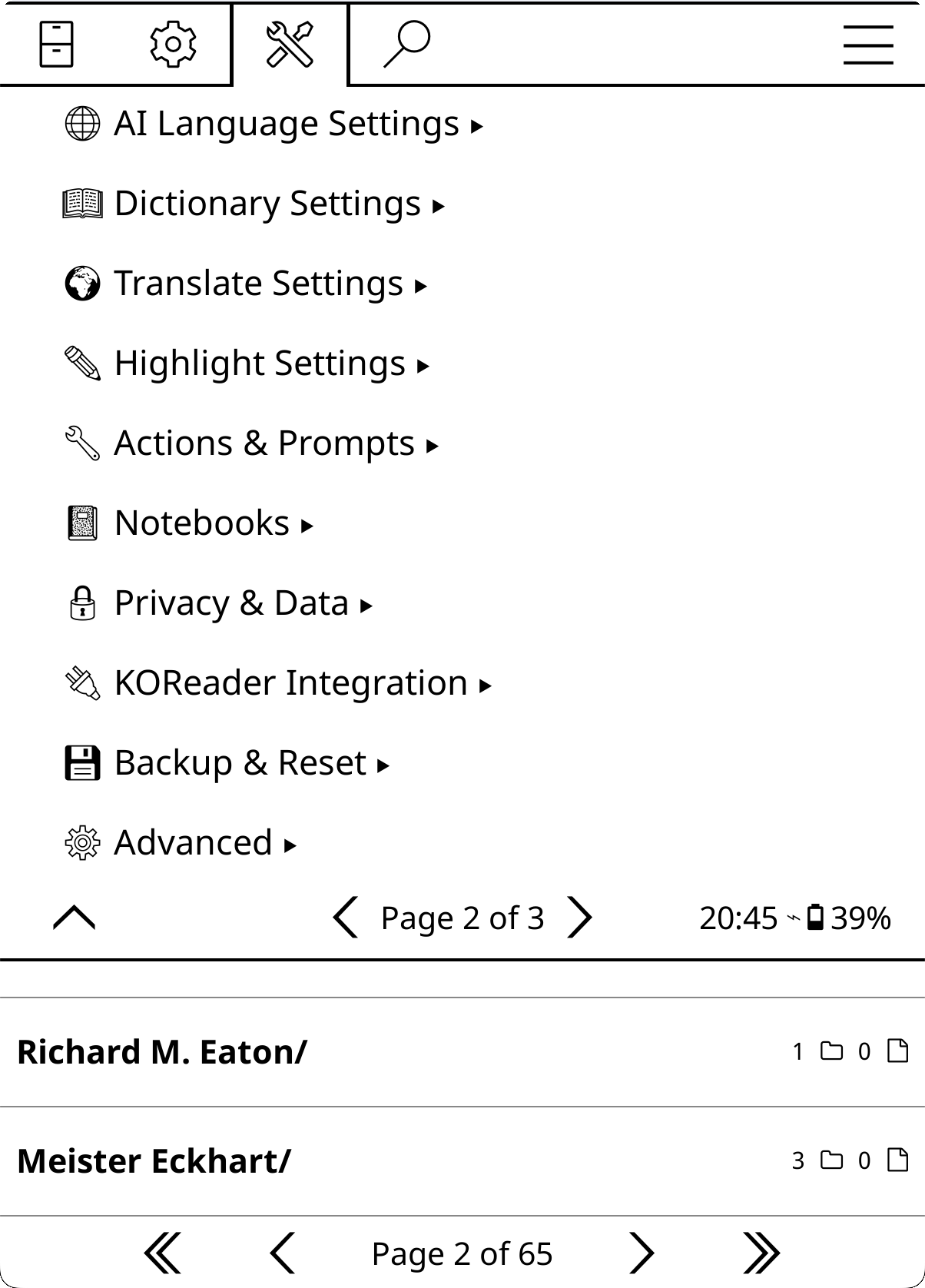
Tools → KOAssistant → Settings
[set] for GUI-entered keys, (file) for keys from apikeys.lua▉ **H1**, ◤ **H2**, ◆ **H3**, etc.), **bold** renders as actual bold, *italics* are preserved as-is, _italics_ (underscores) become bold, lists become •, code becomes 'quoted'. Includes BiDi support for mixed RTL/LTR content. Disable to show raw markdown. (default: on)When "Ask every time" is selected, a picker dialog appears letting you choose what to include before proceeding.
koassistant_exports/ folder with subfolders for book/general/library chats[book_folder]/chats/ subfolder (default: OFF)The Quiz action is also available manually from the Quick Actions panel, opening the standard scope picker (full document or specific section). The quiz uses structured JSON output from the AI, parsed into an interactive one-at-a-time viewer with navigation, scoring, and Copy/Export/Notebook on the results screen. Result is saved as an artifact (View/Redo from Quick Actions). If JSON parsing fails, the raw response is shown as a fallback.
These settings control what language the AI responds in.
Auto-detection: KOAssistant automatically detects your language from KOReader's UI language setting. If you haven't configured any languages, the AI will respond in your KOReader language (e.g., if KOReader is set to Français, the AI responds in French). This also applies to translation and dictionary actions. The auto-detected language is shown as "(auto)" in Quick Settings. Once you explicitly set a language, auto-detection is no longer used.
Existing users: If you completed the setup wizard before this feature was added and haven't configured languages, KOAssistant will show a one-time prompt offering to use your detected KOReader language (non-English users only).
Native script display: Languages appear in their native scripts in menus and settings (日本語, Français, etc.). System prompts sent to the AI use English names for better language model comprehension. Classical/scholarly languages (Ancient Greek, Biblical Hebrew, Classical Arabic, Latin, Sanskrit) are displayed in English only.
Custom languages: Use "Add Custom Language..." at the top of each picker to enter languages not in the pre-loaded list. Custom languages are remembered and appear in future pickers.
Note: Translation target language settings are in Settings → Translate Settings.
How language responses work:
Examples:
English - AI always responds in EnglishDeutsch, English, Français with Primary: English - English by default, switches if you type in German or FrenchLatin, Sanskrit - Available in translation/dictionary pickers only; AI won't auto-switch to these languages even when you're reading Latin textHow it works technically: Your interaction languages are sent as part of the system message (after behavior and domain). The instruction tells the AI to respond in your primary language and switch if you type in another configured language. Language names in system prompts use English (e.g., "Japanese" not "日本語") for more reliable AI comprehension. See How the AI Prompt Works.
Built-in actions that skip this: Translate and Dictionary actions set skip_language_instruction because they specify the target language directly in their prompt templates (via {translation_language} and {dictionary_language} placeholders). This avoids conflicting instructions.
For custom actions: If your action prompt already specifies a response language, enable "Skip language instruction" to prevent conflicts. If you want the AI to follow your global language preference, leave it disabled (the default).
KOAssistant has four language-related settings that work together:
↵ symbol) or set independently↵) or Translation (↵T) or be set independentlyReturn symbols:
↵ = Following another setting↵T = Following Translation setting specificallyExample setup:
↵ (follows Primary → English)↵T (follows Translation → English)This setup means: AI knows you understand English and Spanish, responds in English, translates to English, defines words in English. Latin is available in translation/dictionary pickers for scholarly texts.
Another example:
↵T (follows Translation → Spanish)This setup means: AI responds in English by default, translates to Spanish, defines words in Spanish (useful when reading Spanish texts). Latin available for translation if needed.
See Dictionary Integration and Bypass Modes for details.
↵T follows Translation Language by default)Tip: Create custom dictionary actions tailored to your language pair for best results. See Custom Dictionary Actions.
See Translate View for details on the specialized translation UI.
When "Ask every time" is selected (or inherited from global), a picker dialog appears letting you choose what to include.
See Bypass Modes and Highlight Menu Actions.
Configure the Quick Settings panel (available via gesture or gear icon in input dialog).
Configure the Quick Actions panel (available via gesture in reader mode).
.sdr/koassistant_notebook.md). Travels with the book automatically.koassistant_notebooks/ folder. Files named Author — Title.md with YAML frontmatter.{notebook} placeholderChanging save location prompts to migrate existing notebooks. Vault/central filenames use Author — Title.md pattern with sanitization and collision handling.
See Privacy & Data for background on what gets sent to AI providers and the reasoning behind these defaults.
{book_text}, {full_document}, etc.). Enabling shows an informational notice about token costs and a tip about using Hidden Flows to save tokens.Control where KOAssistant appears in KOReader's menus. All toggles default to ON; disable any to reduce UI presence.
Note: File browser, highlight menu, gesture menu, and Enhance Text Selection changes require a KOReader restart since they are registered at plugin startup. Dictionary popup changes take effect immediately. To customize which actions appear in each menu, use Action Manager → hold action to add/remove from specific menus.
Recap Reminder and End of Book settings have moved to Chat & Export Settings → Reading & Library.
Backup and restore functionality, plus reset options. See Backup & Restore for full details.
KOAssistant can update itself with one tap. Implementation in oleasteo's ScreenLockPin used as template. When a new version is available, the update dialog includes an "Update Now" button that downloads, installs, and preserves your configuration automatically. Your API keys, custom actions, behaviors, domains, settings, chat history, notebooks, and caches are all safe.
When KOAssistant detects a new version (automatically on startup, or via a manual check), the release notes dialog includes an "Update Now" button. Tap it and the plugin handles everything:
apikeys.lua, configuration.lua, custom_actions.lua, and custom behaviors//domains/ folders)The "Update Now" button appears in both the original and translated release notes viewers, so you can read the notes in your language and update from the same dialog.
Note: If you installed KOAssistant by cloning the git repository (developers), the "Update Now" button will not appear. Use
git pullinstead. See Git Pull below.
Your settings and data are not affected by updates (automatic or manual):
The auto-updater also preserves the optional configuration files that live inside the plugin folder: apikeys.lua, configuration.lua, custom_actions.lua, and custom behaviors//domains/ folders.
If you prefer to update manually (or are updating from a version that doesn't have auto-update):
New and changed files are overwritten; your configuration files are untouched.
koassistant.koplugin.zip from the latest release → Assetskoassistant.koplugin folder in your plugins directory:
Kobo/Kindle:  /mnt/onboard/.adds/koreader/plugins/
Android:      /sdcard/koreader/plugins/
macOS:        ~/Library/Application Support/koreader/plugins/
Linux:        ~/.config/koreader/plugins/
Tip (Kobo/Kindle): On some file managers, "extract here" into the plugins directory will automatically merge into the existing folder. On others, you may need to drag the extracted
koassistant.kopluginfolder over the existing one and confirm the overwrite.
If you're having problems after an update, a clean install can help. This deletes the old plugin folder entirely, so back up your configuration files first.
apikeys.lua (if you use file-based API keys instead of the Settings menu)configuration.lua (if you created one)custom_actions.lua (if you created one)behaviors/ and domains/ folders (if you added custom files)koassistant.koplugin folderkoassistant.koplugin folderNote: If you entered your API keys via the Settings menu (not a file), you don't need to back up
apikeys.lua. GUI keys are stored separately and will persist.
If you cloned the repository:
cd /path/to/koreader/plugins/koassistant.koplugin
git pull
This gives you the latest development version (may include unreleased changes). The auto-updater detects git-based installs and disables itself to avoid overwriting your repository.
KOAssistant includes both automatic and manual update checking to keep you informed about new releases.
By default, KOAssistant automatically checks for updates once per session when you first use a plugin feature (starting a chat, highlighting text, etc.).
How it works:
What's checked:
To disable automatic checking:
configuration.lua:
features = {
    auto_check_updates = false,
}
You can manually check for updates any time via:
Tools → KOAssistant → Settings → About → Check for Updates
Manual checks always show a result (whether update is available or you're already on the latest version).
The update checker intelligently compares versions:
Why the notification on first run? The brief notification explains the slight delay you might experience when first using the plugin after launching KOReader. This ensures you're aware that the plugin is checking for updates in the background, not experiencing a bug or freeze.
Most settings are managed through the Settings UI (Tools > KOAssistant > Settings). The main use case for configuration.lua is custom API endpoints (proxies, regional mirrors) for built-in providers.
Copy configuration.lua.sample to configuration.lua and uncomment what you need:
return {
    -- Default provider/model (used until changed in the Settings UI)
    -- provider = "openai",
    -- model = "gpt-5.5",

    -- Custom API endpoints — the main reason to use this file
    -- Override the default URL for any built-in provider
    provider_settings = {
        openai = {
            base_url = "https://your-proxy.example.com/v1/chat/completions",
        },
        gemini = {
            -- Gemini base_url is the prefix; the handler appends /{model}:generateContent
            base_url = "https://your-proxy.example.com/v1beta/models",
        },
    },

    -- Feature defaults (Settings UI values take priority)
    features = {
        enable_streaming = true,
        -- Reasoning is per-model. Optional global stance: "minimal" | "default" | "maximum".
        -- Per-model overrides are keyed "provider/model". Usually set this in the UI instead.
        reasoning_prefs = {
            stance = "default",
            -- models = { ["anthropic/claude-opus-4-8"] = { state = "on", effort = "high" } },
        },
    },
}
Priority: Settings UI > configuration.lua > built-in defaults. Once you change a setting in the UI, the UI value takes precedence over configuration.lua.
Proxy services vs. custom providers: If you use a proxy or relay service that speaks each provider's native API format (e.g., an OpenAI-compatible endpoint for OpenAI, an Anthropic-compatible endpoint for Anthropic), use
provider_settingsto override thebase_urlfor each provider. Don't add it as a custom provider. Custom providers (Settings → Provider → Add custom provider) are for services with their own model catalog that use the OpenAI-compatible API format.
KOAssistant includes comprehensive backup and restore functionality to protect your settings, custom content, and optionally API keys and chat history.
Access: Tools → KOAssistant → Settings → Backup & Reset
Backups are selective: choose what to include:
| Category | What's Included | Default |
|---|---|---|
| Core Settings | Provider/model, behaviors, domains, temperature, languages, all toggles, custom providers, custom models, action menu customizations | Always included |
| API Keys | Your API keys (encrypted storage planned for future) | ⚠️ Excluded by default |
| Configuration Files | configuration.lua, custom_actions.lua (if they exist) | Included if files exist |
| Domains & Behaviors | Custom domains and behaviors from your folders | Included |
| Chat History | All saved conversations | Excluded (can be large) |
Security note: API keys are stored in plain text in backups. Only enable "Include API Keys" if you control access to your backup files.
Steps:
koassistant_backups/ folder with timestampBackup format: .koa files (KOAssistant Archive) are tar.gz archives containing your settings and content.
When to create backups:
Steps:
Automatic restore point: A restore point is automatically created before every restore operation, so you can undo if needed.
After restore: Restart KOReader for all settings to take full effect.
Replace Mode (recommended):
Merge Mode (advanced):
View all backups: Settings → Backup & Reset → View Backups
For each backup:
Restore points: Automatic restore points (created before each restore) are shown separately and auto-delete after 7 days.
Total size: Displayed at bottom of backup list.
You can export settings from your main device (e.g., e-reader) and import them into another KOReader installation (e.g., desktop for testing):
Example workflow:
# 1. On main device: Create backup via Settings UI
#    (Include: Settings, API Keys, Domains & Behaviors)
#    (Exclude: Chat History to keep backup small)

# 2. Copy backup from device to test machine
scp /mnt/onboard/.adds/koreader/koassistant_backups/koassistant_backup_*.koa \
    ~/test-env/koassistant_backups/

# 3. On test device: Restore via Settings UI

# 4. Restart KOReader
This is especially useful for:
The restore system validates settings and handles edge cases:
What's validated:
If issues found: Warnings are shown after restore completes. Invalid items are skipped but valid items are restored successfully.
KOAssistant provides clear reset options for different use cases.
Access: Settings → Backup & Reset → Reset Settings
Re-run Setup Wizard: Run the initial setup wizard again to reconfigure language, emoji settings, and gesture assignments. The wizard detects your current configuration and only offers to change what's needed.
Three preset options that cover most needs:
Quick: Settings only
Quick: Actions only
Quick: Fresh start
Opens a checklist dialog to choose exactly what to reset:
Tap each item to toggle between "✗ Keep" and "✓ Reset", then tap "Reset Selected".
Separate option to delete all saved conversations across all books. This cannot be undone.
The Action Manager (Settings → Actions & Prompts → Manage Actions) has a hamburger menu (☰) in the top-left with quick access to action-related resets.
All sorting/ordering managers (Manage Actions, Highlight Menu, Dictionary Popup, File Browser Actions, QA Panel Actions, QA Panel Utilities, QS Panel Items, Input Dialog Actions) have hamburger menus (☰) with cross-navigation links, so you can jump between them without going back to Settings.
When to reset: After problematic updates, when experiencing strange behavior, or to start fresh. See Troubleshooting → Settings Reset for details.
When enabled, responses appear in real-time as the AI generates them.
Works with all providers that support streaming.
Prompt caching reduces costs and latency by reusing previously processed prompt prefixes. Most major providers support this automatically.
| Provider | Type | Savings | Notes |
|---|---|---|---|
| Anthropic | Explicit | 90% | System prompt marked with cache_control |
| OpenAI | Automatic | 90% | Min 1024 tokens |
| Gemini 2.5+ | Automatic | 90% | Min 1024-2048 tokens |
| DeepSeek | Automatic | Up to 90% | Disk-based, min 64 tokens |
| Groq | Automatic | 50% | Select models (Kimi K2, GPT-OSS) |
What's cached: The stable prefix of each request, the system message (behavior + domain + language instruction), plus conversation history from prior turns. Providers that support automatic prefix caching (OpenAI, Gemini, DeepSeek) also cache the message history, so book text embedded in the first user message is cached on subsequent follow-ups.
How it helps: Each follow-up message resends the entire conversation history to the AI (system prompt + all prior messages and responses). Without caching, you'd pay full price for the entire payload every turn. With caching, previously seen content is processed at 10-50% of the normal rate.
Best for: Multi-turn conversations, especially those that started with large context (book text, summaries). The more stable content at the start of the conversation, the greater the savings.
Twelve actions produce document artifacts: persistent, per-book outputs you can browse anytime without re-running the action. All artifact types are viewable as standalone reference guides. The Summary artifact is additionally reusable as a document source. Actions with source selection let you choose the compact summary (~few thousand tokens) instead of full document text (~100K+ tokens).
Artifact types:
| Artifact | Generated by | What it contains | Primary use |
|---|---|---|---|
| Summary | Document Summary | Neutral, comprehensive document representation | Primary artifact for reuse. Available as a document source in actions with source selection, replacing raw book text with a compact summary. Also useful on its own as a reading reference. |
| X-Ray | X-Ray action | Structured JSON. Fiction: characters, locations, themes, lexicon, timeline; non-fiction: key figures, core concepts, arguments, terminology, argument development; academic (Research Mode): key concepts, foundations, methodology, findings, referenced works, technical terms, figures & data | Browsable menu with categories, search, chapter/book mention analysis, per-item chapter distribution, linkable cross-references, highlight integration. Requires text extraction. Also available as supplementary context in custom actions. |
| X-Ray (Simple) | X-Ray (Simple) action | Prose overview: characters, themes, settings, key terms, where things stand | Text viewer, prose companion guide from AI knowledge. No text extraction needed. Separate cache from X-Ray; both can coexist. |
| Recap | Recap action | "Previously on..." story refresher | Text viewer, helps you resume reading where you left off. Supports incremental updates as you read further. |
| Analysis | Document Analysis | Opinionated deep analysis of the document | Viewable analytical overview. Not recommended as input for further analysis, analyzing an analysis is a decaying game of telephone where each layer loses nuance. |
| About | About action | Reader-oriented overview from AI knowledge | Text viewer, background, reception, and reading context. No text extraction needed. Uses web search when enabled for current information. |
| Analyze Notes | Analyze Notes action | Analysis of your highlights and annotations | Text viewer, patterns in what you've been noting, reading engagement analysis. Updates as you add more notes. |
| Key Arguments | Key Arguments action | Thesis, evidence, assumptions, counterarguments | Text viewer, source selection (full text / summary / AI knowledge). Supports section scope. |
| Discussion Questions | Discussion Questions action | Comprehension, analytical, interpretive, personal questions | Text viewer, source selection. Supports section scope. |
| Quiz | Quiz action | Interactive one-at-a-time viewer with scoring | Quiz viewer, source selection. Supports section scope. Auto-trigger at chapter ends. |
| Reading Guide | Reading Guide action | Spoiler-free guide: threads, patterns, context, approach | Text viewer, source selection. Supports section scope. Updates as you read further. |
| Key Insights | Extract Key Insights action | Important takeaways, novel perspectives, actionable conclusions | Text viewer, source selection. Supports section scope. |
Beyond these twelve generated artifacts, AI Wiki entries (generated from the X-Ray browser or from highlighted text) are also stored as cached artifacts and appear in the Artifact Browser. You can also pin any chat's last response as a named pseudo-artifact using the Pin / ★ button in the chat viewer. Pinned artifacts appear alongside generated ones in the Artifact Browser and artifact cross-navigation, using your chosen name. See Starring & Pinning for details.
Viewing artifacts:
Artifact viewer buttons:
→ Chat: Tapping "→ Chat" opens a reply box on top of the artifact viewer. Type your question and hit Send. The artifact viewer closes and a direct chat opens with the AI, using the artifact content as context. The AI knows this is a previously generated artifact (not the book text itself). The resulting chat saves as a regular book chat with full Reply, Save, and Export capabilities.
X-Ray artifacts open in a browsable category menu (see Reading Analysis Actions for details); all other artifacts open in the text viewer. Legacy markdown X-Rays fall back to the text viewer. Position-relevant artifacts (X-Ray, X-Ray Simple, Recap, Analyze Notes, Reading Guide) show "Update" in the viewer and popup; position-irrelevant artifacts (Summary, Analysis, About, Key Arguments, etc.) show "Regenerate".
Cache source tracking: Each artifact records metadata about how it was generated: data source (extracted text vs AI training knowledge), model used, generation date, and whether reasoning or web search was used. The Info button in the artifact viewer shows all metadata. Artifacts built without text extraction use the AI's training knowledge. This works well for popular books but may be less accurate for obscure works. You can always regenerate with text extraction enabled for higher quality.
All artifact results are cached per book. X-Ray and Recap additionally support incremental updates: as you read further, the AI builds on its previous analysis rather than starting from scratch.
How incremental caching works (X-Ray):
"Update to 100%" extends an incremental X-Ray to the end of the book using the same spoiler-free prompt and Current State/Current Position schema. This is not a complete X-Ray, it's the incremental track at full coverage. Only shown when you haven't already read to near 100%.
Complete X-Ray caching: Complete (entire document) X-Rays are cached but don't support incremental updates; redoing always generates fresh. The cache is labeled "Complete" instead of a percentage.
Section X-Ray caching: Section X-Rays are stored alongside the main X-Ray cache. Each is independent: you can have multiple Section X-Rays per book plus the main X-Ray. Section X-Rays are always complete (no incremental updates) since they analyze a bounded page range. They store XPointers for font-size-independent page reconversion (EPUB only). When you're reading within a section's page range, a quick-access "View" button appears directly in the X-Ray popup. All sections are also browsable via the "View Section X-Rays (N)" group button.
View/Update popup: Appears everywhere you can trigger an artifact action: Quick Actions panel, gestures, and the book chat input field action picker. For X-Ray specifically, if no cache exists yet, the popup offers "Generate X-Ray (to X%)" and "Generate Complete X-Ray". For non-incremental actions, the popup shows "View" and "Redo" or "Regenerate". Reading Guide shows "Update to X%" when your reading position advances. All action popups also surface in-range section artifacts.
Stale X-Ray notification: When you open the X-Ray browser and your reading has advanced >5% past the cached progress, a popup shows the gap (e.g., "X-Ray covers to 29% — You're now at 39%") with Update and Don't remind me this session buttons. This also appears when looking up items via "Look up in X-Ray" from highlight/dictionary. You can also update anytime from the browser's options menu (☰). Stale notifications don't appear for 100% caches.
X-Ray format: X-Ray results are stored as structured JSON with type-specific categories (fiction, non-fiction, or academic, see Reading Analysis Actions) plus status sections (Current State/Current Position/Conclusion). The JSON is rendered to readable markdown for chat display and {xray_cache_section} placeholders, while the raw JSON powers the browsable menu UI. Legacy markdown X-Rays from older versions are still viewable but will be replaced with JSON on the next run. Academic type is automatically selected when Research Mode detects a DOI.
X-Ray (Simple) caching: X-Ray (Simple) results are cached as a separate artifact alongside X-Ray. Unlike X-Ray, it doesn't support incremental updates; every generation is fresh. When your reading position advances, the "View/Update" popup lets you update (regenerate at the new position). Both X-Ray and X-Ray (Simple) can coexist for the same book.
Cache storage:
.sdr/koassistant_cache.lua)Clearing the cache:
Requirements:
Limitations:
The summary artifact enables a "generate once, use many times" workflow. For medium and long texts, sending full document text (~100K+ tokens) for each action is expensive and sometimes not possible for large documents. The pattern:
When you trigger an action with source selection, a unified popup lets you choose scope (full document or a specific section) and source (extract text, use summary, or AI knowledge only). See Highlight Mode for the full list of actions and details.
Creating custom actions with source selection:
Add source_selection = true and use_summary_cache = true to your action, and use {document_context_section} as the unified placeholder. It resolves automatically based on the user's source choice.
Token savings example:
Multi-turn savings: The difference compounds in conversations. Each follow-up resends the full history, so starting at 100K vs 5K tokens means every subsequent turn is 95K tokens cheaper, even before accounting for provider prompt caching.
Using artifacts in custom actions:
Three artifacts can be referenced in custom actions using {summary_cache_section}, {xray_cache_section}, or {analyze_cache_section} placeholders. (X-Ray (Simple) is not available as a placeholder, it's a standalone prose overview, not structured data for reuse.) The summary is the recommended choice for most custom actions. The X-Ray and Analyze placeholders are there for advanced users who want to experiment; artifact placeholders disappear when empty, so including them is always safe. See Tips for Custom Actions for usage guidance.
Example: Create a "Questions from X-Ray" action
Based on this analysis:\n\n{xray_cache_section}\n\nWhat are the 3 most important questions I should be thinking about?If you haven't run X-Ray yet, the placeholder renders empty and the action still runs, just without the analysis context. Permission requirements for the placeholder depend on how the X-Ray was built, see Cache permission inheritance above.
Tip: For documents you'll query multiple times, generate the summary proactively via Document Summary (Quick Actions). The artifacts are also convenient in themselves: browse a book's X-Ray to look up characters (with aliases and connections), tap references to navigate between related items, check who appears in the current chapter, search for any entry, or use "Look up in X-Ray" to instantly search cached data while reading. Review the Analysis for a refresher on key arguments, or skim the Summary before resuming a book you haven't read in a while.
Text extraction guidelines:
{book_text_section} extracts from start to current position (spoiler-safe, used by X-Ray/Recap only), {full_document_section} extracts the entire document regardless of position (used by all other text extraction actions)The max extraction setting is a safety cap, not a target. The default (4M chars) is sized for Gemini's 1M-token context; smaller models will hit their limit well before this. A large extraction warning appears at 500K characters (~125K tokens) to alert you before this happens. Here's roughly what each provider supports:
| Provider | Context Window | Max English Text (~4 chars/token) |
|---|---|---|
| Gemini 2.5/3 (Pro & Flash) | 1M tokens | ~4M chars — handles any book |
| Claude (Sonnet 4.6) | 1M tokens | ~4M chars — handles any book |
| Claude (Haiku 4.5) | 200k tokens | ~800k chars — most novels |
| OpenAI (GPT-5.5, GPT-5.4) | 400k tokens | ~1.6M chars |
| DeepSeek (V4) | 1M tokens | ~4M chars — handles any book |
| Others (Mistral, Qwen, etc.) | 32k-128k tokens | ~130k-500k chars |
CJK/non-Latin text tokenizes less efficiently (~2 chars/token), roughly halving these estimates.
Cost per request (input only, English):
| Model | 250k chars (~60k tok) | 500k chars (~125k tok) | 1M chars (~250k tok) |
|---|---|---|---|
| Gemini 2.5 Flash | $0.02 | $0.04 | $0.08 |
| DeepSeek V4 | $0.02 | $0.04 | $0.07 |
| Claude Haiku 4.5 | $0.06 | $0.13 | exceeds context |
| GPT-5.4-mini | $0.16 | $0.31 | $0.63 |
| Claude Sonnet 4.6 | $0.19 | $0.38 | $0.75 |
| Gemini 2.5 Pro | $0.08 | $0.16 | $0.38 |
| Claude Opus 4.8 | $0.31 | $0.63 | $1.25 |
| GPT-5.5 | $0.63 | $1.25 | $2.50 |
Prompt caching reduces repeated costs by 50-90% on cached portions (see Prompt Caching). Each follow-up in a conversation resends the full history, but providers cache the stable prefix (system prompt + prior messages), so you pay reduced rates for previously seen content. New content each turn (your latest question + the AI's response from the previous turn) is charged at full rate.
Tips to avoid exceeding your model's context window:
For complex questions, many models can "think" through the problem before responding. Reasoning increases latency and token usage but can significantly improve results for complex tasks like X-Ray generation, deep analysis, and nuanced questions.
Reasoning is controlled per model, not by a single global switch. Every model has its own reasoning nature — some always reason, some can't, some are off by default, some on — and KOAssistant respects that. You steer it with two controls:
1. Global stance (Settings → Advanced → Reasoning, or the Reasoning chip in the Quick Settings panel). One dial applied to every model, as far as each model allows:
Because the stance respects each model's capability, "Minimal" genuinely turns reasoning off on models that support it (DeepSeek V4, Gemini 2.5, Claude, GPT-5.4, …) and dials always-on models (Perplexity, GPT-5.5, Grok) down to their lowest effort. It never claims a model is off when it isn't.
2. Per-model overrides (Settings → Advanced → Reasoning → Per-model reasoning). Pick a provider, then a model, then set its reasoning explicitly: Follow global (the default — defer to the stance), Off (where supported), or a specific level (effort/depth/budget, depending on the model). Only models you can actually configure are listed.
The Reasoning chip in the Quick Settings panel shows the effective state for your current model (e.g. "Default", "Off", "High") and opens a popup with the global stance plus a control for the model in front of you.
Precedence (highest wins): per-action setting → per-model override → global stance → the model's natural default.
What each model can do:
| Model family | Nature | Control |
|---|---|---|
| Claude Opus 4.8 / 4.7 / 4.6, Sonnet 4.6 | Adaptive, off by default | Off / effort (low…high; Opus adds xhigh, max) |
| Claude Haiku 4.5 | Extended thinking, off by default | Off / budget level (low…max) |
| Gemini 3 (3.5-flash, 3.1-pro, 3.1-flash-lite) | Thinks by default | Effort/depth (minimal…high); can't be fully disabled |
| Gemini 2.5-flash | Thinks by default | Off / budget (dynamic…max) |
| OpenAI GPT-5.4 family | Off by default (gated) | Off / effort (low…xhigh) |
| OpenAI GPT-5.5 | Reasons by default | Effort (low/medium/high); can't be fully disabled |
| DeepSeek V4, Z.AI GLM-4.7+, SambaNova DeepSeek-V3.x | Thinks by default | On / Off |
| xAI Grok 4.3 / 4.20-reasoning | Reasons by default | Off / effort (low/medium/high) |
| Perplexity Sonar, Groq, Together, Fireworks reasoning models | Always reason | Effort only (low/medium/high) |
| Mistral Magistral | Always reasons, no control | — (thinking is extracted and viewable) |
Temperature is forced to 1.0 automatically where a model's reasoning requires it (Claude adaptive/extended, Z.AI thinking). Opus 4.7/4.8 reject sampling parameters entirely; the plugin strips them.
Viewing reasoning: When a model returns its thinking (Anthropic, Gemini, DeepSeek, Z.AI, Mistral, and R1-style <think>-tag models on Groq/Together/Fireworks/SambaNova/Ollama/Perplexity), it's captured and viewable via the Show Reasoning button in the chat viewer gear menu. A "[Reasoning was used]" indicator appears in chat when enabled (Settings → Advanced → Reasoning → Show Indicator in Chat).
Per-action overrides: Any action can override reasoning for specific providers via Action Manager → hold action → Edit Settings → Advanced → Per-Provider Reasoning. This is the top layer — it wins over the global stance and per-model overrides. Several built-in actions (e.g. Translate, Quick Define, Dictionary, Summarize) deliberately force reasoning off because the task doesn't benefit from it. See Tuning Built-in Actions.
Supported providers can search the web to include current information in their responses.
| Provider | Feature | Notes |
|---|---|---|
| Anthropic | web_search_20250305 tool | Configurable max searches (1-10) |
| Gemini | Google Search grounding | Automatic search count |
| OpenRouter | Exa search via :online suffix | Works with all models ($0.02/search) |
| Perplexity | Built-in Sonar web search | Always-on, every response includes citations |
How it works:
Settings:
Quick Toggle:
Per-Action Override: Custom actions can override the global setting:
enable_web_search = true → Force web search on (example: News Update built-in action)enable_web_search = false → Force web search offenable_web_search = nil → Follow global setting (default)The built-in News Update action demonstrates this. It uses enable_web_search = true to fetch current news even when web search is globally disabled. See General Chat for how to add it to your input dialog.
Research Mode override: When a DOI is detected (Research Mode), actions like X-Ray and Summarize that normally force web search off (enable_web_search = false) are changed to follow your global web search setting instead. If you have web search enabled globally, academic papers automatically get web-enriched analysis. See Research Mode.
Best for: Questions about current events, recent developments, fact-checking, research topics.
Note: Perplexity always searches the web. The toggle has no effect on Perplexity (web search is inherent to all Sonar models). For other providers, web search increases token usage and may add latency. Unsupported providers silently ignore this setting.
Troubleshooting OpenRouter:
KOAssistant supports 18 AI providers. Please test and give feedback -- fixes are quickly implemented
| Provider | Description | Get API Key |
|---|---|---|
| Anthropic | Claude models (primary focus) | console.anthropic.com |
| OpenAI | GPT models | platform.openai.com |
| DeepSeek | Cost-effective reasoning models | platform.deepseek.com |
| Gemini | Google's Gemini models | aistudio.google.com |
| Ollama | Local models (no API key needed) | ollama.ai |
| Groq | Extremely fast inference | console.groq.com |
| Fireworks | Fast inference for open models | fireworks.ai |
| SambaNova | Fastest inference, free tier available | cloud.sambanova.ai |
| Together | 200+ open source models | api.together.xyz |
| Mistral | European provider, coding models | console.mistral.ai |
| xAI | Grok models, up to 2M context | console.x.ai |
| OpenRouter | Meta-provider, 500+ models | openrouter.ai |
| Cohere | Command models | dashboard.cohere.com |
| Qwen | Alibaba's Qwen models | dashscope.console.aliyun.com |
| Kimi | Moonshot, 256K context | platform.moonshot.cn |
| Doubao | ByteDance Volcano Engine | console.volcengine.com |
| Z.AI | GLM models, free tier available | z.ai |
| Perplexity | Sonar models, built-in web search with citations | perplexity.ai |
Free & Low-Cost Options
Several providers offer free tiers perfect for testing or budget-conscious use:
- Groq: All models free with generous rate limits (250K tokens/min)
- Gemini: gemini-3.5-flash and free quota on other models
- Ollama: Completely free (runs locally on your hardware)
- SambaNova: Free tier for open-source models
- Z.AI: GLM-4.7-Flash is free
See details below.
Several providers offer free tiers for testing or budget-conscious users:
| Provider | Free Tier Details |
|---|---|
| Groq | All models free with rate limits (250K tokens/min, 1K requests/min) |
| Gemini | gemini-3.5-flash has free tier; other models have free quota |
| SambaNova | Free tier available for open-source models |
| Ollama | Completely free (runs locally on your hardware) |
| Mistral | Open-weight models free: mistral-small-latest, magistral-small-latest (Apache 2.0) |
| OpenRouter | Some models have free tiers; check per-model pricing |
| Z.AI | GLM-4.7-Flash free (1 concurrent request) |
Best for testing: Groq (fastest free inference), Gemini (generous free quota), Ollama (no API key needed).
You can add your own OpenAI-compatible providers for local servers or cloud services not in the built-in list.
Quick setup for local providers:
Go to Settings → Provider → Quick setup: Local provider
Pick your engine. Presets available for:
| Engine | Default Port | Notes |
|---|---|---|
| LM Studio | 1234 | Popular GUI, drag-and-drop models |
| llama.cpp | 8080 | Fast CLI server (llama-server) |
| Jan | 1337 | Desktop app, easy setup |
| vLLM | 8000 | Production-grade serving |
| KoboldCpp | 5001 | Optimized for creative writing |
| LocalAI | 8080 | Drop-in OpenAI replacement |
Name and URL are pre-filled, just change localhost to your server's IP if it's running on another machine
Add a model name, tap Add, and you're ready
API key is automatically disabled for preset local providers.
Manual setup (cloud services or unlisted endpoints):
https://api.example.com/v1/chat/completions)Managing custom providers:
Tips:
http://localhost:11434/v1/chat/completionsAdd models not in the built-in list for any provider (built-in or custom).
To add a custom model:
How custom models work:
To manage custom models:
Tips:
Override the system default model for any provider with your preferred choice.
To set a custom default:
How defaults work:
To clear your custom default:
The provider will revert to using the system default.
max_completion_tokensthinkingBudget (0=off, -1=dynamic, 128-24576=specific), 3 models use thinkingLevel; streaming may arrive in larger chunks than other providersconfiguration.luathinking toggle for both deepseek-v4-pro and deepseek-v4-flash (on by default); controlled by the reasoning stance / per-model override (see Reasoning/Thinking)OpenRouter is a "meta-provider" that routes requests to 500+ different backend providers (Anthropic, OpenAI, Google, xAI, Perplexity, etc.). This architecture has implications:
What OpenRouter normalizes (consistent for KOAssistant):
choices[0].message.content):online suffix, OpenRouter uses their own Exa search integration, not the underlying provider's. Web search detection via url_citation annotations works consistently.What varies (backend provider differences we can't control):
Troubleshooting OpenRouter:
x-ai/grok-4.3 to anthropic/claude-sonnet-4.6)Why one handler works: KOAssistant uses a single OpenRouter handler because the response format is consistent. The streaming variability is cosmetic and doesn't affect the final response.
KOAssistant automatically resizes windows when you rotate your device, adapting the chat viewer and input dialog to your screen orientation.
KOAssistant offers two view modes for displaying AI responses:
Markdown View (default)
Plain Text View
▉ **H1**, ◤ **H2**, ◆ **H3**)*text* for prose readability'quoted'How to switch:
Your chat reply drafts are automatically saved as you type. This means you can:
The draft is cleared when you send the message or start a new chat.
When using actions from gestures or highlight menus, they trigger immediately with their predefined prompts. To add extra context or focus the AI on specific aspects:
Your additional input is combined with the action's prompt template.
Dictionary lookups use compact view by default (minimal UI). To save a lookup or continue the conversation:
If the action uses Dictionary view directly (e.g., Deep Analysis), step 1 is skipped.
Use case: You looked up a word, got interested, and want to ask deeper questions about etymology or usage patterns.
More tips coming soon. Contributions welcome!
Shorter tap duration makes text selection easier. Go to Settings → Taps and Gestures → Long-press interval and reduce it (default is often 1.0s). This makes highlighting text for KOAssistant much more responsive.
Text selection works consistently across all KOAssistant viewers: chat viewer, X-Ray browser, compact, dictionary, and translate views:
| Selection | Short hold | Long hold |
|---|---|---|
| 1 word | Auto-dictionary lookup | Action popup |
| 2+ words | Action popup | Action popup |
Single word opens KOReader's built-in offline dictionary. Long-pressing a single word shows the action popup instead, giving access to Copy, Translate, etc. The long-hold threshold follows your KOReader setting (Settings → Taps and Gestures → Long-press interval). The current viewer stays open underneath: the dictionary popup opens on top, and you return to your viewer when you close it.
Multi-word selection popup (2-column grid layout):
| Button | Action |
|---|---|
| Copy | Copy to clipboard |
| Dictionary | KOReader offline dictionary lookup |
| Translate | Translate via KOAssistant's Translate action |
| Add to Notebook | Append text with timestamp to the book's notebook (auto-creates if needed) |
Buttons are conditional: Dictionary requires an open book with dictionary support, Translate requires the plugin, Add to Notebook requires book context (not available for general/library chats). The popup is dismissable by tapping outside.
Highlight clearing: Selected text highlight clears automatically after any action or when dismissing the popup.
Chaining lookups: Look up a word, see an unfamiliar word in the AI response, select it to look that up too. The viewer stays open underneath throughout.
Enable Settings → KOReader Integration → Enhance Text Selection to bring this same behavior to KOReader's own viewers: dictionary popups, Wikipedia results, bookmark viewer, and any other TextViewer in KOReader. Same rules: single word → dictionary, long-press single word or multi-word → action popup. Off by default; requires restart.
Good metadata improves AI responses. Use Calibre, Zotero, or similar tools to ensure correct titles and authors. The AI uses this metadata for context in Book Mode and when "Include book info" is enabled for highlight actions.
If actions like Analyze Notes, Connect with Notes, X-Ray, or Recap seem to ignore your reading data:
Most reading data is opt-in. Check Settings → Privacy & Data and enable the relevant setting:
| Feature not working | Enable this setting |
|---|---|
| Analyze Notes shows nothing | Allow Annotation Notes |
| Connect with Notes ignores your notes | Allow Annotation Notes + Allow Notebook |
| X-Ray/Recap missing your highlights | Allow Highlights (or Allow Annotation Notes) |
| X-Ray blocked ("requires text extraction") | Allow Text Extraction (in Text Extraction submenu), or use X-Ray (Simple) instead |
| Document Analysis/Summary blocked | Allow Text Extraction (in Text Extraction submenu) |
| Recap uses only book title | Allow Text Extraction (in Text Extraction submenu) |
| Explain/Analyze in Context use only book title | Allow Text Extraction (in Text Extraction submenu) |
| Analyze in Context ignores your highlights | Allow Annotation Notes |
Custom action with {highlights} empty | Allow Highlights (or Allow Annotation Notes) |
Custom action with {notebook} empty | Allow Notebook |
Custom action with {book_text} empty | Allow Text Extraction + action's "Allow text extraction" flag |
Why this happens: To protect your privacy, personal data (highlights, annotations, notebook) is not shared with AI providers by default. You must explicitly opt in. See Privacy & Data for the full explanation.
Note: Actions that use document text still work when text extraction is disabled; they don't fail or return errors. Instead, the AI is explicitly guided to use its training knowledge and to be honest about what it doesn't recognize. For well-known books, this often produces reasonable results. For obscure works or research papers, enable text extraction for meaningful output.
Quick fix: Use Preset: Full to enable all data sharing at once, or enable individual settings as needed.
See what actions need: Enable Emoji Data Access Indicators to see emoji suffixes on action names showing what data each action accesses (📄 🔖 📝 📓 🌐).
If Recap, Explain in Context, Analyze in Context, or custom actions with {book_text} / {full_document} placeholders return empty or generic responses based only on book title (X-Ray blocks generation entirely without text extraction; use X-Ray (Simple) as an alternative):
Text extraction is OFF by default. You must enable it manually:
For custom actions, also ensure:
{book_text_section} or {full_document_section})Why it's off by default:
How actions behave without text extraction: Most actions don't fail; they gracefully degrade. The AI is explicitly told no document text was provided and asked to use its training knowledge of the work (with a guard against fabricating details for unrecognized works). For well-known books, this often produces helpful results. For obscure works or research papers, results will be generic or the AI will honestly say it doesn't recognize the work. Exception: X-Ray blocks generation without text extraction; use X-Ray (Simple) for a prose overview from AI knowledge. Document artifacts (Summary, Analysis) are NOT saved from these fallback responses, see Document Artifacts.
Quick check: If Recap or context-aware highlight action responses seem to be based only on the book's title/author (generic knowledge), text extraction is not enabled. X-Ray will show a blocking message with instructions.
Emoji icons in plugin menus and buttons (Emoji Menu Icons, Emoji Data Access Indicators) require an emoji font installed in KOReader. KOReader does not ship with one by default.
Note: Emoji icons only work in plugin menus and buttons (settings, action manager, X-Ray browser, chat viewer buttons, etc.). They do not render in the Markdown chat viewer, which uses MuPDF's HTML renderer without per-glyph font fallback. This is a KOReader limitation, not a KOAssistant issue.
Step 1: Install the font
Download Noto Emoji (monochrome, .ttf) from Google Fonts. You want NotoEmoji-Regular.ttf, not Noto Color Emoji, which is incompatible with KOReader's text renderer.
Copy the .ttf file to KOReader's fonts directory:
| Platform | Font directory |
|---|---|
| Kobo | /.adds/koreader/fonts/ |
| Kindle | koreader/fonts/ (on USB root) |
| PocketBook | /applications/koreader/fonts/ |
| Android | Copy to /koreader/fonts/ on device storage. Alternatively, you can enable system fonts (see below) to use Android's built-in emoji font without copying anything. |
Restart KOReader after installing the font.
Android shortcut, using system fonts instead:
Android already has emoji fonts installed. Instead of downloading Noto Emoji, you can tell KOReader to use them: open any book → tap top menu → document icon (📄) → Font → Font Settings → enable Enable system fonts → restart KOReader. This makes all Android system fonts (including emoji) available to KOReader.
Step 2: Enable as UI fallback font
Installing the font file alone is not enough; you must add it to KOReader's UI fallback font chain:
Step 3: Enable in KOAssistant
In KOAssistant: Settings → Display Settings → Emoji → enable Emoji Menu Icons and/or Emoji Data Access Indicators.
Platform notes:
Still not working?
.ttf format (not .woff, .woff2, or .otf)If text doesn't render correctly in Markdown view, switch to Plain Text view:
This is a limitation of KOReader's MuPDF HTML renderer, which lacks per-glyph font fallback. Plain Text mode uses KOReader's native text rendering with proper font support.
Automatic RTL mode is enabled by default:
Plain Text mode includes markdown stripping that preserves readability: headers show with symbols and bold text, bold renders as actual bold, lists become bullets (•), and code is quoted. Mixed RTL/LTR content (like Arabic headwords followed by English definitions) displays in the correct order, and RTL-only headers align naturally to the right.
Edit apikeys.lua and add your key for the selected provider.
KOReader has text selection settings that can interfere with KOAssistant features. Check Settings → Taps and Gestures → Long-press on text (only visible in reader view):
If you're experiencing issues after updating the plugin, or want a fresh start with default settings:
Access: Settings → Backup & Reset → Reset Settings
For targeted fixes:
For broader issues:
See Reset Settings for detailed descriptions of each option.
Note: KOAssistant is under active development. If settings are old, a reset can help ensure compatibility with new features. Long-press any reset option to see exactly what it resets and preserves.
Enable in Settings → Advanced → Debug Mode
Shows:
Note: Debug view and export features (particularly the "Everything (debug)" content level) are under review for consistency improvements. Some metadata may not appear as expected in exports. See Track 0.7 in the development roadmap.
Contributions welcome! You can:
Discussions are great for:
Issues are better for:
GitHub Discussions | GitHub Issues
A standalone test suite is available in tests/. Note: Tests are excluded from release zips, so clone from GitHub to access them. See tests/README.md for setup and usage:
lua tests/run_tests.lua --unit   # Fast unit tests (no API calls)
lua tests/run_tests.lua --full   # Comprehensive provider tests
lua tests/inspect.lua anthropic  # Inspect request structure
lua tests/inspect.lua --web      # Interactive web UI
KOAssistant supports localization with translations managed via Weblate.
Contribute translations on Weblate
Current languages (20):
Important: Most translations are AI-generated and marked as "needs review" (fuzzy). They may contain inaccuracies or awkward phrasing. Human review and corrections are very welcome!
If you don't like the translations: You can change the plugin language in Settings → Display Settings → Plugin UI Language → select "English" to always show the original English UI.
To contribute:
To add a new language: Open a GitHub issue or request it on Weblate.
Note: The plugin is under active development, so some strings may change between versions. Contributions are still valuable and will be maintained.
This project was originally forked from ASKGPT by Drew Baumann, renamed to Assistant, and expanded with multi-provider support, custom actions, chat history, and more. Recently renamed to "KOAssistant" due to a naming conflict with a fork of this project. Some internal references may still show the old name.
This plugin was developed with AI assistance using Claude Code (Anthropic). The well-documented KOReader plugin framework and codebase made it possible for AI tools to understand the existing patterns and contribute meaningfully to development and documentation.
GNU General Public License v3.0 - See LICENSE
Questions or Issues?
⚠️ Experimentelle Skill-Sammlung für deutsches Recht (Arbeits-, Gesellschafts-, Insolvenz-, Datenschutz-, Prozessrecht u
Manage multiple Claude Code agents from TUI or Web with tmux and git worktrees
Project management using GitHub Issues + Git worktrees for parallel agent execution
Core skills library for Claude Code with 20+ battle-tested skills including TDD, debugging, and brainstorming