

Are you the author? Sign in to claim
The LoxiLB SSE Remote Server is a Model Context Protocol (MCP) server implementation that uses Server-Sent Events (SSE)
This guide will show you how to deploy your own remote MCP server with LoxiLB integration, with two deployment options:
The LoxiLB SSE Remote Server is a Model Context Protocol (MCP) server implementation that uses Server-Sent Events (SSE) for real-time communication. This project provides a comprehensive set of tools for interacting with various services including GitHub, Slack, the filesystem, and LoxiLB load balancer management.
Get up and running in 5 minutes:
Clone and configure
git clone https://github.com/loxilb-io/loxilb-mcp.git
cd loxilb-mcp
cp .env.example .env
# Edit .env with your LoxiLB URL and tokens
Start the server
docker-compose up -d
Your MCP server is now running on http://localhost:8787/sse
In a new terminal, run the MCP inspector. The MCP inspector is an interactive MCP client that allows you to connect to your MCP server and invoke tools from a web browser.
Test with MCP Inspector
npx @modelcontextprotocol/inspector@latest
Open the MCP inspector in your web browser
In the inspector, set the trasport type to SSE, enter the URL of your MCP server, http://localhost:8787/sse, enter the authentication's header name as Authorization, and Bearer Token as admin-token, and click Connect. You should see the "List Tools" button, which will list the tools that your MCP server exposes.
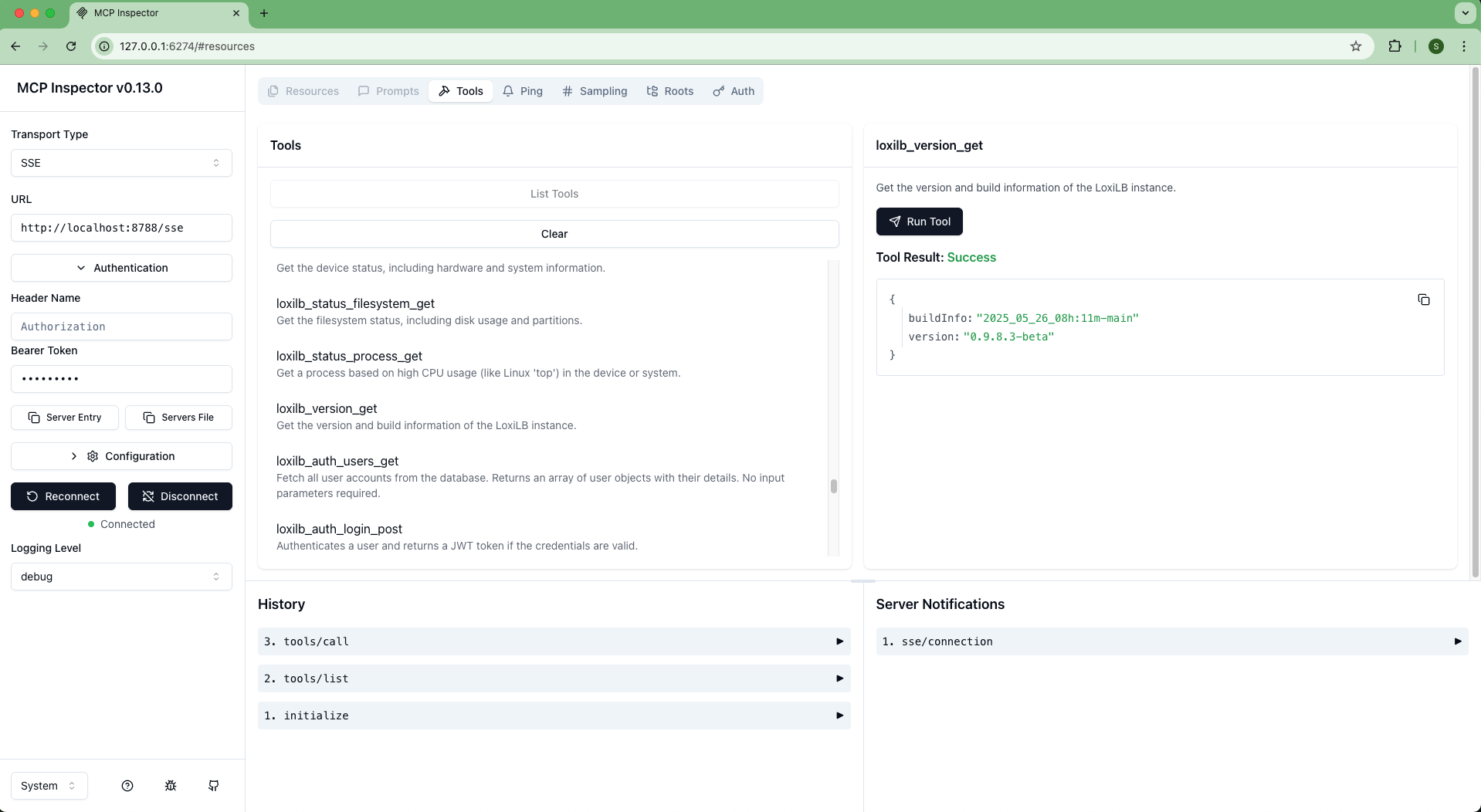
Connect Claude Desktop
Add the server configuration to your claude_desktop_config.json
{
   "mcpServers": {
     "netlox": {
       "command": "npx",
       "args": [
         "mcp-remote",
         "http://localhost:8788/sse",
         "--header",
         "Authorization: Bearer ${AUTH_TOKEN}"
       ],
       "env": {
         "AUTH_TOKEN": "admin-key"
       }
     }
   }
 }
The server is built using FastMCP, a framework for implementing MCP servers. It uses Server-Sent Events (SSE) for real-time communication and implements authentication with different access levels (admin, user, read-only).
For production deployments, the LoxiLB SSE Server supports multiple SSL certificate options:
📋 Note: For detailed SSL setup instructions, certificate generation, and troubleshooting, see the SSL Setup Guide.
Use the included SSL automation scripts to generate certificates:
chmod +x ./scripts/generate-ssl.sh
chmod +x ./scripts/certbot-ssl.sh
chmod +x ./scripts/generate-ssl-certs.sh

# For development (self-signed certificates)
./generate-ssl.sh dev

# For production with Let's Encrypt
# Setup Certbot environment
./generate-ssl.sh certbot setup

# Obtain certificate
./generate-ssl.sh certbot obtain -d yourdomain.com
The project includes comprehensive SSL management tools:
The server requires two configuration files: .env and tool-providers.config.json.
.env file with your settings:# Server settings
PORT=8788
HOST=0.0.0.0
ENDPOINT=sse
ENABLE_AUTH=true
# Required
LOXILB_BASE_URL=http://your.loxilb.api.url/netlox/v1
# Optional (only if respective tools are enabled)
GITHUB_PERSONAL_ACCESS_TOKEN=your_github_token_here
SLACK_BOT_TOKEN=your_slack_token_here
NODE_ENV=production
tool-providers.config.json file:{
"filesystem": {
"enabled": true,
"allowedDirectories": [
"/workspace/sse-remote-server/loxilb",
"/workspace/sse-remote-server/loxilb-epbf",
"/workspace/sse-remote-server/loxicmd",
"/workspace/sse-remote-server/loxilbdocs"
]
},
"github": {
"enabled": true
},
"slack": {
"enabled": true
},
"loxilb": {
"enabled": true
}
}
To disable GitHub and/or Slack integration:
"enabled": false for the tools you don't need in tool-providers.config.json.env fileExample:
{
  "github": { "enabled": false },
  "slack": { "enabled": false }
}
This reduces dependencies and simplifies setup.
The server provides several specialized tool providers for different services and operations.
Comprehensive tools for managing LoxiLB load balancer operations:
GET Operations (llb-allget-tools.ts)
POST Operations (llb-post-tools.ts)
Example tools:
loxilb_version_get — Get LoxiLB version informationloxilb_lb_post — Create or update load balancer configurationsloxilb_lb_stats_get — Get performance metrics and statisticsFull GitHub API integration for repository and development operations:
Repository Operations
Issue Management
Pull Request Operations
File Operations
Example tools:
search_repositories — Search GitHub repositoriesget_issue — Get specific GitHub issue detailscreate_pull_request — Create new pull requestSlack workspace integration for communication and collaboration:
Channel Operations
Message Operations
User Operations
File Operations
Example tools:
slack_list_channels — List available Slack channelsslack_send_message — Send message to a Slack channelslack_upload_file — Upload file to SlackSecure filesystem operations within configured directories:
File Operations
Directory Operations
Search Operations
Security features:
Example tools:
read_file — Read file content safelywrite_file — Write content to filelist_directory — List directory contentsBefore deploying the server, you'll need to obtain API tokens for the services you want to integrate.
📋 Note: You can disable any tool provider you don't need by setting
"enabled": falsein yourtool-providers.config.jsonfile.
Navigate to GitHub settings
Create new token
Configure permissions
repo scope ("Full control of private repositories")public_repo scopeSave the token
.env file as GITHUB_PERSONAL_ACCESS_TOKENCreate Slack App
Configure OAuth scopes Navigate to "OAuth & Permissions" and add these Bot Token Scopes:
channels:history — View messages in public channelschannels:read — View basic channel informationchat:write — Send messages as the appreactions:write — Add emoji reactions to messagesusers:read — View users and basic informationusers.profile:read — View detailed user profilesInstall to workspace
xoxb-)Get Team ID
T) using this guideChoose your deployment method based on your requirements:
The recommended way to deploy the LoxiLB SSE Server is using Docker containers.
Prerequisites:
.env and tool-providers.config.json) preparedQuick start:
# Clone or download the project
git clone https://github.com/loxilb-io/loxilb-mcp.git
cd loxilb-mcp

# Create your configuration files
cp .env.example .env
# Edit .env with your settings

# Start the server
docker-compose up -d
Port configuration:
⚠️ Warning: Ensure the port mapping in your Docker command matches the
PORTdefined in your.envfile.
# If PORT=8788 in .env
docker run -p 8788:8788 --env-file .env \
  -v $(pwd)/tool-providers.config.json:/workspace/sse-remote-server/tool-providers.config.json:ro \
  loxilbmcp-sse-server:v0.9.8

# If you change PORT=9000 in .env, update the mapping
docker run -p 9000:9000 --env-file .env \
  -v $(pwd)/tool-providers.config.json:/workspace/sse-remote-server/tool-providers.config.json:ro \
  loxilbmcp-sse-server:v0.9.8
Local deployment
Remote deployment
Connect to your LoxiLB SSE Server using the appropriate URL format:
Deployment types:
Local deployment
http://localhost:<PORT>/sse.env configurationRemote deployment
https://<server_hostname>:<PORT>/sse⚠️ Warning: Ensure firewall configurations allow connections to the specified port.
The server implements role-based authentication with predefined access keys:
Access levels:
admin-key
user-key
readonly-key
Authentication header format:
Authorization: Bearer <access-key>
📋 Note: These predefined keys are intended for initial setup and testing. For production environments, implement a more secure authentication system with user-specific tokens.
The MCP Inspector is a powerful debugging tool that allows you to test your LoxiLB SSE Server before connecting it to Claude Desktop. It provides a web interface to explore available tools and test their functionality.
npm install -g @modelcontextprotocol/inspector
Start your LoxiLB SSE Server:
# Using Docker
docker run -p 8788:8788 --env-file .env \
  -v $(pwd)/tool-providers.config.json:/workspace/sse-remote-server/tool-providers.config.json:ro \
  loxilbmcp-sse-server:v0.9.8
Launch MCP Inspector:
npx @modelcontextprotocol/inspector@latest
Test functionality:
The MCP Inspector provides:
💡 Tip: Use the Inspector to validate your configuration before connecting to Claude Desktop. This helps identify configuration issues early and ensures smooth operation.
To use this with Claude Desktop, add the following to your claude_desktop_config.json:
You need to adjust the URL in the configuration based on where your LoxiLB SSE Server is running:
⚠️ Important: When connecting to a remote LoxiLB SSE Server from Claude Desktop, you must use HTTPS (not HTTP). Only localhost connections can use HTTP.
Local deployment
Use http://localhost:<PORT>/sse where PORT matches your .env file.
Remote deployment
Use https://<server_ip_or_hostname>:<PORT>/sse with HTTPS for secure connections.
Make sure to replace <PORT> with the actual port number from your .env file (default: 8788) and <server_ip_or_hostname> with the actual IP address or hostname of your remote server.
{
  "mcpServers": {
    "loxilb": {
      "command": "npx",
      "args": [
        "mcp-remote",
        "http://localhost:8788/sse",  // Change this URL based on your deployment
        "--header",
        "Authorization: Bearer ${AUTH_TOKEN}"
      ],
      "env": {
        "AUTH_TOKEN": "admin-key"  // This must match the authentication credentials on your server
      }
    }
  }
}
⚠️ HTTPS required: When connecting to a remote LoxiLB SSE Server from Claude Desktop, you must use HTTPS (not HTTP). Only localhost connections can use HTTP. See the SSL deployment options for setting up HTTPS.
{
  "mcpServers": {
    "loxilb": {
      "command": "npx",
      "args": [
        "mcp-remote",
        "https://your-server-domain.com/sse",
        "--header",
        "Authorization: Bearer ${AUTH_TOKEN}"
      ],
      "env": {
        "AUTH_TOKEN": "admin-key"
      }
    }
  }
}
If you experience connection issues with the MCP client (e.g., Claude Desktop), it may be due to previous session cookies causing conflicts.
💡 Quick fix: Clear the MCP authentication cache by running
rm -rf ~/.mcp-authand restart Claude Desktop.
Steps to resolve:
Clear the MCP authentication cache:
rm -rf ~/.mcp-auth
Restart your Claude Desktop application
The connection should now work properly with the LoxiLB SSE Server
This is particularly helpful when switching between different MCP servers or when authentication credentials have changed.
If the server is not reachable, check the following:
Common issues:
Server status
docker logs loxilbmcp-sse-serverPort configuration
.env file matches the Docker run commandNetwork connectivity
curl http://localhost:8788/sse (adjust port as needed)LoxiLB connectivity
.env file is correct and reachablecurl ${LOXILB_BASE_URL}/netlox/v1/statusThe LoxiLB SSE Server supports HTTP directly. For HTTPS support in production, use Nginx as a reverse proxy with SSL termination.
📋 Note: The project includes automated SSL certificate generation and Nginx configuration. See the SSL Setup Guide for complete setup instructions.
Quick HTTPS setup:
Generate SSL certificates:
# Let's Encrypt (recommended for production)
make ssl-certbot-setup DOMAIN=yourdomain.com EMAIL=your@email.com
make ssl-certbot-obtain DOMAIN=yourdomain.com

# Or self-signed for development
make ssl-dev DOMAIN=localhost
Start with Docker Compose:
docker-compose up -d
This automatically configures:
Example Nginx configuration:
events {
    worker_connections 1024;
}

http {
    upstream loxilbmcp-sse-server {
        server loxilbmcp-sse-server:8788;
        keepalive 32;
    }

    # Rate limiting
    limit_req_zone $binary_remote_addr zone=sse_limit:10m rate=10r/s;
    limit_conn_zone $binary_remote_addr zone=conn_limit:10m;

    server {
        listen 80;
        server_name _;
        return 301 https://$host$request_uri;
    }

    server {
        listen 443 ssl;
        server_name oam.loxilb.io;                     # change me

        ssl_certificate /path/to/your/certificate.crt;  # change me
        ssl_certificate_key /path/to/your/private.key;  # change me

        location / {
            proxy_pass http://loxilbmcp-sse-server;  # change me
            proxy_set_header Host $host;
            proxy_set_header X-Real-IP $remote_addr;
            proxy_set_header X-Forwarded-For $proxy_add_x_forwarded_for;
            proxy_set_header X-Forwarded-Proto $scheme;
            proxy_buffering off;
            proxy_cache off;
            proxy_http_version 1.1;
            chunked_transfer_encoding off;
            proxy_read_timeout 3600s;
            proxy_send_timeout 3600s;
        }
    }
}
With this setup, clients can connect securely via HTTPS while the LoxiLB SSE Server continues to run with HTTP.
For your convenience, we've prepared a docker-compose.yml file that sets up both the LoxiLB SSE Server and Nginx proxy together, enabling HTTPS for remote connections:
version: '3.8'

services:
  loxilbmcp-sse-server:
    image: ${REGISTRY:-kongseokhwan}/${IMAGE_NAME:-loxilbmcp-sse-server}:${IMAGE_TAG:-v0.9.8} # change me
    container_name: loxilbmcp-sse-server
    ports:
      - "${PORT:-8788}:${PORT:-8788}"
    environment:
      # Server configuration
      - PORT=${PORT:-8788}
      - HOST=${HOST:-0.0.0.0}
      - ENDPOINT=${ENDPOINT:-sse}

      # Authentication
      - ENABLE_AUTH=${ENABLE_AUTH:-true}

      # Tool provider tokens
      - GITHUB_PERSONAL_ACCESS_TOKEN=${GITHUB_PERSONAL_ACCESS_TOKEN:-your_access_token} # your github personal access token
      - SLACK_BOT_TOKEN=${SLACK_BOT_TOKEN:-your_slack_token} # your slack bot token
      - SLACK_TEAM_ID=${SLACK_TEAM_ID:-your_slack_team_id} # your slack team id
      - LOXILB_BASE_URL=${LOXILB_BASE_URL:-your_loxilb_base_url} # your loxilb base url

      # Node.js settings
      - NODE_ENV=production
    volumes:
      - ./tool-providers.config.json:/app/tool-providers.config.json:ro
    restart: unless-stopped
    networks:
      - loxilbmcp-network

  # Nginx reverse proxy for SSL termination
  nginx:
    image: nginx:alpine
    container_name: loxilbmcp-nginx
    ports:
      - "443:443"
      - "80:80"
    volumes:
      - ./nginx/nginx.conf:/etc/nginx/nginx.conf:ro
      - ./nginx/ssl:/etc/nginx/ssl:ro
    depends_on:
      - loxilbmcp-sse-server
    restart: unless-stopped
    networks:
      - loxilbmcp-network

networks:
  loxilbmcp-network:
    driver: bridge
    ipam:
      config:
        - subnet: 172.20.0.0/16
Prepare SSL Certificates:
nginx/ssl directorynginx/nginx.conf to match your certificate filenamesConfigure Environment Variables:
.env file with your configurationStart the Services:
docker-compose up -d
For issues and questions:
40+ tools for querying dashboards, alerts, datasources, and logs in Grafana
Run Claude Code as an MCP server so any agent can delegate coding tasks to it
 @microsoft✓ Official
Browser automation using accessibility snapshots instead of screenshots
 @googleapis✓ Official
Google's universal MCP server supporting PostgreSQL, MySQL, MongoDB, Redis, and 10+ databases