

Are you the author? Sign in to claim
Harness the power of local LLMs with this TUI MCP Client for Ollama. Featuring all core MCP primitives (tools, prompts,

A simple yet powerful Python client for interacting with Model Context Protocol (MCP) servers using Ollama, allowing you to harness local LLMs for advanced tool execution.





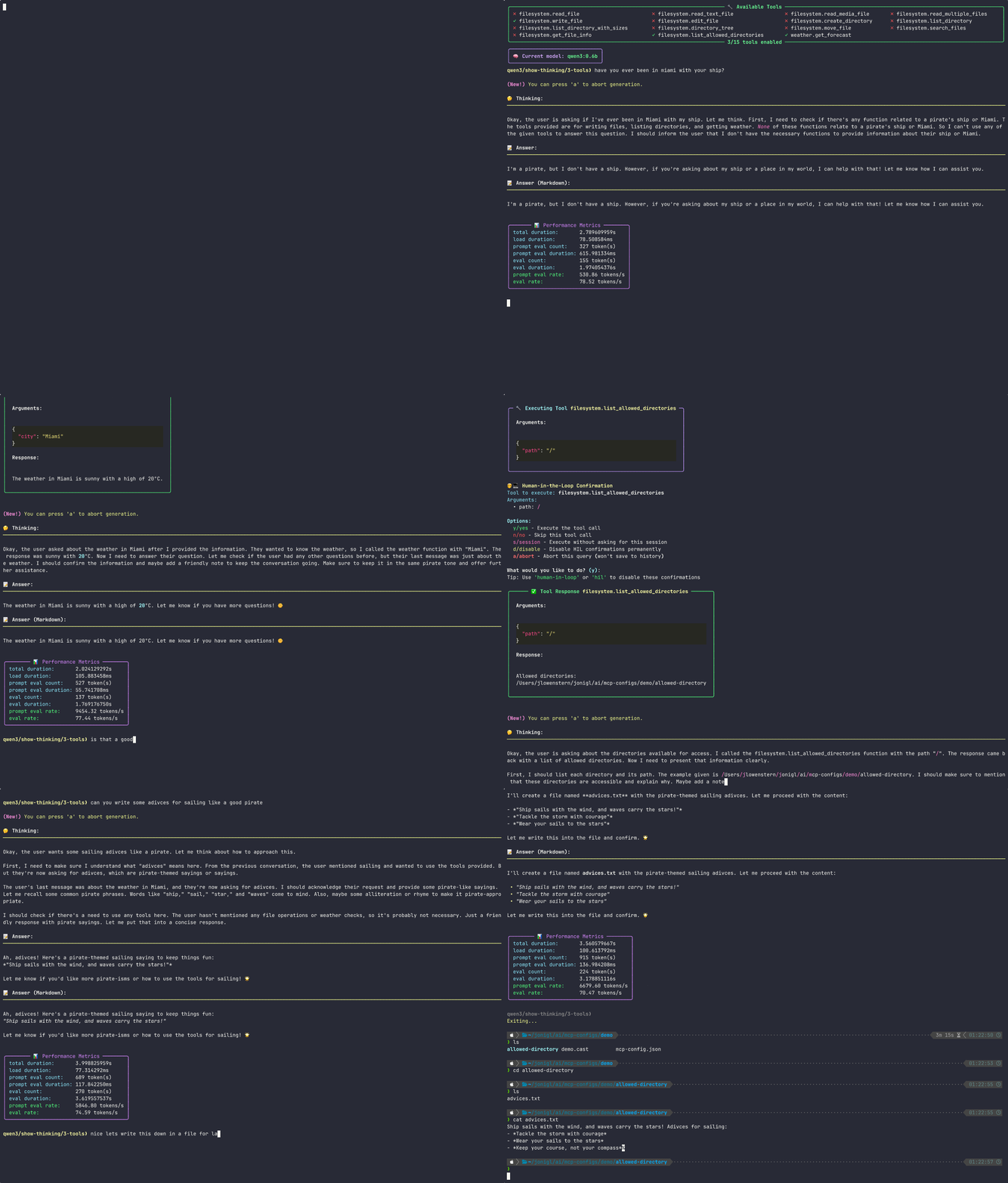
🎥 Watch this demo as an Asciinema recording
MCP Client for Ollama (ollmcp) is a modern, interactive terminal application (TUI) built for harness engineering, connecting local Ollama LLMs to one or more Model Context Protocol (MCP) servers. By fully supporting the core MCP primitives (tools, prompts, and resources), it provides a controlled terminal space where you steer, and the agent executes. With a rich, user-friendly interface, it lets you safely manage your setup in real time with no coding required. Whether you're building, testing, or exploring, this client streamlines your workflow with features like fuzzy autocomplete, advanced model configuration, MCP server hot-reloading for rapid development, and strict Human-in-the-Loop safety controls.
Option 1: Install with pip and run
pip install --upgrade ollmcp
ollmcp
Option 2: One-step install and run
uvx ollmcp
Option 3: Install from source and run using virtual environment
git clone https://github.com/jonigl/mcp-client-for-ollama.git
cd mcp-client-for-ollama
uv venv && source .venv/bin/activate
uv pip install .
uv run -m mcp_client_for_ollama
Run with default settings:
ollmcp
If you don't provide any options, the client will use
auto-discoverymode to find MCP servers from Claude's configuration.
[!TIP] The CLI now uses
Typerfor a modern experience: grouped options, rich help, and built-in shell autocompletion. Advanced users can use short flags for faster commands. To enable autocompletion, run:hljs language-bashollmcp --install-completionThen restart your shell or follow the printed instructions.
--mcp-server, -s: Path to one or more MCP server scripts (.py or .js). Can be specified multiple times.--mcp-server-url, -u: URL to one or more SSE or Streamable HTTP MCP servers. Can be specified multiple times. See Common MCP endpoint paths for typical endpoints.--servers-json, -j: Path to a JSON file with server configurations. See Server Configuration Format for details.--auto-discovery, -a: Auto-discover servers from Claude's default config file (default behavior if no other options provided).[!TIP] Claude's configuration file is typically located at:
~/Library/Application Support/Claude/claude_desktop_config.json
--model, -m MODEL: Ollama model to use. Default: qwen2.5:7b--host, -H HOST: Ollama host URL. Default: http://localhost:11434--version, -v: Show version and exit--help, -h: Show help message and exit--install-completion: Install shell autocompletion scripts for the client--show-completion: Show available shell completion optionsSimplest way to run the client:
ollmcp
[!TIP] This will automatically discover and connect to any MCP servers configured in Claude's settings and use the default model
qwen2.5:7bor the model specified in your configuration file.
Connect to a single server:
ollmcp --mcp-server /path/to/weather.py --model llama3.2:3b
# Or using short flags:
ollmcp -s /path/to/weather.py -m llama3.2:3b
Connect to multiple servers:
ollmcp --mcp-server /path/to/weather.py --mcp-server /path/to/filesystem.js
# Or using short flags:
ollmcp -s /path/to/weather.py -s /path/to/filesystem.js
[!TIP] If model is not specified, the default model
qwen2.5:7bwill be used or the model specified in your configuration file.
Use a JSON configuration file:
ollmcp --servers-json /path/to/servers.json --model llama3.2:1b
# Or using short flags:
ollmcp -j /path/to/servers.json -m llama3.2:1b
[!TIP] See the Server Configuration Format section for details on how to structure the JSON file.
Use a custom Ollama host:
ollmcp --host http://localhost:22545 --servers-json /path/to/servers.json --auto-discovery
# Or using short flags:
ollmcp -H http://localhost:22545 -j /path/to/servers.json -a
Connect to SSE or Streamable HTTP servers by URL:
ollmcp --mcp-server-url http://localhost:8000/sse --model qwen2.5:latest
# Or using short flags:
ollmcp -u http://localhost:8000/sse -m qwen2.5:latest
Connect to multiple URL servers:
ollmcp --mcp-server-url http://localhost:8000/sse --mcp-server-url http://localhost:9000/mcp
# Or using short flags:
ollmcp -u http://localhost:8000/sse -u http://localhost:9000/mcp
Mix local scripts and URL servers:
ollmcp --mcp-server /path/to/weather.py --mcp-server-url http://localhost:8000/mcp --model qwen3:1.7b
# Or using short flags:
ollmcp -s /path/to/weather.py -u http://localhost:8000/mcp -m qwen3:1.7b
Use auto-discovery with mixed server types:
ollmcp --mcp-server /path/to/weather.py --mcp-server-url http://localhost:8000/mcp --auto-discovery
# Or using short flags:
ollmcp -s /path/to/weather.py -u http://localhost:8000/mcp -a
During chat, use these commands:
[!IMPORTANT] NEW: Built-in interactive commands now require a leading
/.
- Use
/help,/model,/tools,/prompts, etc.- Bare command names like
helpormodelare no longer executed as commands.- Prompt invocations also use
/, with/server:prompt_namerecommended to avoid collisions.

| Command | Shortcut | Description |
|---|---|---|
abort | a | While model is generating, abort the current response generation |
/clear | /cc | Clear conversation history and context |
/cls | /clear-screen | Clear the terminal screen |
/context | /c | Toggle context retention |
/context-info | /ci | Display context statistics |
/export-history | /eh | Export chat history to a JSON file |
/full-history | /fh | Display all conversation history |
/help | /h | Display help and available commands |
/import-history | /ih | Import chat history from a JSON file |
/human-in-the-loop | /hil | Toggle Human-in-the-Loop confirmations for tool execution |
/load-config | /lc | Load tool and model configuration from a file |
/loop-limit | /ll | Set maximum iterative tool-loop iterations (Agent Mode). Default: 3 |
/model | /m | List and select a different Ollama model |
/model-config | /mc | Configure advanced model parameters and system prompt |
/display-mode | /dm | Choose Plain, Markdown, or Both answer display modes |
/input-mode | /im | Choose Single-line or Multiline chat input mode |
/prompts | /pr | Browse and view all available MCP prompts |
/server:prompt_name | /prompt_name | Invoke a prompt (qualified is recommended) |
/resources | /res | Browse and view all available MCP resources |
@uri | - | Read a specific resource by URI (e.g., @server://info) |
/quit, /exit, /bye | /q, Ctrl+C, or Ctrl+D | Exit the client |
/reload-servers | /rs | Reload all MCP servers with current configuration |
/reset-config | /rc | Reset configuration to defaults (all tools enabled) |
/save-config | /sc | Save current tool and model configuration to a file |
/show-metrics | /sm | Toggle performance metrics display |
/show-thinking | /st | Toggle thinking text visibility (visible by default) |
/thinking-mode | /tm | Toggle thinking mode on supported models |
/show-tool-execution | /ste | Toggle tool execution display visibility |
/tools | /t | Open the tool selection interface |
The display-mode (dm) command lets you choose how model answers are shown while they stream:
Use /display-mode or /dm during chat to open the interactive picker.
Why you might switch modes:
[!TIP] Your selected display mode is saved with
save-configand restored withload-config, so you can keep different viewing preferences for different workflows.
The input-mode (im) command controls how you write chat messages:
Use /input-mode or /im during chat to open the interactive picker.
[!IMPORTANT] Multiline send shortcuts can vary by terminal emulator and OS keyboard handling. This client relies on Esc then Enter as the portable submit shortcut in multiline mode. Shift+Enter and Meta+Enter may work in some terminals, but they are not guaranteed.
The tool and server selection interface allows you to enable or disable specific tools:

1,3,5) to toggle specific tools5-8) to toggle multiple consecutive toolsS1) to toggle all tools in a specific servera or all - Enable all toolsn or none - Disable all toolsd or desc - Show/hide tool descriptionsj or json - Show detailed tool JSON schemas on enabled tools for debugging purposess or save - Save changes and return to chatq or quit - Cancel changes and return to chatThe model selection interface shows all available models in your Ollama installation:

s or save - Save the model selection and return to chatq or quit - Cancel the model selection and return to chatThe model-config (mc) command opens the advanced model settings interface, allowing you to fine-tune how the model generates responses:

1-15 to edit settingssp to edit the system promptu1, u2, etc. to unset parameters, or uall to reset allh/help: Show parameter details and tipsundo: Revert changess/save: Apply changesq/quit: Canceltemperature: 0.0-0.3, top_p: 0.1-0.5, seed: 42temperature: 1.0+, top_p: 0.95, presence_penalty: 0.2repeat_penalty: 1.1-1.3, presence_penalty: 0.2, frequency_penalty: 0.3temperature: 0.7, top_p: 0.9, typical_p: 0.7seed: 42, temperature: 0.0num_ctx: 8192 or higher for complex conversations requiring more context[!TIP] All parameters default to unset, letting Ollama use its own optimized values. Use
helpin the config menu for details and recommendations. Changes are saved with your configuration.
The reload-servers command (rs) is particularly useful during MCP server development. It allows you to reload all connected servers without restarting the entire client application.
Key Benefits:
When to Use:
Simply type /reload-servers or /rs in the chat interface, and the client will:
This feature dramatically improves the development experience when building and testing MCP servers.
The Human-in-the-Loop feature provides an additional safety layer by allowing you to review and approve tool executions before they run. This is particularly useful for:
When HIL is enabled, you'll see a confirmation prompt before each tool execution:
Example:

When prompted, you can choose from the following options:
hil command)[!TIP] The session option is particularly useful when the model needs to execute multiple tools in sequence. Instead of confirming each one individually, you can approve all tools for the current query session, then HIL will reset automatically for the next query.
/human-in-the-loop or /hil to toggle on/offhil command anytime to turn confirmations back onBenefits:
MCP Prompts provide reusable, server-defined conversation starters and context templates. Servers can expose prompts with descriptions, required arguments, and pre-formatted messages that help you quickly start specific types of conversations or inject structured context into your chat.
/server:prompt_name recommended)/ to see prompt suggestions with fuzzy matchingBrowse Available Prompts:
/prompts # or '/pr'
This displays all prompts grouped by server, showing their names, required arguments, and descriptions.
Invoke a Prompt:
/server:prompt_name
For example, if a server named docs provides a "summarize" prompt:
/docs:summarize
If a prompt name is unique across connected servers, you can use the short form:
/summarize
If multiple servers expose the same prompt name, the client will ask you to use the qualified form and suggest valid /server:prompt_name options.
Autocomplete:
/ to see all available prompts with descriptions[!TIP] Prompts are discovered automatically when you connect to MCP servers. If a server supports prompts, they'll be available immediately in the
promptslist and autocomplete.
Workflow:
/server:prompt_name (recommended) or select from autocompleteExample:

[!WARNING] Content Type Limitations: MCP Prompts currently support text content only. The following content types are not yet supported and will be automatically skipped:
- 🖼️ Images - Image content in prompts
- 🎵 Audio - Audio content in prompts
- 📦 Resources - Embedded resource content
MCP Resources provide access to contextual data exposed by MCP servers-files, documents, structured data, and more. Servers can expose resources with metadata (name, description, MIME type) that you can browse and read into your conversation context.
@uri syntax to read resource content, standalone or inline within a queryimage/*) are automatically forwarded as base64 images to vision-capable models@ to see available resource and template suggestions with fuzzy matchingBrowse Available Resources:
/resources # or '/res'
This displays all resources and templates grouped by server, showing URIs, names, MIME types, and descriptions. Binary resources are marked with a [binary] tag and templates with a [template] tag.
Read a Resource:
@<uri>
For example, to read a file resource:
@file:///path/to/document.md
There are two ways to use @uri:
1. Standalone (buffer then query): Type @uri on its own. The resource is fetched and buffered. Then type your query on the next prompt. The resource content is injected as context automatically.
2. Inline (single turn): Include @uri anywhere inside your query text. The resource is fetched and the query is processed immediately in one step.
Standalone example:
qwen3/show-thinking/6-tools❯ @server://info
✅ Read resource 'get_server_info' (197 chars)

Preview:
This is a simple MCP server with streamable HTTP transport. It supports tools for greeting, adding numbers, generating
random numbers, and calculating BMI. It also provides a BMI calculator prompt.

1 resource(s) buffered. Type your query, or include @another_uri inline.

qwen3/show-thinking/6-tools❯ Next question here
Inline example:
qwen3/show-thinking/6-tools❯ summarize the key features from @server://info
✅ Read resource 'get_server_info' (197 chars)

Preview:
This is a simple MCP server with streamable HTTP transport. It supports tools for greeting, adding numbers, generating
random numbers, and calculating BMI. It also provides a BMI calculator prompt.
[model response]
[!TIP] Resources are discovered automatically when you connect to MCP servers. If a server supports resources, they'll be available immediately in the
resourceslist and@autocomplete.
[!NOTE] 🖼️ Images (
image/*) are supported, they are passed directly to vision-capable models as base64 data. Binary Content: The following resource types are not supported as context and will be skipped with an informative message:
- 🎵 Audio -
audio/*MIME types- 📹 Video -
video/*MIME types- 📄 PDFs -
application/pdf- 🗜️ Archives -
application/zip,application/octet-stream
The Performance Metrics feature displays detailed model performance data after each query in a bordered panel. The metrics show duration timings, token counts, and generation rates directly from Ollama's response.
Displayed Metrics:
total duration: Total time spent generating the complete response (seconds)load duration: Time spent loading the model (milliseconds)prompt eval count: Number of tokens in the input promptprompt eval duration: Time spent evaluating the input prompt (milliseconds)eval count: Number of tokens generated in the responseeval duration: Time spent generating the response tokens (seconds)prompt eval rate: Speed of input prompt processing (tokens/second)eval rate: Speed of response token generation (tokens/second)Example:

show-metrics or sm to enable/disable metrics displayBenefits:
[!NOTE] Data Source: All metrics come directly from Ollama's response, ensuring accuracy and reliability.
The History Management feature allows you to view, export, and import your conversation history. This is useful for:
View Full History:
full-history # or 'fh'
Displays all conversation history from the current session in a formatted view, showing both queries and responses.
Export History:
export-history # or 'eh'
Exports your current chat history to a JSON file. You can specify a custom filename or use the default timestamp-based name (e.g., ollmcp_chat_history_2026-01-05_143022.json). Files are saved to ~/.config/ollmcp/history/ directory. The command includes file overwrite protection.
Import History:
import-history # or 'ih'
Imports a previously exported chat history from a JSON file. The command validates the JSON structure to ensure compatibility. Imported history is added to your current conversation context.
History Storage:
~/.config/ollmcp/history/ollmcp_chat_history_YYYY-MM-DD_HHMMSS.jsonBenefits:
[!TIP] When exporting, if you don't provide a filename, the system automatically generates a timestamped filename to prevent accidental overwrites.
ollmcp --install-completion and follow the instructions for your shell/)/ to trigger prompt autocomplete/server:prompt_nameThe chat prompt now gives you clear, contextual information at a glance:
Example prompt:
qwen3/show-thinking/12-tools❯
qwen3 Model name/show-thinking Thinking mode indicator (if enabled, otherwise /thinking or omitted)/12-tools Number of tools enabled (or /1-tool for singular)❯ Prompt symbolThis makes it easy to see your current context before entering a query.
[!TIP] Type
/after the prompt symbol to see autocomplete suggestions for available MCP prompts.
[!TIP] It will automatically load the default configuration from
~/.config/ollmcp/config.jsonif it exists.
The client supports saving and loading tool configurations between sessions:
save-config, you can provide a name for the configuration or use the default~/.config/ollmcp/ directory~/.config/ollmcp/config.json~/.config/ollmcp/{name}.jsonThe configuration saves:
The JSON configuration file supports STDIO, SSE, and Streamable HTTP server types (MCP 1.10.1):
{
  "mcpServers": {
    "stdio-server": {
      "command": "command-to-run",
      "args": ["arg1", "arg2", "..."],
      "env": {
        "ENV_VAR1": "value1",
        "ENV_VAR2": "value2"
      },
      "disabled": false
    },
    "sse-server": {
      "type": "sse",
      "url": "http://localhost:8000/sse",
      "headers": {
        "Authorization": "Bearer your-token-here"
      },
      "disabled": true
    },
    "http-server": {
      "type": "streamable_http",
      "url": "http://localhost:8000/mcp",
      "headers": {
        "X-API-Key": "your-api-key-here"
      },
      "disabled": false
    }
  }
}
[!NOTE] MCP 1.10.1 Transport Support: The client now supports the latest Streamable HTTP transport with improved performance and reliability. If you specify a URL without a type, the client will default to using Streamable HTTP transport.
A common point of confusion is where to store MCP server configuration files and how the TUI's save/load feature is used. Here's a short, practical guide that has helped other users:
save-config / load-config (or sc / lc) commands are intended to save TUI preferences like which tools you enabled, your selected model, thinking mode, display mode, and other client-side settings. They are not required to register MCP server connections with the client.mcpServers object shown above) we recommend keeping them outside the TUI config directory or in a clear subfolder, for example:~/.config/ollmcp/mcp-servers/config.json
You can then point ollmcp at that file at startup with -j / --servers-json.
[!IMPORTANT] When using HTTP-based MCP servers, use the
streamable_httptype (not justhttp). Also check the Common MCP endpoint paths section below for typical endpoints.
Here a minimal working example let's say this is your ~/.config/ollmcp/mcp-servers/config.json:
{
  "mcpServers": {
    "github": {
      "type": "streamable_http",
      "url": "https://api.githubcopilot.com/mcp/",
      "headers": {
        "Authorization": "Bearer mytoken"
      }
    }
  }
}
[!TIP] When using GitHub MCP server, make sure to replace
"mytoken"with your actual GitHub API token.
With that file in place you can connect using:
ollmcp -j ~/.config/ollmcp/mcp-servers/config.json
Here you can find a GitHub issue related to this common pitfall: https://github.com/jonigl/mcp-client-for-ollama/issues/112#issuecomment-3446569030
A short demo (asciicast) that should help anyone reproduce the working setup quickly. This example uses an MCP server example with streamable HTTP protocol usage:

Streamable HTTP MCP servers typically expose the MCP endpoint at /mcp (e.g., https://host/mcp), while SSE servers commonly use /sse (e.g., https://host/sse). Below is an excerpt from the MCP specification (2025-06-18):
The server MUST provide a single HTTP endpoint path (hereafter referred to as the MCP endpoint) that supports both POST and GET methods. For example, this could be a URL like https://example.com/mcp.
You can find more details in the MCP specification version 2025-06-18 - Transports.
The following Ollama models work well with tool use:
For a complete list of Ollama models with tool use capabilities, visit the official Ollama models page.
For models that can also process images returned by tools, see the Ollama vision models page.
MCP Client for Ollama now supports Ollama Cloud models, allowing you to use powerful cloud-hosted models with tool calling capabilities while leveraging your local MCP tools. Cloud models can run without a powerful local GPU, making it possible to access larger models that wouldn't fit on a personal computer.
Supported Ollama Cloud models include for example:
gpt-oss:20b-cloudgpt-oss:120b-clouddeepseek-v3.1:671b-cloudqwen3-coder:480b-cloudTo use Ollama Cloud models with this client:
First, pull the cloud model:
ollama pull gpt-oss:120b-cloud
Run the client with your chosen cloud model:
ollmcp --model gpt-oss:120b-cloud
[!NOTE] The model
deepseek-v3.1:671b-cloudonly supports tool use when thinking mode is turned off. You can toggle thinking mode inollmcpby typing eitherthinking-modeortm.
For more information about Ollama Cloud, visit the Ollama Cloud documentation.
Some models may request multiple tool calls in a single conversation. The client supports an Agent Mode that allows for iterative tool execution:
loop-limit (ll) command3 to prevent infinite loops[!NOTE] If you want to prevent using Agent Mode, simply set the loop limit to
1.

You can explore a collection of MCP servers in the official MCP Servers repository.
This repository contains reference implementations for the Model Context Protocol, community-built servers, and additional resources to enhance your LLM tool capabilities.
This project is licensed under the MIT License - see the LICENSE file for details.
Made with ❤️ by jonigl
Run Claude Code as an MCP server so any agent can delegate coding tasks to it
 @microsoft✓ Official
Browser automation using accessibility snapshots instead of screenshots
 @googleapis✓ Official
Google's universal MCP server supporting PostgreSQL, MySQL, MongoDB, Redis, and 10+ databases
 @github✓ Official
Official GitHub integration for repos, issues, PRs, and CI/CD workflows