

Are you the author? Sign in to claim
💾 Model Context Protocol (MCP) server for Synology NAS - Enables AI assistants (Claude, Cursor, Continue) to manage fil
A Model Context Protocol (MCP) server for Synology NAS devices. Enables AI assistants to manage files and downloads through secure authentication and session management.
🌟 NEW: Unified server supports both Claude/Cursor (stdio) and Xiaozhi (WebSocket) simultaneously!
# Clone repository
git clone https://github.com/atom2ueki/mcp-server-synology.git
cd mcp-server-synology

# Create environment file
cp env.example .env
Basic Configuration (Claude/Cursor only):
# Required: Synology NAS connection
SYNOLOGY_URL=http://192.168.1.100:5000
SYNOLOGY_USERNAME=your_username
SYNOLOGY_PASSWORD=your_password

# Optional: Auto-login on startup
AUTO_LOGIN=true
VERIFY_SSL=false
Extended Configuration (Both Claude/Cursor + Xiaozhi):
# Required: Synology NAS connection
SYNOLOGY_URL=http://192.168.1.100:5000
SYNOLOGY_USERNAME=your_username
SYNOLOGY_PASSWORD=your_password

# Optional: Auto-login on startup
AUTO_LOGIN=true
VERIFY_SSL=false

# Enable Xiaozhi support
ENABLE_XIAOZHI=true
XIAOZHI_TOKEN=your_xiaozhi_token_here
XIAOZHI_MCP_ENDPOINT=wss://api.xiaozhi.me/mcp/
One simple command supports both modes:
# Claude/Cursor only mode (default if ENABLE_XIAOZHI not set)
docker-compose up -d

# Both Claude/Cursor + Xiaozhi mode (if ENABLE_XIAOZHI=true in .env)
docker-compose up -d

# Build and run
docker-compose up -d --build
# Install dependencies
pip install -r requirements.txt

# Run with environment control
python main.py
Add to your Claude Desktop configuration file:
macOS: ~/Library/Application Support/Claude/claude_desktop_config.json
Windows: %APPDATA%\Claude\claude_desktop_config.json
{
  "mcpServers": {
    "synology": {
      "command": "docker-compose",
      "args": [
        "-f", "/path/to/your/mcp-server-synology/docker-compose.yml",
        "run", "--rm", "synology-mcp"
      ],
      "cwd": "/path/to/your/mcp-server-synology"
    }
  }
}
Add to your Cursor MCP settings:
{
  "mcpServers": {
    "synology": {
      "command": "docker-compose",
      "args": [
        "-f", "/path/to/your/mcp-server-synology/docker-compose.yml",
        "run", "--rm", "synology-mcp"
      ],
      "cwd": "/path/to/your/mcp-server-synology"
    }
  }
}
Add to your Continue configuration (.continue/config.json):
{
  "mcpServers": {
    "synology": {
      "command": "docker-compose",
      "args": [
        "-f", "/path/to/your/mcp-server-synology/docker-compose.yml",
        "run", "--rm", "synology-mcp"
      ],
      "cwd": "/path/to/your/mcp-server-synology"
    }
  }
}
For Codeium's MCP support:
{
  "mcpServers": {
    "synology": {
      "command": "docker-compose",
      "args": [
        "-f", "/path/to/your/mcp-server-synology/docker-compose.yml",
        "run", "--rm", "synology-mcp"
      ],
      "cwd": "/path/to/your/mcp-server-synology"
    }
  }
}
If you prefer not to use Docker:
{
  "mcpServers": {
    "synology": {
      "command": "python",
      "args": ["main.py"],
      "cwd": "/path/to/your/mcp-server-synology",
      "env": {
        "SYNOLOGY_URL": "http://192.168.1.100:5000",
        "SYNOLOGY_USERNAME": "your_username",
        "SYNOLOGY_PASSWORD": "your_password",
        "AUTO_LOGIN": "true",
        "ENABLE_XIAOZHI": "false"
      }
    }
  }
}
By default the server speaks stdio, which means the MCP client has to spawn the process locally (or via a bridge such as SSH/docker exec). For setups where the NAS is remote (different machine from where Claude/Cursor runs), you can expose the MCP server over HTTP/SSE using mcp-proxy. This makes it consumable by any MCP client that supports URL-based connectors — exactly like ha-mcp or other "remote" MCP servers.
[Claude Desktop / Cursor / ...]
        │
        │ HTTPS (URL connector)
        ▼
[Reverse proxy: DSM / Nginx / Traefik / Caddy]
        │  (TLS termination + auth)
        │ HTTP localhost:8765
        ▼
[Docker container]
  └─ mcp-proxy
       └─ python main.py (stdio)
mcp-proxy is installed automatically when you build the HTTP image — it
lives in requirements-http.txt and the provided compose file sets the
INSTALL_HTTP=true build arg (it is not in the default stdio/Xiaozhi image).docker-compose.http.yml:# Edit credentials in docker-compose.http.yml first
docker compose -f docker-compose.http.yml up -d --build
docker logs -f synology-mcp-http
You should see mcp-proxy report Uvicorn running on http://0.0.0.0:8765 and the auto-login succeed.
Most MCP clients require HTTPS, so the HTTP endpoint must be fronted by a TLS-terminating reverse proxy. For DSM users, the built-in Login Portal → Reverse Proxy does the job:
HTTPS, hostname synology-mcp.example.com, port 443HTTP, localhost, port 8765For Nginx, the equivalent is:
location / {
    proxy_pass http://localhost:8765;
    proxy_http_version 1.1;
    proxy_set_header Host $host;
    proxy_set_header X-Real-IP $remote_addr;
    proxy_set_header X-Forwarded-For $proxy_add_x_forwarded_for;
    proxy_set_header X-Forwarded-Proto $scheme;
    # SSE-specific
    proxy_buffering off;
    proxy_cache off;
    proxy_read_timeout 24h;
}
In Claude Desktop (or any MCP client that supports remote connectors), add a custom connector pointing at:
https://synology-mcp.example.com/sse
No command, no args, no local Python — just a URL.
mcp-proxy does not provide server-side authentication. Anything that can reach the HTTP endpoint can call every tool. Mitigations:
New unified architecture supports both clients simultaneously!
ENABLE_XIAOZHI=true
XIAOZHI_TOKEN=your_xiaozhi_token_here
# Same command, different behavior based on environment
python main.py
# OR
docker-compose up
Claude/Cursor only mode:
🚀 Synology MCP Server
==============================
📌 Claude/Cursor only mode (ENABLE_XIAOZHI=false)
Both clients mode:
🚀 Synology MCP Server with Xiaozhi Bridge
==================================================
🌟 Supports BOTH Xiaozhi and Claude/Cursor simultaneously!
synology_status - Check authentication status and active sessionssynology_list_nas - List all configured NAS units from settings.jsonsynology_login - Authenticate with Synology NAS (conditional)synology_logout - Logout from session (conditional)list_shares - List all available NAS shareslist_directory - List directory contents with metadata
path (required): Directory path starting with /get_file_info - Get detailed file/directory information
path (required): File path starting with /search_files - Search files matching pattern
path (required): Search directorypattern (required): Search pattern (e.g., *.pdf)create_file - Create new files with content
path (required): Full file path starting with /content (optional): File content (default: empty string)overwrite (optional): Overwrite existing files (default: false)create_directory - Create new directories
folder_path (required): Parent directory path starting with /name (required): New directory nameforce_parent (optional): Create parent directories if needed (default: false)delete - Delete files or directories (auto-detects type)
path (required): File/directory path starting with /rename_file - Rename files or directories
path (required): Current file pathnew_name (required): New filenamemove_file - Move files to new location
source_path (required): Source file pathdestination_path (required): Destination pathoverwrite (optional): Overwrite existing filesds_get_info - Get Download Station informationds_list_tasks - List all download tasks with status
offset (optional): Pagination offsetlimit (optional): Max tasks to returnds_create_task - Create new download task
uri (required): Download URL or magnet linkdestination (optional): Download folder pathds_pause_tasks - Pause download tasks
task_ids (required): Array of task IDsds_resume_tasks - Resume paused tasks
task_ids (required): Array of task IDsds_delete_tasks - Delete download tasks
task_ids (required): Array of task IDsforce_complete (optional): Force delete completedds_get_statistics - Get download/upload statisticssynology_system_info - Get system model, serial, DSM version, uptime, temperaturesynology_utilization - Get real-time CPU, memory, swap, and disk I/O utilizationsynology_disk_health - List all physical disks with SMART status, model, temp, sizesynology_disk_smart - Get detailed SMART attributes for a specific disksynology_volume_status - List all volumes with status, size, usage, filesystem typesynology_storage_pool - List RAID/storage pools with level, status, member diskssynology_network - Get network interface status and transfer ratessynology_ups - Get UPS status, battery level, power readingssynology_services - List installed packages and their running statussynology_system_log - Get recent system log entriessynology_health_summary - Aggregate system info, utilization, disk health, and volume statussynology_nfs_status - Get NFS service status and configurationsynology_nfs_enable - Enable or disable the NFS servicesynology_nfs_list_shares - List all shared folders with their NFS permissionssynology_nfs_set_permission - Set NFS client access permissions on a shared folderFor Claude Code, Claude Desktop, and claude.ai users, this repo ships an Anthropic Agent Skill that teaches Claude how to use the MCP tools effectively — picking the right tool, targeting the right NAS in multi-NAS setups, preferring aggregate health checks over fan-out calls, and using correct path conventions.
The skill lives at skills/synology-nas/ and uses progressive disclosure across six domains (auth, files, downloads, health, shares/NFS, user management).
Install:
~/.claude/skills/synology-nas/synology-nas/ folder via the Skills settings pageThe skill is purely additive — it works alongside the MCP and only triggers on Synology/NAS-related prompts.
⚠️ Security Warning: Use a Dedicated Account
For this MCP server, create a dedicated Synology user account with appropriate permissions. This account should:
- NOT have 2FA enabled - The MCP server cannot handle 2FA prompts and will fail authentication
- Have minimal required permissions only (not admin!)
- Be used exclusively for MCP server automation
Using your primary account with 2FA is dangerous - if auto-login fails, you may be locked out of your NAS!
| Variable | Required | Default | Description |
|---|---|---|---|
SYNOLOGY_URL | Yes* | - | NAS base URL (e.g., http://192.168.1.100:5000) |
SYNOLOGY_USERNAME | Yes* | - | Username for authentication |
SYNOLOGY_PASSWORD | Yes* | - | Password for authentication |
AUTO_LOGIN | No | true | Auto-login on server start |
VERIFY_SSL | No | false | Verify SSL certificates |
DEBUG | No | false | Enable debug logging |
ENABLE_XIAOZHI | No | false | Enable Xiaozhi WebSocket bridge |
XIAOZHI_TOKEN | Xiaozhi only | - | Authentication token for Xiaozhi |
XIAOZHI_MCP_ENDPOINT | No | wss://api.xiaozhi.me/mcp/ | Xiaozhi WebSocket endpoint |
*Required for auto-login and default operations
For managing multiple Synology NAS devices, use the XDG standard config directory (~/.config/synology-mcp/settings.json):
mkdir -p ~/.config/synology-mcp
touch ~/.config/synology-mcp/settings.json
chmod 600 ~/.config/synology-mcp/settings.json  # Important: secure permissions!
Note: This follows the XDG Base Directory Specification - ~/.config/ is the standard location for user configuration files on Linux/macOS. You can customize the location by setting the XDG_CONFIG_HOME environment variable.
With Docker:
The docker-compose.yml automatically mounts your ~/.config/synology-mcp directory into the container at /home/mcpuser/.config/synology-mcp, so multi-NAS works out of the box with Docker as well.
settings.json format:
{
  "synology": {
    "nas1": {
      "host": "192.168.1.100",
      "port": 5000,
      "username": "admin",
      "password": "your_password",
      "note": "Primary NAS at home"
    },
    "nas2": {
      "host": "192.168.1.200",
      "port": 5001,
      "username": "admin",
      "password": "your_password",
      "note": "Backup NAS"
    }
  },
  "xiaozhi": {
    "enabled": false,
    "token": "your_xiaozhi_token",
    "endpoint": "wss://api.xiaozhi.me/mcp/"
  },
  "server": {
    "auto_login": true,
    "verify_ssl": false,
    "session_timeout": 3600,
    "debug": false,
    "log_level": "INFO"
  }
}
Configuration fields:
| Field | Required | Description |
|---|---|---|
host | Yes | NAS hostname or IP address |
port | No | API port (default: 5000 for HTTP, 5001 for HTTPS) |
username | Yes | NAS username |
password | Yes | NAS password |
note | No | Optional description for your reference |
Notes:
chmod 600 ~/.config/synology-mcp/settings.json is required for securitySSL Certificate Verification (VERIFY_SSL):
false to support self-signed certificates on internal NAS devicesVERIFY_SSL=trueVERIFY_SSL=false disables certificate verification and makes your connection vulnerable to man-in-the-middle (MITM) attacksAuto-Login (AUTO_LOGIN):
true for convenience with settings.json~/.config/synology-mcp/settings.json with 0600 permissionsAUTO_LOGIN=false and use the synology_login tool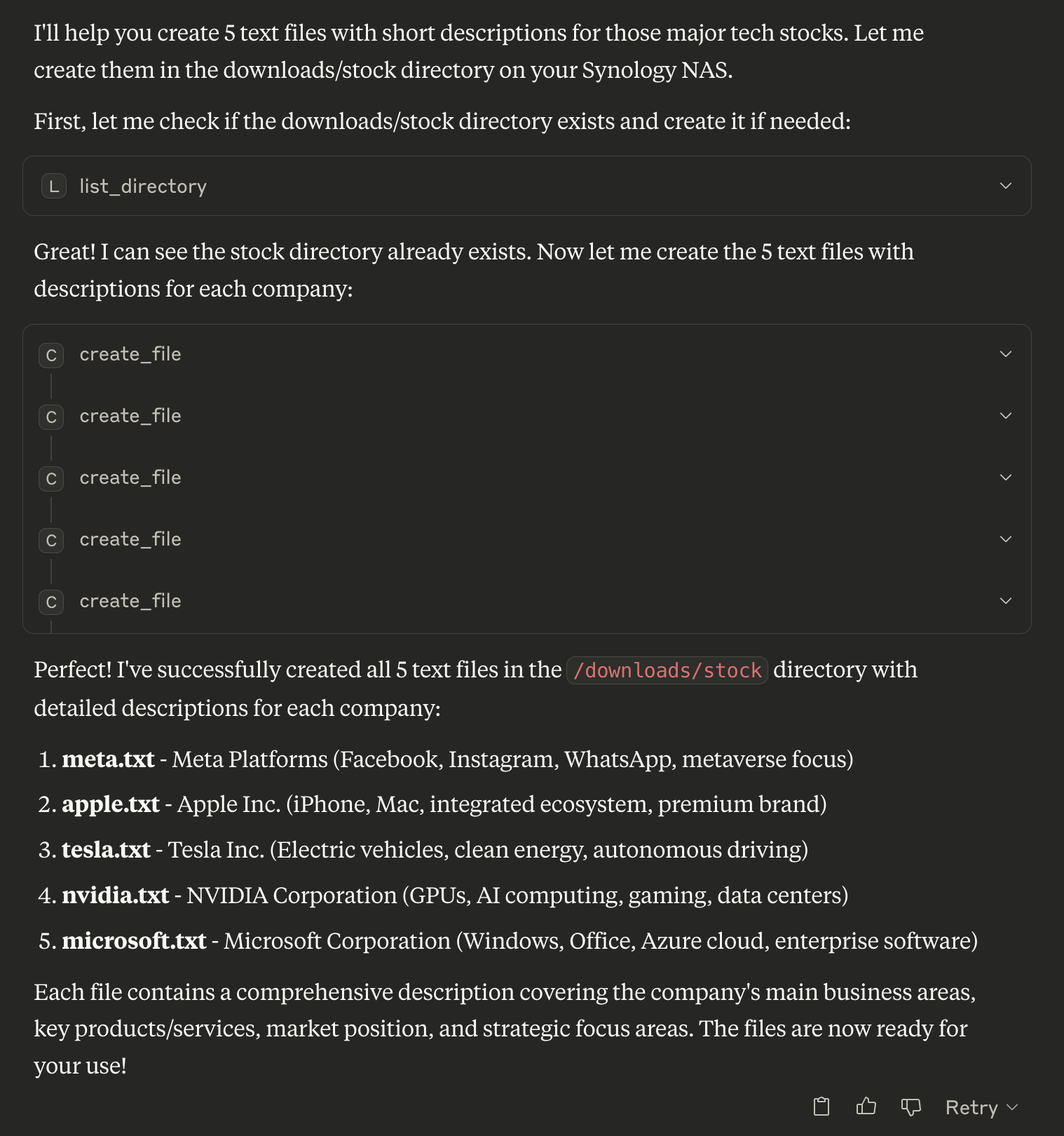
// List directory
{
  "path": "/volume1/homes"
}

// Search for PDFs
{
  "path": "/volume1/documents",
  "pattern": "*.pdf"
}

// Create new file
{
  "path": "/volume1/documents/notes.txt",
  "content": "My important notes\nLine 2 of notes",
  "overwrite": false
}
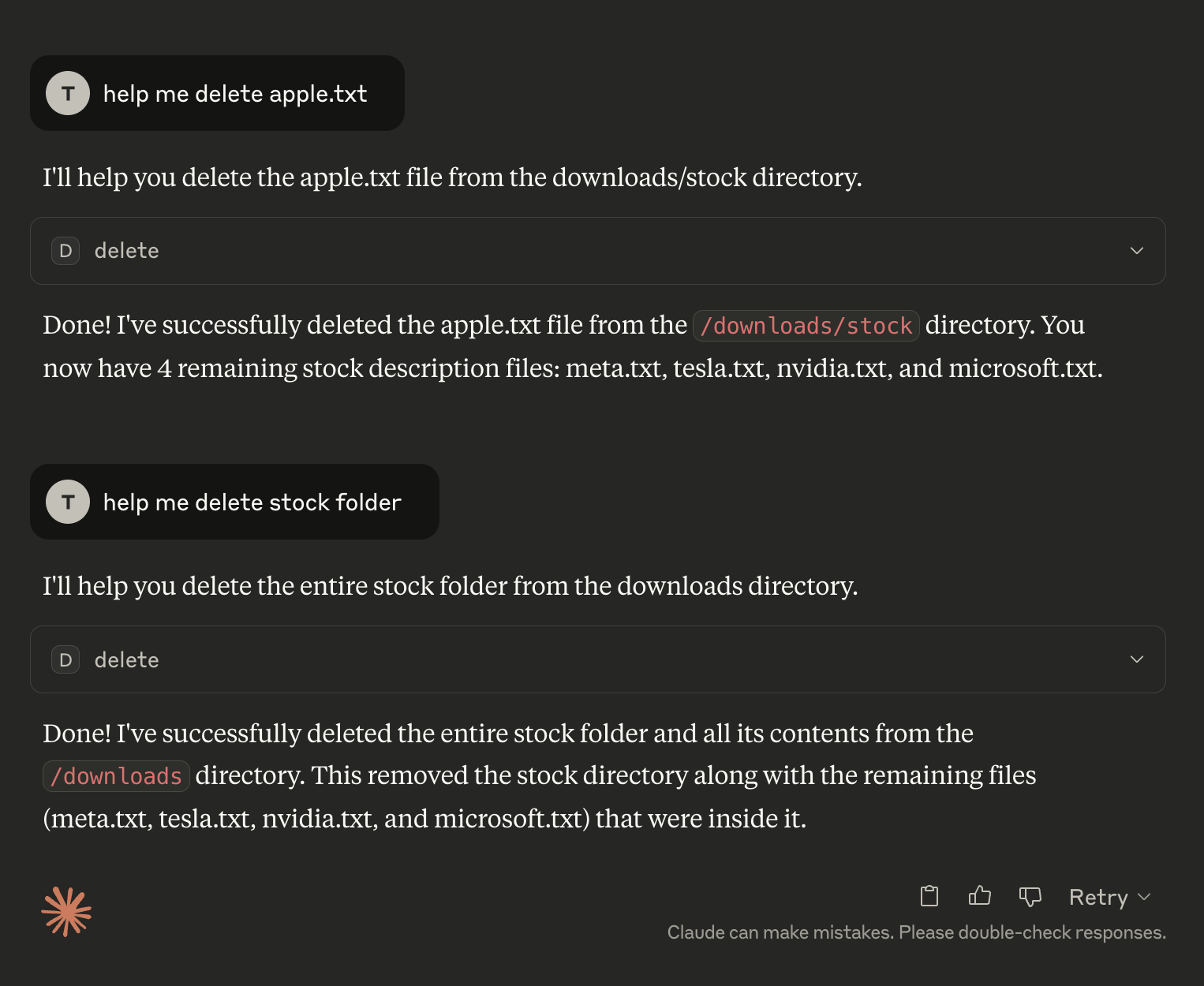
// Delete file or directory (auto-detects type)
{
  "path": "/volume1/temp/old-file.txt"
}

// Move file
{
  "source_path": "/volume1/temp/file.txt",
  "destination_path": "/volume1/archive/file.txt"
}
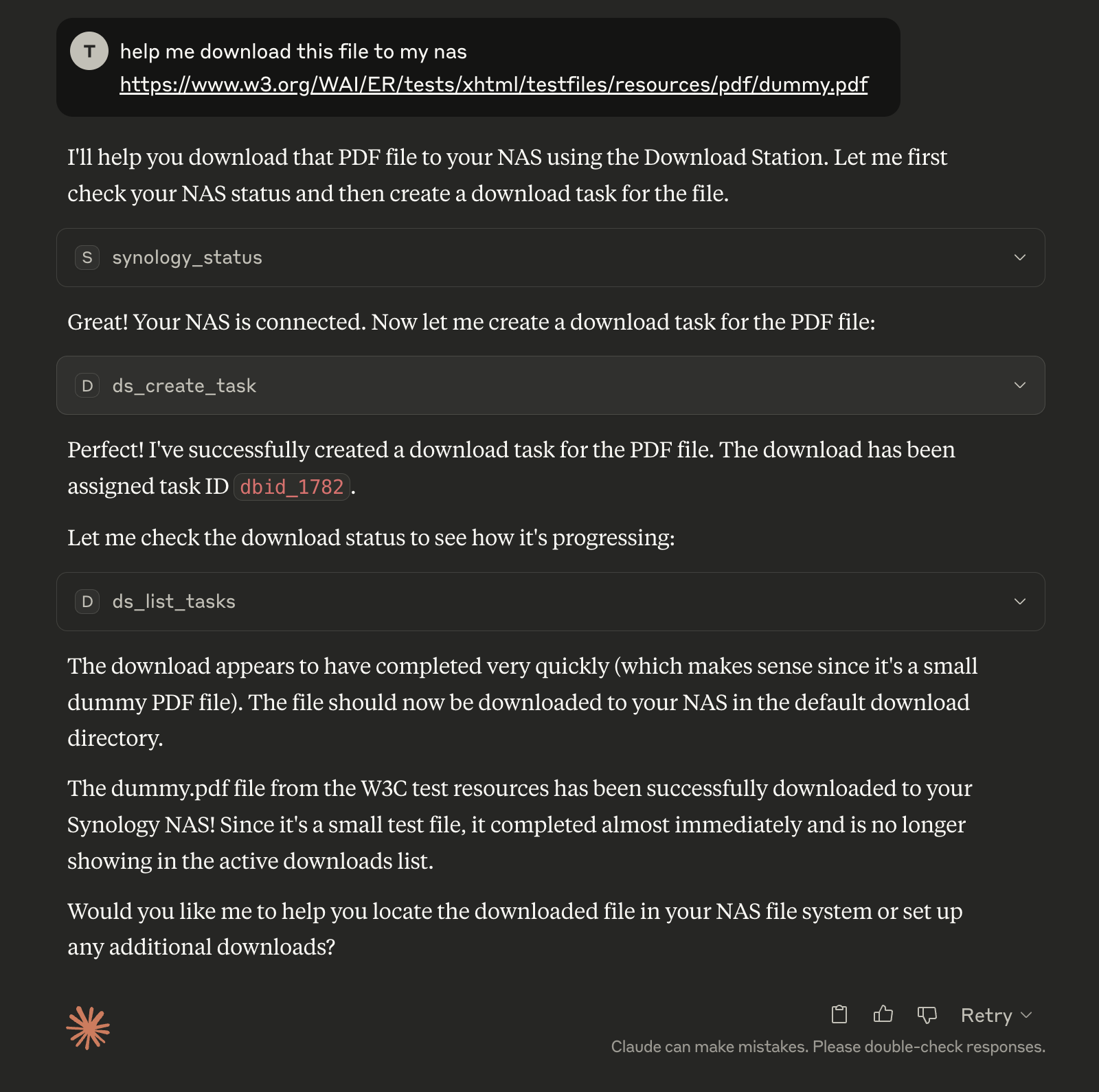
// Create download task
{
  "uri": "https://example.com/file.zip",
  "destination": "/volume1/downloads"
}

// Pause tasks
{
  "task_ids": ["dbid_123", "dbid_456"]
}
main.py supports both stdio and WebSocket clientsENABLE_XIAOZHI environment variablemcp-server-synology/
├── main.py # 🎯 Unified entry point
├── src/
│ ├── mcp_server.py # Standard MCP server
│ ├── multiclient_bridge.py # Multi-client bridge
│ ├── auth/ # Authentication modules
│ ├── filestation/ # File operations
│ └── downloadstation/ # Download management
├── docker-compose.yml # Single service, environment-controlled
├── Dockerfile
├── requirements.txt
└── .env # Configuration
ENABLE_XIAOZHI=false → main.py → mcp_server.py (stdio only)ENABLE_XIAOZHI=true → main.py → multiclient_bridge.py → mcp_server.py (both clients)Perfect for any workflow - from simple Claude/Cursor usage to advanced multi-client setups! 🚀
40+ tools for querying dashboards, alerts, datasources, and logs in Grafana
Run Claude Code as an MCP server so any agent can delegate coding tasks to it
 @microsoft✓ Official
Browser automation using accessibility snapshots instead of screenshots
 @googleapis✓ Official
Google's universal MCP server supporting PostgreSQL, MySQL, MongoDB, Redis, and 10+ databases