

Are you the author? Sign in to claim
sample-mcp-server-on-ecs
This project demonstrates how to deploy Model Context Protocol (MCP) servers on Amazon Elastic Container Service (Amazon ECS) with AWS Fargate using Amazon ECS Service Connect for service-to-service communication. You build and deploy a three-tier application where a Gradio web interface sends natural language queries to an AI agent, which uses MCP tools to search a product catalog stored in Amazon Simple Storage Service (Amazon S3).
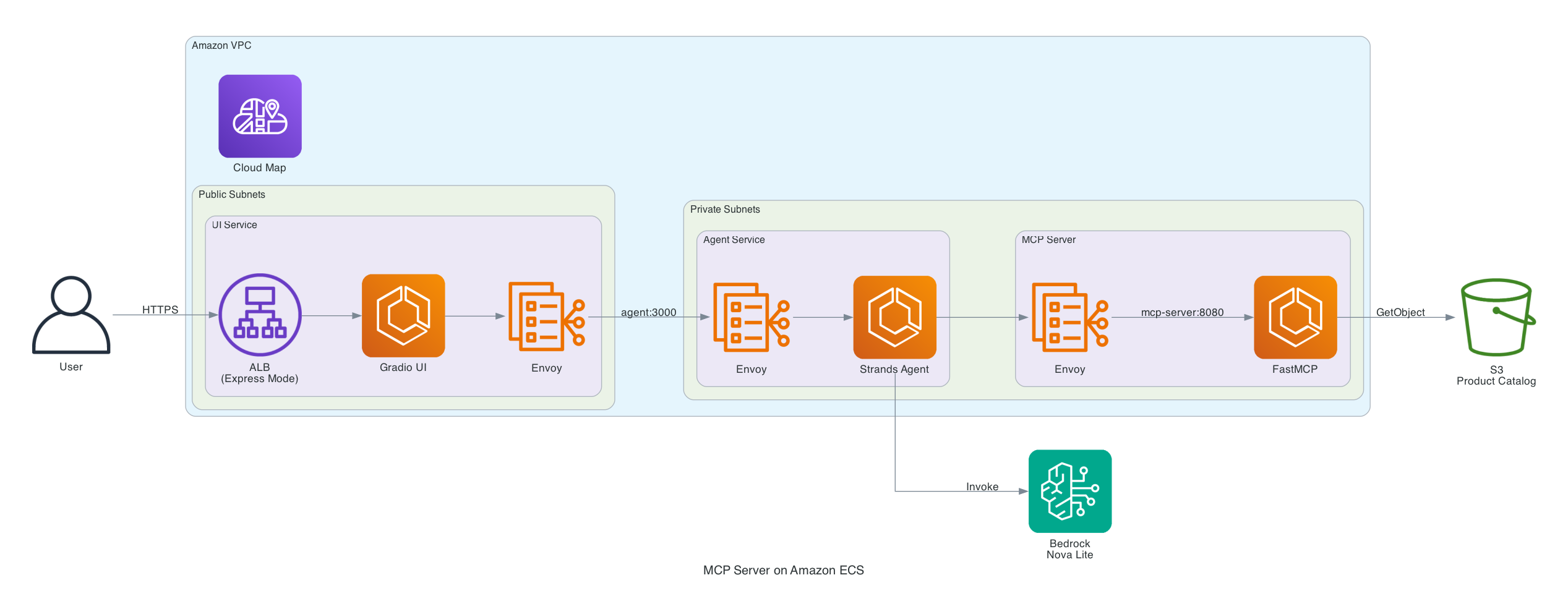
All inter-service communication stays within the Amazon VPC. Only the UI service is publicly accessible.
| Component | Technology | Role |
|---|---|---|
| UI Service | Gradio on Amazon ECS | Web chat interface, public-facing via ALB |
| Agent Service | Strands Agents + Amazon Bedrock | Orchestrates AI reasoning and MCP tool calls |
| MCP Server | FastMCP on Amazon ECS | Exposes product catalog as MCP tools over Streamable HTTP |
| Service Connect | AWS Cloud Map + Envoy proxy | Service-to-service discovery and routing |
| ECS Express Mode | Managed ALB + auto-scaling | Automated public endpoint with HTTPS |
| Product Catalog | Amazon S3 | Stores product data as JSON |
| Infrastructure | AWS CloudFormation | Amazon VPC, subnets, IAM roles, Amazon ECS cluster |
aws --version to checkdocker --version to checkjq --version to check├── cloudformation/
│ └── infrastructure.yaml # Amazon VPC, Amazon ECS cluster, IAM roles, Amazon ECR repos
├── mcp-server/
│ ├── Dockerfile
│ ├── requirements.txt
│ └── app/mcp_server.py # FastMCP server with S3 integration
├── agent/
│ ├── Dockerfile
│ ├── requirements.txt
│ └── app/agent.py # Strands agent with Bedrock
├── ui/
│ ├── Dockerfile
│ ├── requirements.txt
│ └── app.py # Gradio chat interface
├── sample-data/
│ └── product-catalog.json # Sample product data
├── scripts/
│ ├── setup-env.sh # Export CloudFormation outputs as env vars
│ ├── generate-service-connect-configs.sh # Generate Service Connect configs
│ └── cleanup.sh # Resource cleanup script
└── docs/
└── TROUBLESHOOTING.md # Common issues and solutions
Estimated deployment time: 25-30 minutes
git clone https://github.com/aws-samples/sample-mcp-server-on-ecs.git
cd sample-mcp-server-on-ecs

# Set your variables (modify these for your environment)
export STACK_NAME=ecs-mcp-blog
export AWS_REGION=us-west-2
export AWS_PROFILE=default
The AWS CloudFormation template provisions all the infrastructure in a single stack: an Amazon Virtual Private Cloud (Amazon VPC) with public and private subnets across two Availability Zones, an Amazon ECS cluster with AWS Fargate capacity providers, Amazon Elastic Container Registry (Amazon ECR) repositories for the three container images, an Amazon S3 bucket for product data, AWS Identity and Access Management (IAM) roles with least-privilege permissions, security groups that restrict traffic between services, and an AWS Cloud Map namespace for Service Connect discovery.
Using a single stack means you can deploy the entire environment with one command and tear it down cleanly when you're done.
aws cloudformation deploy \
  --template-file cloudformation/infrastructure.yaml \
  --stack-name $STACK_NAME \
  --capabilities CAPABILITY_NAMED_IAM \
  --region $AWS_REGION \
  --profile $AWS_PROFILE
Validate: Confirm the stack completed successfully before proceeding.
# Should output CREATE_COMPLETE
aws cloudformation describe-stacks \
  --stack-name $STACK_NAME \
  --region $AWS_REGION \
  --profile $AWS_PROFILE \
  --query 'Stacks[0].StackStatus' \
  --output text
If the status is not
CREATE_COMPLETE, check the events for errors:hljs language-bashaws cloudformation describe-stack-events \ --stack-name $STACK_NAME \ --region $AWS_REGION \ --profile $AWS_PROFILE \ --query 'StackEvents[?ResourceStatus==`CREATE_FAILED`].[LogicalResourceId,ResourceStatusReason]' \ --output table
Run the provided setup script to export all CloudFormation stack outputs as environment variables. These variables are referenced in subsequent steps to deploy and configure the Amazon ECS services.
source scripts/setup-env.sh
You should see output confirming all variables are set. If any value shows empty or you see an error, verify the stack completed successfully in Step 2.
Before you can push container images, Docker needs to authenticate with Amazon ECR. The following command retrieves a temporary authentication token and passes it to docker login.
aws ecr get-login-password --region $AWS_REGION --profile $AWS_PROFILE | \
  docker login --username AWS --password-stdin $ECR_REGISTRY
You should see Login Succeeded in the output. If you receive an authorization error, verify that your AWS CLI credentials have ecr:GetAuthorizationToken permission and that the ECR_REGISTRY variable from Step 3 is set correctly.
aws s3 cp sample-data/product-catalog.json s3://$S3_BUCKET/product-catalog.json \
  --region $AWS_REGION --profile $AWS_PROFILE
Validate:
# Should return product-catalog.json with size ~5 KiB
aws s3 ls s3://$S3_BUCKET/ --region $AWS_REGION --profile $AWS_PROFILE
Each service has its own Dockerfile in its directory. The --platform linux/amd64 flag is required because Amazon ECS with AWS Fargate runs Linux x86_64 containers. If you build on Apple Silicon (M1/M2/M3) without this flag, the task will fail at runtime with an exec format error. The --push flag combines the build and push into a single command.
# MCP Server
docker buildx build --platform linux/amd64 \
  -t $ECR_REGISTRY/${STACK_NAME}-mcp-server:latest \
  ./mcp-server --push

# Agent
docker buildx build --platform linux/amd64 \
  -t $ECR_REGISTRY/${STACK_NAME}-agent:latest \
  ./agent --push

# UI
docker buildx build --platform linux/amd64 \
  -t $ECR_REGISTRY/${STACK_NAME}-ui:latest \
  ./ui --push
Validate: Confirm all three images exist in Amazon ECR.
# Each should return an imageDigest — if empty, the push failed
for repo in mcp-server agent ui; do
  echo "--- ${STACK_NAME}-${repo} ---"
  aws ecr describe-images \
    --repository-name ${STACK_NAME}-${repo} \
    --region $AWS_REGION \
    --profile $AWS_PROFILE \
    --query 'imageDetails[0].[imageTags[0],imageSizeInBytes]' \
    --output text
done
Amazon ECS Service Connect uses AWS Cloud Map for service discovery and an Envoy sidecar proxy for traffic routing. Each service needs a JSON configuration that defines its discovery name, port mapping, and log destination. The MCP Server and Agent register themselves as discoverable endpoints so other services can reach them by name (for example, http://mcp-server:8080). The UI is a client-only consumer — it doesn't register itself but needs the Envoy sidecar to resolve the Agent's address.
Run the following script to generate the Service Connect configuration files for all three services:
./scripts/generate-service-connect-configs.sh
You should see output listing the three generated config files in config/.
You deploy the services in dependency order: MCP Server first (no upstream dependencies), then Agent (depends on MCP Server), and finally the UI (depends on Agent). The MCP Server and Agent run as standard Amazon ECS services in private subnets with no public IP addresses — Amazon ECS Service Connect handles all inter-service routing. The UI uses Amazon ECS Express Mode, which automatically provisions an Application Load Balancer, target group, and auto-scaling policy.
aws ecs create-service \
  --cluster $CLUSTER_NAME \
  --service-name mcp-server-service \
  --task-definition ${STACK_NAME}-mcp-server \
  --desired-count 2 \
  --launch-type FARGATE \
  --network-configuration "awsvpcConfiguration={subnets=[$PRIVATE_SUBNETS],securityGroups=[$MCP_SG],assignPublicIp=DISABLED}" \
  --service-connect-configuration file://config/${STACK_NAME}-mcp-server-service-connect.json \
  --region $AWS_REGION \
  --profile $AWS_PROFILE
aws ecs create-service \
  --cluster $CLUSTER_NAME \
  --service-name agent-service \
  --task-definition ${STACK_NAME}-agent \
  --desired-count 1 \
  --launch-type FARGATE \
  --network-configuration "awsvpcConfiguration={subnets=[$PRIVATE_SUBNETS],securityGroups=[$AGENT_SG],assignPublicIp=DISABLED}" \
  --service-connect-configuration file://config/${STACK_NAME}-agent-service-connect.json \
  --region $AWS_REGION \
  --profile $AWS_PROFILE
Validate: Wait for MCP Server and Agent to stabilize before deploying UI.
echo "Waiting 90 seconds for tasks to start..."
sleep 90

aws ecs describe-services \
  --cluster $CLUSTER_NAME \
  --services mcp-server-service agent-service \
  --region $AWS_REGION \
  --profile $AWS_PROFILE \
  --query 'services[].[serviceName,status,runningCount,desiredCount]' \
  --output table
Both services should show runningCount: 1. If runningCount is 0, check for task failures:
TASK_ARN=$(aws ecs list-tasks --cluster $CLUSTER_NAME --service-name mcp-server-service \
  --desired-status STOPPED --region $AWS_REGION --profile $AWS_PROFILE \
  --query 'taskArns[0]' --output text)

if [ "$TASK_ARN" != "None" ] && [ -n "$TASK_ARN" ]; then
  aws ecs describe-tasks --cluster $CLUSTER_NAME --tasks $TASK_ARN \
    --region $AWS_REGION --profile $AWS_PROFILE \
    --query 'tasks[0].[stoppedReason,containers[].reason]' --output text
else
  echo "No stopped tasks found for mcp-server-service"
fi
The UI service uses ECS Express Mode, which provisions an Application Load Balancer automatically. Deploy it in three steps:
Create the UI service:
aws ecs create-express-gateway-service \
  --cluster $CLUSTER_NAME \
  --service-name ui-service \
  --execution-role-arn $EXECUTION_ROLE \
  --infrastructure-role-arn $INFRA_ROLE \
  --primary-container "{
    \"image\": \"${UI_ECR}:latest\",
    \"containerPort\": 7860,
    \"awsLogsConfiguration\": {
      \"logGroup\": \"${UI_LOG_GROUP}\",
      \"logStreamPrefix\": \"ecs\"
    },
    \"environment\": [
      {\"name\": \"AGENT_ENDPOINT\", \"value\": \"http://agent:3000\"}
    ]
  }" \
  --task-role-arn $UI_TASK_ROLE \
  --network-configuration subnets=$PUBLIC_SUBNETS,securityGroups=$UI_SG \
  --cpu "256" \
  --memory "512" \
  --scaling-target minTaskCount=1,maxTaskCount=4,autoScalingMetric=AVERAGE_CPU,autoScalingTargetValue=70 \
  --tags key=Project,value=ECS-MCP-Blog \
  --region $AWS_REGION \
  --profile $AWS_PROFILE
Wait for the service to stabilize (~4 minutes):
aws ecs wait services-stable \
  --cluster $CLUSTER_NAME \
  --services ui-service \
  --region $AWS_REGION \
  --profile $AWS_PROFILE
Add Service Connect (required for UI to reach Agent):
aws ecs update-service \
  --cluster $CLUSTER_NAME \
  --service ui-service \
  --service-connect-configuration file://config/${STACK_NAME}-ui-service-connect.json \
  --force-new-deployment \
  --region $AWS_REGION \
  --profile $AWS_PROFILE
Note: Express Mode does not support Service Connect on initial creation. The update step adds the Envoy sidecar needed for UI to communicate with Agent via
http://agent:3000.
Wait for the Service Connect deployment to complete (~6 minutes):
Express Mode uses canary deployments with a bake period. The following command waits until the new task (with Service Connect) is stable and the old task has drained:
aws ecs wait services-stable \
  --cluster $CLUSTER_NAME \
  --services ui-service \
  --region $AWS_REGION \
  --profile $AWS_PROFILE
# Check service status
aws ecs describe-services \
  --cluster $CLUSTER_NAME \
  --services mcp-server-service agent-service ui-service \
  --region $AWS_REGION \
  --profile $AWS_PROFILE \
  --query 'services[].[serviceName,status,runningCount,desiredCount]' \
  --output table
All three services should show ACTIVE with runningCount matching desiredCount:
--------------------------------------------
|             DescribeServices             |
+---------------------+---------+----+-----+
|  mcp-server-service |  ACTIVE |  2 |  2  |
|  agent-service      |  ACTIVE |  1 |  1  |
|  ui-service         |  ACTIVE |  1 |  1  |
+---------------------+---------+----+-----+
⚠️ If
ui-serviceshows2/1(runningCount > desiredCount): The canary deployment is still in progress. Wait a few more minutes and re-run the command. Do not proceed until all services show matching counts.
# Get UI public URL via Express Mode API
UI_SERVICE_ARN=$(aws ecs describe-services --cluster $CLUSTER_NAME --services ui-service \
  --region $AWS_REGION --profile $AWS_PROFILE \
  --query 'services[0].serviceArn' --output text)

UI_ENDPOINT=$(aws ecs describe-express-gateway-service \
  --service-arn $UI_SERVICE_ARN \
  --region $AWS_REGION --profile $AWS_PROFILE \
  --query 'service.activeConfigurations[0].ingressPaths[0].endpoint' --output text)

echo "UI URL: https://${UI_ENDPOINT}/"
Open the UI URL in your browser. You should see a Gradio chat interface with a text input field. Try the following queries to verify the end-to-end flow through all three services:
Each query travels the full chain: the UI sends it to the Agent over Amazon ECS Service Connect, the Agent calls Amazon Bedrock to decide which MCP tools to invoke, the MCP Server searches the product catalog in Amazon S3, and the results flow back to the user. Responses typically take 3–5 seconds on the first query while the MCP Server loads the catalog from Amazon S3.
If the UI loads but queries return errors, check the Agent and MCP Server logs:
# Agent logs — look for Amazon Bedrock or MCP connection errors
aws logs tail /ecs/${STACK_NAME}/agent --since 10m \
  --region $AWS_REGION --profile $AWS_PROFILE

# MCP Server logs — look for Amazon S3 or startup errors
aws logs tail /ecs/${STACK_NAME}/mcp-server --since 10m \
  --region $AWS_REGION --profile $AWS_PROFILE
Important: This deployment creates billable AWS resources. Run the cleanup script to remove all resources and avoid ongoing charges.
The cleanup script removes all resources in the correct order: Amazon ECS services, Express Mode resources, Amazon S3 buckets, Amazon ECR repositories, the AWS CloudFormation stack, and retained log groups.
# Verify your deployment variables are set
export STACK_NAME=ecs-mcp-blog
export AWS_REGION=us-west-2
export AWS_PROFILE=default

# Run cleanup
./scripts/cleanup.sh
The script will:
If any step fails, the script continues and reports failures at the end with links to the AWS Console for manual cleanup.
If the AWS CloudFormation stack deletion fails on the Amazon VPC resource (for example, due to lingering ENIs or dependencies), you can manually delete the Amazon VPC:
If the UI cannot connect to the Agent, redeploy with Service Connect:
aws ecs update-service \
  --cluster $CLUSTER_NAME \
  --service ui-service \
  --service-connect-configuration file://config/${STACK_NAME}-ui-service-connect.json \
  --force-new-deployment \
  --region $AWS_REGION \
  --profile $AWS_PROFILE
# MCP Server logs
aws logs tail /ecs/${STACK_NAME}/mcp-server --follow --region $AWS_REGION --profile $AWS_PROFILE

# Agent logs
aws logs tail /ecs/${STACK_NAME}/agent --follow --region $AWS_REGION --profile $AWS_PROFILE

# UI logs
aws logs tail /ecs/${STACK_NAME}/ui --follow --region $AWS_REGION --profile $AWS_PROFILE
For detailed troubleshooting guidance, including root cause analysis for common issues, see docs/TROUBLESHOOTING.md.
See CONTRIBUTING for more information.
This library is licensed under the MIT-0 License. See the LICENSE file.
You have deployed a three-tier MCP application on Amazon ECS with AWS Fargate, with Amazon ECS Service Connect handling service-to-service communication. The architecture uses Amazon Bedrock for AI inference, FastMCP for tool serving, and Gradio for the web interface. To extend this project, you can add more MCP tools to the server, swap the AI model, or integrate additional data sources through Amazon S3.
Run Claude Code as an MCP server so any agent can delegate coding tasks to it
 @microsoft✓ Official
Browser automation using accessibility snapshots instead of screenshots
 @googleapis✓ Official
Google's universal MCP server supporting PostgreSQL, MySQL, MongoDB, Redis, and 10+ databases
 @github✓ Official
Official GitHub integration for repos, issues, PRs, and CI/CD workflows