

Are you the author? Sign in to claim
Sample voice agent application based on Amazon Nova 2 Sonic and Amazon Kinesis Video Streams WebRTC service. It demonstr
A comprehensive Speech-to-Speech (S2S) WebRTC solution integrating AWS Bedrock Nova 2 Sonic, Amazon Kinesis Video Streams with WebRTC, and real-time audio/video processing.
The sample solution architecture:
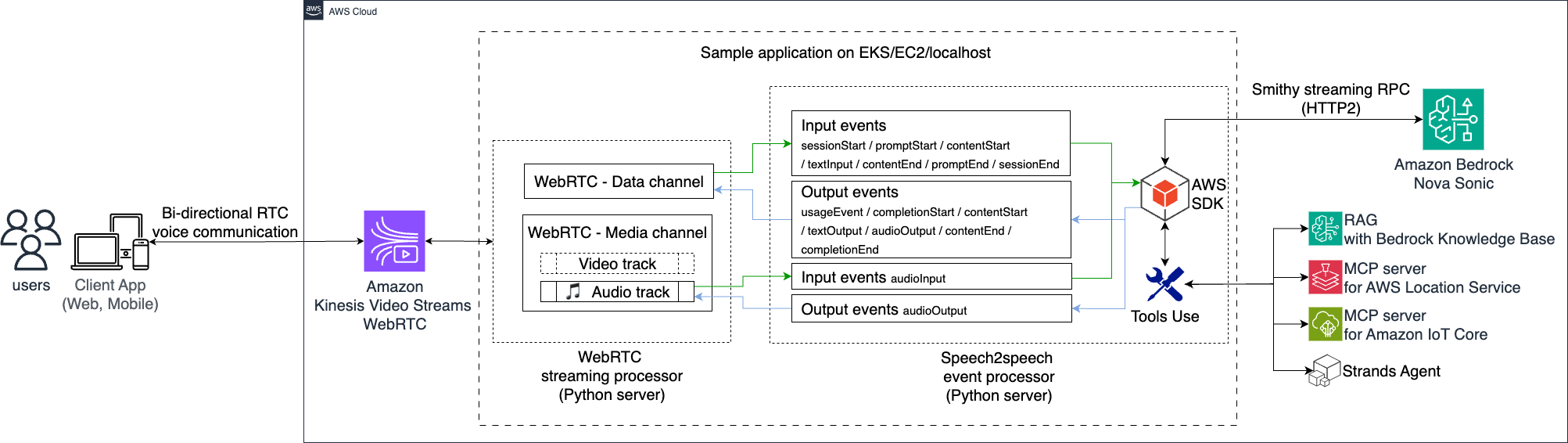
This solution has been tested and verified with the following exact versions:
Core Dependencies:
AWS SDK:
Agent Integration:
sample-nova-sonic-speech2speech-webrtc/
├── README.md                    # This file
├── start-python-server.sh      # Python server launcher script (cross-platform)
├── start-react-client.sh       # React client launcher script
├── python-webrtc-server/        # Python WebRTC backend
│   ├── webrtc_server.py        # Main server application
│   ├── environment.yml         # Conda environment configuration
│   ├── requirements.txt        # Python pip dependencies
│   ├── .env.template          # Environment configuration template
│   ├── webrtc/                # WebRTC modules
│   ├── integration/           # AWS and agent integrations
│   └── server_test_audio/     # Test audio files
├── react-webrtc-client/        # React frontend application
│   ├── src/                   # React source code
│   ├── public/                # Static assets
│   ├── package.json           # Node.js dependencies
│   └── .env.template          # Frontend environment template
└── docs/                      # Additional documentation
    ├── troubleshooting.md     # Comprehensive troubleshooting guide
    ├── architecture.md        # System architecture
    ├── api-reference.md       # API documentation
    └── deployment.md          # Deployment guide
macOS:
# Using Homebrew (easiest)
brew install miniconda

# Or download installer
curl -O https://repo.anaconda.com/miniconda/Miniconda3-latest-MacOSX-x86_64.sh  # Intel
curl -O https://repo.anaconda.com/miniconda/Miniconda3-latest-MacOSX-arm64.sh   # Apple Silicon
bash Miniconda3-latest-MacOSX-*.sh
Linux:
# Download and install
curl -O https://repo.anaconda.com/miniconda/Miniconda3-latest-Linux-x86_64.sh
bash Miniconda3-latest-Linux-x86_64.sh

# Or use package manager
sudo apt install miniconda3        # Ubuntu/Debian
sudo yum install miniconda3        # CentOS/RHEL
Windows:
# Using Windows Package Manager
winget install Anaconda.Miniconda3

# Or using Chocolatey
choco install miniconda3

# Or download installer from: https://repo.anaconda.com/miniconda/
# Navigate to the project directory
cd sample-nova-sonic-speech2speech-webrtc/

# Make scripts executable (Linux/macOS)
chmod +x *.sh

# Verify prerequisites
python3 --version  # Should be 3.8+
node --version     # Should be 16.0+
conda --version    # Should show conda version
AmazonKinesisVideoStreamsFullAccessAmazonBedrockFullAccessBefore running the application, you must create the KVS WebRTC signaling channel:
Option 1: Using AWS Console (Recommended)
nova-s2s-webrtc-testOption 2: Using AWS CLI
# Create the signaling channel
aws kinesisvideo create-signaling-channel \
    --channel-name nova-s2s-webrtc-test \
    --region ap-northeast-1

# Verify the channel was created
aws kinesisvideo list-signaling-channels \
    --region ap-northeast-1 \
    --query 'ChannelInfoList[?ChannelName==`nova-s2s-webrtc-test`]'
Important Notes:
KVS_CHANNEL_NAME in your environment configurationKVS_CHANNEL_NAME variable in your .env filesPython Backend (.env):
# Copy and edit environment template
cp python-webrtc-server/.env.template python-webrtc-server/.env
nano python-webrtc-server/.env  # Edit with your values
Required variables:
# AWS Configuration
AWS_REGION=ap-northeast-1
AWS_ACCESS_KEY_ID=your_access_key_here
AWS_SECRET_ACCESS_KEY=your_secret_key_here

# KVS WebRTC Configuration
KVS_CHANNEL_NAME=nova-s2s-webrtc-test

# Bedrock Configuration
BEDROCK_MODEL_ID=amazon.nova-2-sonic-v1:0

# Logging Configuration
LOGLEVEL=INFO
React Frontend (.env):
# Copy and edit environment template
cp react-webrtc-client/.env.template react-webrtc-client/.env
nano react-webrtc-client/.env  # Edit with your values
Required variables:
# AWS Configuration (embedded in client-side code)
REACT_APP_AWS_REGION=ap-northeast-1
REACT_APP_AWS_ACCESS_KEY_ID=your_access_key_here
REACT_APP_AWS_SECRET_ACCESS_KEY=your_secret_key_here

# KVS WebRTC Configuration
REACT_APP_KVS_CHANNEL_NAME=nova-s2s-webrtc-test
Terminal 1 - Python Backend:
# This script handles conda environment creation, dependency installation, and server startup
./start-python-server.sh

# The script automatically:
# 1. Creates conda environment with Python 3.12, ffmpeg, pkg-config
# 2. Installs av=11.0.0 via conda for proper FFmpeg linking
# 3. Installs all Python packages via pip with conflict resolution
# 4. Starts the WebRTC server
Terminal 2 - React Frontend:
# This script handles npm installation and client startup
./start-react-client.sh

# Available options:
# ./start-react-client.sh --port 3001
# ./start-react-client.sh --build  # Production build
# ./start-react-client.sh --serve  # Serve production build
Python Backend:
cd python-webrtc-server

# Method 1: Create conda environment manually
conda env create -f environment.yml
conda activate nova-s2s-webrtc
pip install -r requirements.txt

# Method 2: If you've successfully run start-python-server.sh
conda activate nova-s2s-webrtc

# Configure environment variables
export AWS_ACCESS_KEY_ID=your_access_key_here
export AWS_SECRET_ACCESS_KEY=your_secret_key_here
export AWS_REGION=ap-northeast-1
export KVS_CHANNEL_NAME=nova-s2s-webrtc-test

# Start server
python webrtc_server.py

# Available options:
python webrtc_server.py --agent mcp
Important Notes:
React Frontend:
cd react-webrtc-client

# Install dependencies
npm install

# Start development server
npm start
http://localhost:3000 in your browserThe React app includes a built-in WebRTC testing feature that verifies your complete setup:
# 1. Start the Python server
./start-python-server.sh

# 2. Start the React client
./start-react-client.sh

# 3. In browser (http://localhost:3000):
#    - Click the Settings icon (⚙️) in the top-right corner
#    - Scroll down and click "Test WebRTC Configuration"
#    - Grant microphone and camera permissions when prompted
#    - You should see your video feed and hear test scale audio tones
#    - The Python server will save the captured audio/video files in the logs folder
What this test does:
logs/media_test/ folder for verificationFiles created during test:
logs/media_test/webrtc_test_*.mp4 - Captured video from your camera and microphoneNote: This test requires the Python server to be running and uses the full WebRTC pipeline including server-side processing.
The Python server supports both Master and Viewer modes for KVS WebRTC signaling channels. Viewer mode allows the server to join an existing WebRTC session as a participant rather than initiating it.
# Navigate to server directory and activate conda environment
cd sample-nova-sonic-speech2speech-webrtc/python-webrtc-server
conda activate nova-s2s-webrtc

# Configure AWS credentials and region
export AWS_ACCESS_KEY_ID=your_access_key_here
export AWS_SECRET_ACCESS_KEY=your_secret_access_key_here
export AWS_REGION=ap-northeast-1
export KVS_CHANNEL_NAME=nova-s2s-webrtc-test

# Optional: Knowledge Base integration
export KB_ID="your_knowledge_base_id"
export KB_REGION="ap-northeast-1"

# Configure server logging level
export LOGLEVEL="DEBUG"  # or "INFO" for production
Master Mode (Default):
# Basic master mode - initiates WebRTC signaling
python webrtc_server.py
python webrtc_server.py --webrtc-role Master

# Master mode with MCP agent integration
python webrtc_server.py --webrtc-role Master --agent mcp
Viewer Mode:
# Basic viewer mode - joins existing WebRTC session
python webrtc_server.py --webrtc-role Viewer

# Viewer mode with MCP agent integration
python webrtc_server.py --webrtc-role Viewer --agent mcp
Mode Differences:
# macOS/Linux Terminal
./start-python-server.sh

# Windows Git Bash (Recommended)
./start-python-server.sh

# Windows PowerShell
bash ./start-python-server.sh

# Windows Command Prompt
bash start-python-server.sh
Our Proven Approach:
| Component | Installation Method | Reason |
|---|---|---|
| Python 3.12 | Conda | Required for AWS Bedrock runtime |
| ffmpeg | Conda | System dependency for media processing |
| pkg-config | Conda | Build tool for native extensions |
| av=11.0.0 | Conda | Requires proper FFmpeg linking |
| aiortc | Pip (with --no-deps) | Avoids conda dependency conflicts |
| AWS SDK | Pip | Latest versions and compatibility |
| All other packages | Pip | Maximum compatibility and flexibility |
Why This Approach:
# Basic usage
./start-python-server.sh

# Custom AWS region and signaling channel configuration
./start-python-server.sh \
  --region us-west-2 \
  --channel my-test-channel

# Testing and development
./start-python-server.sh --skip-deps  # Skip dependency installation
./start-python-server.sh --test-only  # Test environment setup only
# Development server
./start-react-client.sh

# Production build and deployment
./start-react-client.sh --build       # Build for production
./start-react-client.sh --serve       # Serve production build
./start-react-client.sh --port 3001   # Custom port
# List environments
conda env list

# Activate/deactivate
conda activate nova-s2s-webrtc
conda deactivate

# Update environment
conda env update -n nova-s2s-webrtc -f environment.yml

# Remove environment
conda env remove -n nova-s2s-webrtc
The start-python-server.sh script handles all dependency management automatically:
What the script does:
Platform-specific handling:
Error prevention:
Control whether VAD filtering is used:
# Enable WebRTCVAD filtering (default)
export WEBRTCVAD_ENABLED=true

# Disable VAD - send all audio to Nova Sonic
export WEBRTCVAD_ENABLED=false
When VAD is enabled, set the VAD_AGGRESSIVENESS environment variable to control sensitivity:
# Most permissive (detects more audio as speech)
export VAD_AGGRESSIVENESS=0

# Low aggressiveness
export VAD_AGGRESSIVENESS=1

# Moderate (default, recommended)
export VAD_AGGRESSIVENESS=2

# Most aggressive (strictest speech detection)
export VAD_AGGRESSIVENESS=3
| Level | Description | Use Case |
|---|---|---|
| 0 | Least aggressive | Noisy environments, capture more speech |
| 1 | Low | Slightly noisy environments |
| 2 | Moderate | Default - balanced for most use cases |
| 3 | Most aggressive | Quiet environments, strict speech filtering |
✅ WebRTCVAD enabled - Aggressiveness level: 2
🎤 [VAD] Speech detected (3/10 frames, 30.0%) - sending audio chunk to Nova Sonic
🔇 [VAD] No speech detected (0/10 frames, 0.0%) - skipping transmission to Nova Sonic
🔇 WebRTCVAD disabled via WEBRTCVAD_ENABLED=false - sending all audio to Nova Sonic
🎵 [NO-FILTER] Sending all audio to Nova Sonic (VAD disabled)
WebRTC protocol has defined specific audio and video format standards. When transceiving audio data through WebRTC connection, we need some adaption work. Please refer to the documentation.
The Nova S2S WebRTC solution can be used with smart home demo for voice-controlled automation:
Example Commands:
Configuration:
# Smart home settings
export KB_ID="xxxxxx"
export KB_REGION="ap-northeast-1"
# Start server with MCP integration
python webrtc_server.py --agent mcp
The example shows in-vehicle voice assistance with real-time vision AI processing:
Important Configuration for Vehicle Testing:
Vehicle Setup Steps:
# Start server in Viewer mode for vehicle testing
cd python-webrtc-server
conda activate nova-s2s-webrtc
export ENABLE_PHONE_DETECTION=true
python webrtc_server.py --webrtc-role Viewer
KVS Test Page Configuration:
./scripts/start-python-server.shhttp://localhost:3000server_test_audio/# Monitor system resources during testing
top -p $(pgrep -f "python.*webrtc") # Linux/macOS
# Task Manager on Windows
# Check memory usage
ps aux | grep -E "(python|node)" | grep -v grep
# Network connectivity test
ping your-aws-region.amazonaws.com
# System health check
ps aux | grep -E "(python|node)" | grep -v grep

# Check port availability
netstat -tulpn | grep -E "(3000|8765)"  # Linux
lsof -i :3000,8765                      # macOS
netstat -an | findstr "3000"           # Windows

# Check system resources
free -h    # Linux
vm_stat    # macOS
# Task Manager > Performance tab (Windows)
# If start-python-server.sh fails, try manual environment recreation:
conda env remove -n nova-s2s-webrtc -y
conda env create -f python-webrtc-server/environment.yml
conda activate nova-s2s-webrtc
pip install -r python-webrtc-server/requirements.txt

# Common dependency issues:
# - "av compilation failed" → Use conda for av installation
# - "FFmpeg not found" → Ensure conda ffmpeg is installed
# - "numpy version conflict" → Let conda handle numpy via av dependency
# Check AWS credentials
aws configure list
echo $AWS_ACCESS_KEY_ID

# Test AWS connectivity
aws sts get-caller-identity

# Verify KVS signaling channel exists
aws kinesisvideo list-signaling-channels --region ap-northeast-1
aws kinesisvideo describe-signaling-channel --channel-name nova-s2s-webrtc-test --region ap-northeast-1

# Common KVS channel issues:
# Error: "Signaling channel not found" - Create the channel first (see AWS Configuration section)
# Error: "Access denied" - Check IAM permissions for KinesisVideoStreams
# Error: "Invalid region" - Ensure channel exists in the correct region
# Use the built-in Test WebRTC Configuration first (see Testing section above)
# Check logs/media_test/ folder for saved test files to verify data transmission

# Check browser console for errors:
# - "getUserMedia failed" - Check microphone permissions
# - "ICE connection failed" - Check network/firewall
# - "WebSocket connection failed" - Check server status
# Find and kill processes using ports
# Linux/macOS:
lsof -ti:3000 | xargs kill -9

# Windows:
netstat -ano | findstr :3000
taskkill /PID <PID> /F

# Or use different port for React client:
./scripts/start-react-client.sh --port 3001
macOS:
# Update Xcode Command Line Tools
xcode-select --install

# Apple Silicon specific
conda config --add channels conda-forge
conda config --set channel_priority strict
Linux:
# Permission issues (never use sudo with conda)
conda config --set auto_activate_base false

# Update system packages
sudo apt update && sudo apt upgrade  # Ubuntu/Debian
Windows:
# Initialize conda for different shells
conda init bash       # Git Bash
conda init powershell  # PowerShell

# Enable long paths (Windows 10+)
# Windows Settings > Update & Security > For developers > Developer Mode
# High CPU usage - check processing load
top -p $(pgrep -f "python.*webrtc")

# Memory leaks - monitor over time
watch -n 1 'ps aux | grep python | grep webrtc'

# Audio quality issues - check sample rates and buffer sizes
# See docs/troubleshooting.md for detailed audio optimization
logs/webrtc_server.loglogs/media_test/ folderFor production deployment:
See docs/deployment.md for detailed production setup instructions.
When you no longer need the resources created for this project, clean them up to avoid unnecessary costs:
Option 1: Using AWS Console
nova-s2s-webrtc-testOption 2: Using AWS CLI
aws kinesisvideo delete-signaling-channel \
    --channel-arn $(aws kinesisvideo describe-signaling-channel \
        --channel-name nova-s2s-webrtc-test \
        --region ap-northeast-1 \
        --query 'ChannelInfo.ChannelARN' --output text) \
    --region ap-northeast-1
conda deactivate
conda env remove -n nova-s2s-webrtc -y
See CONTRIBUTING for more information.
This library is licensed under the MIT-0 License. See the LICENSE file.
Run Claude Code as an MCP server so any agent can delegate coding tasks to it
 @microsoft✓ Official
Browser automation using accessibility snapshots instead of screenshots
 @googleapis✓ Official
Google's universal MCP server supporting PostgreSQL, MySQL, MongoDB, Redis, and 10+ databases
 @github✓ Official
Official GitHub integration for repos, issues, PRs, and CI/CD workflows