

Are you the author? Sign in to claim
iOS/SwiftUI test automation & accessibility skill for Claude Code. Visual testing using computer use, memory leak analys
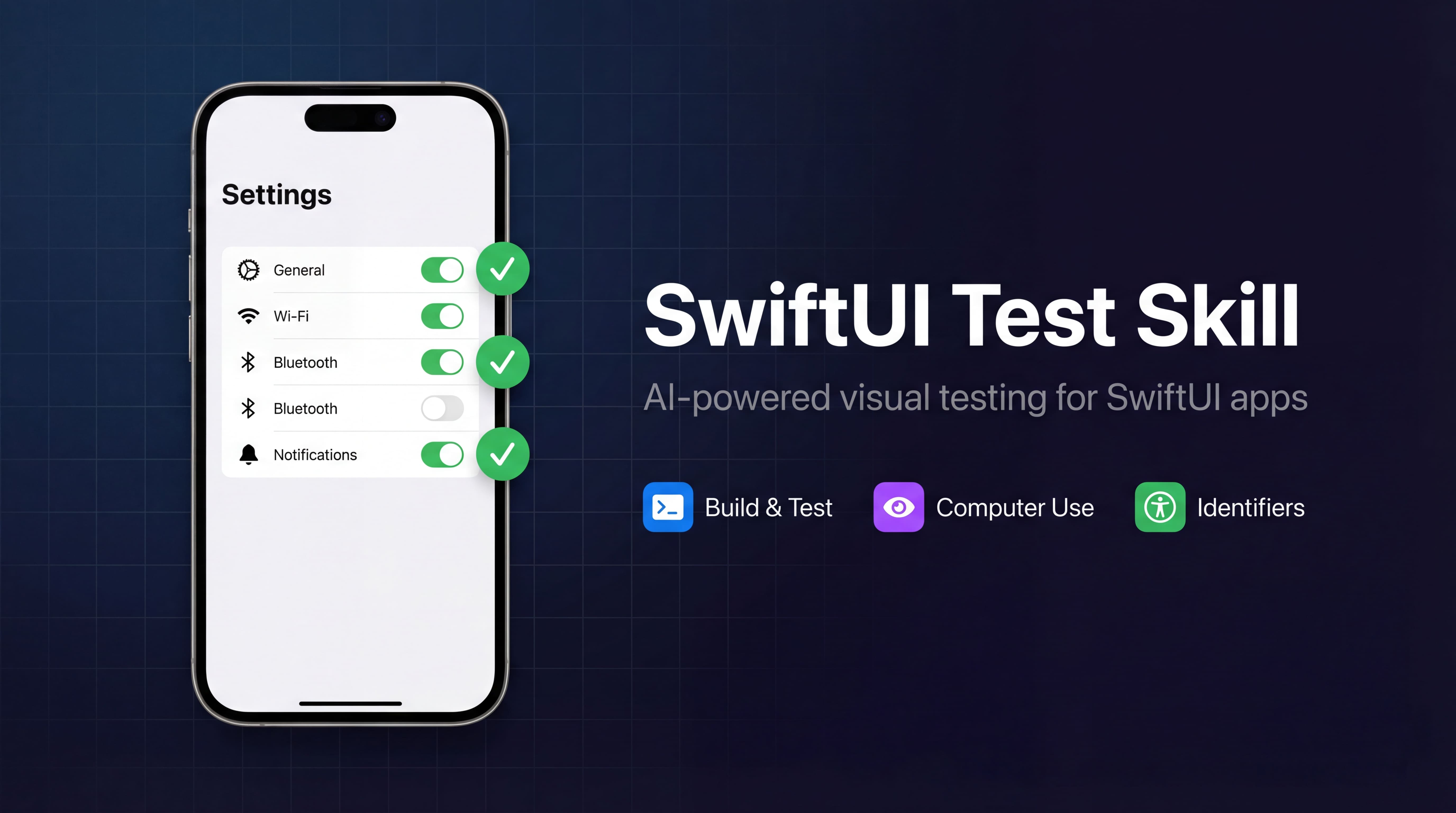
Open-source Agent Skills for automated visual testing and accessibility setup of iOS/SwiftUI applications using Claude Code's computer use.
Build, launch in the Simulator, visually test every screen, detect crashes, analyze memory leaks, and add accessibility identifiers — all from the terminal, in a single command.
Install both skills:
npx skills add https://github.com/yusufkaran/swiftui-autotest-skill
Then open your SwiftUI project in Claude Code and say:
Use the /ios-test skill to build the app, launch it in the Simulator, and test all screens.
The agent will find your .xcodeproj, select a Simulator, build and install the app, navigate through every screen with computer use, screenshot each state, and produce a test report. No code is modified unless you explicitly approve changes.
/ios-test requires Claude Code's computer use feature to see and interact with your screen. This is a one-time setup:
Enable the MCP server — In Claude Code, run:
/mcp
Find computer-use in the list and select Enable.
Grant macOS permissions — The first time computer use runs, macOS will ask for two permissions:
Grant both in System Settings > Privacy & Security. You may need to restart Claude Code after granting Screen Recording.
Requirements:
claude --version to check)-p flag)Note:
/add-accessibilitydoes not require computer use — it only reads and edits source files.
Unit tests verify logic. UI tests verify layouts, navigation, and user flows — but writing them takes time and maintaining them takes more. Computer use lets Claude see and interact with your app the way a real user would, without a single line of test code.
Accessibility identifiers make this faster and more reliable — and they also make your app work with VoiceOver, which is a requirement for many App Store categories.
/ios-test                          /add-accessibility
   │                                      │
   ├─ Find .xcodeproj/.xcworkspace        ├─ Scan all SwiftUI files
   ├─ Select Simulator (smart logic)      ├─ Find interactive elements
   ├─ Build with xcodebuild               ├─ Skip elements that already
   ├─ Install & launch app                │  have identifiers
   ├─ Computer use: navigate & test       ├─ Generate {screen}-{type}-{name}
   ├─ Screenshot each screen              ├─ Add .accessibilityIdentifier()
   ├─ Check crash logs                    ├─ Flag Dynamic Type issues
   ├─ (optional) State testing            └─ Summary report
   ├─ (optional) Performance analysis
   └─ Test report
The recommended workflow: run /add-accessibility first to make your views identifiable, then run /ios-test to test them.
| Check | What the agent looks for |
|---|---|
| Screen rendering | Layout overflow, overlapping views, empty areas, truncated text |
| Navigation | Every TabView tab, every NavigationLink, back navigation |
| Interactive elements | Buttons respond to taps, toggles switch, sliders move |
| Crash detection | Simulator crash logs analyzed with stack traces and source references |
| Empty state | Meaningful message shown when no data is available |
| Error state | Clear error message with retry option |
| Loading state | Loading indicator visible, UI not frozen |
| Memory usage | RAM footprint per screen, before/after comparison on navigation |
| Memory leaks | leaks command on running process, retain cycle detection |
| Accessibility gaps | Missing identifiers on Button, TextField, Image, Toggle, Picker, etc. |
| Dynamic Type | Missing lineLimit, minimumScaleFactor, hardcoded font sizes |
| Skill | Command | Purpose |
|---|---|---|
| iOS Test | /ios-test | Build, launch, visually test with computer use, crash logs, state testing, performance analysis |
| Add Accessibility | /add-accessibility | Scan SwiftUI views and add {screen}-{type}-{name} accessibility identifiers |
# Test all screens (default)
/ios-test

# Test a specific user flow
/ios-test --flow=onboarding

# Test a specific screen
/ios-test --screen=LoginView

# Choose a Simulator device
/ios-test --device="iPhone 16"

# Specify Xcode scheme
/ios-test --scheme=MyApp

# Test empty, error, and loading states via launch arguments
/ios-test --states

# Measure RAM per screen and check for memory leaks
/ios-test --performance

# Screenshot every step
/ios-test --screenshot-all

# Combine options
/ios-test --flow=checkout --states --performance --screenshot-all
Simulator selection is automatic:
Natural language also works — just say "test the app", "run it in the Simulator", "check for crashes", or "test the onboarding flow".
# Scan entire project and add identifiers
/add-accessibility

# Preview changes without modifying files
/add-accessibility --dry-run

# Scan a specific directory
/add-accessibility --path=Sources/Features/Login

# Verbose output for each identifier added
/add-accessibility --verbose
Natural language also works — "add accessibility identifiers", "make views testable", "add VoiceOver support".
All identifiers follow {screen}-{type}-{name}:
| Source | Generated Identifier |
|---|---|
LoginView.swift → Button("Continue") | login-button-continue |
LoginView.swift → TextField("Email") | login-textfield-email |
LoginView.swift → SecureField("Password") | login-securefield-password |
SettingsView.swift → Toggle("Notifications") | settings-toggle-notifications |
HomeView.swift → Image(systemName: "gear") | home-image-gear |
ProfileView.swift → HStack { }.onTapGesture | profile-tap-user-row |
Screen name is derived from the filename (LoginView.swift → login). Elements that already have identifiers are skipped — existing code is never modified.
npx skills add https://github.com/yusufkaran/swiftui-autotest-skill
Then register the slash commands so /ios-test and /add-accessibility work directly:
bash .agents/skills/swiftui-autotest-skill/postinstall.sh
This creates symlinks in .claude/commands/ pointing to the installed skill files. You only need to run this once after installation.
/plugin marketplace add yusufkaran/swiftui-autotest-skill
/plugin install swiftui-autotest-skill@swiftui-autotest-skill
To enable for everyone in a repository, add to .claude/settings.json:
{
  "enabledPlugins": {
    "swiftui-autotest-skill@swiftui-autotest-skill": true
  },
  "extraKnownMarketplaces": {
    "swiftui-autotest-skill": {
      "source": {
        "source": "github",
        "repo": "yusufkaran/swiftui-autotest-skill"
      }
    }
  }
}
When team members open the project, Claude Code will prompt them to install the skill.
git clone https://github.com/yusufkaran/swiftui-autotest-skill.git
Copy files based on your preferred scope:
# User scope — available in all your projects
cp swiftui-autotest-skill/commands/*.md ~/.claude/commands/

# Project scope — shared with your team via git
mkdir -p .claude/commands
cp swiftui-autotest-skill/commands/*.md .claude/commands/

# Local scope — this project only, not committed
mkdir -p .claude/commands
cp swiftui-autotest-skill/commands/*.md .claude/commands/
echo ".claude/commands/ios-test.md" >> .gitignore
echo ".claude/commands/add-accessibility.md" >> .gitignore
computer-use MCP server enabled (run /mcp to enable)swiftui-autotest-skill/
README.md
LICENSE
.claude-plugin/
plugin.json
marketplace.json
commands/ ← Claude Code native format
ios-test.md
add-accessibility.md
skills/ ← skills.sh / npx format
ios-test/
SKILL.md
add-accessibility/
SKILL.md
| Situation | Recommended Scope |
|---|---|
| Personal use across all my projects | User |
| Entire team should use it, commit to repo | Project |
| Trying it out, don't want to affect the repo | Local |
| Open-source project, contributors should have it | Project |
Contributions are welcome! Open an issue or submit a pull request.
This project is available under the MIT License. See LICENSE for details.
1000+ skills curated from Anthropic, Vercel, Stripe, and other engineering teams
WCAG accessibility audit — automated scanning, manual review, remediation
Agent harness performance optimization with skills, instincts, memory, and security
Playwright testing toolkit — test generation, flaky test fix, migration helpers