📊 Real-time Monitoring - Display Claude subscription (Free/Pro/Team/Max) usage quota in menu bar, with optional Codex monitoring
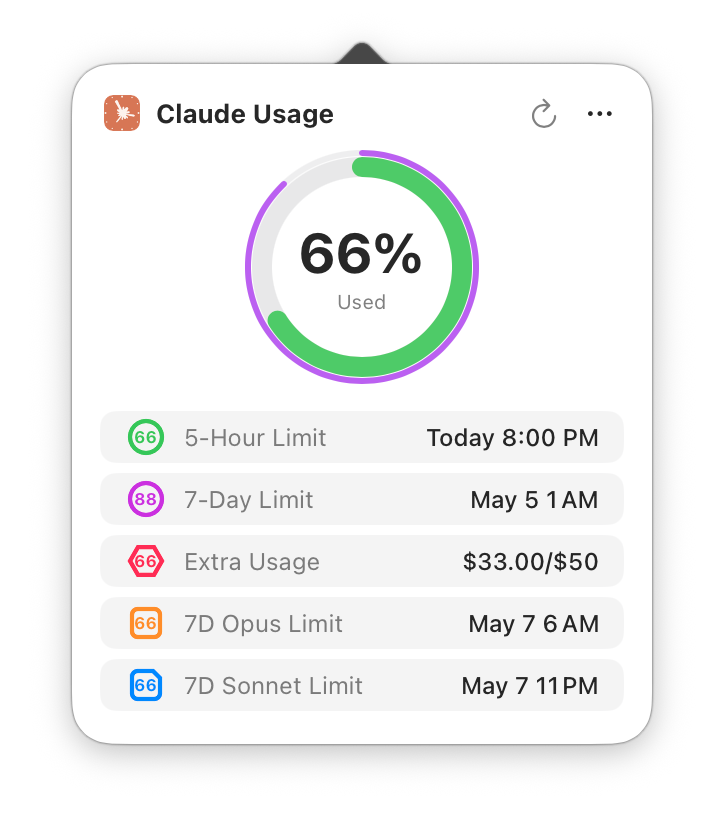
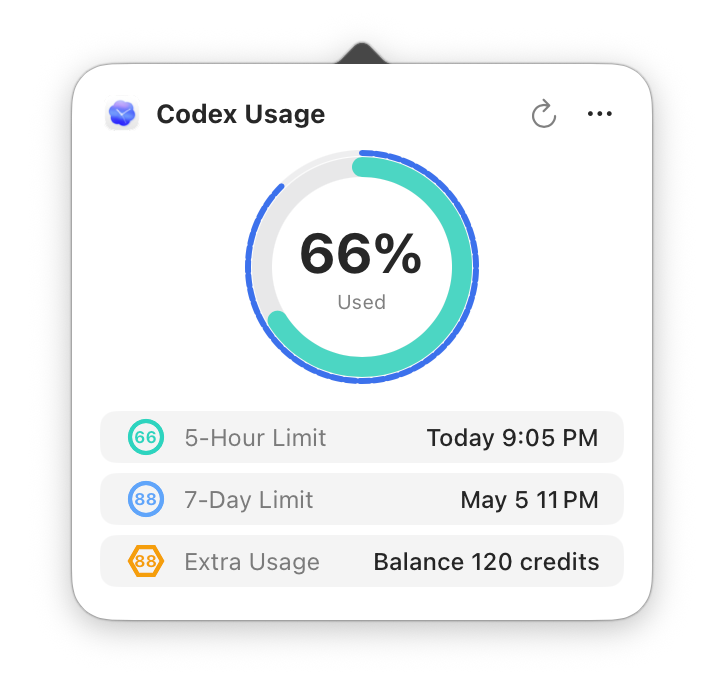
🎯 Multi-Limit Support - Claude supports up to 5 limits (5-hour/7-day/Extra/7-day Opus/7-day Sonnet), while Codex supports 5-hour, 7-day, and Extra Usage/credits
🎨 Smart Display Mode - Auto-detect and display all limit types with available data
⚙️ Custom Display - Manually select which limit types to display, supports any combination
🎨 Smart Colors - Automatic color changes based on usage, each limit type has its own color scheme
🔔 Usage Notifications - Warning notification at 90% usage, reset notification when quota resets
👥 Multi-Account Management - Support multiple Claude accounts / multiple organizations per account, plus independent Codex account management and quick switching
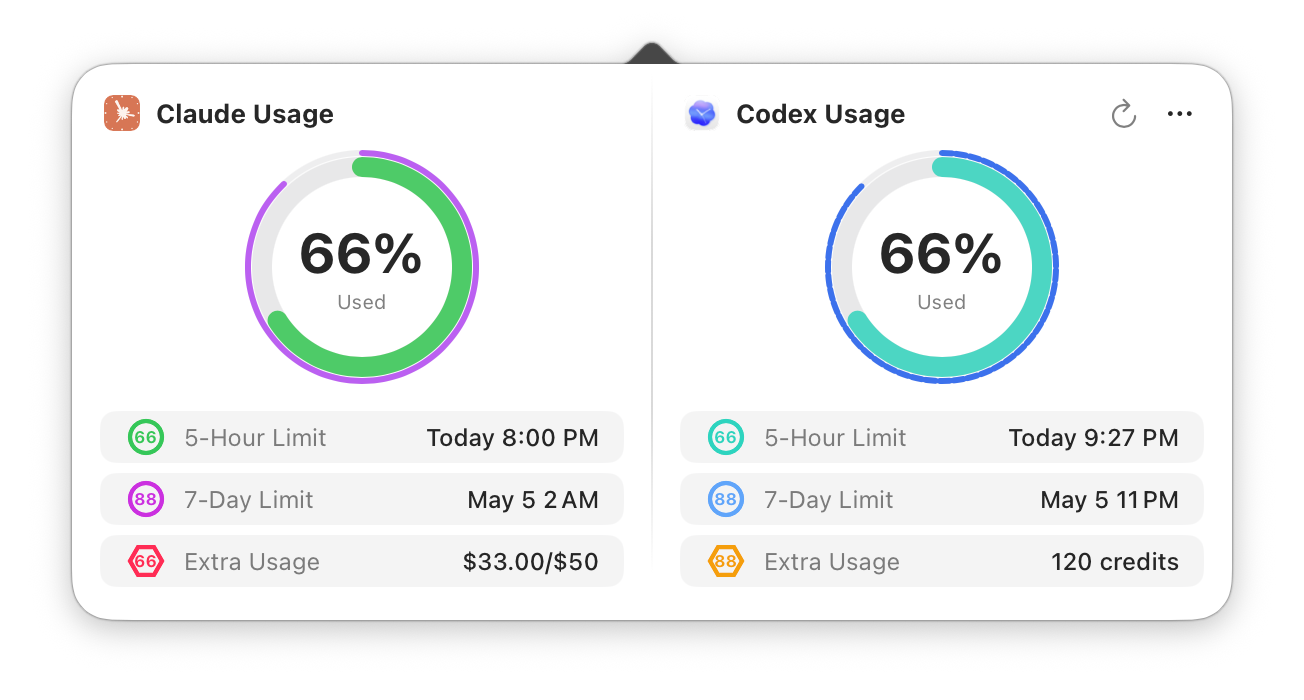
🧩 Codex Support - Optional Codex quota monitoring; use Codex alone or show it alongside Claude in a dual-column view (add a Codex account in settings to enable)
🌐 Built-in Browser Login - Claude login automatically extracts Session Key; Codex uses built-in browser login for ChatGPT authentication
🎨 Appearance Settings - Support system default / light / dark appearance modes
🕐 Time Format - Support system default / 12-hour / 24-hour format
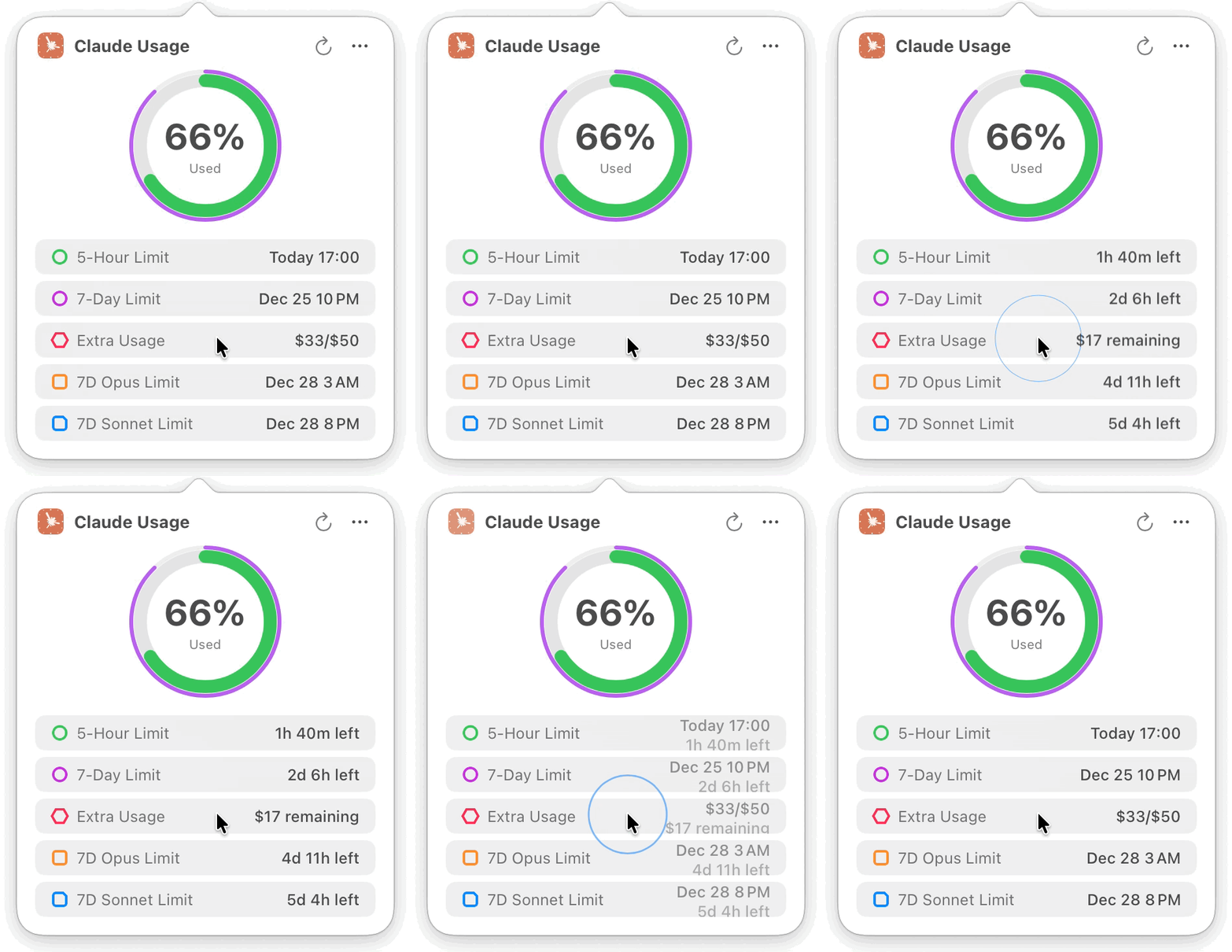
⏰ Precise Timing - Quota reset time displayed with minute precision
🔄 Smart Refresh System - Intelligent 4-level adaptive refresh or fixed intervals (1/3/5/10 min)
⚡ Manual Refresh - Click refresh button to update data instantly (10-second debounce protection)
💻 Native Experience - Pure native macOS app, lightweight and elegant
🌐 Cross-Platform Support
Works seamlessly with all Claude products:
🌐 Claude.ai (Web interface)
💻 Claude Code (CLI tool for developers)
🖥️ Desktop App (macOS/Windows)
📱 Mobile App (iOS/Android)
🤝 Cowork (AI Agent)
All platforms share the same usage quota, monitored in one place!
🧩 Codex Support
Monitor Codex alone or together with Claude
Supports Codex 5-hour, 7-day, and Extra Usage/credits information
Add a Codex account by logging in to ChatGPT with the built-in browser
Claude-only users need no extra setup; the existing experience stays unchanged until a Codex account is added
🎨 Personalization
🕓 Multiple Display Modes
Percentage Only - Clean and intuitive, view at a glance
Icon Only - Subtle and elegant, detailed info on click
🏠 Local Storage Only - All data stored locally only, never collect or upload any personal information
🔐 Keychain Protection - Claude Session Key and Codex authentication token secured in Keychain, no plain text keys
📖 Open Source Transparency - Code fully public, anyone can audit
🛡️ Sandbox Protection - App Sandbox enabled for enhanced security
📸 Screenshots
Menu Bar Display
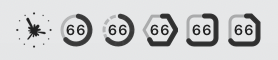
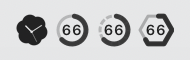
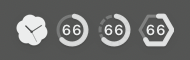
Claude and Codex menu bar icons and limit indicators are shown below
Dual indicators through shape and color ensure easy identification even in monochrome themes
Icon
5-Hour
7-Day
Extra
7-Day Opus
7-Day Sonnet
Monochrome (Adaptive)
—
—
Color Indicators:
Claude current colors:
5-Hour Limit (incl. detail window): → →
7-Day Limit (incl. detail window): → →
Extra Usage: → →
7-Day Opus Limit: → →
7-Day Sonnet Limit: → →
Codex current colors:
Codex 5-Hour Limit: → →
Codex 7-Day Limit: → →
Codex Extra Usage / credits: → →
Detail Window
Claude-only mode
Codex-only mode
Claude + Codex mode
Time Remaining Toggle Animation
Settings
General - Display options, menu bar theme, notification settings, appearance (system/light/dark), refresh mode, time format, language options, launch at login
Authentication - Claude/Codex account management (add/delete/switch/alias editing), built-in browser login, Claude manual input, connection diagnostics
About - Version info and related links
Welcome Screen
Configure Authentication - Claude supports built-in browser one-click login (recommended) or manual Session Key input, auto-retrieves Organization ID, and auto-creates multiple organizations under the same Session Key; Codex can be added later in settings through built-in browser login to ChatGPT
Configure Display Options - Menu bar theme, display content, display mode (smart/custom) selection with live preview
Set Up Later - Close welcome screen, configure later in settings
Double-click to open, drag app to Applications folder
Right-click the app and select "Open" on first launch (allow unsigned app)
Allow Keychain access for authentication info (you may need to allow again after version updates; the prompt shows the relevant authentication token name)
Updates after the first install are in-app. Sparkle checks for new versions automatically (and on demand via Menu → Check for Updates), then downloads, verifies the EdDSA signature, and installs with one click — no need to re-download the DMG for future releases.
Option 2: Build from Source
Requirements
macOS 13.0 or later
Xcode 15.0 or later
Git
Build Steps
hljs language-bash
# Clone repository
git clone https://github.com/f-is-h/Usage4Claude.git
cd Usage4Claude

# Open in Xcode
open Usage4Claude.xcodeproj

# Press Cmd + R to run in Xcode
📖 User Guide
Initial Setup
Launch App
Welcome screen will appear on first run
Configure Authentication
Claude Option 1: Browser Login (Recommended)
Click the "Browser Login" button
Log in to your Claude account in the built-in browser
Session Key will be automatically extracted after successful login
Claude Option 2: Manual Input
Open browser and visit the Claude usage page
Open developer tools (F12 or Cmd + Option + I)
Switch to "Network" tab, refresh the page
Find the usage request, extract sessionKey=sk-ant-... from Cookie
Paste into the input field
Codex Account (Optional)
Open Settings → Authentication
Click "Browser Login" for Codex
Log in to your ChatGPT account in the built-in browser
Authentication info is saved automatically after successful login
Codex does not currently support manual Session Key input
Daily Usage
Default Display - Menu bar icon shows usage percentage
View Details - Click the menu bar icon to view details; when only Claude/Codex is configured, the detail window shows a Claude/Codex single column, and when both are configured it shows a dual-column view
Manual Refresh - Click refresh button in detail window or use shortcut ⌘R (data also auto-refreshes when opening the main window); in the dual-column view, Claude and Codex can also be refreshed separately
Switch Account - Click "…" menu in detail window or right-click menu bar icon to select a Claude / Codex account
Keyboard Shortcuts
⌘R - Manual refresh data
⌘, - Open General Settings
⌘⇧A - Open Authentication Settings
⌘Q - Quit app
Update Alerts - When a new version is available, the menu bar icon shows a badge and menu items display rainbow text
Check Updates - Menu → Check for Updates. New versions download, verify (EdDSA signature), and install in-app — no manual re-download needed (powered by Sparkle)
Refresh Mode
Smart Frequency (Recommended)
Automatically adjusts refresh rate based on usage patterns
Active mode (1 min) - Fast refresh when actively using Claude or Codex
Idle modes (3/5/10 min) - Progressively slower refresh when idle
Significantly reduces API calls during idle periods (up to 10x)
Instantly returns to 1-minute refresh when usage detected
Automatically refreshes after system wake to avoid stale data
Fixed Frequency
1 minute - Recommended for consistent monitoring
3 minutes - Balanced monitoring
5 minutes - Low frequency monitoring
10 minutes - Minimal API calls
❓ FAQ
Q: What if the app shows "Session Expired"?
A: Claude Session Keys or Codex authentication tokens expire periodically (usually weeks to months), and you need to log in again:
Open Settings → Authentication
For Claude, click "Browser Login" to log in again (recommended), or manually re-obtain Session Key
For Codex, click Codex "Browser Login" and log in to ChatGPT in the built-in browser
Done, monitoring will resume
Q: How to enable auto-launch on startup?
A: Two methods:
Method 1: Using built-in option (Recommended)
Open Settings → General
Check "Launch at Login" option
Method 2: Via System Settings
Open System Settings → General → Login Items
Click "+" to add Usage4Claude
Q: How much system resources does it use?
A: Very lightweight:
CPU Usage: < 0.1% (idle)
Memory: ~20MB
Network: Refreshes at the configured smart frequency; when both Claude and Codex are configured, each service is requested separately
Q: Which macOS versions are supported?
A: Requires macOS 13.0 (Ventura) or later. Supports both Intel and Apple Silicon (M1/M2/M3) chips.
Q: Why does it need Keychain permission?
A:
Keychain is macOS's system-level password manager
Claude Session Key and Codex authentication token are encrypted in Keychain
Claude Organization ID is stored in local config (non-sensitive identifier)
This is Apple's recommended secure storage method
Only this app can access the information, other apps cannot view it
Q: Is my data safe? How is privacy protected?
Completely safe!
Data Storage:
All data stored only on your local Mac
No collection, no tracking, no statistics of any information
No network requests except Claude and Codex usage-related API calls
No third-party services used
Authentication Security:
Claude Session Key and Codex authentication token encrypted via macOS Keychain (system-level encryption)
Only this app can access your credentials, other apps cannot read them
You can revoke access anytime via "Keychain Access" app
Code Transparency:
100% open source
No obfuscation or hidden features
Community can audit and verify
Additional Protection:
App Sandbox enabled (limits system access)
No access to your files, contacts, or other apps
Minimal permissions (only network + Keychain)
You can verify all of this by reviewing the source code on GitHub!
Q: Does it work with Claude Code / Desktop App / Mobile App?
A: Yes, it works with all Claude platforms!
Since all Claude products (Web, Claude Code, Desktop App, Mobile App, Cowork) share the same usage quota, Usage4Claude monitors your combined usage across all platforms.
Whether you're:
Coding in terminal with claude code
Chatting on claude.ai
Using the desktop app
Using mobile apps
Using Cowork agents
You'll see your real-time total usage in the menu bar. No platform-specific configuration needed!
Q: How do I enable Codex support? Can I use Codex only?
A: Yes. Open Settings → Authentication, click Codex "Browser Login", and log in to ChatGPT in the built-in browser.
Codex only: the menu bar and detail window show Codex usage
Claude + Codex: the detail window shows both providers side by side
Codex currently supports browser login only, not manual Session Key input
Q: Can't see the icon in menu bar?
A: macOS system or third-party software (like Bartender, Hidden Bar, etc.) may automatically hide menu bar icons.
Solution:
Hold Command (⌘) key
Drag icons in the menu bar with mouse
Drag Usage4Claude icon to the visible area on the right side of menu bar
Release mouse
Note:
macOS Sonoma (14.0+) automatically hides infrequently used icons to "Control Center"
You can adjust menu bar icon display in "System Settings" → "Control Center"
Q: How to manage multiple accounts?
A: Usage4Claude supports multiple Claude accounts, multiple organizations under the same Claude account, and independent Codex account management:
Add Account - Add via Claude browser login, Claude manual input, or Codex browser login in Settings → Authentication
Switch Account - Click "…" menu in detail window or right-click menu bar icon, select the Claude / Codex account to switch to
Edit Alias - Set easily recognizable aliases for each account
Delete Account - Swipe left or use edit mode to remove unwanted accounts
Q: How to enable usage notifications?
A: Toggle Claude usage notifications in Settings → General:
Usage Warning - System notification when Claude usage reaches 90%
Reset Notification - Notification when Claude quota resets
macOS notification permission required on first enable
🛠 Tech Stack
Built with modern macOS native technologies:
Language: Swift 5.0+
UI Framework: SwiftUI + AppKit hybrid
Architecture: MVVM
Networking: URLSession
Reactive: Combine Framework
Localization: Built-in i18n support
Platform: macOS 13.0+
🗺 Roadmap
✅ Completed
Basic monitoring features
Menu bar real-time display
Circular progress indicator
Smart color alerts
Real-time countdown
Multiple menu bar display modes
Visual settings interface
Multilingual support
First-launch onboarding
Update checking with visual alerts
Keychain authentication storage
Shell auto-package DMG
GitHub Actions auto-release
Settings interface display optimization
Launch at login option
Keyboard shortcuts support
Manual refresh feature
Three-dot menu dark mode adaptation
Dual limit mode support (5-hour + 7-day)
Dual-ring menu bar icon
Unified color scheme management
Debug mode (fake data, simulated updates)
Detail window remove Focus state
Multi-limit type support (5 types)
Smart/custom display mode
Auto-retrieve Organization ID
Optimized welcome flow
Monochrome theme icon display
Korean language support
GitHub Actions check online version
Appearance settings (system/light/dark)
Built-in browser auto-authentication
Automatic credential configuration
Usage notifications
Multi-account management
Unified time format settings
Settings interface dark mode adaptation
Codex usage monitoring support
Codex-only mode
Claude + Codex dual-column detail window
Codex account management and browser login
French localization
Automatic refresh after system wake
Mid-term Plans
Feature Addition
More language localizations
Long-term Vision
More Display Methods
Desktop widgets
Browser extension icon usage display
Data Analysis
Usage history records
Trend charts
Multi-platform Support
iOS / iPadOS version
Apple Watch version
Windows version
🤝 Contributing
All contributions are welcome! Whether it's new features, bug fixes, or documentation improvements.
For detailed contribution guidelines, please see CONTRIBUTING.md.
How to Contribute
Fork this repository
Create your feature branch (git checkout -b feature/AmazingFeature)
Commit your changes (git commit -m 'Add some AmazingFeature')
Push to the branch (git push origin feature/AmazingFeature)
Open a Pull Request
Contributors
Thanks to all who have contributed to this project!
📝 Changelog
For detailed version history and updates, please see CHANGELOG.md.
💖 Support
If this project helps you, please support in the following ways:
⭐ Star the Project
Giving a star is the biggest encouragement!
☕ Buy Me a Coffee
📢 Share the Project
If you like this project, please share it with more people!
📄 License
This project is licensed under the MIT License - see LICENSE file for details
hljs language-sql
MIT License
Copyright (c) 2025 f-is-h
You arefreeto use, copy, modify, merge, publish, distribute, sublicense,
and/or sell copies of the Software.
🙏 Acknowledgments
Thanks to Claude/Codex - Most code written by AI
Thanks to all contributors and users for their support
Icon design inspired by Claude/Codex official branding
This project is an independent third-party tool with no official affiliation with Anthropic, Claude AI, OpenAI, or Codex. Please comply with the relevant Terms of Service when using this software.
If this project helps you, please give it a ⭐ Star!








 →
→  →
→ 
 →
→  →
→ 
 →
→  →
→ 
 →
→  →
→ 
 →
→  →
→ 
 →
→  →
→ 
 →
→  →
→ 
 →
→  →
→